
ONN 100025104
onn. Corner TV Wall Mount User Manual
Model: 100025104 | Brand: ONN
Introduction
This user manual provides comprehensive instructions for the installation, operation, and maintenance of your onn. Full Motion Corner TV Wall Mount. Designed for 37" to 70" televisions, this versatile mount offers full motion capabilities, including tilt, swivel, and pan, allowing you to achieve the optimal viewing angle and reduce glare. It supports both corner and flat wall installations, providing flexibility for various room layouts.
The mount is engineered for easy setup, coming with all necessary hardware and clear instructions for a quick three-step installation process. Its VESA compliant design ensures compatibility with a wide range of TV models, making it a durable and adaptable solution for your home entertainment needs.
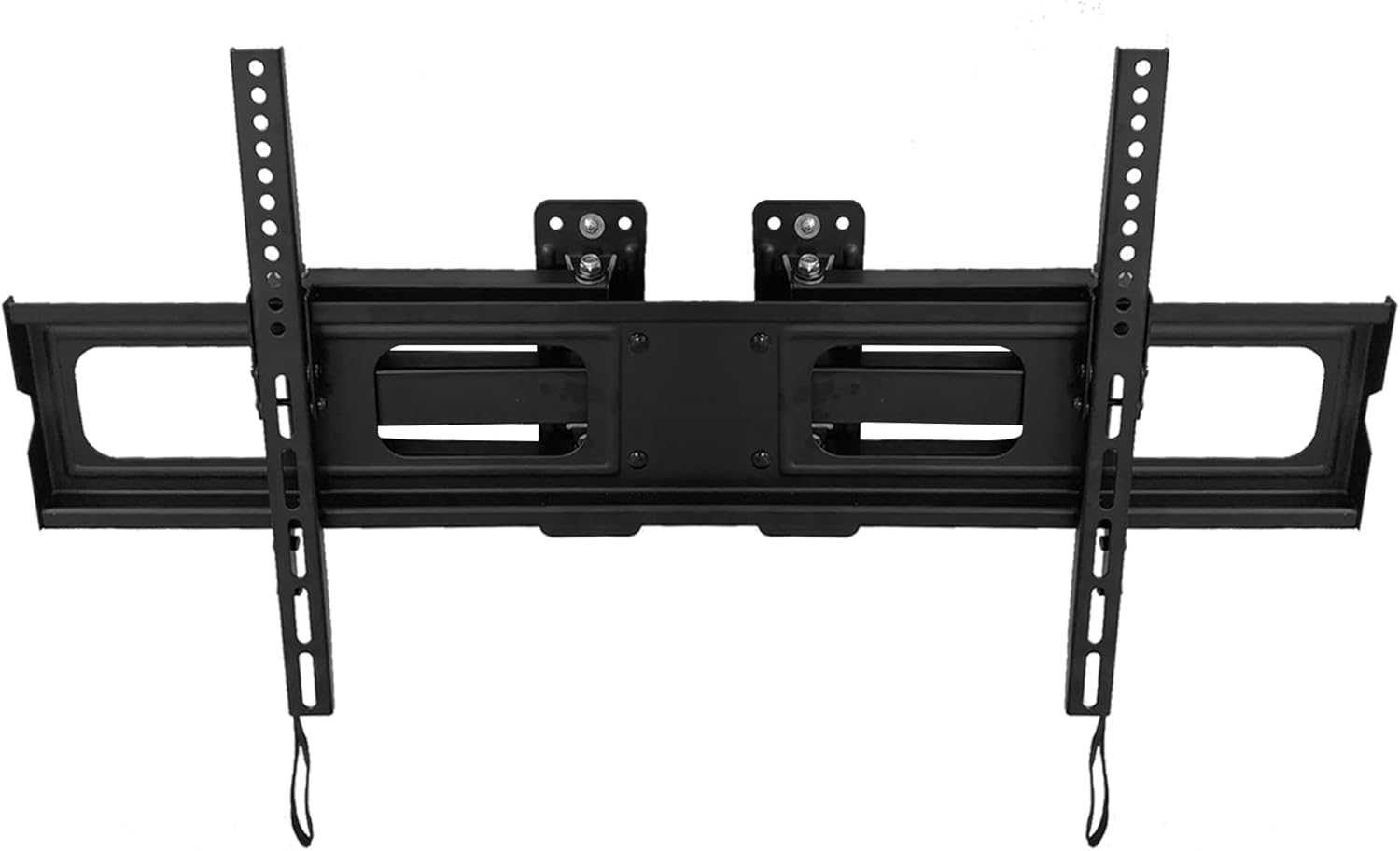
Image: The onn. Corner TV Wall Mount, designed for secure and flexible TV placement.
Safety Information
Please read all instructions carefully before installation. Incorrect installation may result in property damage or personal injury. If you do not understand these instructions, or have doubts about the safety of the installation, please contact customer support.
- Ensure the mounting surface can safely support the combined weight of the mount and the television.
- Do not exceed the maximum load capacity of 88 lbs (40 kg).
- Use only the provided hardware. Do not use the mount for any purpose not expressly specified by the manufacturer.
- Keep children and pets away during installation.
- Always use appropriate safety gear, such as eye protection, during installation.
Package Contents
Verify that all components are present and undamaged before beginning installation. Refer to the image below for a visual representation of the included items.

Image: The "In The Box" view, displaying the TV mount, various screws and anchors for the hardware kit, a quick start guide, and the user manual.
Included Items:
- Full Motion Corner TV Wall Mount Assembly
- Hardware Kit (various screws, washers, spacers, anchors)
- Quick Start Guide
- User Manual (this document)
- Drilling Template
Setup and Installation
The onn. Corner TV Wall Mount is designed for a straightforward 3-step installation process. Ensure you have basic tools such as a drill, stud finder, level, and socket set.
Step 1: Attach Brackets to TV
Identify the VESA mounting holes on the back of your television. Select the appropriate screws and spacers from the hardware kit that fit your TV's VESA pattern. Secure the vertical mounting brackets to the back of your TV.

Image: Step 1 of the installation guide, showing how to attach the mounting brackets to the back of the TV.
This mount is VESA compliant and fits TVs with VESA patterns ranging from 75x75mm to 800x400mm. Common VESA patterns supported include 75x75, 100x100, 200x100, 200x200, 300x300, 400x400, 600x300, and 800x400.

Image: A visual guide to VESA mounting patterns, showing various compatible sizes for the TV mount.
Step 2: Attach Mount to Wall/Corner
Determine whether you are mounting the TV on a flat wall or in a corner. Use a stud finder to locate wall studs for secure attachment. Mark the drilling points using the provided drilling template. Drill pilot holes and secure the wall mount assembly to the wall using the appropriate anchors and screws from the hardware kit.
Image: Step 2 of the installation guide, demonstrating how to attach the mount to a flat wall or a corner, with separate diagrams for each method.
The mount is designed for versatility, supporting both flat wall and corner installations. This allows for optimal placement in various room configurations.

Image: Visual representation of the mount's compatibility with both corner and flat wall installations, showing a TV mounted in each scenario.
Step 3: Hook TV to the Mount
Carefully lift the television with the attached brackets and hook them onto the wall mount. Ensure the TV is securely seated on the mount. Follow the instructions to lock the TV in place, preventing accidental dislodgement.
Image: Step 3 of the installation guide, detailing how to hook the TV onto the wall mount and secure it.
Operating Your TV Mount
Your onn. Full Motion Corner TV Wall Mount allows for effortless adjustment of your television's position to achieve the perfect viewing angle and reduce glare.
- Tilt: The mount allows for vertical tilting of the TV. Gently push or pull the top or bottom of the TV to adjust the tilt angle. The mount supports a tilt range of up to 10 degrees.
- Swivel: The mount can swivel horizontally, allowing you to turn the TV left or right. Gently push the side of the TV to rotate it to your desired angle, up to 90 degrees.
- Pan: In addition to tilt and swivel, the mount allows for panning, extending the TV up to 19 inches from the wall. This provides flexibility for viewing from different areas of the room.

Image: A visual representation of the mount's full motion capabilities, showing how the TV can tilt, swivel, and pan for optimal viewing.
Maintenance
To ensure the longevity and proper function of your TV mount, follow these simple maintenance guidelines:
- Periodically check all screws and connections to ensure they remain tight and secure.
- Clean the mount with a soft, dry cloth. Avoid using abrasive cleaners or solvents.
- Do not hang anything from the mount or the TV that exceeds the specified weight limit.
Troubleshooting
If you encounter any issues with your onn. Corner TV Wall Mount, refer to the following common solutions:
- TV is not level: Check that the wall mount itself is level before attaching the TV. Adjust the fine-tuning screws on the TV brackets if available, or re-level the wall plate.
- Difficulty adjusting movement: Ensure all locking mechanisms are disengaged. If the mount feels stiff, check for any obstructions or overtightened bolts. Do not force movement.
- Mount feels unstable: Immediately remove the TV from the mount. Re-check all wall anchors and screws to ensure they are properly installed into studs or appropriate masonry. Verify that the TV weight does not exceed the mount's capacity.
For issues not covered here, please contact customer support.
Specifications
| Feature | Detail |
|---|---|
| Model Number | 100025104 |
| Compatible TV Sizes | 37" to 70" |
| Maximum Load Capacity | 88 lbs (40 kg) |
| VESA Compatibility | 75x75mm to 800x400mm |
| Movement Type | Full Motion (Swivel, Tilt, Pan) |
| Tilt Angle | Up to 10 degrees |
| Swivel Angle | Up to 90 degrees |
| Extension from Wall | Up to 19 inches |
| Material | Alloy Steel |
| Product Dimensions | 2.6 x 35.16 x 9.4 inches |
| Item Weight | 13.07 pounds |
| UPC | 681131313483 |
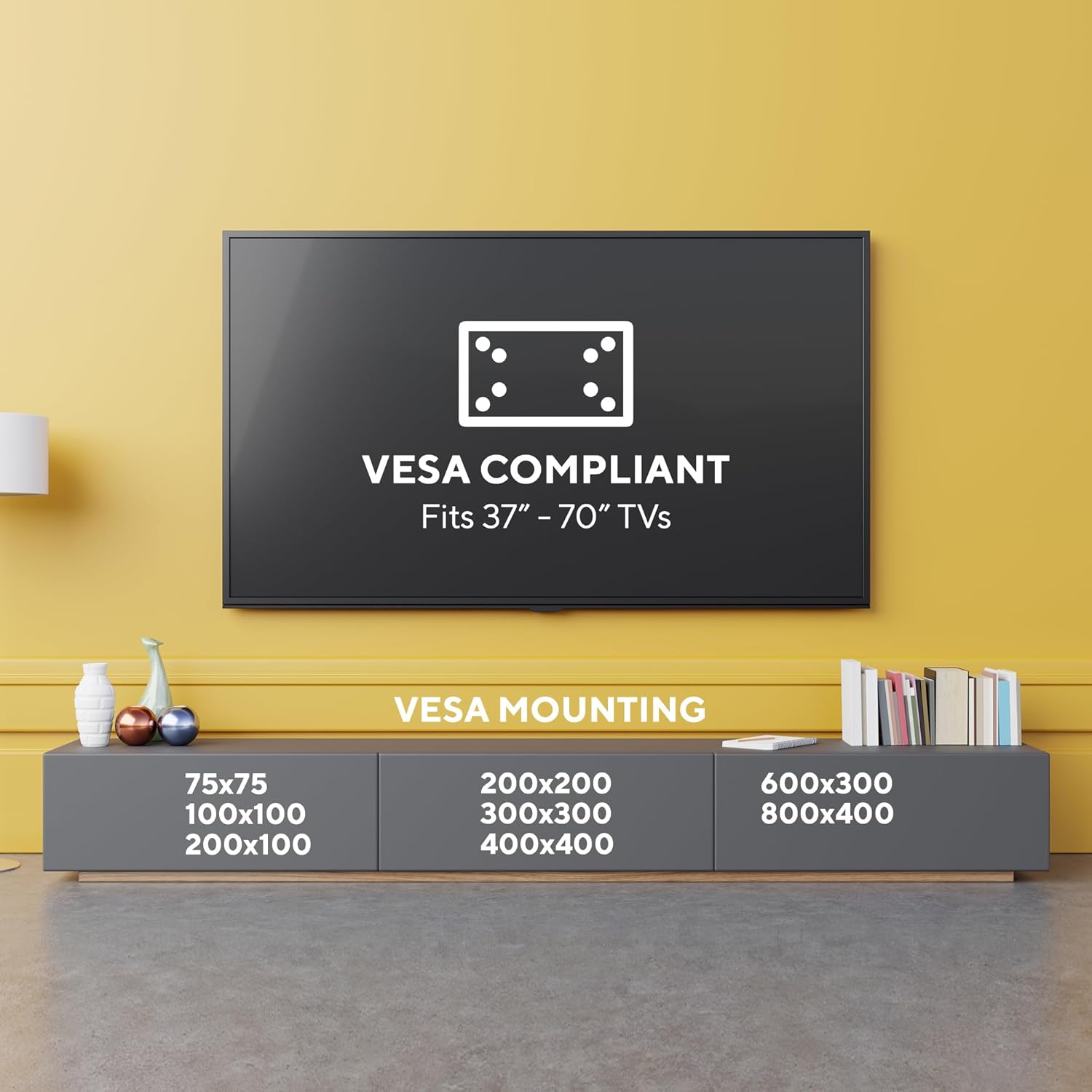
Image: The mount is tested and certified in accordance with UL Standard 2442, confirming it can hold four times its maximum load capacity of 88 lbs.
Customer Support
For technical assistance, missing parts, or any questions regarding your onn. Corner TV Wall Mount, please contact ONN customer support. Refer to the contact information provided on the product packaging or the quick start guide.
Online Support: Visit the official ONN website for FAQs and support resources.
Telephone Support: Check your quick start guide for the customer service phone number.
Related Documents - 100025104
 |
Onn ONA21DP001A 9-inch Portable DVD Player User Manual User manual for the Onn ONA21DP001A 9-inch Portable DVD Player with Swivel Screen, covering safety instructions, operation, controls, connections, maintenance, and troubleshooting. |
 |
ONN Swivel TV Base 32-65 Inch Quick Start Guide Quick start guide for the ONN Swivel TV Base, compatible with 32-65 inch TVs. Includes setup instructions, VESA pattern compatibility, weight limits, warranty information, and parts list. |
 |
Onn 17LY80 Bluetooth In-Ear Headphones User Guide A concise guide to using the Onn 17LY80 Bluetooth In-Ear Headphones, covering charging, pairing, controls, wearing, troubleshooting, and FCC compliance. |
 |
ONN 17LY81 Bluetooth On-Ear Headphones Product Guide User guide for ONN 17LY81 Bluetooth On-Ear Headphones, covering charging, Bluetooth connection, music playback, power functions, calling, and troubleshooting. |
 |
Onn VIZIO OS Operating System Manual A comprehensive guide for setting up and operating your Onn Smart TV powered by VIZIO OS. This manual covers first-time setup, connecting to Wi-Fi, pairing Bluetooth devices, navigating VIZIO OS features like WatchFree+, and troubleshooting common issues. |
 |
ONN Voice Remote Control: Pairing Guide and Safety Information Comprehensive guide for pairing your ONN Voice Remote Control with your TV and ONN Box, including essential safety warnings and troubleshooting steps for common issues. |