
1. Introduction
Thank you for choosing the Kruger&Matz FRAMEO Digital Photo Frame KM1102-15. This device allows you to easily share and display your favorite photos and videos from your smartphone via the Frameo application. This manual provides essential information for safe and efficient use of your digital photo frame. Please read it thoroughly before operating the device and retain it for future reference.
2. Safety Information
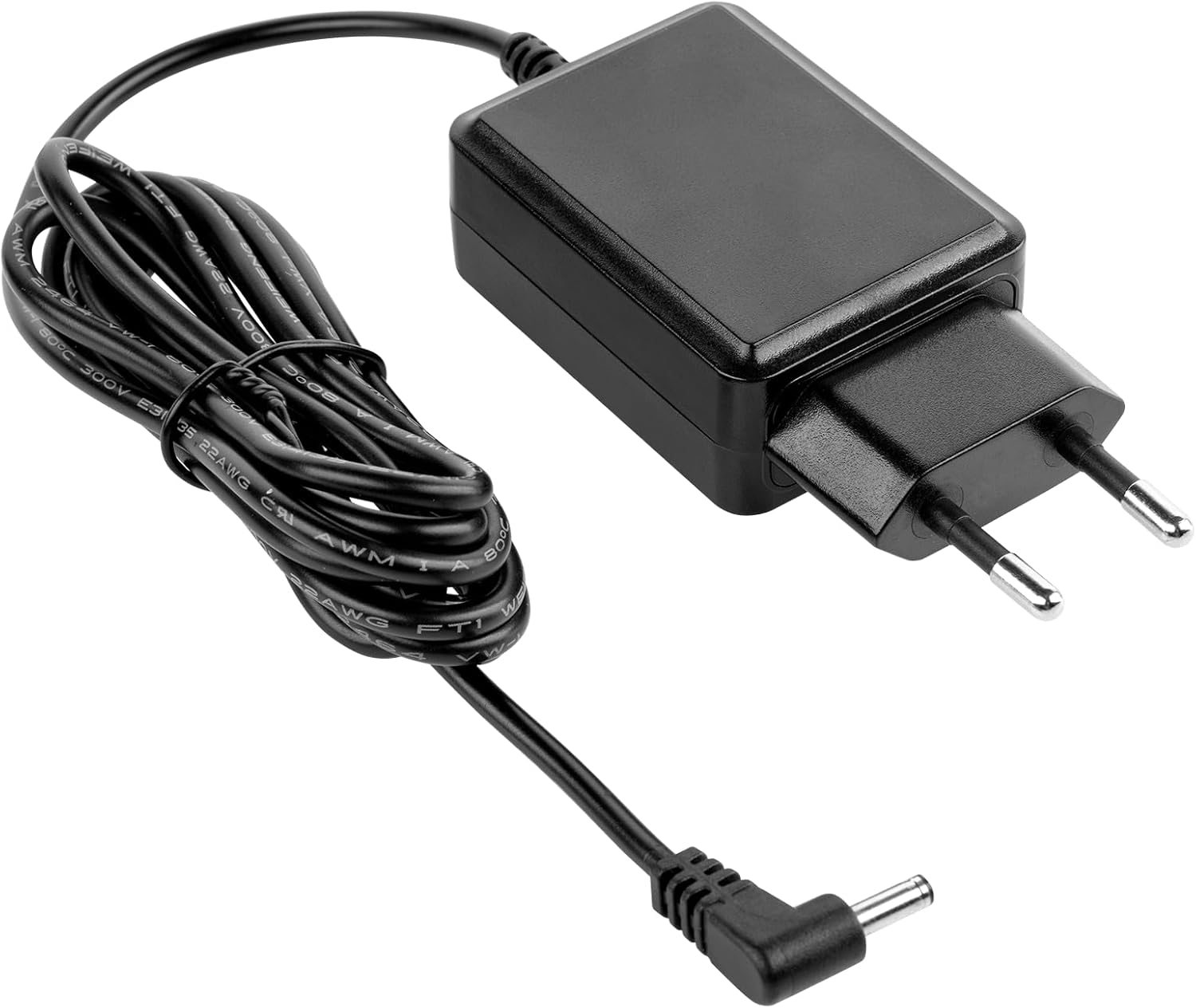
- Ensure the power adapter is connected to a compatible power source (100-240V AC; 50/60Hz).
- Do not expose the device to water, moisture, or extreme temperatures.
- Avoid dropping or subjecting the frame to strong impacts.
- Do not attempt to disassemble or repair the device yourself. Contact qualified service personnel for assistance.
- Keep the device away from direct sunlight and heat sources to prevent overheating.
3. Package Contents
Verify that all items are present in the package:
- Kruger&Matz FRAMEO Digital Photo Frame KM1102-15
- Power Adapter (DC 5V / 2A)
- Stand
- User Manual (this document)
4. Product Overview
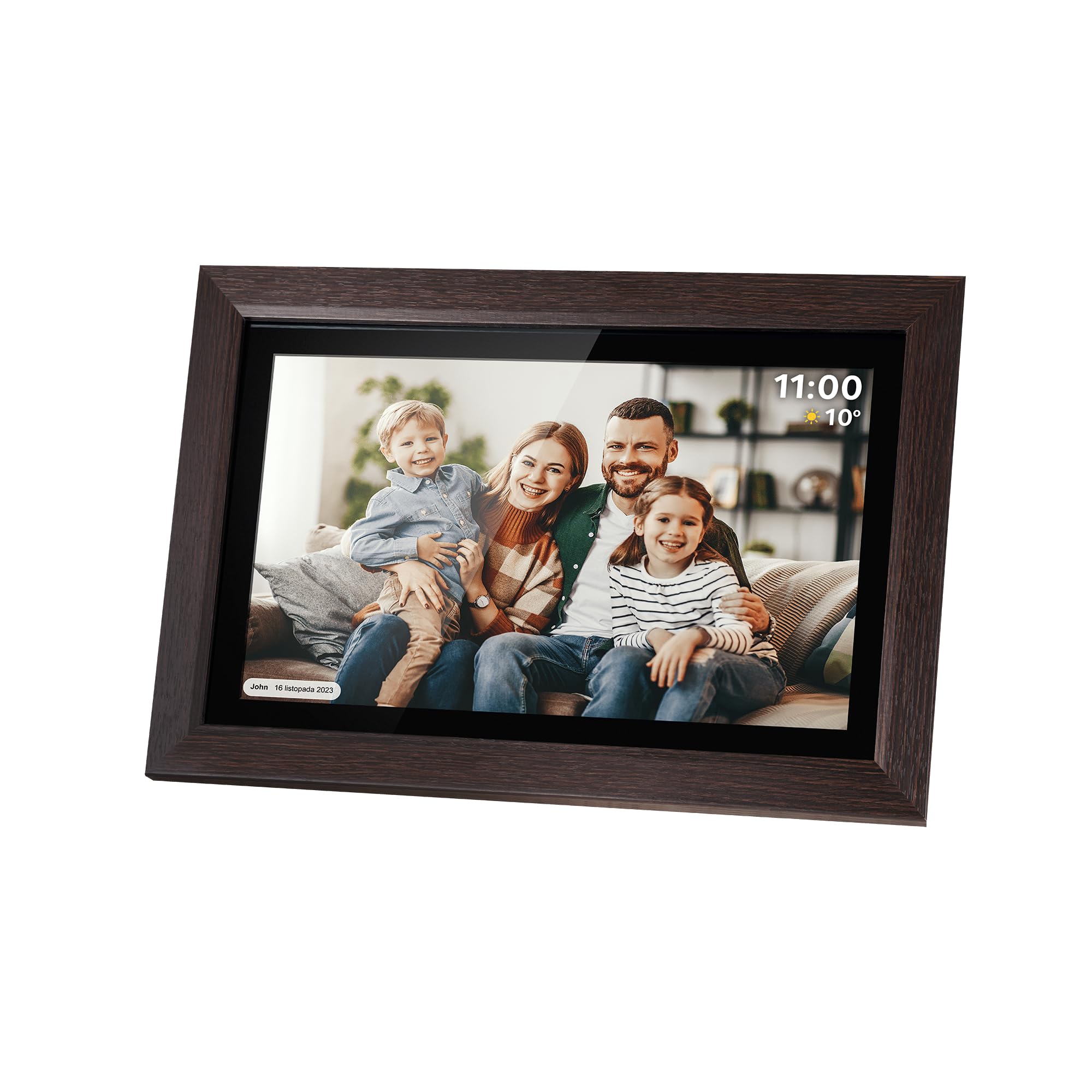
Front View
The front of the digital photo frame features a 15.6-inch IPS touchscreen display with a wooden frame. The screen displays photos, videos, time, and weather information.
Rear View and Ports
The rear of the frame includes mounting points for wall installation, a removable stand slot, and various ports for connectivity and power.


5. Setup
5.1 Powering On
- Connect the provided power adapter to the DC 5V port on the back of the frame.
- Plug the power adapter into a wall outlet.
- The frame will automatically power on. Follow the on-screen instructions for initial setup.
5.2 Connecting to Wi-Fi
During the initial setup, you will be prompted to connect the frame to a Wi-Fi network. This is essential for using the Frameo app and receiving updates.
- Select your preferred language.
- Choose your Wi-Fi network from the list.
- Enter the Wi-Fi password and tap 'Connect'.

5.3 Installing the Frameo App
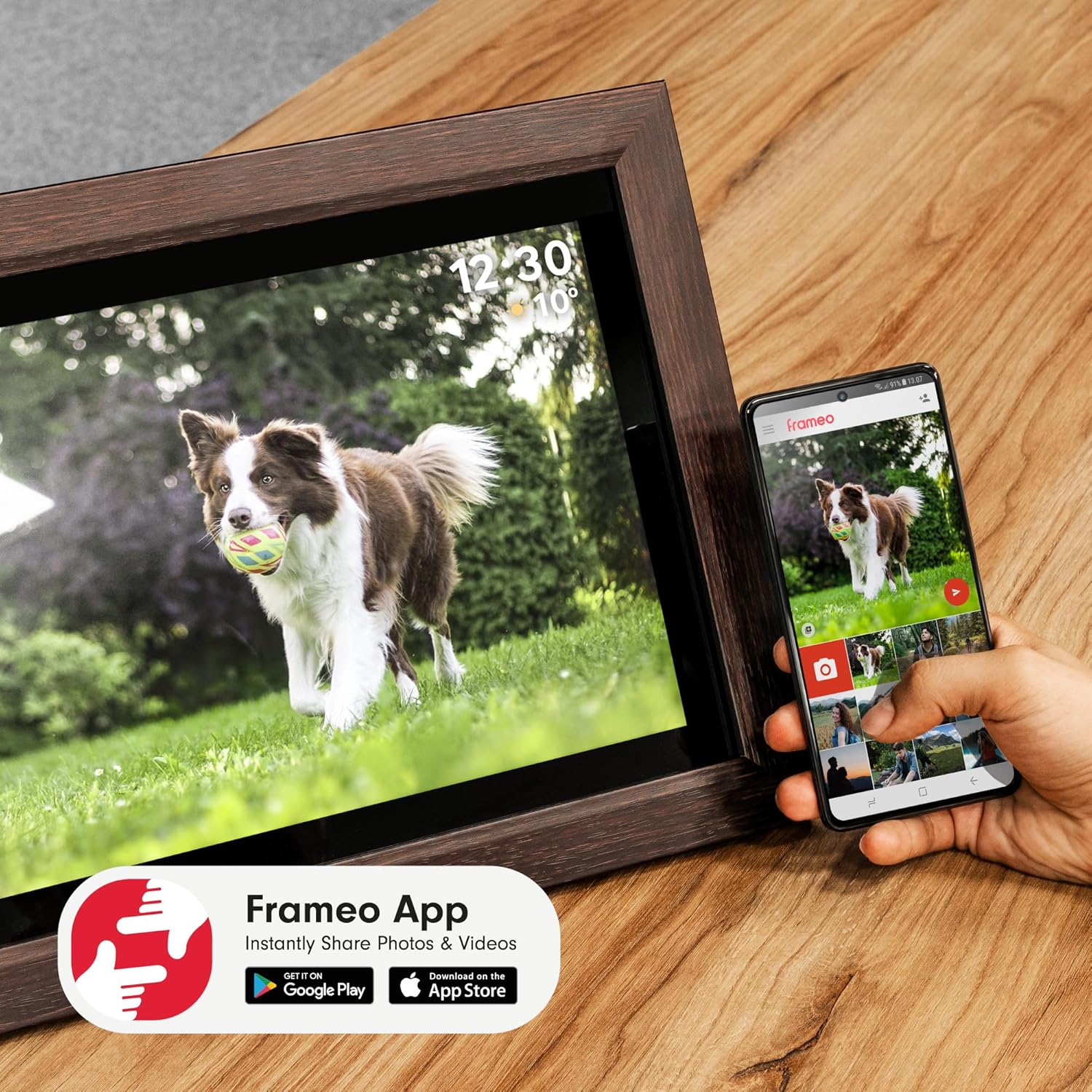
To send photos and videos to your frame, download the Frameo app on your smartphone (iOS or Android).
- Search for "Frameo" in the Apple App Store or Google Play Store.
- Download and install the application.
- Open the app and create an account or log in.
5.4 Pairing the Frame with the App
Once the frame is connected to Wi-Fi and the app is installed, you can pair them.
- On your frame, navigate to 'Add Friend' or 'Connect'. A unique code will be displayed.
- In the Frameo app on your smartphone, enter this code to connect your device to the frame.
- You can now start sending photos and videos.

6. Operating the Digital Photo Frame
6.1 Transferring Photos and Videos
You can transfer media to your frame using two primary methods:
- Via Frameo App: Open the Frameo app on your smartphone, select the photos or videos you wish to send, choose your frame, and tap 'Send'.
- Via MicroSD Card: Insert a MicroSD card (up to 32GB) containing JPEG or PNG photos and video clips into the MicroSD slot on the frame. The frame will automatically detect and display the content.

6.2 Viewing Photos and Videos
The frame will automatically cycle through your uploaded photos and videos. You can interact with the touchscreen to:
- Swipe left/right to manually browse through media.
- Tap on a photo to view it in full screen or access options.
- Tap the play icon to start video playback.


6.3 Adding Descriptions and Reactions
You can add descriptions to your photos and send reactions directly from the frame or via the Frameo app.
- Descriptions: When viewing a photo, tap the screen to bring up options, then select to add a description.
- Reactions: Tap the reaction icon (e.g., heart, smiley face) to send feedback to the sender of the photo.

6.4 Timer Function and Automatic Sleep Mode
The frame includes a timer function and automatic sleep mode to conserve energy and customize display times.
- Access these settings in the frame's menu to set specific on/off times or enable automatic sleep after a period of inactivity.
6.5 Weather Display
The frame can display current weather information. Ensure the frame is connected to Wi-Fi and location services are enabled (if prompted) for accurate weather updates.
7. Maintenance
7.1 Cleaning the Screen
To clean the touchscreen, gently wipe it with a soft, lint-free cloth. For stubborn smudges, slightly dampen the cloth with water or a screen-cleaning solution. Avoid using harsh chemicals or abrasive materials.
7.2 Software Updates
The frame may receive periodic software updates to improve performance and add new features. Ensure your frame is connected to Wi-Fi to receive these updates. You can check for updates in the frame's settings menu.
8. Troubleshooting
- Frame not turning on: Ensure the power adapter is securely connected to both the frame and a working power outlet.
- Cannot connect to Wi-Fi: Verify your Wi-Fi password. Ensure the frame is within range of your router. Try restarting both the frame and your router.
- Photos not appearing: Check if the Frameo app is successfully paired with the frame. Ensure photos are sent correctly from the app. If using a MicroSD card, verify it is inserted correctly and contains supported file formats (JPEG, PNG).
- Touchscreen unresponsive: Try restarting the frame by unplugging and re-plugging the power adapter. If the issue persists, contact support.
- Weather not displaying: Ensure the frame has a stable Wi-Fi connection and that location services are enabled in the settings.
9. Specifications
| Feature | Specification |
|---|---|
| Model | KM1102-15 |
| Display Size | 15.6 inches IPS |
| Resolution | 1280 x 1080 pixels |
| Aspect Ratio | 16:9 |
| Touchscreen | 5-point capacitive |
| Operating System | Android 6.1 |
| Processor | Rockchip RK3128 Quad core |
| RAM | 1 GB |
| Internal Memory | 16 GB |
| MicroSD Card Support | Up to 32 GB |
| Connectivity | Wi-Fi 802.11 b/g/n (2.4 GHz) |
| Ports | USB-C, DC Power Input |
| Power Supply | DC 5V / 2A |
| AC Adapter Input | 100-240V AC; 50/60Hz |
| Dimensions (L x W x H) | 435 x 284 x 28 mm (17.1 x 11.2 x 1.1 inches) |
| Weight | 1653 g (3.64 lbs) |
| Supported Photo Formats | JPEG, PNG |
| Supported Video Formats | Video clips (specific formats not detailed, but generally common formats like MP4 are supported by Frameo) |

10. Warranty and Support
This product is covered by a manufacturer's warranty. Please refer to the warranty card included in your package for specific terms and conditions. For technical support, troubleshooting assistance, or warranty claims, please contact Krüger&Matz customer service through their official website or the contact information provided with your purchase documentation.
For more information, visit the official Krüger&Matz website: www.krugermatz.com
