
1. What's in the Box
Verify that all components are present in the packaging:
- Kids Instant Print Camera
- Gift Box
- Printing Paper Roll (x3)
- Neck Lanyard
- Color Pen (x5)
- USB Type-C Cable
- User Manual

2. Setup
2.1 Charging the Camera
The camera is equipped with a 1200mAh rechargeable battery. Before first use, fully charge the camera using the provided USB Type-C cable. Connect the cable to the camera's charging port and a compatible USB power adapter (not included). A full charge typically provides 4-6 hours of usage.
2.2 Inserting the SD Card
The camera supports an external SD card for storage. A 32GB SD card is included. Locate the SD card slot on the side of the camera. Insert the SD card with the metal contacts facing down until it clicks into place. Ensure the camera is powered off before inserting or removing the SD card.
2.3 Loading Printing Paper
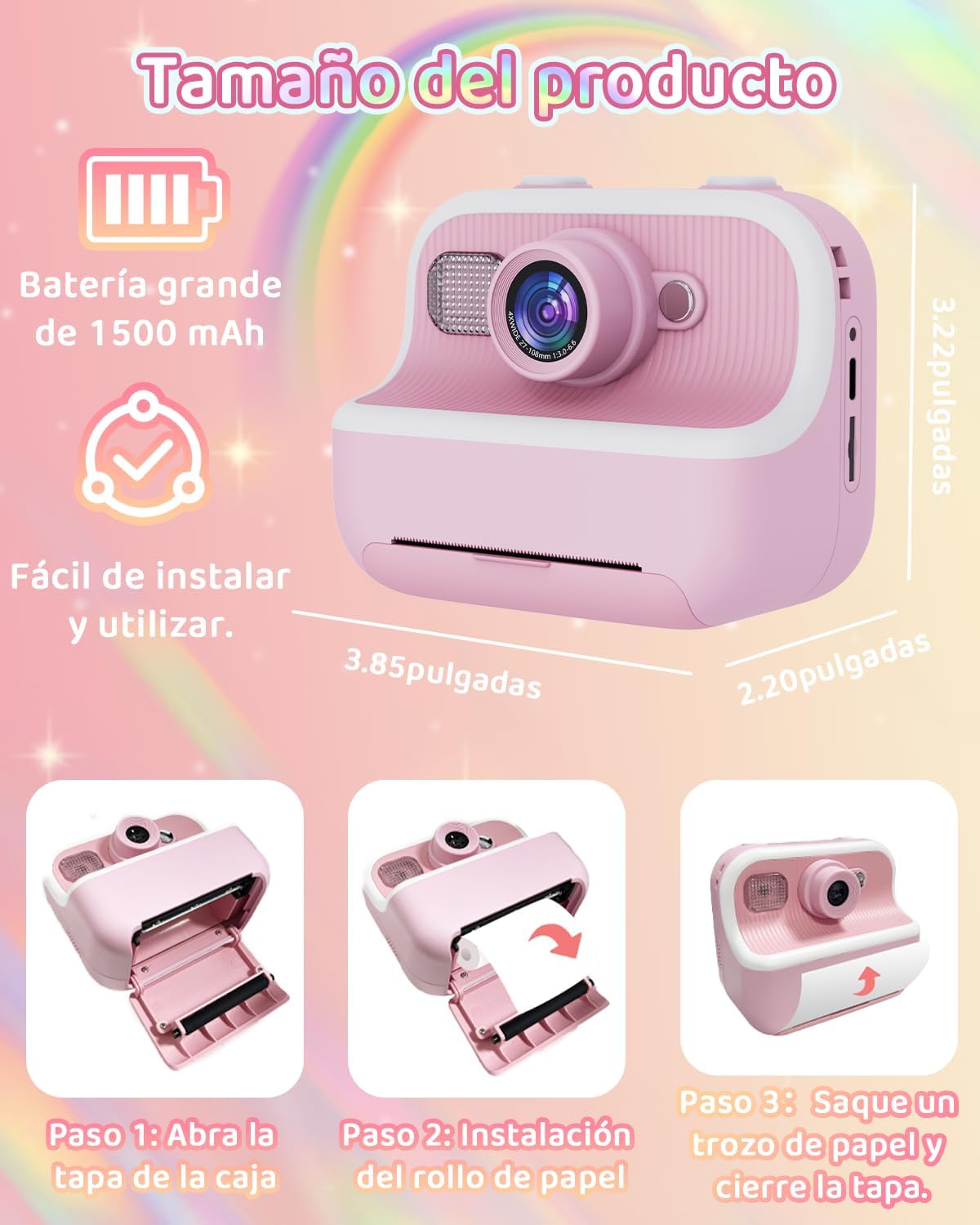
The camera uses inkless thermal printing paper. Follow these steps to load a new roll:
- Step 1: Open the paper compartment cover.
- Step 2: Place a new roll of printing paper into the compartment, ensuring the paper feeds out from the top.
- Step 3: Pull a small length of paper out and close the cover, making sure the paper protrudes slightly from the printing slot.
3. Operating the Camera
3.1 Power On/Off
Press and hold the power button (usually located on the side or top) to turn the camera on or off. The 2.4-inch IPS screen will illuminate.
3.2 Taking Photos
In photo mode, frame your shot using the IPS screen. Press the shutter button to capture a 12MP image. The camera features a 48MP lens for high-quality captures.

3.3 Instant Printing
After taking a photo, the camera can instantly print it using its inkless printing technology. This feature allows for immediate physical copies of captured moments. Printed photos can also be colored in with the provided pens.

3.4 Video Recording
Switch to video mode to record 1080P HD videos. Press the record button to start and stop recording. The camera captures clear video footage.

3.5 Special Features
- Digital Zoom: Utilize the digital zoom function (up to 16x) to get closer to your subjects.
- Time-lapse: Set the camera to capture photos at predefined intervals for time-lapse sequences.
- Photo Frames & Filters: Enhance your photos with a variety of built-in frames, color filters, and mirror effects.
- Graffiti Stickers: Apply fun digital stickers to your images.
- Games & MP3 Player: The camera includes simple games and an MP3 player for entertainment.


3.6 File Transfer
To transfer photos and videos to a computer, connect the camera using the provided USB Type-C cable. The camera will appear as a removable drive, allowing you to copy files. Alternatively, you can remove the SD card and use a card reader (not included) to access the files.
4. Maintenance
To ensure the longevity and optimal performance of your PTHTECHUS Kids Camera, follow these maintenance guidelines:
- Cleaning: Use a soft, dry cloth to clean the camera body. For the lens and screen, use a specialized lens cleaning cloth. Avoid abrasive materials or chemical cleaners.
- Storage: Store the camera in a cool, dry place away from direct sunlight and extreme temperatures.
- Battery Care: If the camera will not be used for an extended period, charge it periodically to maintain battery health.
- Paper Storage: Keep printing paper rolls in a dry environment to prevent damage or degradation.
5. Troubleshooting
If you encounter issues with your camera, refer to the following common problems and solutions:
- Camera does not turn on: Ensure the battery is sufficiently charged. Connect the camera to a power source and try again.
- Cannot take photos/videos: Check if the SD card is inserted correctly and has sufficient storage space. The camera may also require a format of the SD card if it's new or from another device.
- Printing issues (blank prints, faded prints): Verify that the printing paper is loaded correctly and that there is enough paper remaining. Ensure the paper is inserted with the correct side facing the print head.
- Poor image quality: Ensure the lens is clean and free from smudges. Check lighting conditions.
- Camera freezes: Try restarting the camera by holding the power button. If unresponsive, use a small pin to press the reset button (if available, refer to camera diagram in full manual).
6. Specifications
| Feature | Specification |
|---|---|
| Brand | PTHTECHUS |
| Model Name | PTH-Q5 |
| Color | Purple |
| Screen Size | 2.4 Inches |
| Display Type | LCD |
| Photo Sensor Resolution | 12 MP |
| Video Resolution | 1080p |
| Optical Zoom | 6 x |
| Digital Zoom | Up to 16x (implied from images) |
| Memory Storage Capacity | 32 GB (External-Memory Size) |
| Connectivity Technology | USB |
| Battery Type | Lithium-Ion Polymer |
| Battery Capacity | 1200mAh (from feature bullets) |
| Battery Average Life | 5 Hours |
| Item Weight | 400 Grams |
| Material | Acrylonitrile Butadiene Styrene (ABS) |
| Special Features | Time-lapse, Instant Print, Games, MP3 Player, Photo Frames, Filters |
| Age Range Description | Kid (3-12 Years Old) |
7. Warranty and Support
PTHTECHUS provides service and quality assurance for every product. Each product includes 3 months of quality assurance service and a one-year warranty. For any questions regarding the product after purchase, please contact customer support. Refer to the instruction manual before use for optimal experience.


