1. Introduction
This manual provides instructions for the MAGIC-REFINER ATTACK SHARK X85PRO 75% Wireless Mechanical Keyboard. This keyboard features a 75% ANSI layout, multi-mode connectivity (Bluetooth, 2.4GHz wireless, USB-C wired), a TFT smart display, a gasket structure, hot-swappable switches, and RGB backlighting.
Package Contents
- ATTACK SHARK X85PRO Mechanical Keyboard
- USB-C to USB-A Cable
- Keycap Puller
- Extra Keycaps (5 pieces)
- Extra Switches (2 pieces)
- User Manual

2. Setup
Connecting the Keyboard
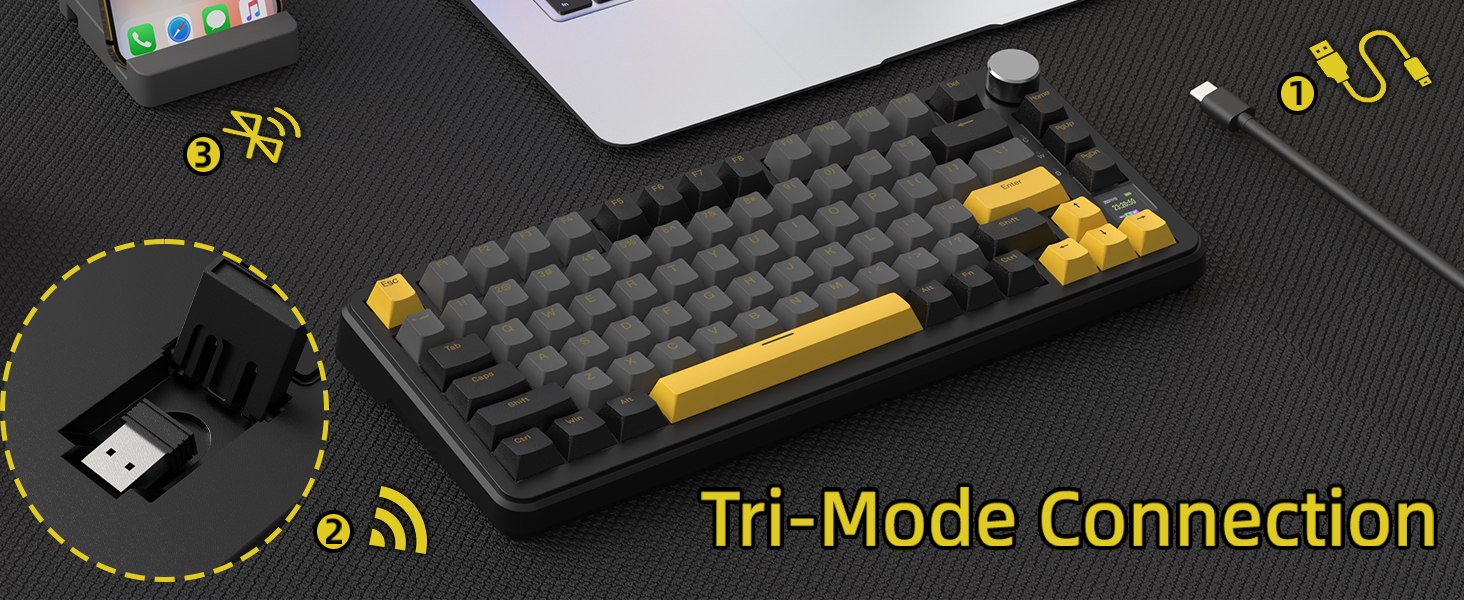
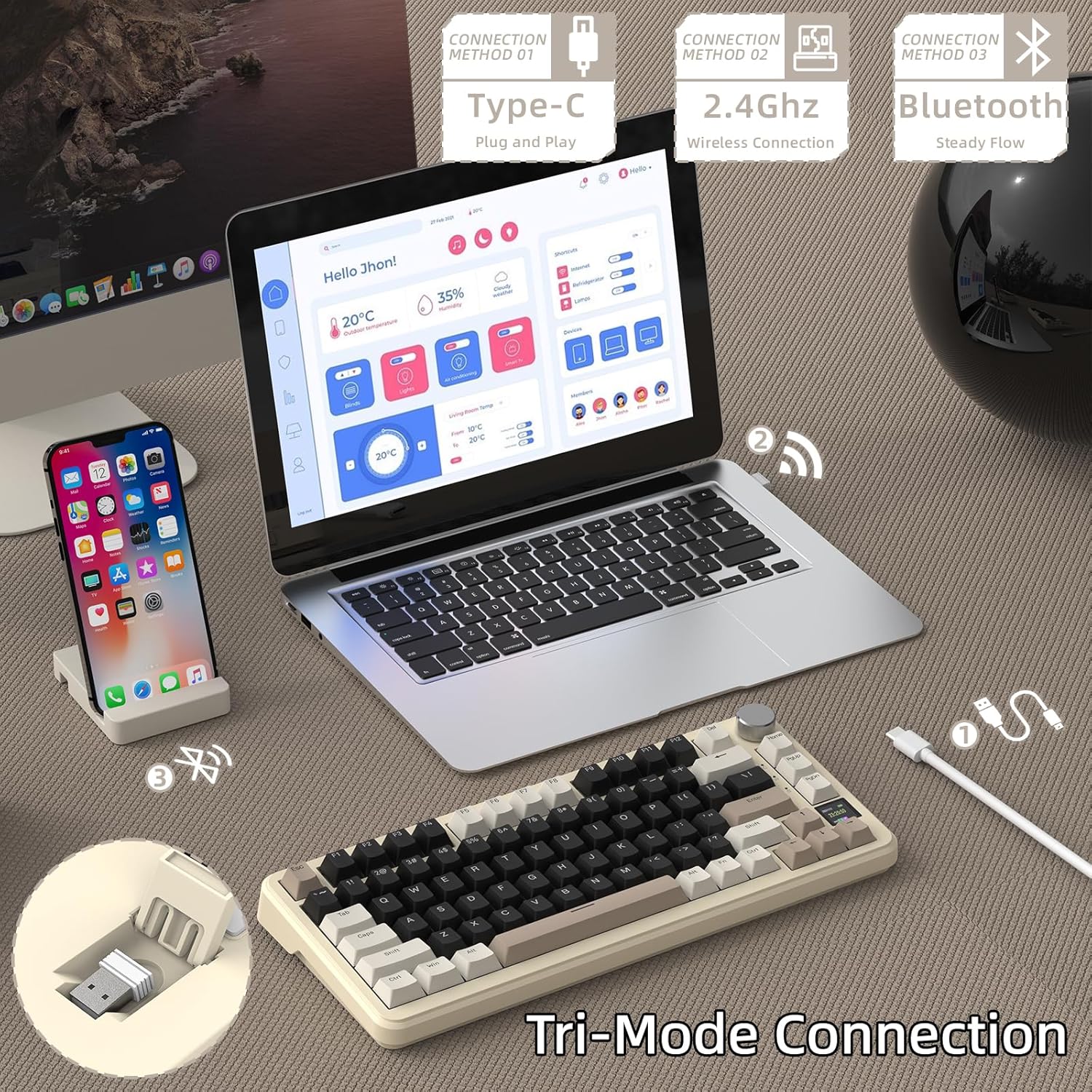
The X85PRO keyboard supports three connection modes: USB-C wired, 2.4GHz wireless, and Bluetooth. Use the switch on the keyboard to select your desired mode.
- USB-C Wired Connection: Connect the provided USB-C cable to the keyboard's USB-C port and the other end to your computer's USB-A port. The keyboard will be recognized automatically.
- 2.4GHz Wireless Connection: Locate the 2.4GHz USB receiver (often stored in a compartment on the keyboard). Plug the receiver into an available USB port on your computer. Switch the keyboard to 2.4G mode. The keyboard should connect automatically.
- Bluetooth Connection: Switch the keyboard to Bluetooth mode. The keyboard has three Bluetooth channels. On your device (PC, Mac, smartphone, tablet), search for Bluetooth devices and select the X85PRO. Follow any on-screen pairing instructions.
Operating System Compatibility
The keyboard is compatible with both Windows and Mac operating systems. Use the system switch on the keyboard to select the appropriate mode for your computer.
3. Operating Instructions
TFT Smart Display and Knob
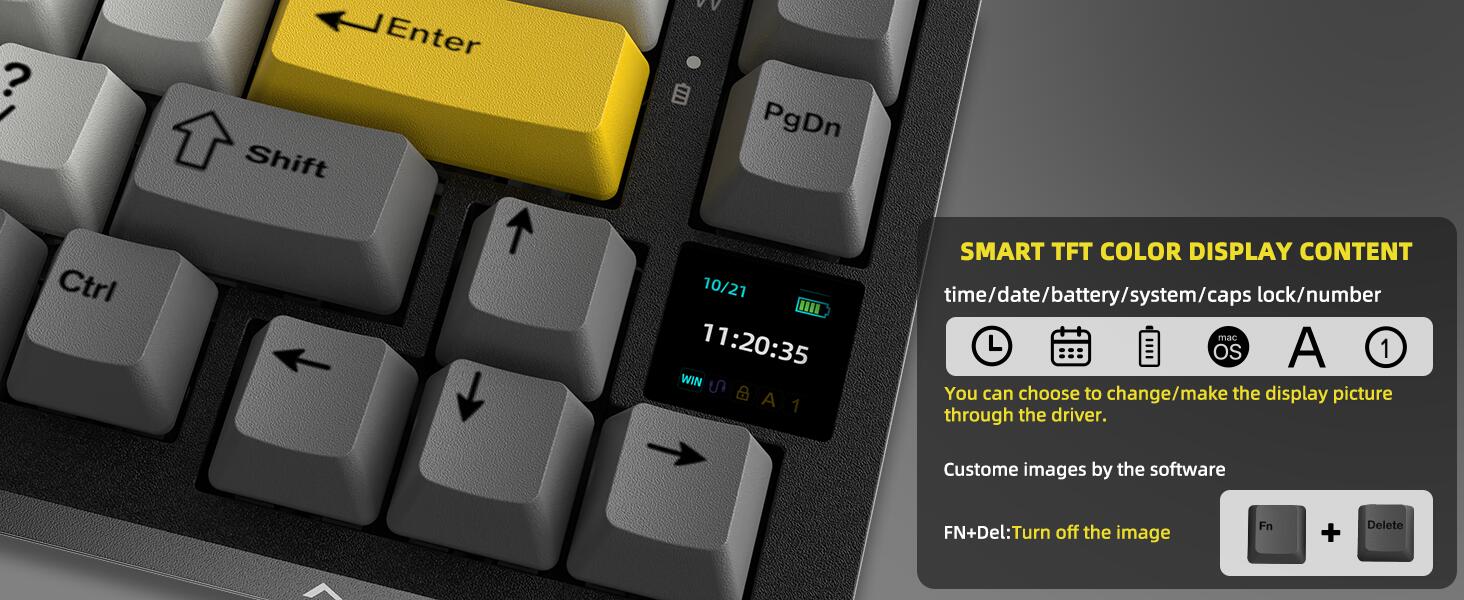
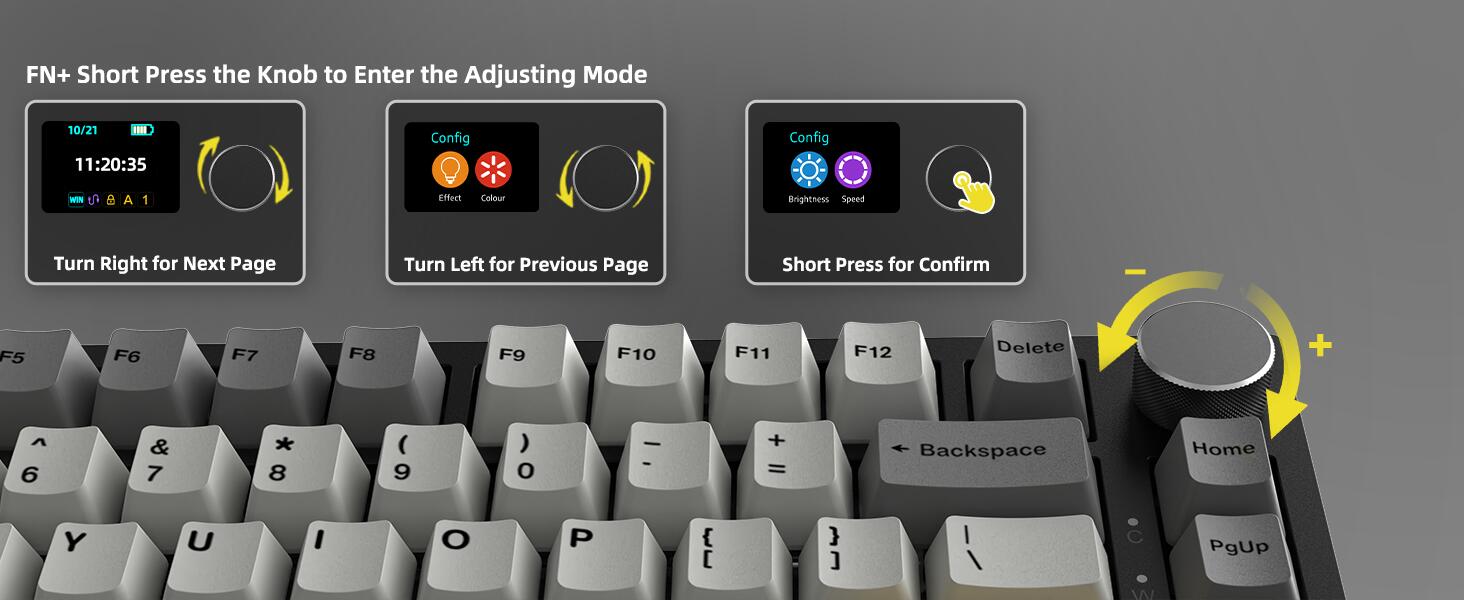
The X85PRO features a TFT color display and an aluminum knob for intuitive control and information display.
- Display Information: The TFT screen shows battery status, time, date, current mode (wired/2.4G/Bluetooth), and operating system (WIN/MAC).
- Knob Functionality: The knob allows for quick adjustments of various settings. Rotate the knob to navigate menus and press it to confirm selections.
- Customization: Use the OMK Cloud Drive software to customize GIF images, language settings, volume, light brightness, effects, and speed displayed on the screen.

RGB Backlighting
The keyboard features programmable RGB backlighting with south-facing LEDs. You can customize lighting and effects using the QMK cloud driver or Fn+ shortcut keys. The X85PRO supports eight monochrome backlights, one full-color backlight, and eighteen light flow effects.

QMK Cloud Driver
Utilize the QMK cloud driver for advanced customization, including macro editing, RGB effects, custom button assignments, and GIF settings for the TFT display. This driver allows for personalized keyboard configurations without requiring downloads for instant adjustments.
4. Maintenance
Hot-Swappable Switches
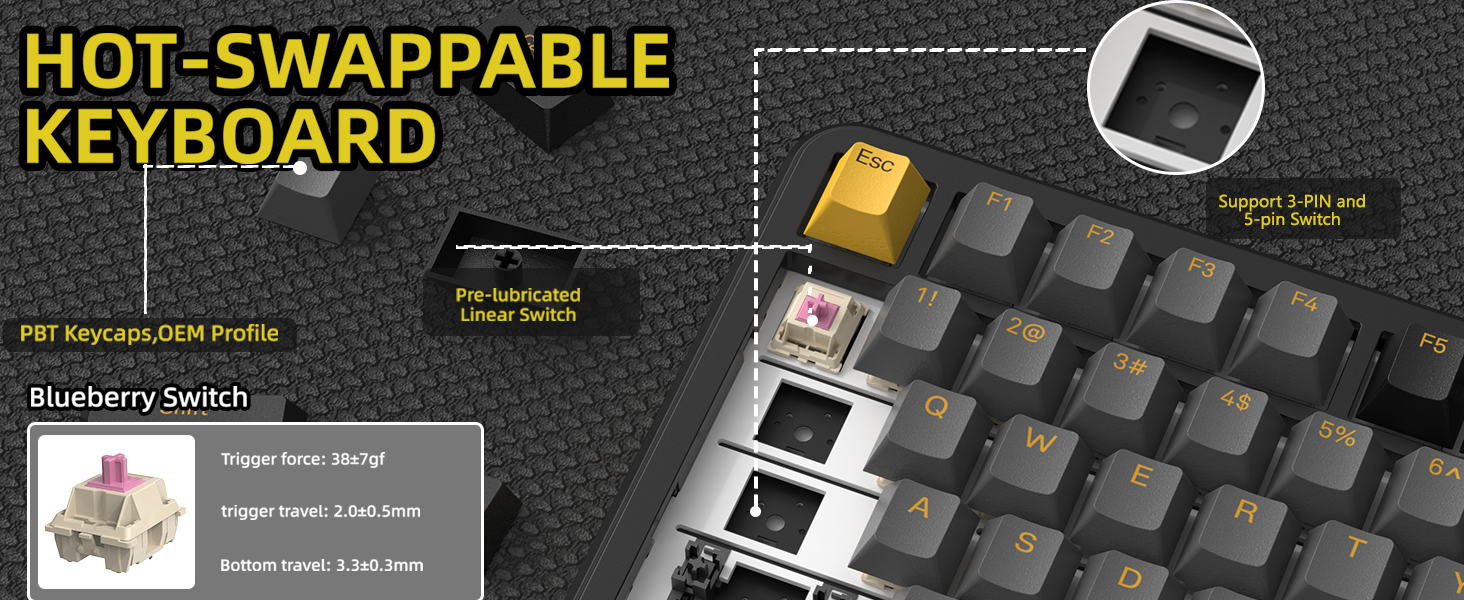
The keyboard features a 1.2mm Black Weighted Metal PCB that supports 3/5-pin hot-swappable switches. This allows users to easily change switches without soldering, enabling customization of typing feel and sound. The pre-lubed Blueberry switches provide a linear feel with a trigger force of 38±7gf, trigger travel of 2.0±0.5mm, and bottom travel of 3.3±0.3mm.

Gasket Structure
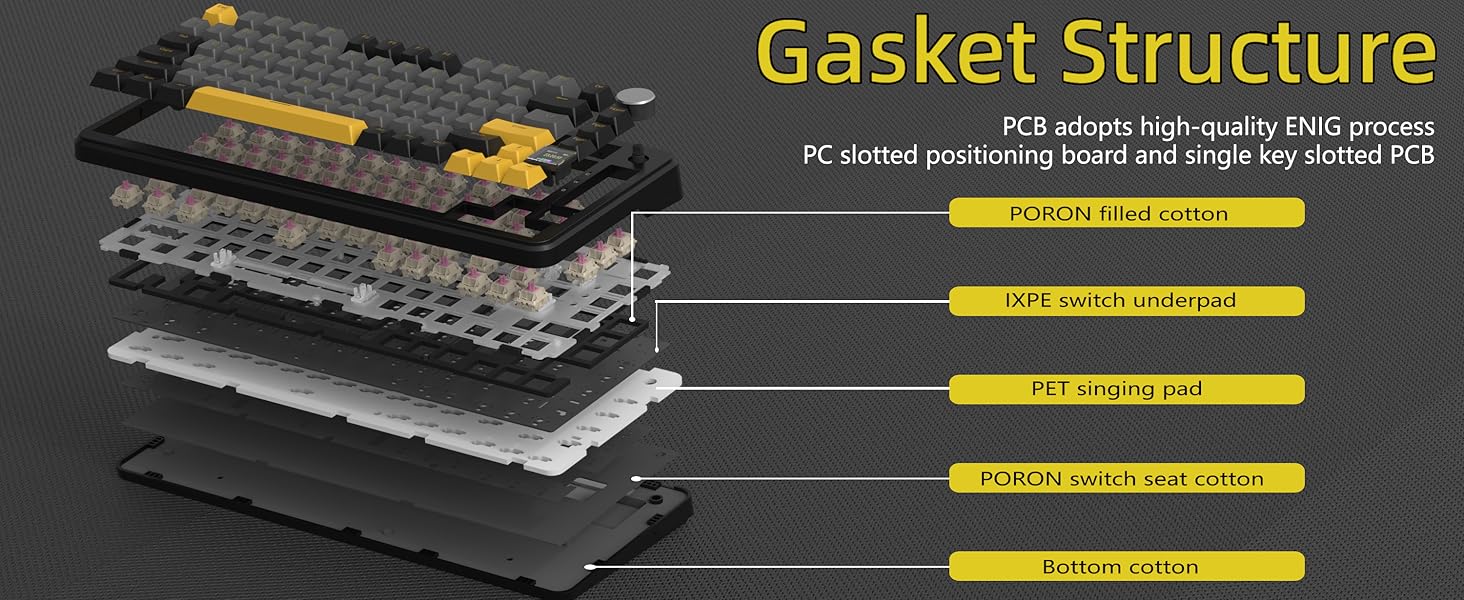
The keyboard incorporates an upgraded gasket structure with 5 layers of sound insulation cotton between the top panel, switch, PCB, and bottom. This design reduces noise and provides a smooth typing experience.

Battery Life and Charging
The keyboard is equipped with a 4000mAh battery, providing extended usage. Charging is done via the USB-C cable. The TFT display shows the current battery status.

5. Troubleshooting
- Keyboard not responding: Ensure the keyboard is charged and the correct connection mode (wired, 2.4G, or Bluetooth) is selected. For wireless modes, check if the receiver is properly plugged in or if Bluetooth is paired.
- Connectivity issues: Try reconnecting the USB cable, re-pairing Bluetooth, or re-inserting the 2.4GHz receiver. Ensure no other wireless devices are causing interference.
- RGB lighting not working: Check the keyboard settings via the knob or QMK software. Ensure the lighting is not turned off or set to a very low brightness.
- TFT display issues: If the display is blank or not updating, ensure the keyboard is powered on and connected. Check for any software updates for the QMK cloud driver.
- Keys not registering: If specific keys are not working, try replacing the switch for that key, as the keyboard is hot-swappable.
6. Specifications
| Feature | Detail |
|---|---|
| Brand | MAGIC-REFINER |
| Model Number | X85 PRO |
| Keyboard Description | Mechanical |
| Connectivity Technology | 2.4G, Bluetooth, USB-C |
| Compatible Devices | Laptop, PC, Smartphone, Tablet |
| Special Features | Backlit, Customizable Display Keys, Ergonomic, Hot-Swappable, Programmable Keys |
| Color | White PRO |
| Keyboard Backlighting Color Support | RGB |
| Style | Compact |
| Material | Polycarbonate |
| Number of Keys | 82 |
| Power Source | Rechargeable Battery & USB Power |
| Battery Capacity | 4000mAh |
| Switch Type | Linear (Blueberry Switch) |
| Keyboard Layout | QWERTY |
| Water Resistance Level | Not Water Resistant |
| Built-In Media | Keycap Puller, USB Cable |
7. Warranty and Support
For warranty information and technical support, please refer to the official MAGIC-REFINER website or contact your retailer. Keep your purchase receipt for warranty claims.


