
1. Introduction to TOPDON Phoenix Nano
The TOPDON Phoenix Nano is a state-of-the-art bidirectional scan tool designed for comprehensive automotive diagnostics. It features advanced ECU coding capabilities, supports modern communication protocols like CAN FD and DoIP, and offers over 32 special maintenance functions. This device is engineered for efficient and precise vehicle troubleshooting and maintenance.
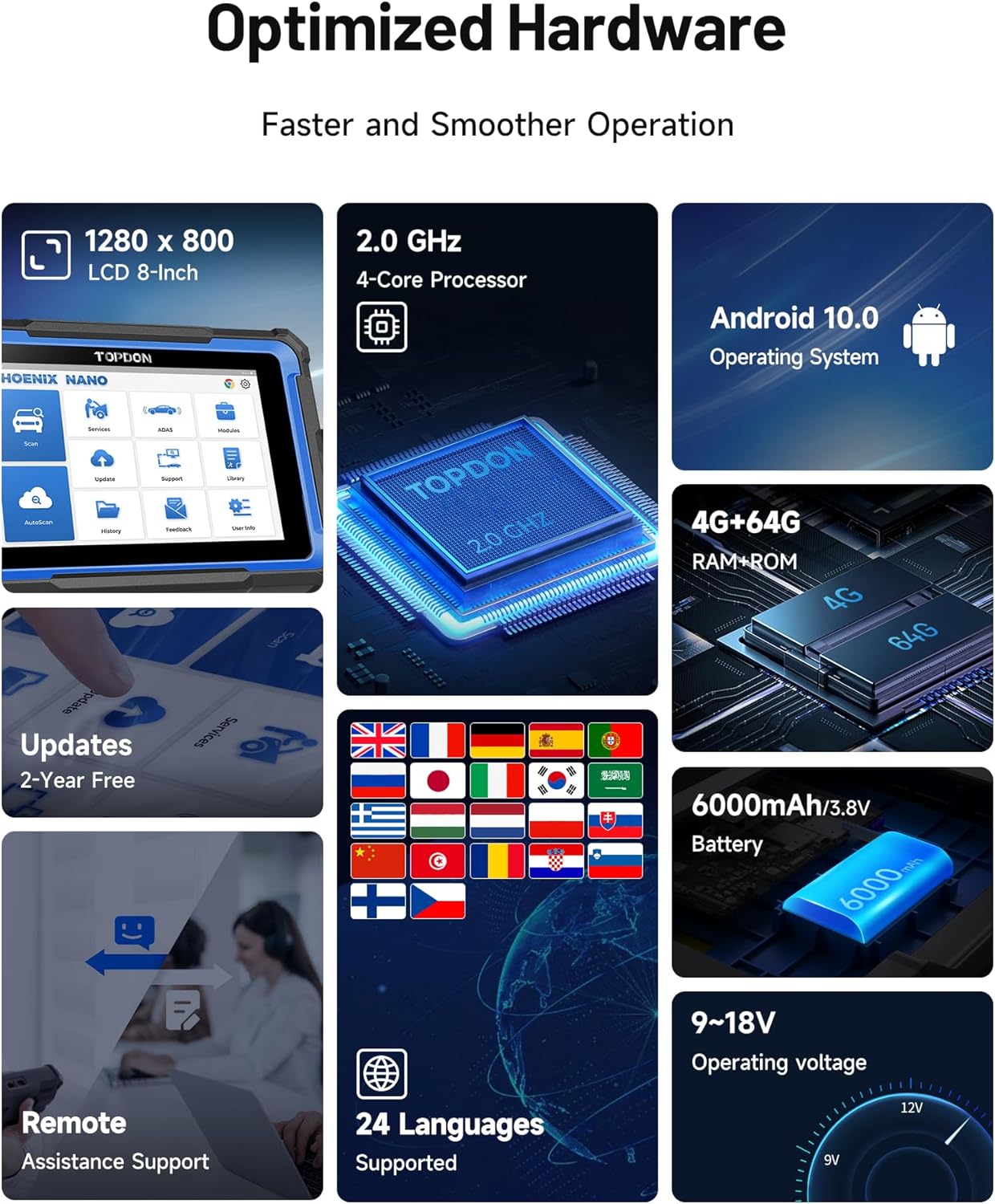
Equipped with robust hardware, including an Android 10.0 operating system, a 4-core 2.0GHz processor, 4GB RAM, 64GB storage, and an 8-inch 1280x800 touchscreen, the Phoenix Nano ensures smooth and fast performance for all diagnostic tasks.

2. What's in the Box
Upon unboxing your TOPDON Phoenix Nano, please verify that all the following items are included:
- Phoenix Nano Main Unit
- OBD 16 Pin Diagnostic Cable
- US/UK/European Convertible Power Adapter
- Password Envelope
- Type-C USB Cable
- Carrying Box
- Quick User Guide
- User Manual (English)
3. Setup and Initial Configuration
3.1 Powering On and Initial Boot
To power on the Phoenix Nano, press and hold the power button located on the side of the device until the screen illuminates. The device will boot into the Android operating system.
3.2 Connecting to Wi-Fi
For software updates and online features, connect the Phoenix Nano to a stable Wi-Fi network. Navigate to Settings > Network & Internet > Wi-Fi, select your desired network, and enter the password if prompted.
3.3 Software Updates
It is highly recommended to update the device software immediately after connecting to Wi-Fi. Tap the "Update" icon on the home screen and follow the on-screen instructions to download and install the latest software versions. This ensures access to the newest vehicle coverage and functions.
4. Operating the Phoenix Nano
The Phoenix Nano offers a user-friendly interface for various diagnostic and service functions. Below are key operational aspects:
4.1 Vehicle Connection
Connect the OBD 16 Pin Diagnostic Cable to the vehicle's OBD-II port (typically located under the dashboard) and to the Phoenix Nano's VCI port. Ensure a secure connection before proceeding with any diagnostic operations.
4.2 Full System Diagnostics
The Phoenix Nano provides comprehensive all-system diagnostics, allowing you to read ECU information, read and clear fault codes, and analyze live data from various vehicle modules. Use the "Scan" or "AutoScan" function on the home screen to initiate a full system scan.

4.3 Advanced ECU Coding
This feature allows for online ECU coding on supported vehicle brands (e.g., Audi, BMW, Porsche, Ford, Nissan). You can optimize vehicle performance, unlock hidden features, disable unwanted functions, and customize OE settings. Access this function via the "Services" or "Modules" menu.

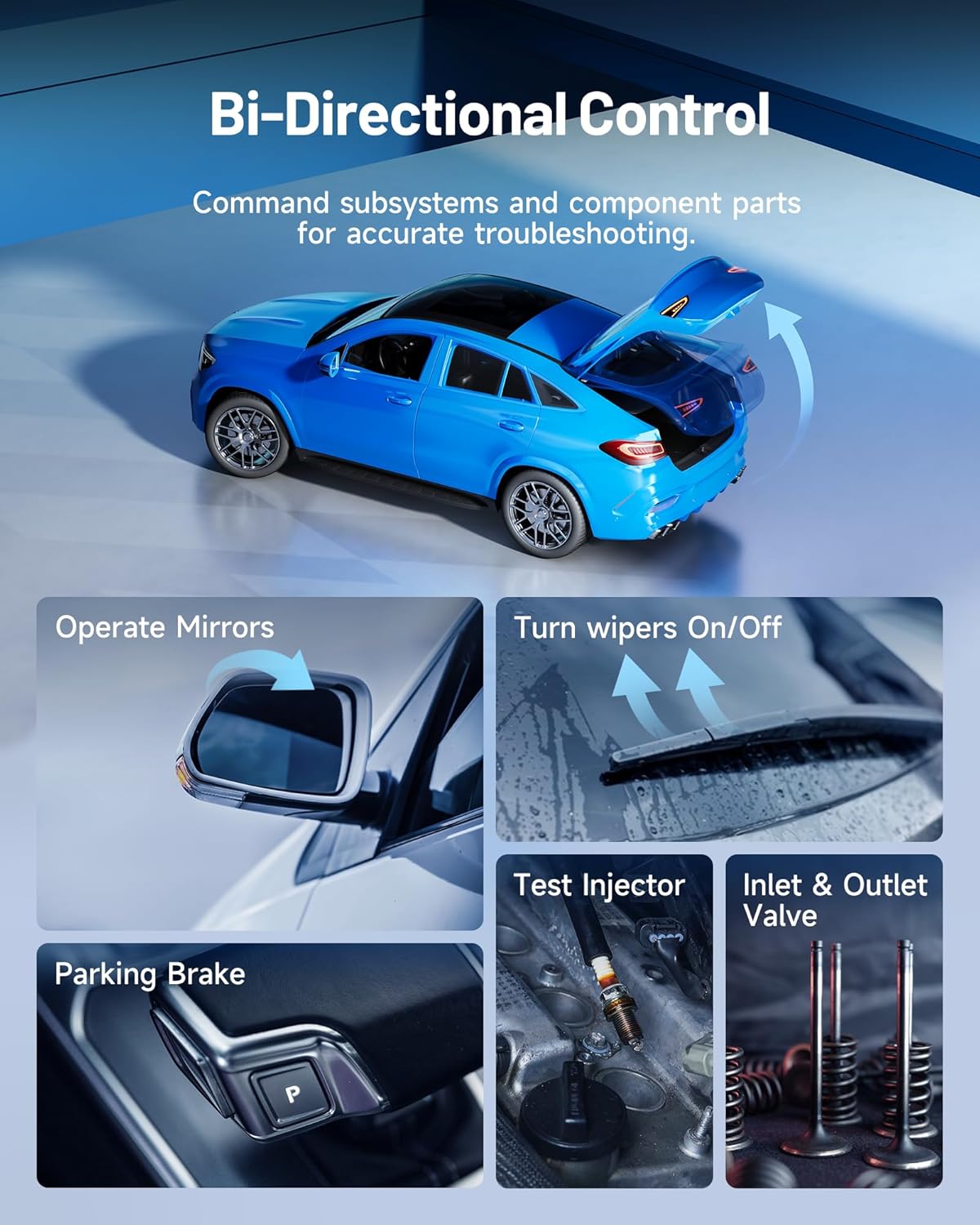
4.4 Bi-directional Control
The bi-directional control function enables technicians to send commands directly to vehicle components and actuators for accurate troubleshooting. This helps in identifying issues by testing specific parts like operating mirrors, turning wipers on/off, or testing injectors.
4.5 Special Functions and Maintenance Services
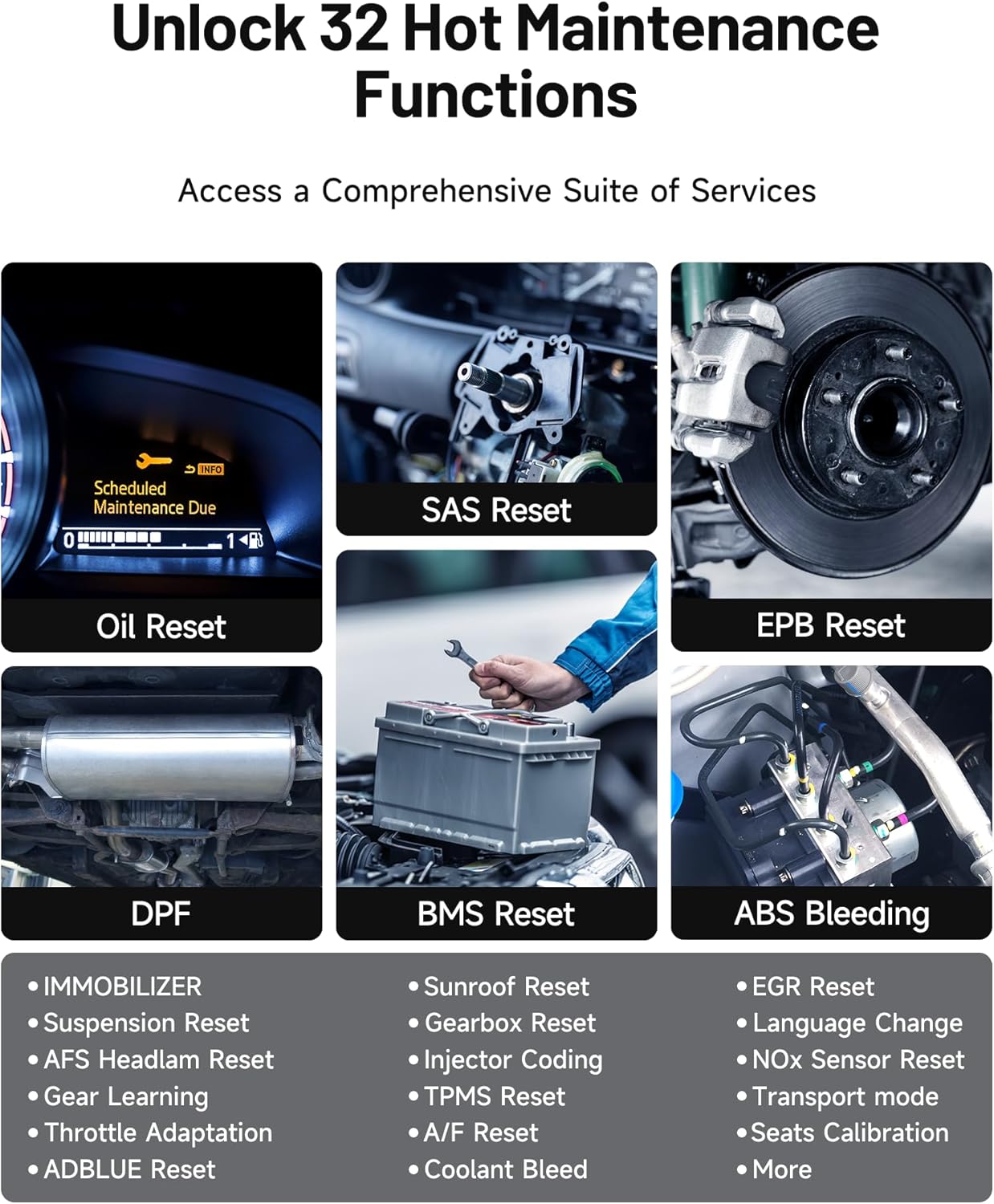
The Phoenix Nano supports over 32 special maintenance functions, including but not limited to:
- Oil Reset
- SAS (Steering Angle Sensor) Reset
- EPB (Electronic Parking Brake) Reset
- DPF (Diesel Particulate Filter) Regeneration
- BMS (Battery Management System) Reset
- ABS Bleeding
- IMMO (Immobilizer)
- Injector Coding
- TPMS (Tire Pressure Monitoring System) Reset
- Throttle Adaptation
- And many more.
4.6 Vehicle Coverage Feature
The Phoenix Nano supports over 110 vehicle brands and 10,000+ models. To check specific vehicle coverage for diagnostic and service functions, use the "Coverage List" feature within the "Library" section of the device. This allows you to verify compatibility before starting a job.

5. Maintenance
5.1 Software Updates
The Phoenix Nano comes with 2 years of free software updates. Regular updates ensure your device has the latest vehicle data, bug fixes, and new features. Connect to Wi-Fi and use the "Update" function on the home screen for seamless one-tap upgrades.
5.2 Device Care
Keep the device clean and free from dust and moisture. Store it in its carrying case when not in use to protect it from physical damage. Avoid exposing the device to extreme temperatures.
6. Troubleshooting
If you encounter any issues with your Phoenix Nano, consider the following common troubleshooting steps:
- Connection Issues: Ensure the OBD cable is securely connected to both the vehicle and the device. Check the vehicle's ignition status.
- Software Glitches: Restart the device. If the issue persists, perform a software update.
- Device Not Responding: Press and hold the power button for 10 seconds to force a shutdown, then restart.
- Vehicle Not Recognized: Verify the VIN is correctly identified (use AutoVIN or manual input). Ensure the vehicle's make, model, and year are correctly selected. Check the vehicle coverage list for compatibility.
For persistent issues, utilize the "Feedback" function on the device to submit a report for analysis and resolution by TOPDON's technical support team.
7. Specifications
| Feature | Detail |
|---|---|
| Brand | TOPDON |
| Model | Phoenix Nano-US |
| Operating System | Android 10.0 |
| Processor | 4-core 2.0GHz |
| RAM | 4GB |
| Storage | 64GB |
| Display | 8-inch, 1280x800 Touchscreen |
| Battery | 6000mAh |
| Product Dimensions | 1.65"L x 6.73"W x 10"H |
| Item Weight | 8.2 pounds |
| Supported Protocols | CAN FD, DoIP |
| UPC | 850050886495 |
8. Warranty and Support
8.1 Return Policy
TOPDON offers a 60-day return policy for the Phoenix Nano. Please refer to the purchase terms and conditions for detailed information on returns and exchanges.
8.2 Technical Support
Lifetime technical support is provided for the TOPDON Phoenix Nano. For any technical assistance, troubleshooting, or inquiries, please contact TOPDON's customer support. Contact information can be found in the included User Manual or on the official TOPDON website.


