
1. Introduction
Thank you for choosing the MOFII Wireless Keyboard and Mouse Combo. This full-size, retro typewriter-style set is designed to enhance your productivity and workspace aesthetics. It offers versatile connectivity options and ergonomic comfort for extended use. This manual provides essential information for setup, operation, maintenance, and troubleshooting to ensure optimal performance of your device.
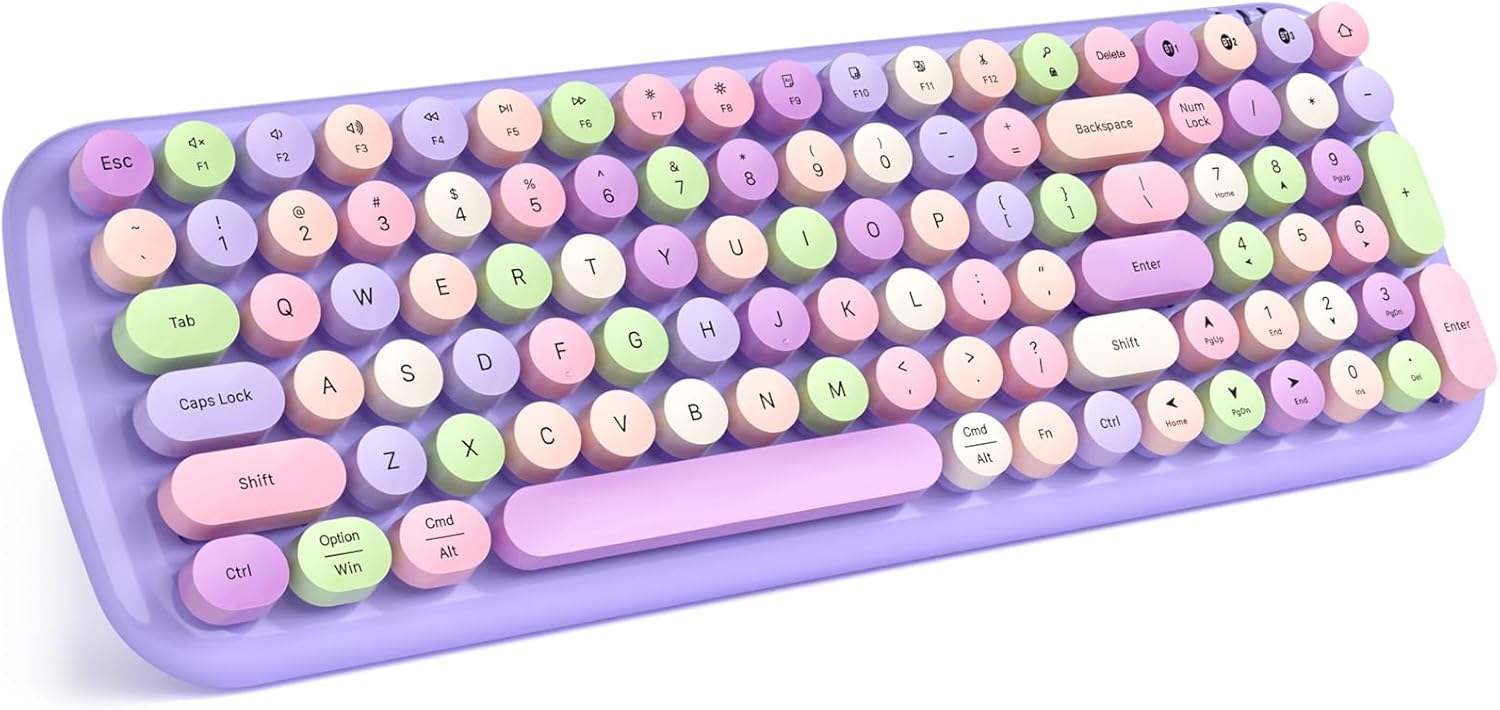
Image 1.1: The MOFII Wireless Keyboard and Mouse Combo. The keyboard features round, multi-colored keys in a retro typewriter style, set on a purple base. The accompanying mouse is also purple and ergonomically shaped.
2. Package Contents
Please check the package contents carefully. If any items are missing or damaged, please contact customer support.
- MOFII Wireless Keyboard
- MOFII Wireless Optical Mouse
- USB Receiver (typically stored in the mouse battery compartment)
- User Manual (this document)
- AA Batteries (may or may not be included, check packaging)
3. Setup Instructions
3.1 Battery Installation
- For the Keyboard: Locate the battery compartment on the underside of the keyboard. Open the cover and insert two AA batteries, ensuring correct polarity (+/-). Close the cover.
- For the Mouse: Locate the battery compartment on the underside of the mouse. Open the cover and insert one AA battery, ensuring correct polarity (+/-). Close the cover. The USB receiver is typically stored within this compartment.
3.2 2.4G Wireless Connection (for Keyboard and Mouse Combo)
This method provides a stable, interference-free connection for both your keyboard and mouse using a single USB receiver.
- Ensure batteries are correctly installed in both the keyboard and mouse.
- Remove the USB receiver from its storage slot in the mouse battery compartment.
- Plug the USB receiver into an available USB port on your computer (PC, laptop, etc.).
- The system will automatically detect and install the necessary drivers. No additional software is required.
- Your keyboard and mouse should now be ready for use.
3.3 Bluetooth Connection (for Keyboard only, Multi-Device)
The MOFII keyboard supports Bluetooth 5.1 connectivity, allowing you to pair with up to three devices simultaneously and switch between them.

Image 3.1: The MOFII keyboard connected to a desktop monitor, a smartphone, and a tablet, illustrating its multi-device Bluetooth connectivity. Three Bluetooth indicator lights (BT1, BT2, BT3) are visible on the keyboard, indicating active connections.
- Ensure batteries are installed in the keyboard.
- Turn on the keyboard.
- To Pair: Press and hold one of the Bluetooth channel buttons (BT1, BT2, or BT3) for 3 seconds until the corresponding indicator light flashes rapidly. This indicates the keyboard is in pairing mode.
- On your device (computer, tablet, smartphone), go to Bluetooth settings and search for new devices.
- Select "MOFII CANDY BT" (or similar name) from the list of available devices.
- Follow any on-screen prompts to complete the pairing process. The indicator light will stop flashing and remain solid for a few seconds upon successful connection.
- To Switch Devices: Simply press the BT1, BT2, or BT3 button corresponding to the paired device you wish to use. The keyboard will switch to that device.
4. Operating Instructions
4.1 Keyboard Features
- Full-Size Layout: Includes a numeric keypad for improved efficiency.
- Function Keys: The top row of keys (F1-F12) often have secondary functions (e.g., media control, volume, brightness). These are typically accessed by pressing the Fn key simultaneously with the desired function key.
- Ergonomic Design: The keyboard features a foldable stand and anti-slip pads to create an ideal typing angle, reducing wrist fatigue.

Image 4.1: A top-down view of the MOFII full-size keyboard, showing its complete layout including a numeric keypad. Dimensions are provided: 390mm (15.4in) in length and 135mm (5.3in) in width.

Image 4.2: This image highlights the ergonomic design of the MOFII keyboard, featuring a built-in stand that provides a comfortable typing angle of approximately 7 degrees to reduce wrist strain.
4.2 Power Saving Function
Both the keyboard and mouse are equipped with an intelligent auto-sleep function to conserve battery life. After 8-10 minutes of inactivity, the devices will automatically enter sleep mode. To wake them up, simply press any key on the keyboard or move the mouse.

Image 4.3: This image illustrates the auto-sleeping function of the MOFII keyboard and mouse. After a period of inactivity, the devices enter a power-saving sleep mode, indicated by a crescent moon icon.
5. Maintenance
5.1 Cleaning
- To clean the keyboard, you can remove the keycaps using a keycap puller (if provided) or carefully by hand.
- Wipe the keycaps and the keyboard base with a soft, damp cloth. Ensure the keyboard is completely dry before reattaching keycaps and using.
- For the mouse, wipe the surface with a soft, dry cloth.
- Avoid using harsh chemicals or abrasive materials.

Image 5.1: This close-up image demonstrates the detachable keycaps of the MOFII keyboard, making cleaning and maintenance easier. A keycap puller tool is also shown.
5.2 Battery Replacement
When the devices stop responding or the indicator lights dim, it's time to replace the batteries. Follow the battery installation steps in Section 3.1.
6. Troubleshooting
6.1 Connection Issues
- No response from keyboard/mouse (2.4G):
- Ensure batteries are correctly installed and have sufficient charge.
- Verify the USB receiver is securely plugged into a working USB port on your computer.
- Try plugging the USB receiver into a different USB port.
- Restart your computer.
- Keyboard not connecting via Bluetooth:
- Ensure Bluetooth is enabled on your device.
- Make sure the keyboard is in pairing mode (indicator light flashing).
- Forget the device from your device's Bluetooth settings and attempt to re-pair.
- Ensure the keyboard is within the effective range (up to 10m).
- Check keyboard batteries.
6.2 Keys Not Responding / Mouse Not Moving
- Check battery levels and replace if necessary.
- Ensure the devices are not in auto-sleep mode. Press any key or move the mouse to wake them up.
- Clean under the keycaps if specific keys are sticking or unresponsive.
- For the mouse, ensure the optical sensor on the bottom is clean and unobstructed.
6.3 Intermittent Connection
- Move the USB receiver closer to the keyboard and mouse, or use a USB extension cable if needed.
- Avoid placing the receiver near other wireless devices or large metal objects that may cause interference.
7. Specifications
| Brand | MOFII |
| Model Number | B0D7ZMFP8N |
| Compatible Devices | Laptop, PC |
| Connectivity Technology | 2.4G Wireless (USB Receiver), Bluetooth 5.1 (Keyboard only) |
| Keyboard Description | Multimedia, Full-Size with Numeric Keypad |
| Special Feature | Round Key, Ergonomic Design, Detachable Keycaps, Auto-Sleep |
| Color | Purple (as per current model) |
| Power Source | Battery Powered (AA batteries) |
| Keyboard Layout | QWERTY |
| Hand Orientation (Mouse) | Ambidextrous |
| Item Weight | 1.65 pounds (approx. 0.75 kg) |
| Package Dimensions | 16.18 x 5.67 x 2.01 inches (approx. 41.1 x 14.4 x 5.1 cm) |
8. Warranty and Support
MOFII products are designed for reliability and performance. For specific warranty details, please refer to the warranty card included with your product or visit the official MOFII website. If you encounter any issues or require technical assistance, please contact MOFII customer support through their official channels or the retailer where the product was purchased.
Manufacturer: MOFII