
1. Product Overview
The AuroraLink Wireless CarPlay/Android Auto Adapter transforms your vehicle's wired CarPlay system into a wireless multimedia hub. It features a built-in Android 10 system, 4G LTE and Wi-Fi connectivity, and allows access to various applications directly on your car's display. This device supports both Apple CarPlay and Android Auto wirelessly, enhancing your driving experience with navigation, entertainment, and communication features.

Image 1.1: The AuroraLink Wireless CarPlay/Android Auto Adapter.
2. What's in the Box
- AuroraLink Wireless CarPlay/Android Auto Adapter
- USB-C to USB-C Cable
- USB-C to USB-A Cable
- User Manual

Image 2.1: Contents of the AuroraLink Adapter package, including the device and connection cables.
3. Setup and Installation
- Connect the Adapter: Plug the AuroraLink adapter into your car's USB port (the one typically used for wired CarPlay) using the appropriate USB-C to USB-C or USB-C to USB-A cable.
- Power On: Once connected, the adapter will power on, indicated by a purple light.
- Car Display Initialization: Your car's display will show a boot-up sequence, followed by the AuroraLink interface.
- Connect Your Phone:
- Ensure your phone's Bluetooth and Wi-Fi are enabled.
- On the car's display, navigate to the CarPlay or Android Auto section.
- Select the device name (e.g., "Aurora 0312") to connect.
- Confirm the connection on your phone.
- Initial Setup: Follow any on-screen prompts for initial setup, including connecting to a Wi-Fi hotspot (e.g., from your phone) for internet access.

Image 3.1: The adapter connected to the car's USB port, showing the indicator light.
Video 3.1: Demonstration of connecting the AuroraLink adapter and initial boot-up sequence on a car's display.
4. Operating Instructions
4.1. Navigating the Interface
The AuroraLink adapter provides a customizable home screen with quick access to various applications. You can add or remove shortcuts and rearrange components to suit your preferences.
- Home Screen: Displays essential information and frequently used apps.
- App Drawer: Access all installed applications, including YouTube, Netflix, Spotify, Google Maps, and more.
- Customization: Long-press on components to adjust their location or choose different layouts for the home screen.

Image 4.1: Customizable home screen with various applications and widgets.
4.2. Wireless CarPlay and Android Auto
Once connected, your phone's CarPlay or Android Auto interface will appear on the car's display, allowing seamless access to navigation, music, calls, and messages.
- Switching Modes: Easily switch between the AuroraLink Android system and your phone's CarPlay/Android Auto interface.
- Voice Control: Utilize voice commands for hands-free operation.
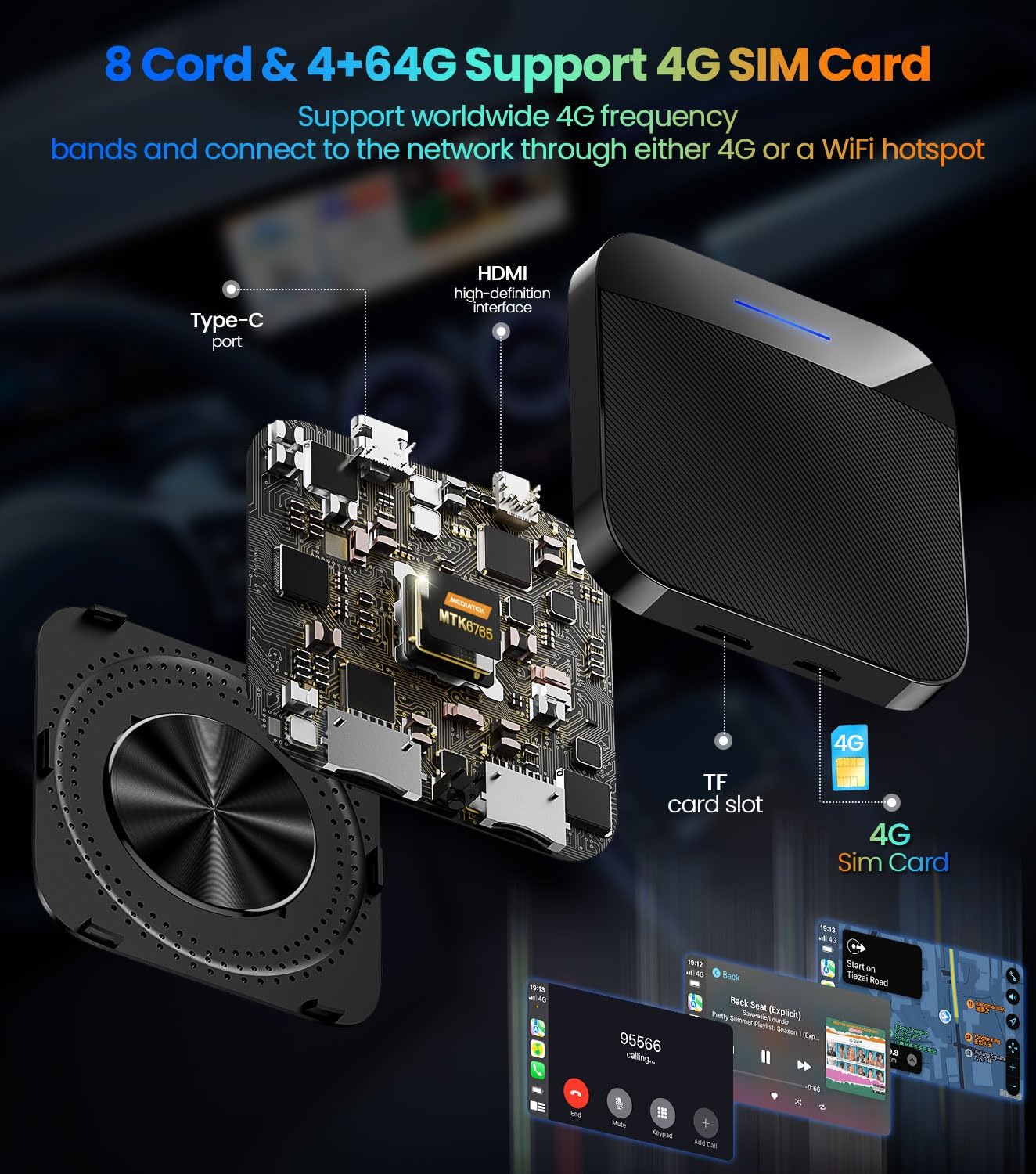
Image 4.2: The car's display showing the Apple CarPlay interface through the adapter.
4.3. Media Playback and Mirroring
The adapter supports media playback from various streaming services and allows screen mirroring from your smartphone.
- Streaming Apps: Download and use apps like Netflix, YouTube, and Disney+ directly on the car screen (requires internet connection).
- Screen Mirroring: Project your phone's screen onto the car display for content viewing.
- HDMI Output: Connect the adapter to external displays like TV screens or rear headrest monitors via HDMI for a "theater mode" experience.

Image 4.3: The adapter's capability to connect to external displays for media consumption.
Video 4.1: Demonstration of the AuroraLink adapter's interface, customization options, and screen mirroring capabilities.
5. Features
- Wireless CarPlay & Android Auto: Converts wired CarPlay to wireless, and supports wireless Android Auto.
- Built-in Android 10 System: Access a wide range of Android applications directly on your car's screen.
- Google Play Store Access: Download your favorite apps for navigation, entertainment, and more.
- Built-in GPS: Provides precise navigation and positioning without relying solely on your phone's GPS.
- 4G LTE & Wi-Fi Connectivity: Supports worldwide 4G frequency bands and connects to networks via 4G SIM card or Wi-Fi hotspot.
- TF Card Slot: Expand storage for media files.
- HDMI Output: Connect to external displays for enhanced viewing.
- Humanized Interface Design: Customizable layouts and quick settings for user convenience.
- FOTA Global Upgrade: Continuous system and desktop upgrades.

Image 5.1: The adapter's internal components highlighting 4G SIM and TF card support.

Image 5.2: Built-in GPS functionality displayed on the car's screen.
6. Compatibility
The AuroraLink Wireless CarPlay/Android Auto Adapter is designed to work with vehicles equipped with factory-installed wired CarPlay. It supports iOS 9+ devices and Android 10+ devices.
Note: This adapter is not applicable to BMW vehicles.

Image 6.1: The adapter is compatible with over 600 car models that have factory wired CarPlay, excluding BMW.
7. Specifications
| Feature | Detail |
|---|---|
| Brand | AuroraLink |
| Model | 802.11AX |
| Connectivity Technology | USB |
| Special Feature | Touch Control |
| Product Dimensions (L x W x H) | 2.95" x 2.95" x 0.39" |
| Color | Black |
| Wireless Compatibility | 802.11ax |
| Hardware Interface | HDMI |
| Connector Type | USB Type C |
| Supported Standards | IEEE 802.11AX |
| Compatible Devices | Cars with built-in OEM factory wired CarPlay, iOS 9+ devices, Android 10+ devices |
8. Safety Information
- Handle the device with care.
- Avoid exposure to extreme temperatures and humidity.
- Ensure proper disposal to avoid interference with other wireless devices.
- Do not attempt to disassemble or modify the device.
- Always prioritize safe driving practices. Do not operate the device in a way that distracts you from the road.
9. Troubleshooting
- No Power/No Indicator Light: Ensure the USB cable is securely connected to both the adapter and the car's USB port. Try a different USB port if available.
- Connection Issues (CarPlay/Android Auto):
- Verify your phone's Bluetooth and Wi-Fi are active.
- Forget previous Bluetooth connections on your phone and car, then try pairing again.
- Restart both your phone and the car's infotainment system.
- Ensure your car supports wired CarPlay from the factory.
- App Performance Issues: Check your internet connection (Wi-Fi hotspot or 4G SIM). Clear app cache or reinstall problematic applications.
- Screen Mirroring Problems: Ensure your phone and the adapter are on the same Wi-Fi network. Check your phone's mirroring settings.
- System Updates: Regularly check for and install FOTA (Firmware Over-The-Air) updates to ensure optimal performance and access to new features.
10. Warranty and Support
For warranty information, technical support, or service inquiries, please refer to the official AuroraLink website or contact their customer service directly. Keep your purchase receipt as proof of purchase.