
1. Introduction
Welcome to your MZZYG Dash Cam user manual. This guide provides essential information for the safe and effective operation of your new dash camera. Please read it thoroughly before use to ensure proper installation and functionality.
2. Safety Information
- Ensure the dash cam is installed securely and does not obstruct the driver's view or interfere with airbag deployment.
- Do not operate the device or adjust settings while driving. Always pull over to a safe location before making any adjustments.
- Use only the provided power adapter and accessories. Using unauthorized accessories may damage the device and void the warranty.
- Avoid exposing the device to extreme temperatures (below -20°C or above 70°C) or direct sunlight for extended periods.
- Keep the device away from water and moisture.
3. Package Contents
The package includes the following items:
- MZZYG Dash Cam Unit
- Car Charger
- Camera Link Cable (for rear camera, if included)
- Suction Cup Mount
4. Product Overview
The MZZYG Dash Cam is designed to provide comprehensive vehicle surveillance with its multi-camera recording capabilities and advanced features.
Key Features:
- High Definition Night Vision: Records in 1080P high definition, ensuring clear images even in low-light conditions.
- Dual/Triple Camera Recording: Supports recording from multiple angles (front, interior, and optional rear camera) with various screen display modes (picture-in-picture, split-screen, full-screen).
- Wide Angle View: Features a 170-degree front lens, 120-degree interior lens, and 140-degree rear lens for extensive coverage without blind spots.
- Loop Recording: Continuously records, overwriting the oldest files when the memory card is full, ensuring uninterrupted recording.
- Motion Detection: Automatically starts recording if motion is detected while the vehicle is parked.
- G-Sensor: Detects sudden impacts or collisions and automatically locks the current video file to prevent it from being overwritten.
- Parking Monitor: Records automatically if a collision or impact is detected while the vehicle is parked and turned off.
- Backup Camera Function: Automatically switches to display the rear view when reversing, providing a clearer image for parking.
Product Components and Views:


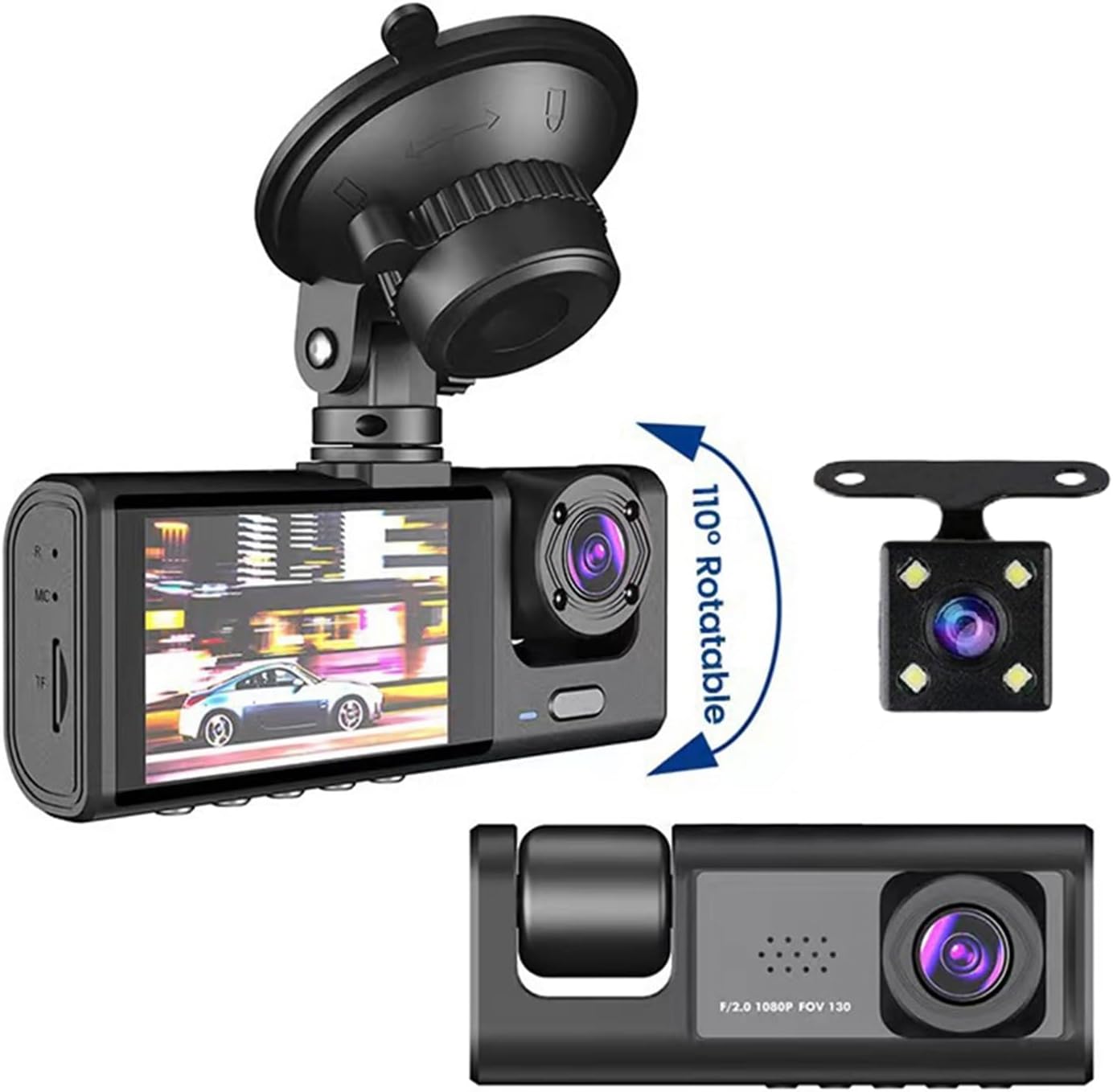
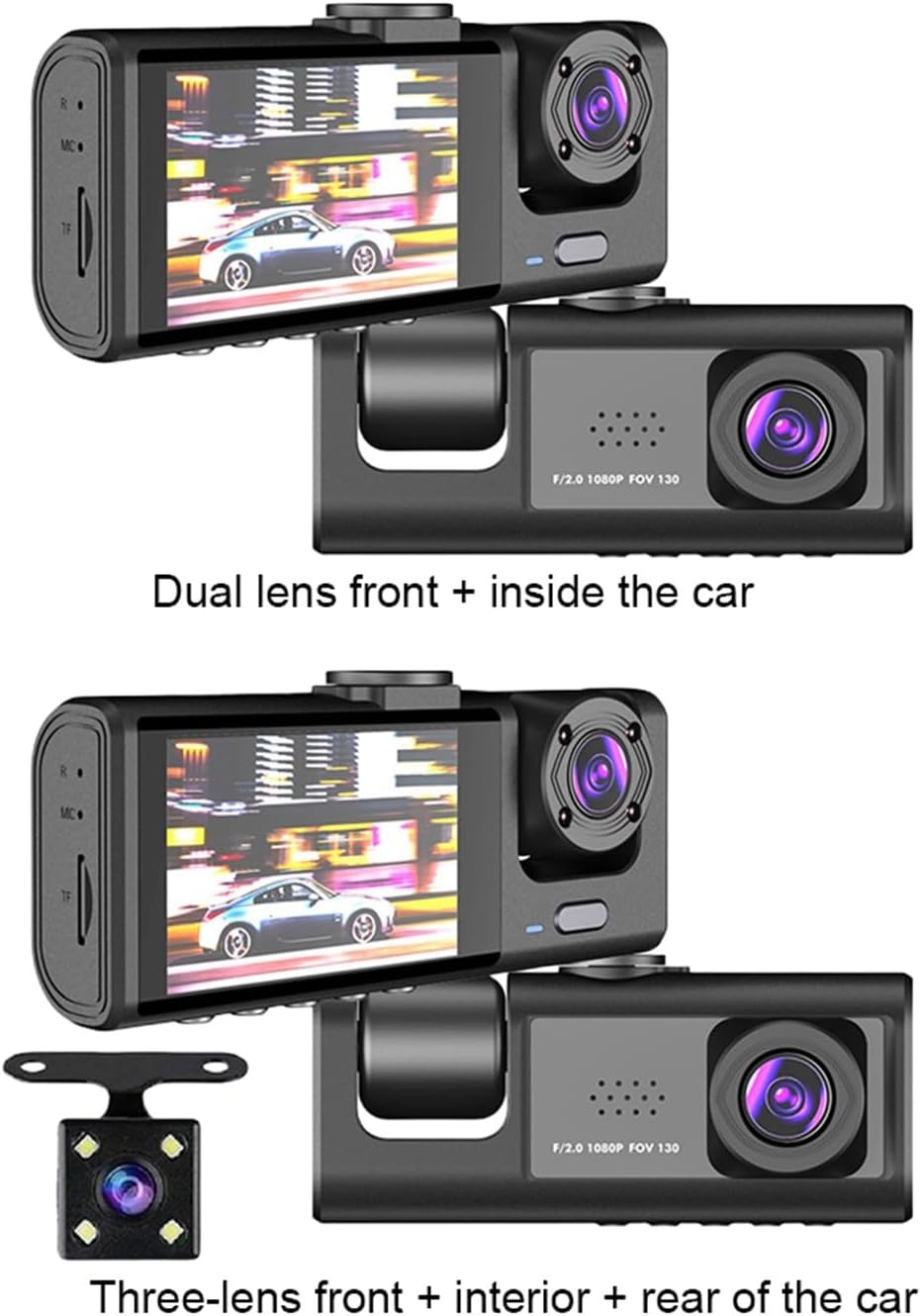

5. Setup
5.1 Mounting the Dash Cam
- Clean the area on your windshield where you intend to mount the dash cam.
- Attach the suction cup mount to the windshield, ensuring it is securely fastened and does not obstruct your view of the road.
- Securely attach the dash cam unit to the suction cup mount. Adjust the camera angle for optimal front view coverage.
5.2 Power Connection
- Connect the car charger to the dash cam's USB port.
- Plug the other end of the car charger into your vehicle's cigarette lighter socket.
- The dash cam will typically power on automatically when the vehicle starts and power off when the vehicle is turned off.
5.3 Inserting the Memory Card
- Ensure the dash cam is powered off before inserting or removing the memory card.
- Insert a TF (microSD) card (up to 64GB, Class 10 or higher recommended) into the TF card slot until it clicks into place.
- It is highly recommended to format the memory card within the dash cam's settings menu before first use and periodically thereafter to ensure optimal performance and prevent data corruption.
5.4 Initial Settings (Language)
Upon first power-on, you may need to set the language:
- Navigate to the system settings menu on the dash cam's screen.
- Select the 'OSD Language' option.
- Choose your preferred language from the available options: Chinese (Simplified), Chinese (Traditional), German, Russian, French, Korean, Portuguese, Japanese, Spanish, Italian, English.
6. Operating Instructions
6.1 Basic Recording (Loop Recording)
Once powered on and with a memory card inserted, the dash cam will automatically begin loop recording. This feature ensures continuous recording by overwriting the oldest video files when the memory card reaches its full capacity. You can adjust the loop recording duration (e.g., 1, 3, 5 minutes) in the settings menu.
6.2 G-Sensor Functionality
The built-in G-sensor detects sudden acceleration, braking, or impacts. When a significant event is detected, the current video file is automatically locked and saved to a protected folder, preventing it from being overwritten by loop recording. The sensitivity of the G-sensor can be adjusted in the settings.
6.3 Motion Detection
When enabled in the settings, the dash cam will automatically start recording if it detects movement in front of the vehicle while it is parked. This feature is useful for monitoring your vehicle when you are away.
6.4 Parking Monitor
The parking monitor feature allows the dash cam to automatically record a short video clip if it detects a collision or impact while the vehicle is parked and the engine is off. This provides surveillance even when the car is stationary.
6.5 Rear Camera Operation (if applicable)
If your dash cam includes a rear camera, connect it to the main unit using the provided camera link cable. When the vehicle is put into reverse, the dash cam will automatically switch its display to show the rear view, assisting with parking and maneuvering.
6.6 Video Playback
To view recorded videos:
- Stop recording (if currently active).
- Enter the playback mode through the menu options.
- Use the navigation buttons to browse through the recorded files.
- Select a file to play it back on the dash cam's screen.
6.7 Date and Time Watermark
The dash cam supports displaying a floating date and time watermark on all recorded videos. Ensure the date and time settings are accurate in the system menu for correct timestamping of your recordings.
7. Maintenance
7.1 Cleaning the Device
- Wipe the camera lenses and the screen with a soft, dry, lint-free cloth.
- Do not use abrasive cleaners, solvents, or chemical cleaning agents, as these can damage the device's surface or lenses.
7.2 Memory Card Management
- Regularly format the TF card (at least once a month) using the dash cam's menu to maintain optimal performance and prevent data corruption.
- If the memory card frequently shows errors or fails to record, consider replacing it with a new, high-quality TF card.
8. Troubleshooting
- Device not powering on: Check the power connection, ensure the car charger is properly inserted, and verify that your vehicle's power outlet is functional. Ensure the internal battery has some charge.
- Recording issues (e.g., not recording, corrupted files): Ensure the TF card is inserted correctly, formatted, and not full. Check loop recording settings. Try using a different TF card.
- Poor video quality: Clean the camera lenses. Check the resolution settings in the menu to ensure it is set to the desired quality (e.g., 1080P).
- Screen freezing or unresponsive: Try resetting the device. If a reset button is available, use a thin object to press it. Otherwise, disconnect and reconnect the power supply.
- Rear camera not displaying: Ensure the rear camera is properly connected to the main unit via the camera link cable. Check cable for damage.
9. Specifications
| Frames Per Second | 30 FPS |
| Mounting Mode | Portable Recorder |
| Battery | Built-in, 150MAH |
| Interface | USB2.0 |
| OSD Language | Chinese (Simplified), Chinese (Traditional), German, Russian, French, Korean, Portuguese, Japanese, Spanish, Italian, English |
| Screen Size | 2-inch IPS screen |
| Pixels | Front 130W / Middle 30W / Rear 30W |
| Number of Lenses | 3 (Front, Interior, Rear options) |
| Max External Memory | 64GB (TF card) |
| Special Features | G-sensor, Motion Detection, Parking Monitor |
| Video Format | AVI |
| Camera Resolution | Front 1280*720P / Middle 640*480P / Rear 640*480P |
| View Angle | Front 170° / Interior 120° / Rear 140° |
| Screen Ratio | 4:3 |
| Touch Screen | No |
| Rear Camera | Yes (optional) |
| NightShot Function | Yes |
| Max Video Frame Rate | 30 FPS |
| Recorded Audio | No |
| Loop-Cycle Recording Function | Yes |
| Built-in Screen | Yes |
| Power Source | Battery |
| Input/Output | USB2.0 |
| Dimensions (W x H x D) | 140 x 110 x 70 mm / 5.5 x 4.3 x 2.8 inches |
| Weight | 290 g |
| Operating Temperature | -20°C to 70°C |
| Aperture | F2.0 |
| Color | Black |
| Material | ABS+PC |
| WiFi | Not supported |
10. Warranty and Support
For technical support, warranty inquiries, or any questions regarding your MZZYG Dash Cam, please contact MZZYG customer service through your retailer or the official MZZYG website. Please have your model number (1005005686826934) and purchase information ready when contacting support.