1. Introduction
The TONGOU 1P+N Smart Wi-Fi Switch is an advanced electrical device designed to integrate seamlessly into your smart home system. It provides intelligent control over connected appliances, offering features such as remote operation, energy monitoring, and various timing functions. This manual provides essential information for safe installation, operation, and maintenance of your smart switch.
Note: This product is designed for use with a 2.4GHz Wi-Fi network. It is compatible with Smart Life and Tuya applications, as well as voice assistants like Amazon Alexa and Google Assistant.
2. Safety Information
- This intelligent WiFi switch includes over-current protection, high power protection, and high CPU temperature protection. However, it does not provide short circuit protection.
- It is strongly recommended to use this smart switch in conjunction with a circuit breaker for comprehensive circuit protection.
- Installation should only be performed by qualified personnel in accordance with local electrical codes and regulations.
- Ensure the power supply is completely disconnected before any installation or maintenance work.
- The device complies with IEC 60947 standard.
- The N pole (neutral) cannot be cut off by this switch.
3. Product Features
- Smart WiFi Connectivity: Connects to your 2.4GHz Wi-Fi network for remote control and smart functions.
- Over-Current Protection: Adjustable current range from 1 to 63A via the app.
- High Power Protection: Protects against excessive power loads.
- High CPU Temperature Protection: Prevents overheating of the device.
- Over-Voltage Protection: Adjustable range of 220-265V.
- Under-Voltage Protection: Adjustable range of 76-240V (110V not applicable).
- Remote Control: Control appliances from anywhere using the "Smart Life" or "Tuya" APP.
- Power Monitoring: Real-time analysis and historical recording of power consumption (hour, day, month, year).
- Voice Control: Compatible with Amazon Alexa and Google Assistant for hands-free operation.
- Multi-timing Functions: Schedule, countdown, circulate, and astronomical timing modes (sunrise/sunset).
- Easy Installation: Designed for quick and simple wiring with screw terminals.
- Premium Materials: Constructed with copper for good conductivity and flame-retardant PA66 material for enhanced safety.

Figure 3.1: Key Features of the TONGOU Smart Wi-Fi Switch.
4. Specifications
| Attribute | Value |
|---|---|
| Product Dimensions | 3.54 x 0.79 x 3.15 inches; 3.84 ounces |
| Item Model Number | WiFi Version |
| Rated Current | 1 to 63 Amps (Adjustable) |
| Rated Operating Voltage | AC 90-240V, 50/60Hz |
| Wireless Type | Wi-Fi 2.4GHz |
| Over-voltage Range | 220~265V |
| Under-voltage Range | 76~240V (110V not applicable) |
| Poles Description | 1P+N (N pole cannot be cut off) |
| Max Wiring Capacity (Power side) | 10 mm² |
| Max Wiring Capacity (Load side) | 10 mm² |
| Operation Mode | ON-OFF |
| Contact Type | Normally Open |
| Connector Type | Screw Terminals |
| Terminal | Screw |
| Circuit Type | Single-phase |
| Actuator Type | Touch |
| Manufacturer | Changyou Technology (Zhejiang) Co., Ltd. |
5. What's in the Box
- 1 x TONGOU 1P+N Smart Wi-Fi Switch
- 1 x Instruction Manual
6. Setup and Installation
6.1 Physical Installation
The TONGOU Smart Wi-Fi Switch is designed for standard 35mm DIN rail mounting. Ensure proper wiring connections for power and load sides.
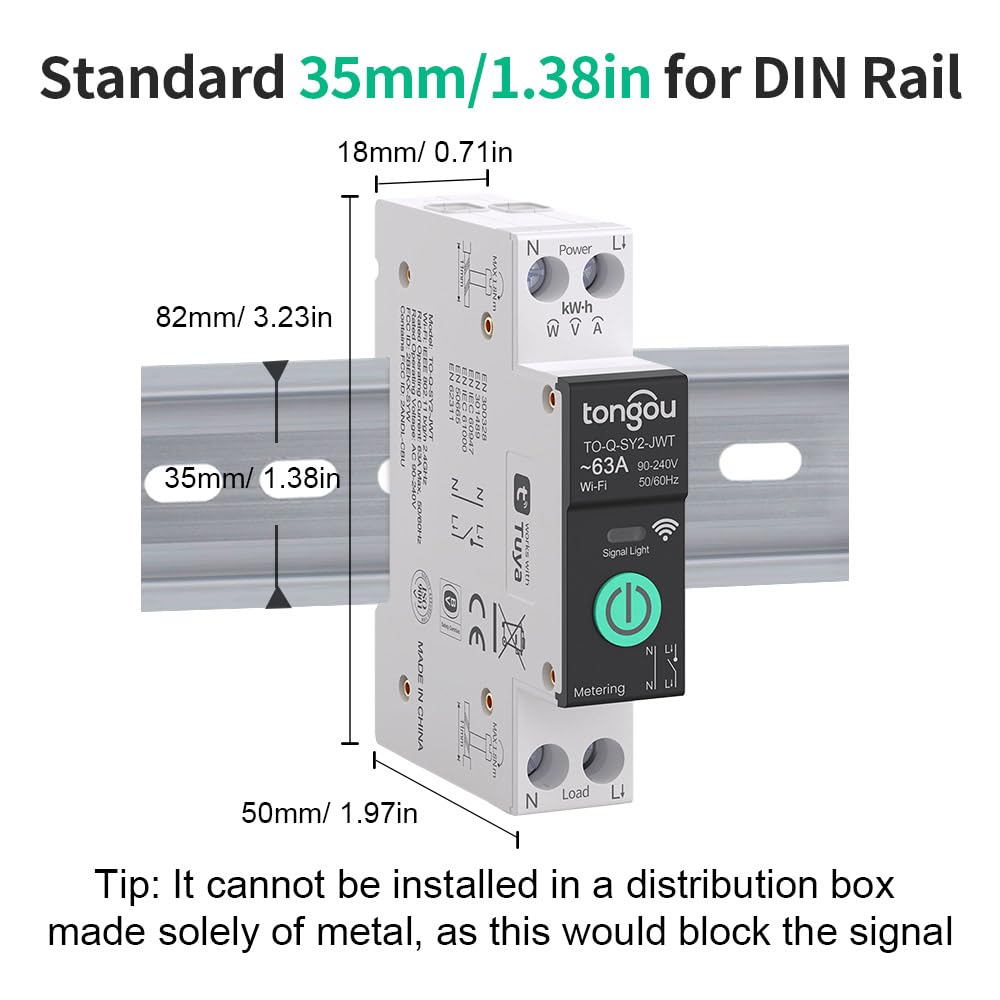
Figure 6.1: Device Dimensions and DIN Rail Compatibility. Note: It cannot be installed in a distribution box made solely of metal, as this would block the signal.

Figure 6.2: Wiring and Physical Features. Simply press and insert the cables for wiring. Screws can be easily tightened and loosened with a screwdriver.
6.2 App Installation and Pairing
To control your smart switch, download the "Smart Life" or "Tuya" app from your mobile app store. Follow the steps below to pair the device:
- Download the "Smart Life" or "Tuya" app. You can find it on the App Store or Google Play.
- Register or log in to your account.
- Press and hold the multifunctional button on the smart switch for 5-10 seconds until the indicator light flashes quickly. This puts the device into pairing mode.
- In the app, tap "Add Device" or the "+" icon. The app will search for nearby devices.
- Select your "WiFi Din Rail Switch" from the discovered devices.
- Enter your 2.4GHz Wi-Fi network credentials (SSID and password).
- Once successfully added, the LED indicator on the switch will turn solid blue, indicating a successful connection.

Figure 6.3: App Pairing Steps.
6.3 Network Configuration Video
Video 6.1: This video demonstrates the network configuration steps for the TONGOU Smart Wi-Fi Switch, including connecting to a Wi-Fi router and pairing with the mobile app.
7. Operating Instructions
7.1 Remote Control via App
Once paired, you can control your smart switch remotely from the Smart Life or Tuya app. The app interface displays real-time power consumption data and allows you to turn the switch ON/OFF.

Figure 7.1: App Interface for Remote Control and Monitoring.
7.2 Power Monitoring
The app provides detailed electricity statistics, allowing you to view load current, voltage, and power in real-time. You can also record and review historical electricity consumption data by hour, day, month, and year.

Figure 7.2: Power Monitoring Interface.
7.3 Voice Control
Integrate your smart switch with Amazon Alexa or Google Assistant for convenient voice control. Simply link your Smart Life/Tuya account to your voice assistant app and use commands to turn devices on or off.

Figure 7.3: Voice Control with Alexa and Google Assistant.
7.4 Multi-timing Functions
The app offers various timing modes to automate your appliances:
- Schedule: Set specific ON/OFF times for daily or weekly routines.
- Countdown: Set a timer for the device to turn off after a specified duration.
- Circulate: Program the device to turn on/off repeatedly during a set period.
- Astronomical Timing: Use sunrise/sunset times to automate lighting or other devices.

Figure 7.4: Multi-timing Setup in the App.
7.5 Alarm Settings (Multiple Protections)
Configure alarm thresholds for various protections. When a threshold is exceeded, the alarm function is automatically triggered, and the protection tripping switch can be turned ON or OFF.
- High CPU Temperature: Set threshold range: 40-100°C.
- High Power: Set threshold range: 1-26KW.
- Over-current: Set threshold range: 1-63A.
- Over-voltage: Set threshold range: 220-265V.
- Under-voltage: Set threshold range: 76-240V (110V N/A).

Figure 7.5: Alarm Setting Interface.
7.6 LED Indicator States
The signal light on the device provides visual feedback on its status:
- Flashing Blue: Device is in pairing mode.
- Solid Blue: Network is connected.
- Black (Off): Network is not connected.

Figure 7.6: LED Indicator Visualization Window.
8. Maintenance
To ensure optimal performance and longevity of your TONGOU Smart Wi-Fi Switch, follow these general maintenance guidelines:
- Regularly check for any loose wiring connections and tighten them if necessary.
- Keep the device clean and free from dust and debris. Use a dry, soft cloth for cleaning.
- Avoid exposing the device to extreme temperatures, humidity, or direct sunlight.
- Do not attempt to disassemble or repair the device yourself. Contact qualified service personnel if issues arise.
- The app includes a 'Maintenance Lock' feature which can be removed by powering off the device or pressing the button 4 times.
9. Troubleshooting
If you encounter issues with your TONGOU Smart Wi-Fi Switch, refer to the following common troubleshooting steps:
- Device not pairing: Ensure the device is in pairing mode (flashing blue light). Check that your Wi-Fi network is 2.4GHz and that you have entered the correct password. Move the device closer to your Wi-Fi router.
- No network connection (black LED): Verify your Wi-Fi router is functioning correctly and the signal is strong enough. Re-attempt the pairing process. Ensure the device is not installed in a metal enclosure that could block the signal.
- Remote control not working: Check your internet connection on both your mobile device and the smart switch. Ensure the app is updated to the latest version.
- Protection tripping frequently: Review the alarm settings in the app (High CPU Temperature, High Power, Over-current, Over-voltage, Under-voltage) and adjust thresholds if necessary, ensuring they are within safe operating limits for your connected load. Check the 'Log' section in the app for detailed operation records and alarm history.
- Voice control issues: Ensure your smart switch is correctly linked to your Amazon Alexa or Google Assistant account. Check the internet connection of your voice assistant device.
10. Warranty and Support
This TONGOU Smart Wi-Fi Switch is manufactured by Changyou Technology (Zhejiang) Co., Ltd. For warranty information or technical support, please refer to the contact details provided with your purchase documentation or visit the official TONGOU website.


