
MangoKit SR10 Portable Smart Radio
Contents
MangoKit SR10 Smart Radio Instruction Manual
Model: SR10 Portable Smart Radio
1. Introduction
Thank you for purchasing the MangoKit SR10 Smart Radio. This device is a versatile audio system offering Internet Radio, Podcast playback, Bluetooth speaker functionality, and FM radio. It is designed for ease of use and portability, allowing you to enjoy your favorite audio content anywhere. Please read this manual carefully to ensure proper operation and to maximize your listening experience.

Figure 1.1: Front view of the MangoKit SR10 Smart Radio, showcasing its display and control buttons.
2. Safety Information
To ensure safe operation and prevent damage, please observe the following precautions:
- Do not expose the unit to rain, moisture, or extreme temperatures.
- Avoid placing the unit near heat sources or in direct sunlight.
- Do not disassemble or modify the unit. Refer all servicing to qualified personnel.
- Use only the specified power adapter or compatible batteries.
- Keep the unit away from strong magnetic fields.
3. Package Contents
Verify that all items are present in the package:
- MangoKit SR10 Smart Radio
- User Manual
- Quick Start Guide
- Power Supply
- USB-C Cable
4. Product Overview
The MangoKit SR10 features a clear color display and intuitive controls for easy navigation across various modes.

Figure 4.1: Overview of the SR10's key features, including Internet Radio, Podcast, FM Radio, Wireless Speaker, Headphone jack, Dual Alarms, and Clock functionality.
Controls and Display
The front panel includes a TFT color display, a large rotary knob for volume and selection, and various buttons for menu navigation, source selection, and presets.
- O/VOLUME Knob: Rotate to adjust volume or navigate menus. Press to select.
- MENU Button: Access the main menu.
- BACK Button: Return to the previous screen.
- INFO Button: Display information about the current mode or track.
- SOURCE Button: Switch between Internet Radio, Podcast, FM Radio, and Bluetooth modes.
- 1, 2, 3+ Buttons: Preset buttons for quick access to favorite stations.
- Play/Pause, Skip Forward/Backward Buttons: Control media playback.
5. Setup
5.1 Powering On
The SR10 can be powered via the included Type-C USB mains power supply or by 4 AA batteries (not included). For battery use, ensure you insert them with the correct polarity. Rechargeable AA batteries are recommended for economical and environmental benefits, however, the radio cannot charge rechargeable batteries.

Figure 5.1: The SR10 can be powered by mains electricity or 4 AA batteries, offering portability for use in various locations.
5.2 Wi-Fi Network Connection
To access Internet Radio and Podcasts, the SR10 must be connected to a Wi-Fi network.
- Enter the Network settings by navigating through the menu to start the Wi-Fi network connection setup.
- Choose an available and usable Wi-Fi network from the list.
- Input the Wi-Fi network password using the rotary knob and buttons. Alternatively, use the WPS button on your router if supported. Wait until a tick mark appears on the display, indicating a successful connection.
Video 5.2: This video demonstrates the process of connecting the SR10 to a Wi-Fi network and setting up presets for your favorite stations.
6. Operating Instructions
6.1 Internet Radio & Podcast
Once connected to Wi-Fi, you can access thousands of Internet Radio stations and Podcasts worldwide.
- Select 'Internet Radio' or 'Podcast' from the SOURCE menu.
- Browse by location, genre, or use the search function to find specific stations or podcasts.
- Use the rotary knob to navigate and select your desired content.

Figure 6.1: The SR10 in Internet Radio mode, allowing access to over 30,000 radio and podcast streams globally via Wi-Fi.
6.2 Bluetooth Speaker
Connect your smartphone or other Bluetooth-enabled devices to the SR10 to stream audio wirelessly.
- Select 'Bluetooth' from the SOURCE menu. The radio will enter pairing mode.
- On your device, search for 'Smart Radio' in the Bluetooth settings and connect.
- Once connected, you can play audio from your device through the SR10.
Note: The SR10 functions as a Bluetooth speaker only and does not support Bluetooth transmission to headphones or other speakers.

Figure 6.2: The SR10 connected wirelessly via Bluetooth to a smartphone, enabling playback of personal music libraries.
6.3 FM Radio
Enjoy local FM radio broadcasts with clear sound quality.
- Select 'FM Radio' from the SOURCE menu.
- Extend the telescopic antenna for optimal reception.
- Use the rotary knob to tune to desired frequencies or perform an auto-scan for available stations.
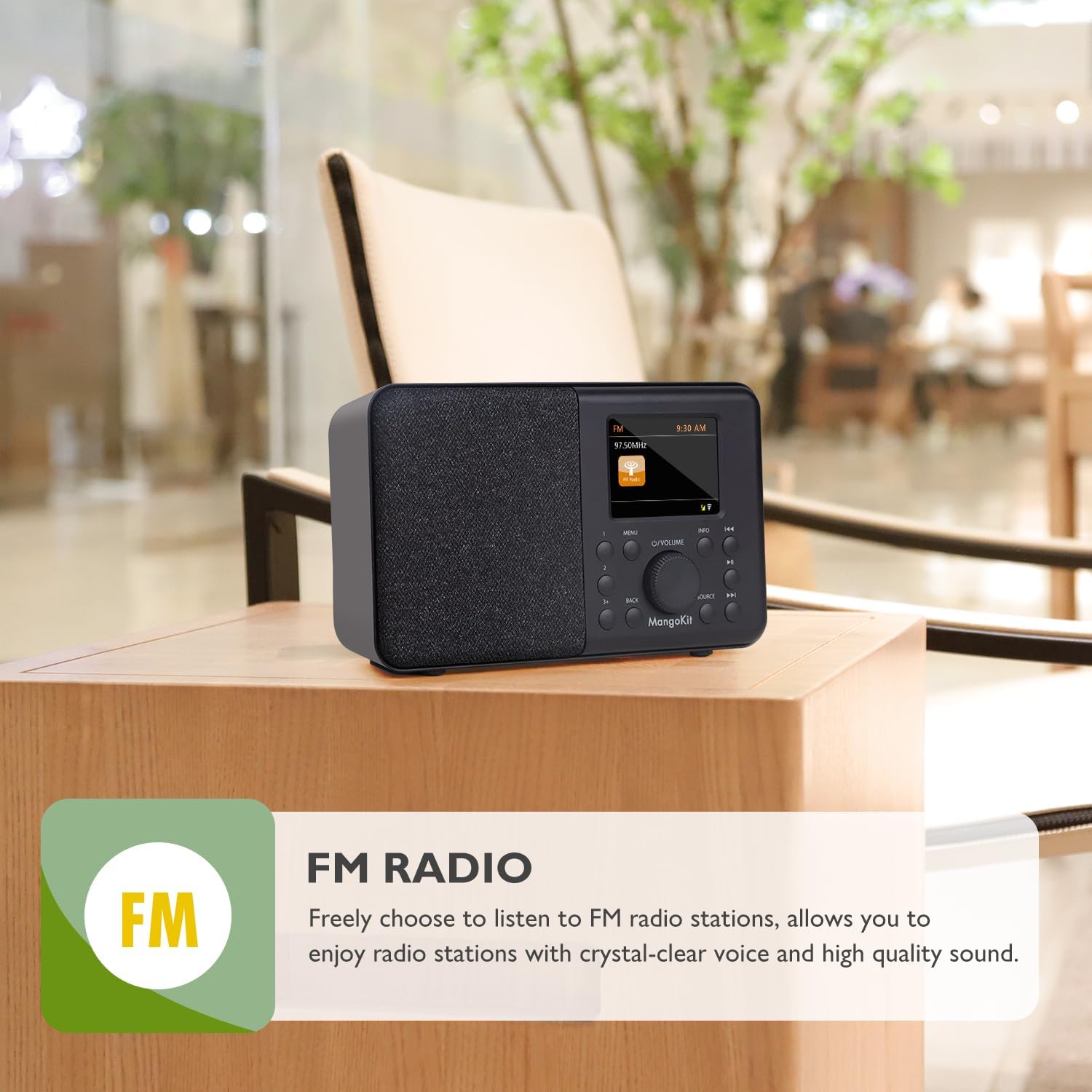
Figure 6.3: The SR10 operating in FM Radio mode, providing crystal-clear voice and high-quality sound from local broadcasts.
6.4 Presets
The SR10 allows you to store and recall your favorite stations for quick access.
- To Store (Presets 1, 2, 3+): While listening to a station, LONG PRESS the Preset 1, 2, or 3+ button for 2+ seconds until the display shows 'preset # stored successfully'. For presets beyond 2, use the 3+ button, then scroll the volume knob to select the desired preset number (up to 40) and press the knob to confirm.
- To Recall (Presets 1, 2, 3+): SHORT PRESS the Preset 1, 2, or 3+ button. For presets beyond 2, use the 3+ button, then scroll the volume knob to select the desired preset number and press the knob to recall.
Video 6.4: This video demonstrates the process of connecting the SR10 to a Wi-Fi network and setting up presets for your favorite stations.
6.5 Dual Alarms and Sleep Timer
Set up dual alarms for different times and use the sleep timer for automatic power-off.
- Alarms: Navigate to 'System settings' > 'Alarms'. You can set two independent alarms with options for daily, weekday, or weekend activation. Choose your preferred radio station as the alarm tone.
- Sleep Timer: Navigate to 'System settings' > 'Sleep'. Set the timer for OFF/15/30/45/60 minutes. The radio will automatically turn off after the set duration.

Figure 6.5: The SR10 features dual alarm settings for weekdays and weekends, allowing users to wake up to their favorite radio stations.
Video 6.6: This video demonstrates how to set alarms and adjust time settings on the internet radio.
6.7 Private Listening
For private listening, connect headphones to the dedicated port on the back of the radio.
- Locate the headphone port on the rear of the SR10.
- Plug in your 3.5mm headphones. Audio will automatically switch from the speaker to the headphones.

Figure 6.7: Enjoy private listening by connecting your headphones to the 3.5mm mini jack located on the back of the radio.
7. Maintenance
To keep your MangoKit SR10 in optimal condition:
- Clean the unit with a soft, dry cloth. Do not use abrasive cleaners or solvents.
- Ensure the telescopic antenna is fully retracted when not in use to prevent damage.
- If using batteries, remove them if the unit will not be used for an extended period to prevent leakage.
8. Troubleshooting
If you encounter issues with your SR10, please refer to the following common solutions:
| Problem | Possible Cause | Solution |
|---|---|---|
| No power | Power adapter not connected; Batteries depleted or incorrectly inserted. | Check power connection; Replace or correctly insert batteries. |
| Cannot connect to Wi-Fi | Incorrect password; Out of range; Router issue. | Re-enter password carefully; Move closer to router; Restart router. |
| Poor FM reception | Antenna not extended; Weak signal. | Fully extend the telescopic antenna; Try repositioning the radio. |
| Bluetooth pairing issues | Device not in pairing mode; Already connected to another device. | Ensure SR10 is in Bluetooth mode; Disconnect from other devices; Restart both devices. |
| Alarms not sounding | Alarm disabled; Volume too low. | Check alarm settings in System menu; Increase volume. |
9. Specifications
| Feature | Detail |
|---|---|
| Model Number | SR10 Portable Smart Radio |
| Dimensions (L x W x H) | 6.89 x 2.36 x 4.17 inches |
| Weight | 1.4 pounds |
| Display Type | TFT Color Display |
| Connectivity | Bluetooth 5.0, Wi-Fi, USB (Type-C for power) |
| Radio Bands Supported | FM, Internet Radio, Podcast |
| Power Source | Mains and Battery Powered (4 AA batteries, not included) |
| Special Features | OKTIV App Control, Dual Alarms, Sleep Timer, Presets (up to 40) |
10. Warranty and Support
10.1 Warranty Information
Warranty information for this product is currently unknown. Please refer to your purchase documentation or contact the retailer for specific warranty details.
10.2 Customer Support
For further assistance, technical support, or inquiries, please contact MangoKit customer service through the contact information provided with your product packaging or visit the official MangoKit website.
Documents and downloads
Ask a question about this manual
Ask about setup, troubleshooting, compatibility, parts, safety, or missing instructions. Manuals+ will review the question and use this page’s manual context to help answer it.