
ErGear EGCM25-US
ErGear EGCM25-US Freestanding Dual Monitor Stand User Manual
Model: EGCM25-US | Brand: ErGear
1. Introduction
This manual provides detailed instructions for the assembly, operation, and maintenance of your ErGear EGCM25-US Freestanding Dual Monitor Stand. Please read this manual thoroughly before installation and use to ensure proper setup and safe operation.
The ErGear EGCM25-US is designed to support two monitors, each up to 32 inches and weighing up to 22 lbs, featuring VESA 75x75mm or 100x100mm mounting patterns. Its freestanding design offers flexibility for various desktop surfaces, promoting an ergonomic workspace.
2. Safety Information
- Weight Capacity: Do not exceed the maximum weight capacity of 22 lbs (10 kg) per arm. Overloading can cause instability and potential damage or injury.
- Monitor Size: This stand is designed for monitors between 13 and 32 inches.
- VESA Compatibility: Ensure your monitors have VESA mounting patterns of 75x75mm or 100x100mm.
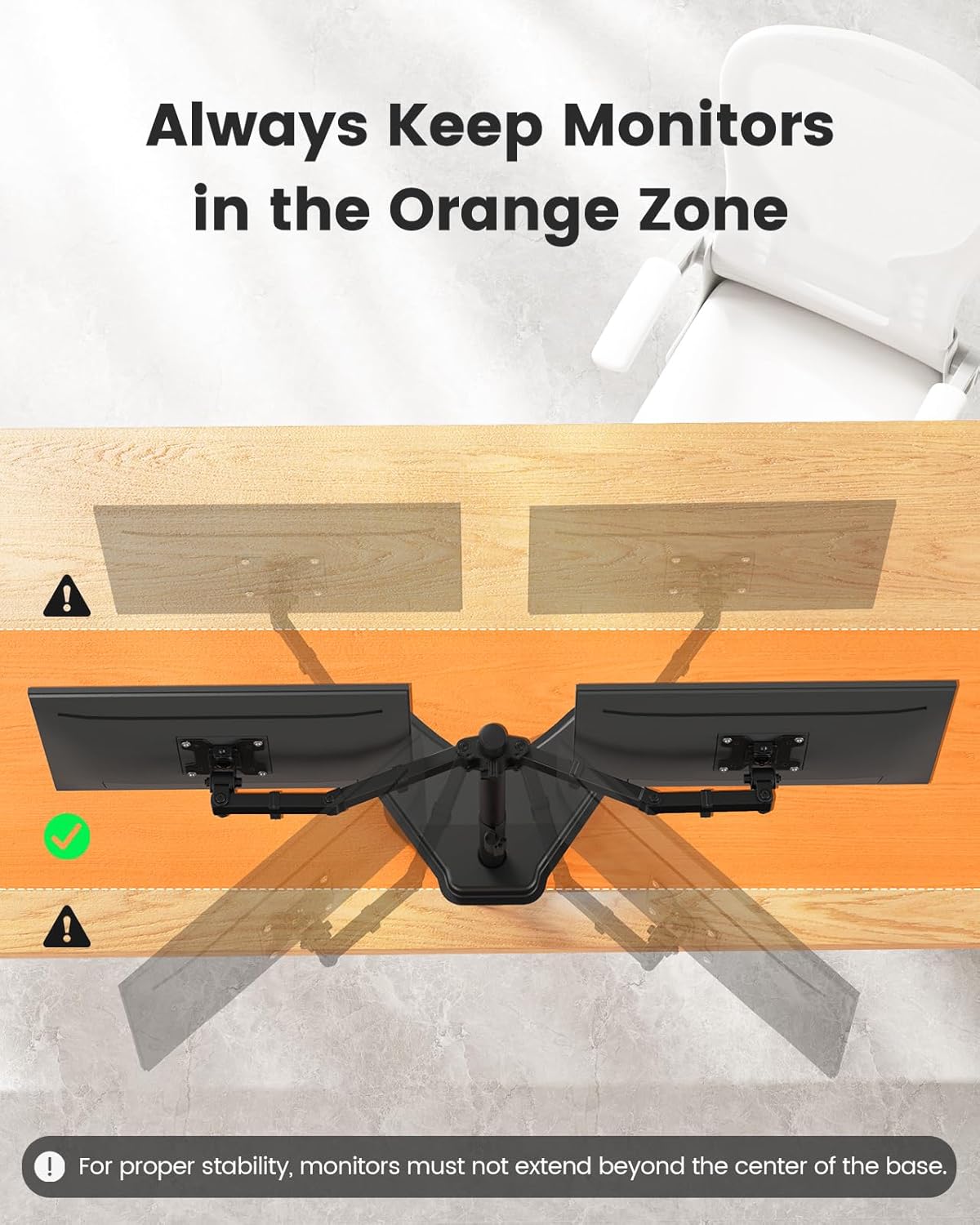
- Stability: Always keep your monitors within the designated "Orange Zone" (centered over the base) to prevent tipping. Do not extend the arms too far forward or backward.
- Assembly: Follow all assembly instructions carefully. If you encounter any difficulties, contact customer support.
- Children: Keep small parts away from children to avoid choking hazards.
3. Package Contents
Verify that all components are present and undamaged before proceeding with assembly. If any parts are missing or damaged, please contact ErGear customer support.
- Base Plate
- Main Pole
- Dual Monitor Arm Assembly
- VESA Plates (2x)
- Cable Management Clips
- Hardware Kit (screws, washers, spacers, Allen keys)
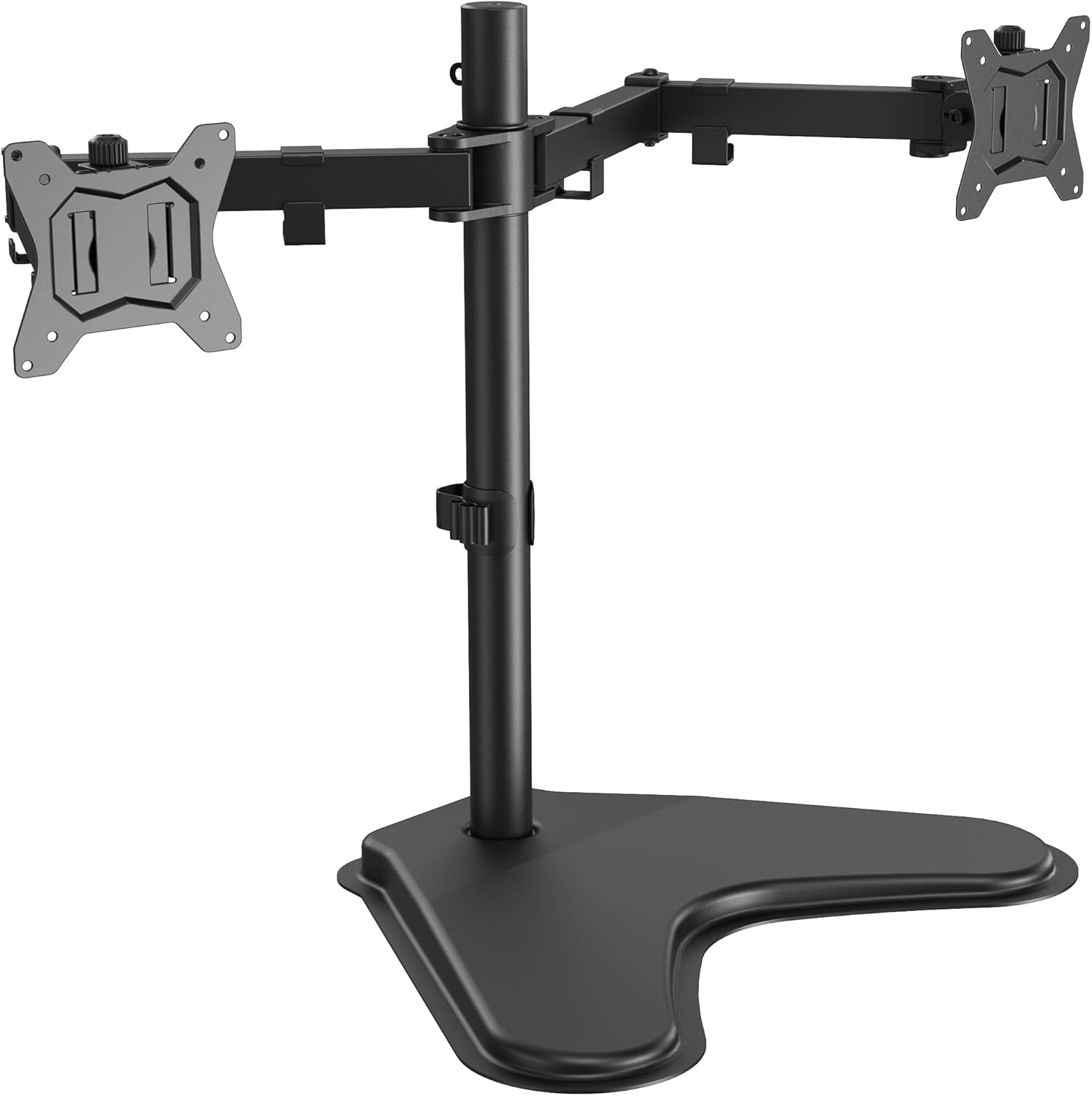
4. Specifications
| Feature | Detail |
|---|---|
| Model Number | EGCM25-US |
| Brand | ErGear |
| Monitor Size Compatibility | 13" - 32" per monitor |
| Weight Capacity | Max 22 lbs (10 kg) per arm |
| VESA Compatibility | 75x75mm, 100x100mm |
| Movement Type | Articulating, Tilt, Swivel, Rotation |
| Tilt Angle | +/- 90 degrees |
| Swivel Angle | +/- 90 degrees |
| Rotation | 360 degrees (Landscape/Portrait) |
| Maximum Height Adjustment | Up to 18.2 inches (pole height) |
| Base Dimensions | 13" x 10.7" |
| Material | Alloy Steel, Aluminum |
| Color | Black |

5. Setup and Assembly
Please follow these steps carefully for safe and correct assembly.
5.1 Attach Pole to Base
- Place the base plate on a stable, flat surface.
- Insert the main pole into the designated slot on the base.
- Secure the pole to the base using the provided screws and Allen key from the hardware kit. Ensure it is tightened firmly.
5.2 Attach Monitor Arms to Pole
- Slide the dual monitor arm assembly onto the main pole.
- Adjust the height of the arms to your desired initial position.
- Tighten the locking mechanism on the arm assembly to secure it to the pole.
5.3 Attach VESA Plates to Monitors
- Carefully lay your monitor face down on a soft, clean surface.
- Identify the VESA mounting holes on the back of your monitor (75x75mm or 100x100mm).
- Attach a VESA plate to the back of each monitor using the appropriate screws, washers, and spacers from the hardware kit. Do not overtighten.
- Note: If your monitor does not have VESA holes, a VESA adapter (sold separately) will be required.

5.4 Mount Monitors to Arms
- With assistance, carefully lift each monitor and slide the VESA plate attached to the monitor onto the corresponding arm's mounting head.
- Ensure the monitor is securely seated and locked into place. Some VESA plates may have a quick-release mechanism or require a screw to fully secure.
6. Operating Instructions and Adjustments
Once your monitors are mounted, you can adjust them for optimal viewing comfort and productivity.
6.1 Height Adjustment
To adjust the height of the monitors:
- Loosen the locking mechanism on the main pole that secures the arm assembly.
- Carefully slide the arm assembly up or down the pole to the desired height.
- Tighten the locking mechanism firmly to secure the arms at the new height.

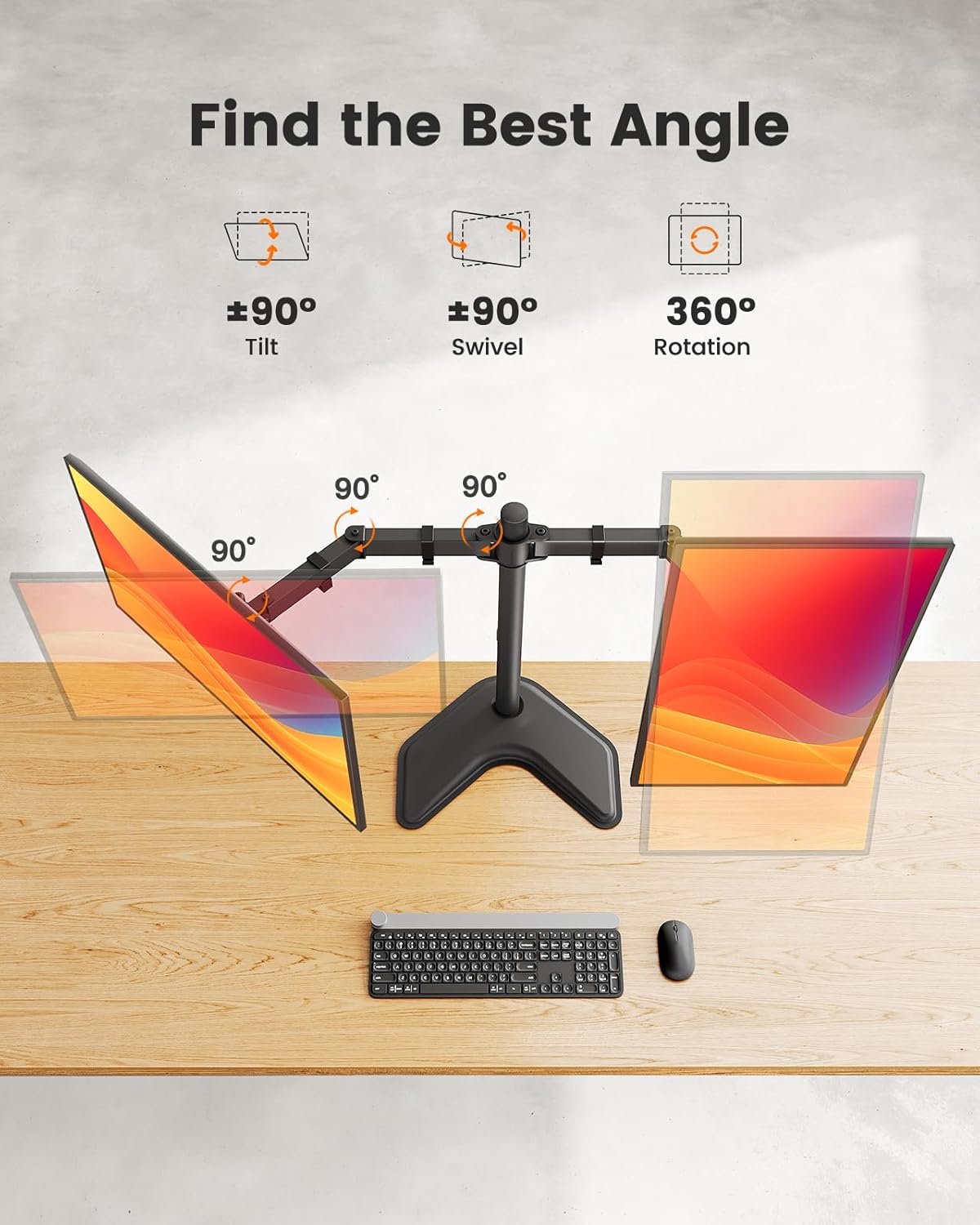
6.2 Tilt, Swivel, and Rotation
The monitor arms offer extensive adjustability:
- Tilt: Grasp the top and bottom edges of your monitor and gently tilt it forward or backward up to +/- 90 degrees to reduce glare or find your preferred angle.
- Swivel: Gently push or pull the monitor to swivel it left or right up to +/- 90 degrees, allowing you to share your screen or adjust viewing angles.
- Rotation: Rotate the monitor 360 degrees to switch between landscape and portrait orientations.
6.3 Cable Management
Use the integrated cable clips along the arms and pole to route and organize your monitor cables. This helps maintain a tidy and clutter-free workspace.

6.4 Maintaining Stability
Important: To ensure stability, always keep your monitors positioned within the "Orange Zone" – meaning the center of gravity of your monitors should remain over the base. Avoid extending the arms too far forward or backward, as this can cause the stand to tip.
7. Maintenance
- Cleaning: Wipe the stand with a soft, damp cloth. Avoid abrasive cleaners or solvents that could damage the finish.
- Tightness Check: Periodically check all screws and connections to ensure they remain tight. Re-tighten if necessary, especially after making significant adjustments or moving the stand.
- Lubrication: No lubrication is required for the moving parts.
8. Troubleshooting
| Problem | Possible Cause | Solution |
|---|---|---|
| Stand is unstable or tips over. | Monitors extended too far from the base; weight imbalance; loose connections. | Reposition monitors closer to the center of the base. Ensure all screws are tightened. Verify monitor weight is within limits. |
| Monitors sag or do not hold position. | Connections at the VESA plate or arm joints are loose. | Tighten the screws at the VESA plate and arm joints. Ensure monitor weight is within limits. |
| Difficulty adjusting height. | Locking mechanism on the pole is too tight or not fully loosened. | Ensure the locking mechanism is fully loosened before attempting to adjust height. Re-tighten after adjustment. |
| Monitors are not level. | Slight variations in arm tension or VESA plate attachment. | Adjust the tilt mechanism on each VESA plate individually until monitors are level. |
9. Warranty Information
ErGear products are designed for durability and performance. For specific warranty details regarding your EGCM25-US Freestanding Dual Monitor Stand, please refer to the warranty card included in your product packaging or visit the official ErGear website. Keep your purchase receipt as proof of purchase for any warranty claims.
10. Customer Support
If you have any questions, require assistance with assembly, or need troubleshooting support, please contact ErGear customer service:
- Website: Visit the ErGear Store on Amazon (for product information and support resources)
- Email: Refer to your product packaging or the official ErGear website for direct contact information.
Related documentsEGCM25-US


Ask a question about this manual
Ask about setup, troubleshooting, compatibility, parts, safety, or missing instructions. Manuals+ will review the question and use this page’s manual context to help answer it.