
ProtoArc EM05 NL
ProtoArc EM05 NL Vertical Wireless Trackball Mouse
Model: EM05 NL | Brand: ProtoArc
Introduction
The ProtoArc EM05 NL Vertical Wireless Trackball Mouse is designed to enhance comfort and productivity with its ergonomic vertical design and versatile connectivity options. This manual provides detailed instructions for setup, operation, and maintenance to ensure optimal performance and user experience.

Figure 1: ProtoArc EM05 NL Vertical Wireless Trackball Mouse (Blue variant).
What's in the Box
- Vertical Trackball Mouse
- Type C Charging Cable
- USB Receiver
- User Manual

Figure 2: Included items: Vertical Trackball Mouse, Type C Charging Cable, USB Receiver, and User Manual.
Setup
Initial Charging
Before first use, it is recommended to fully charge the mouse using the provided USB-C cable. Connect the USB-C end to the mouse's charging port and the USB-A end to a power source (e.g., computer USB port, wall adapter).
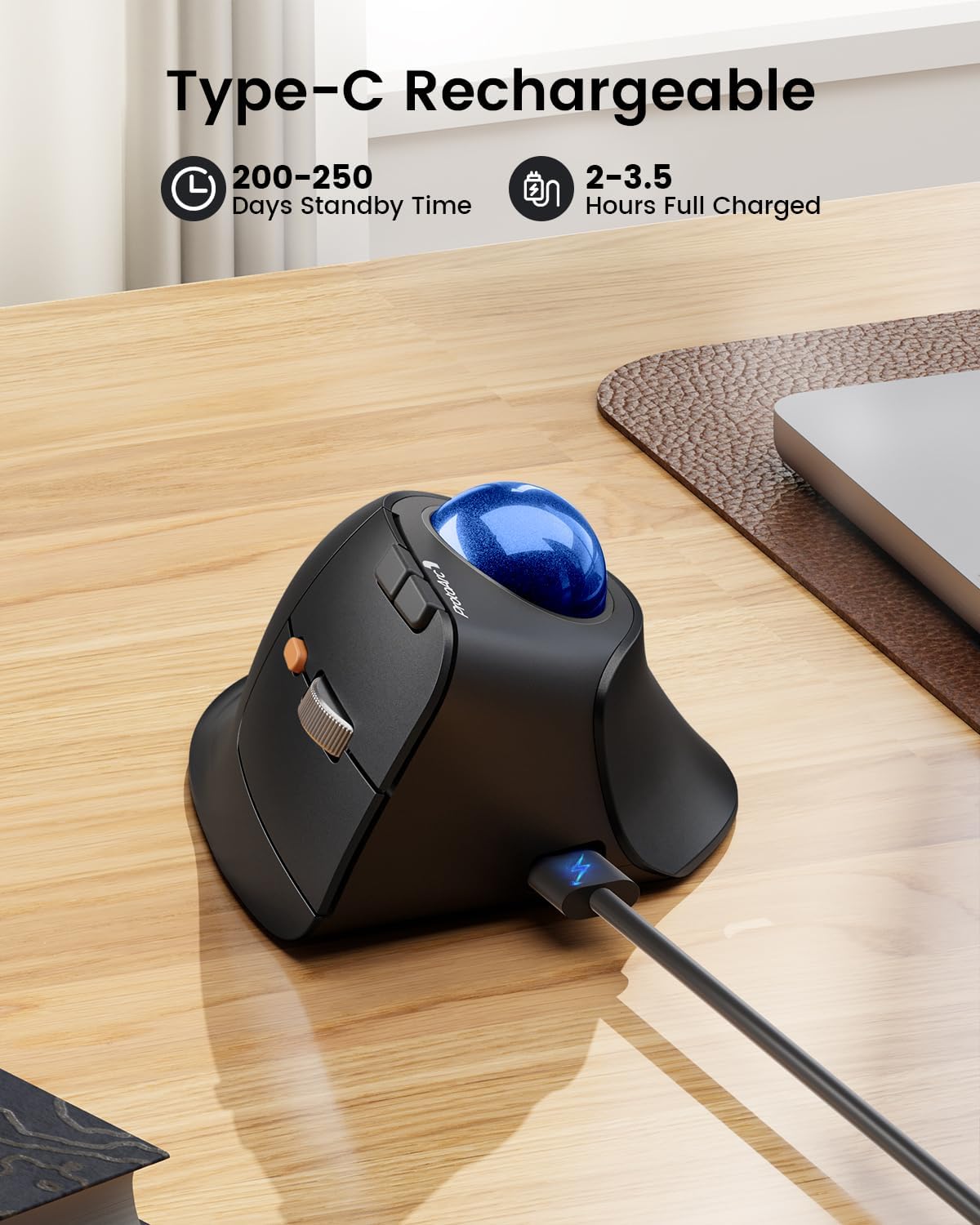
Figure 3: The mouse features a Type-C charging port for convenient recharging.
Connecting Your Mouse
The ProtoArc EM05 NL offers three connection modes: 2.4G Wireless, Bluetooth 5.1, and Bluetooth 3.0, allowing connection to up to three devices simultaneously.
- Power On: Locate the ON/OFF switch on the bottom of the mouse and slide it to the "ON" position.
- Select Channel: Use the channel switch button (labeled 1, 2, 3) on the bottom of the mouse to select your desired connection channel.
- Channel 1 (2.4G Wireless): For wireless connection, plug the USB receiver into an available USB port on your computer. The mouse should connect automatically (Plug & Play).
- Channel 2 or 3 (Bluetooth): For Bluetooth connection, press and hold the channel switch button for 3 seconds until the indicator light flashes, indicating pairing mode. On your device (iPad, Mac, Windows PC), go to Bluetooth settings and select "ProtoArc EM05 NL" to connect.
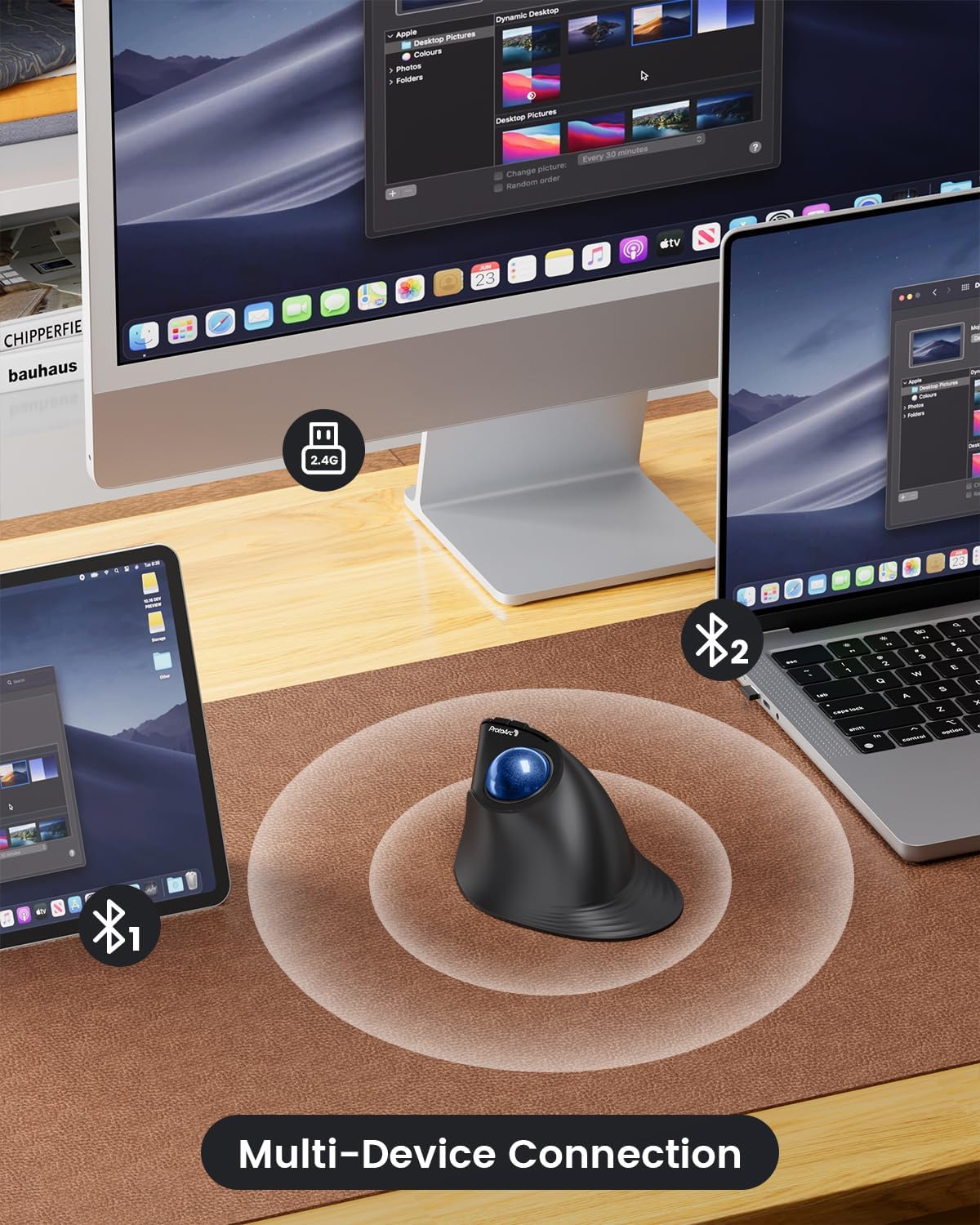
Figure 4: The mouse supports multi-device connection, allowing seamless switching between a tablet, monitor, and laptop.
Video 1: Official ProtoArc overview of the EM05 NL mouse, demonstrating its features and connectivity.
Operating Instructions
Ergonomic Design and Grip
The vertical design with a 62-degree tilt promotes a natural handshake posture, reducing wrist and arm fatigue during prolonged use. The thumb-controlled trackball minimizes wrist movement, making it ideal for tight spaces or various surfaces.

Figure 5: The ergonomic design helps reduce wrist pain by maintaining a natural hand position.

Figure 6: The 62-degree tilt supports a comfortable handshake posture for extended use.
Button Functions
The mouse features several buttons for intuitive control:
- Left Button: Standard left-click function.
- Right Button: Standard right-click function.
- Scroll Wheel: For vertical scrolling. Also functions as a clickable button.
- DPI Button: Adjusts cursor sensitivity (DPI levels).
- Forward/Backward Buttons: Navigate web pages or folders (not compatible with Mac OS).
- Trackball: Controls cursor movement with thumb.

Figure 7: Overview of mouse buttons and their functions.
DPI Adjustment
The mouse offers 5 adjustable DPI levels (200/400/800/1200/1600 DPI) to customize cursor sensitivity for precise tracking. Press the DPI button to cycle through the settings.

Figure 8: Available DPI settings for customized cursor speed.
Quiet Clicking
Enjoy a quiet working environment with the mouse's silent click design, minimizing disturbance to others.

Figure 9: The mouse features 90% whisper-quiet clicks for a peaceful workspace.
Maintenance
Trackball Cleaning
To ensure smooth trackball operation, regularly clean the trackball and the three white rollers inside its housing. Dust or debris can affect performance.

Figure 10: The trackball is detachable for easy cleaning and maintenance.
Battery Care
The mouse is equipped with a built-in rechargeable battery. To prolong battery life, remember to turn off the mouse when not in use for extended periods.
Troubleshooting
- Trackball Not Smooth: Clean the trackball and the internal rollers. If the issue persists, ensure the computer is not running a large application or just starting up, which can temporarily affect performance.
- Laggy Pointer Speed: Adjust the DPI settings using the DPI button on the mouse. You can also adjust mouse pointer speed in your operating system's settings.
- Connection Issues: Ensure the mouse is powered on and the correct channel (2.4G or Bluetooth) is selected. For Bluetooth, ensure the mouse is in pairing mode and your device's Bluetooth is enabled. For 2.4G, ensure the USB receiver is properly inserted.
- Learning Curve for Trackball: It may take 1-2 weeks to adapt to the thumb-controlled trackball. Experiment with different hand positions to find what is most comfortable for you. This adaptation period can lead to reduced wrist pressure and improved comfort in the long term.
Specifications
| Feature | Detail |
|---|---|
| Brand | ProtoArc |
| Model Number | EM05 NL |
| Connectivity Technology | Bluetooth (5.1, 3.0), 2.4G Wireless |
| Movement Detection Technology | Trackball |
| DPI Levels | 200/400/800/1200/1600 DPI |
| Special Features | Wireless, Quiet, Ergonomic Design, Rechargeable |
| Battery | 1 Lithium Ion battery (included) |
| Item Weight | 6 ounces |
| Country of Origin | China |
Warranty and Support
For warranty information and customer support, please refer to the contact details provided in the physical user manual included with your product. You can also visit the official ProtoArc website or contact their support team directly.
ProtoArc Support:
- Website: www.protoarc.com
- Email: support@protoarc.com
- US Support Line: +1 866-287-8188 (Monday-Friday: 10am-5pm, 2pm-7pm Eastern Time)
Related documentsEM05 NL


Ask a question about this manual
Ask about setup, troubleshooting, compatibility, parts, safety, or missing instructions. Manuals+ will review the question and use this page’s manual context to help answer it.