
1. Introduction
This manual provides detailed instructions for the Yitouniu EWeLink 1CH WiFi Smart Switch (Model: EWB1CH-B1). This device allows you to remotely control various appliances, set up timing schedules, and integrate with voice assistants like Alexa and Google Assistant, enhancing your smart home experience.
Package Contents:
- 1 x Yitouniu EWeLink 1CH WiFi Smart Switch
2. Safety Information
- Ensure the device is powered off before installation or maintenance.
- Do not exceed the maximum current rating of 10 Amps.
- Operate within the specified voltage range (DC 7-32V or USB 5V).
- Installation should be performed by qualified personnel if you are unsure about electrical wiring.
- Keep the device away from water and extreme temperatures.
3. Product Overview
The Yitouniu EWeLink 1CH WiFi Smart Switch is a compact relay module designed for smart home integration. It features a single channel for controlling an electrical circuit and supports both Wi-Fi and Bluetooth connectivity.
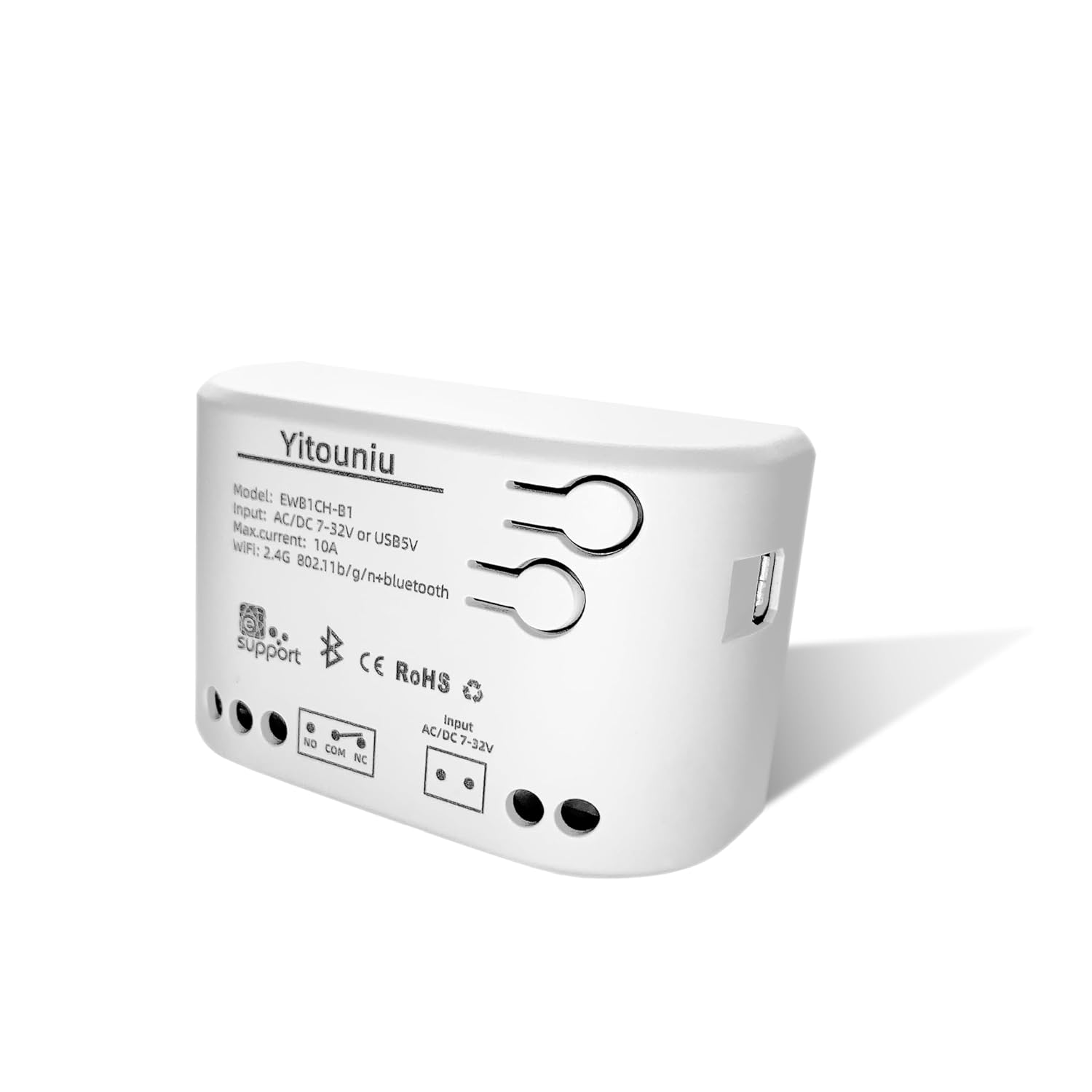
Figure 1: Yitouniu EWeLink 1CH WiFi Smart Switch (Model: EWB1CH-B1)

Figure 2: Front view of the smart switch showing model number, input voltage, max current, and wireless specifications.
Key Features:
- Dual Power Input: Supports DC 7-32V and USB 5V for flexible power options.
- Two Working Modes: Self-locking (toggle on/off) and Point-moving (momentary pulse).
- Wireless Connectivity: 2.4GHz WiFi (802.11b/g/n) and Bluetooth for easy pairing and control.
- App Control: Compatible with the eWeLink Smart Life App for remote control, timing, and scheduling.
- Voice Control: Works with Amazon Alexa and Google Assistant.
- Multi-User Sharing: Share control with family members.
4. Setup Instructions
Follow these steps to set up your Yitouniu EWeLink 1CH WiFi Smart Switch and connect it to the eWeLink app.
4.1 Initial Power-Up and Pairing Mode
- Power the Device: Connect the smart switch to a power source using either a USB 5V cable or DC 7-32V input.
- Observe Indicator Light: The indicator light on the device should start flashing quickly. If it does not flash, press and hold the pairing button for a few seconds until it begins flashing. This indicates the device is in pairing mode.
Video 1: Step-by-step guide on powering up and initiating pairing mode for the Yitouniu 1CH Smart Switch.
4.2 App Installation and Device Addition
- Download eWeLink App: Download and install the eWeLink Smart Life App from your smartphone's app store (Google Play Store or Apple App Store).
- Register/Login: Open the app and register for a new account or log in if you already have one.
- Add Device: Tap the '+' icon in the top right corner of the app to add a new device.
- Enable Bluetooth: If the app does not automatically discover the device, ensure Bluetooth is enabled on your smartphone. The app will use Bluetooth for initial discovery and then switch to Wi-Fi.
- Select Device: The app should detect the '1CH WiFi Switch'. Tap 'Add'.
- Enter Wi-Fi Information: Select your 2.4GHz Wi-Fi network and enter the correct password. The device only supports 2.4GHz Wi-Fi.
- Complete Setup: Once connected, the app will confirm the device has been added successfully. You can then rename the device for easier identification.
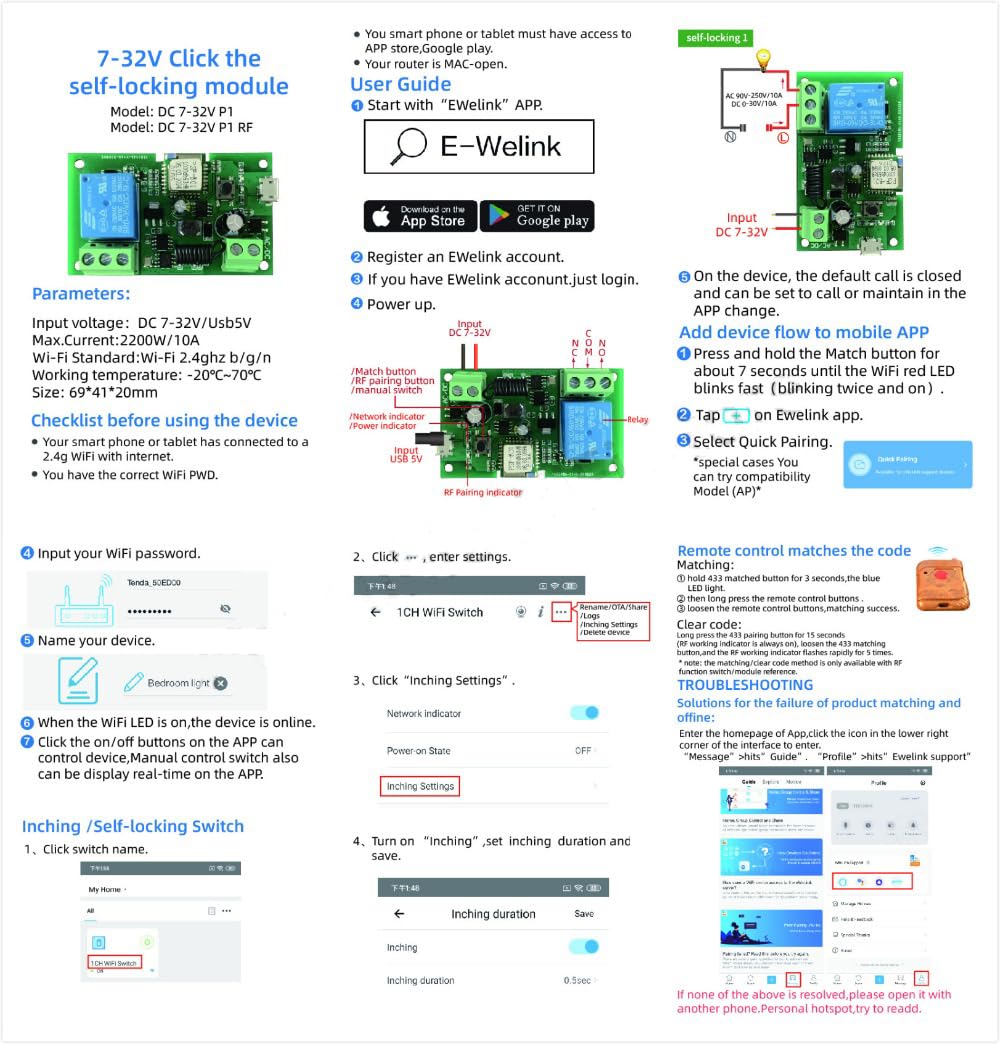
Figure 3: Visual guide for connecting the smart switch to the eWeLink app, including Wi-Fi setup and mode selection.
5. Operating Instructions
The Yitouniu EWeLink 1CH WiFi Smart Switch offers versatile control options through the eWeLink app and voice commands.
5.1 App Control
- Remote On/Off: Tap the switch icon in the app to turn your connected appliance on or off from anywhere.
- Timing and Scheduling: Use the 'Timer' or 'Schedule' functions within the app to set specific times for the device to turn on or off automatically. This includes countdown, sunrise/sunset, and cycle timers.

Figure 4: Illustrates remote control and scheduling capabilities via the mobile application.

Figure 5: Example of setting a timing function for an electrical appliance.
5.2 Working Modes
The switch supports different operating modes to suit various applications:
- Self-Locking Mode: Acts like a traditional toggle switch. One tap turns the device ON, another tap turns it OFF. Ideal for lights or fans.
- Point-Moving (Inching) Mode: Sends a brief ON pulse (configurable from 1 to 3600 seconds) and then automatically turns OFF. This is ideal for triggering devices like garage door openers.
- Interlock Mode: (Not directly supported by this 1-channel model, but mentioned in A+ content for multi-channel devices) Turns ON one channel while automatically turning others OFF.

Figure 6: Visual representation of different operating modes for smart switches.
5.3 Voice Control
Integrate your smart switch with Amazon Alexa or Google Assistant for hands-free control.
- Connect Accounts: Link your eWeLink account to Alexa or Google Home through their respective apps.
- Discover Devices: Ask Alexa or Google Assistant to discover new devices.
- Voice Commands: Use commands like "Alexa, turn on [device name]" or "Hey Google, turn off [device name]".

Figure 7: Example of using voice commands with Alexa to control the smart switch.
5.4 Multi-Person Sharing
Share control of your smart switch with family members through the eWeLink app, allowing multiple users to manage connected devices.

Figure 8: The eWeLink app allows sharing device control among family members.
6. Maintenance
To ensure optimal performance and longevity of your smart switch, follow these simple maintenance guidelines:
- Cleaning: Wipe the device with a dry, soft cloth. Do not use liquid cleaners or solvents.
- Environment: Ensure the device is installed in a dry, well-ventilated area, away from direct sunlight and heat sources.
- Firmware Updates: Periodically check the eWeLink app for available firmware updates to ensure your device has the latest features and security enhancements.
7. Troubleshooting
If you encounter issues with your Yitouniu EWeLink 1CH WiFi Smart Switch, refer to the following common problems and solutions:
- Device not entering pairing mode (indicator not flashing): Press and hold the pairing button on the device for several seconds until the indicator light starts flashing quickly.
- Device not found in eWeLink app:
- Ensure your smartphone's Bluetooth is enabled.
- Verify your Wi-Fi network is 2.4GHz. The device does not support 5GHz Wi-Fi.
- Make sure the device is within range of your Wi-Fi router.
- Restart the device and try the pairing process again.
- Device offline in app:
- Check your Wi-Fi router to ensure it is working correctly and the internet connection is stable.
- Verify the device is still powered on.
- If the network is disconnected, the device can still be controlled via Bluetooth from a close distance.
- Voice control not working:
- Ensure your eWeLink account is correctly linked to Alexa or Google Home.
- Check that the device name in eWeLink matches the name recognized by your voice assistant.
- Try rediscovering devices in your Alexa or Google Home app.
8. Specifications
| Parameter | Value |
|---|---|
| Model Number | EWB1CH-B1 |
| Input Voltage | DC 7-32V or USB 5V |
| Max. Current | 10 Amps |
| Operation Mode | ON-OFF-ON (Self-locking, Point-moving) |
| Wireless Connectivity | 2.4GHz WiFi (802.11b/g/n) + Bluetooth |
| Contact Type | Normally Open |
| Material | Plastic |
| Product Dimensions | 2.76 x 1.77 x 1.89 inches |
| Item Weight | 1.76 ounces |
9. Warranty Information
Specific warranty details for the Yitouniu EWeLink 1CH WiFi Smart Switch are typically provided at the point of purchase or within the product packaging. Please refer to the documentation included with your product or contact the seller for detailed warranty terms and conditions.
10. Support
For any questions, technical assistance, or support regarding your Yitouniu EWeLink 1CH WiFi Smart Switch, please contact the seller directly through the platform where you made your purchase. You can usually find a "Contact Seller" option in your order history.
Our support team is dedicated to providing timely assistance and resolving any issues you may encounter.