
Introduction
This manual provides detailed instructions for the setup, operation, maintenance, and troubleshooting of your Trueque Wireless Keyboard and Mouse Combo. Please read this manual thoroughly before use to ensure optimal performance and longevity of your device.
Package Contents
- Wireless Keyboard x 1
- Wireless Mouse x 1
- USB Receiver x 1
- Type-C Charging Cable x 1
- User Manual x 1

Image: Contents of the Trueque Wireless Keyboard and Mouse Combo package, including the keyboard, mouse, USB receiver, and charging cable.
Setup Instructions
1. Charging the Devices
Before initial use, ensure both the keyboard and mouse are fully charged. Use the provided Type-C charging cable to connect the devices to a USB power source. The charging indicator will show the charging status.
- Charging Time: Approximately 4-5 hours for a full charge.
- Battery Life: Up to 365 days standby time.
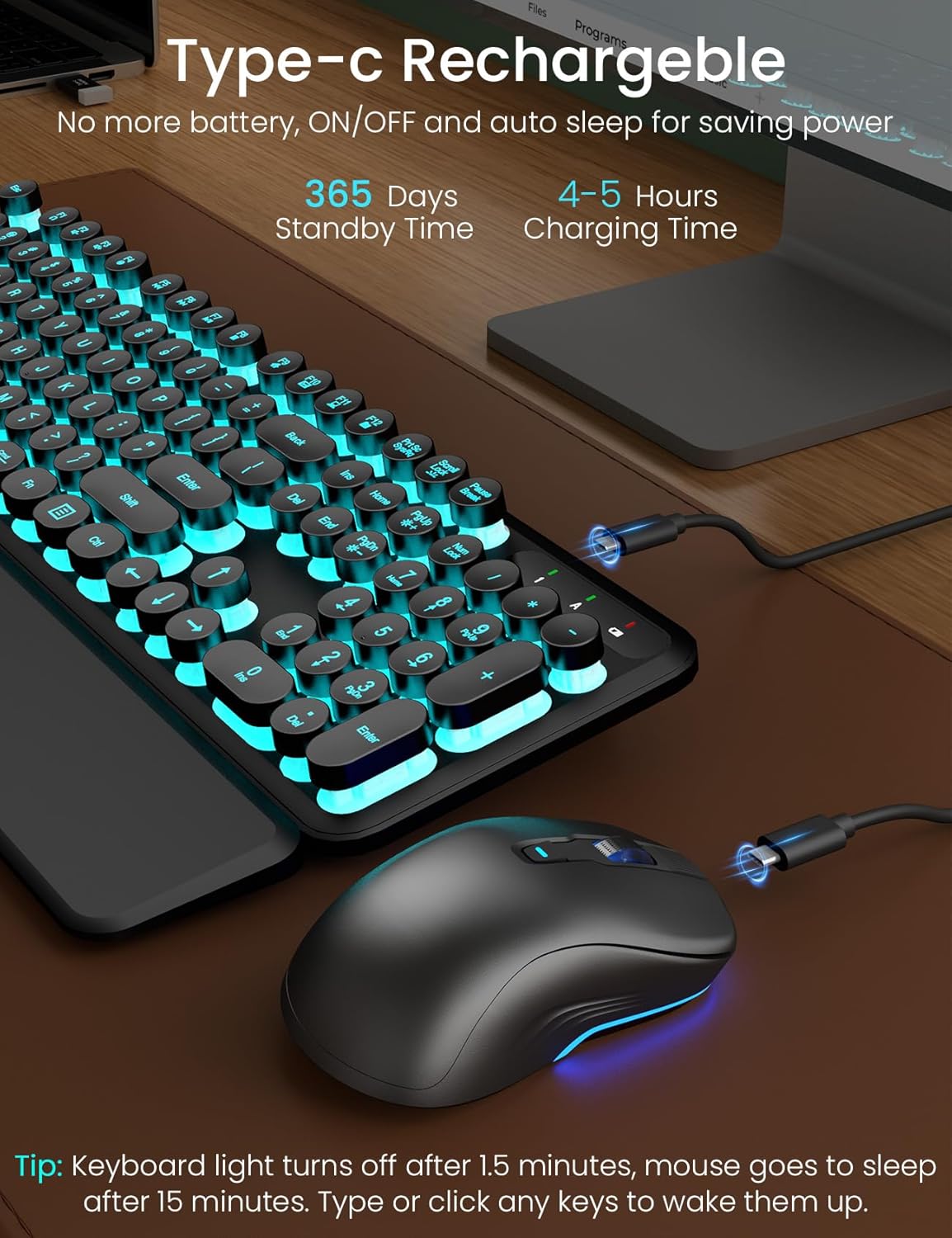
Image: The keyboard and mouse being charged via USB-C cables, illustrating the charging process.
2. Connecting the Wireless Combo
- Locate the USB receiver. It is typically stored in a compartment on the mouse or keyboard.
- Plug the USB receiver into an available USB-A port on your computer (PC, Laptop, Mac). If your computer only has Type-C ports, use the provided Type-C adapter.
- Turn on the keyboard and mouse using their respective ON/OFF switches. The switches are usually located on the underside of the devices.
- The devices should automatically connect to your computer. No additional drivers are typically required for plug-and-play functionality.
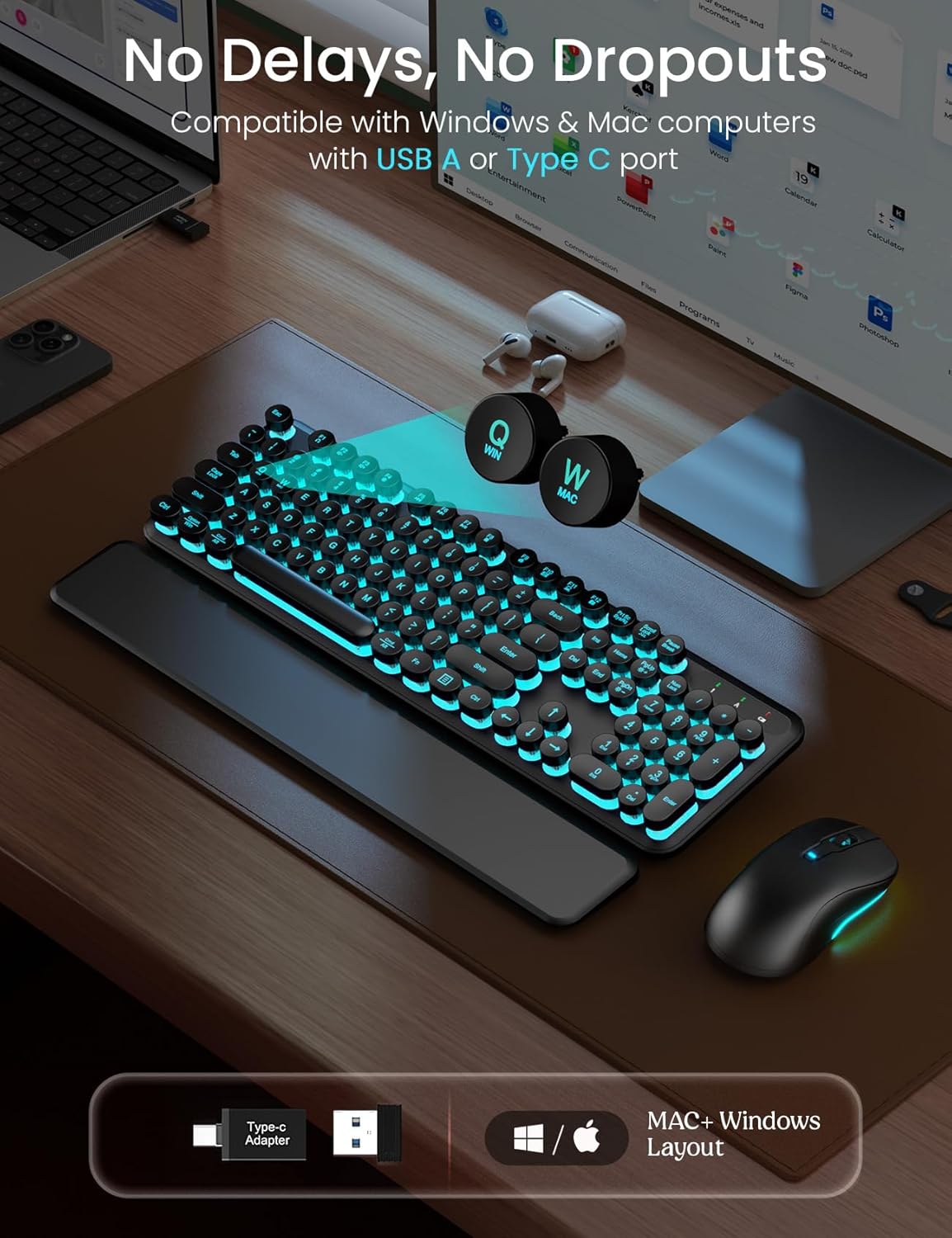
Image: A laptop with the USB receiver plugged in, demonstrating the wireless connection setup for the keyboard and mouse.
Operating Instructions
1. Keyboard Functions
- Backlight Control:
- Press Fn + Scroll Lock to switch between 7 different backlight colors.
- Press Fn + PgUp to increase backlight brightness.
- Press Fn + PgDn to decrease backlight brightness.
- Dual-System Layout (Mac/Windows):
- For Windows: Press Fn + Q (Win) key to activate Windows layout (Win, Alt, Num Lock functions).
- For Mac OS: Press Fn + W (Mac) key to activate Mac OS layout (Option, Cmd functions).
- Auto-Sleep Function: The keyboard backlight will turn off after 1.5 minutes of inactivity. The keyboard will enter sleep mode after 1.5 minutes of inactivity to conserve power. Press any key to wake it up.
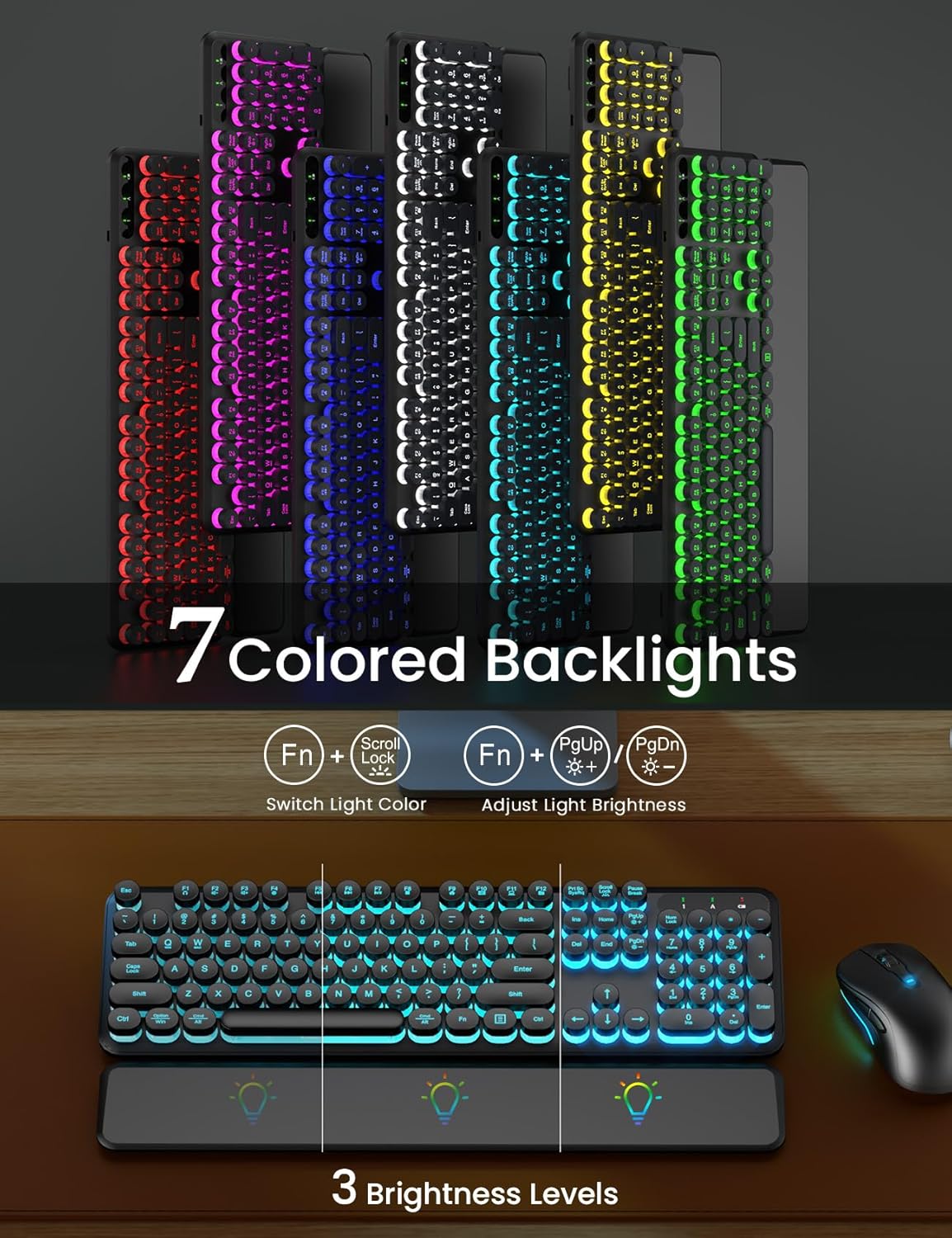
Image: The keyboard displaying various backlight colors and indicating the function keys for changing color and adjusting brightness.

Image: The keyboard illustrating the dual-system layout, showing how to switch between Windows and Mac OS modes using function keys.
2. Mouse Functions
- DPI Adjustment: The mouse features 3 adjustable tracking speeds (DPI levels). Press the DPI button (usually located behind the scroll wheel) to cycle through the settings.
- Forward/Backward Buttons: Use the side buttons for quick navigation in web browsers and file explorers.
- Auto-Sleep Function: The mouse will enter sleep mode after 2 minutes of inactivity to conserve power. Click any button to wake it up.
Maintenance
- Cleaning: The keyboard features detachable round keycaps, making them easy to clean. Gently pull the keycaps off to clean underneath. The keyboard is also spill-resistant, allowing for easy wiping of minor spills.
- Wrist Rest: The magnetic wrist rest is waterproof and easy to clean. Wipe it with a damp cloth as needed.
- Storage: When not in use for extended periods, turn off both the keyboard and mouse to conserve battery life. Store in a cool, dry place.
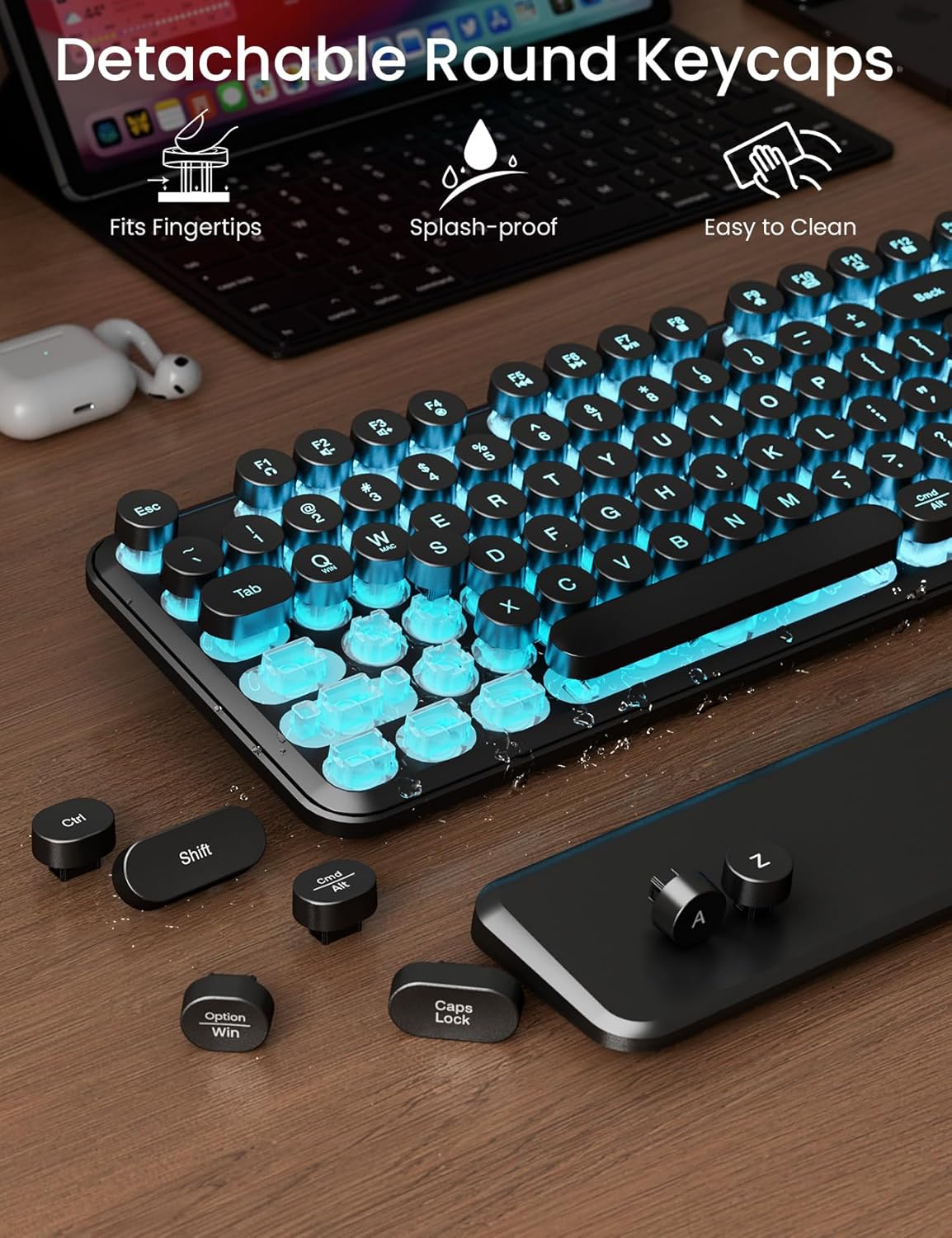
Image: Close-up of the keyboard showing detachable round keycaps and water droplets, highlighting its easy-to-clean and spill-resistant features.
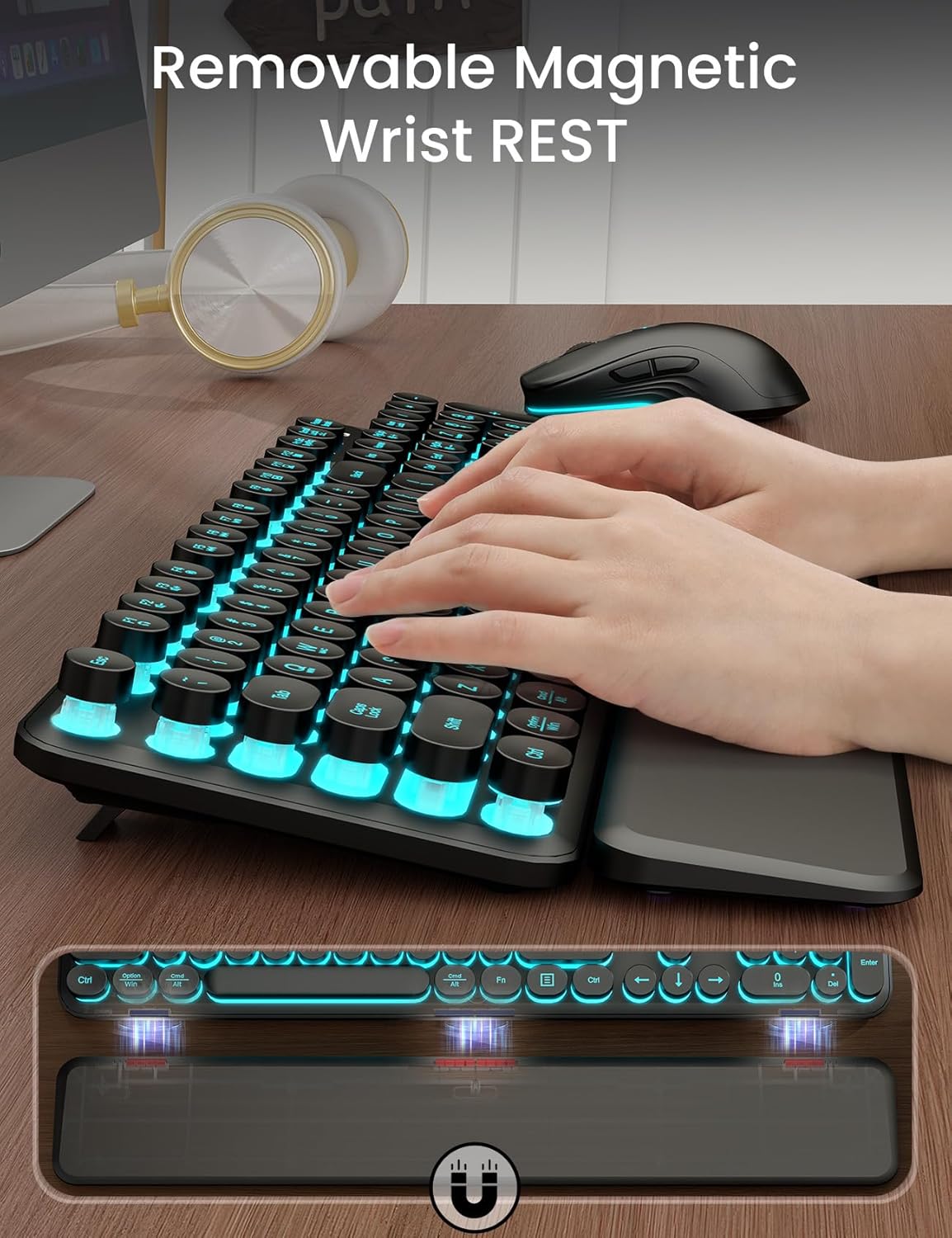
Image: The keyboard with its magnetic wrist rest, demonstrating how it attaches and provides ergonomic support.
Troubleshooting
- Q: The keyboard/mouse is not responding.
- A:
- Ensure both devices are turned ON.
- Check if the USB receiver is securely plugged into a working USB port. Try a different USB port.
- Verify that the devices are charged. Recharge if necessary.
- Move the devices closer to the USB receiver to rule out range issues (maximum 33ft).
- Restart your computer.
- Q: The backlight is not working or is dim.
- A:
- Ensure the keyboard is charged. Low battery can affect backlight performance.
- Adjust brightness using Fn + PgUp or Fn + PgDn.
- The backlight automatically turns off after 1.5 minutes of inactivity to save power. Press any key to reactivate.
- Q: The mouse cursor is erratic or unresponsive.
- A:
- Check the mouse battery level and recharge if needed.
- Ensure the mouse sensor is clean and free from obstructions.
- Try using the mouse on a different surface.
- Adjust the DPI setting using the DPI button.
- Q: Num Lock or other specific keys are not functioning correctly (e.g., on Mac).
- A:
- Ensure the correct operating system layout is selected. Press Fn + Q (Win) for Windows or Fn + W (Mac) for Mac OS.
- For Num Lock issues, especially on Mac, some applications or system settings might override the keyboard's default behavior. Check your operating system's keyboard settings.
Specifications
| Feature | Detail |
|---|---|
| Brand | Trueque |
| Model | B0D7PTKBTW |
| Connectivity Technology | 2.4GHz USB Wireless |
| Wireless Range | Up to 33 feet (10 meters) |
| Special Features | Ergonomic, Rechargeable, Round Keycaps, Wrist Rest, Backlit (7 colors) |
| Compatible Devices | Laptop, MacBook Pro, MacBook Air, iMac, Personal Computer (Windows, Linux, Chrome, Mac OS) |
| Keyboard Dimensions | 17.13 x 7.8 inches (approximate) |
| Mouse Dimensions | 4.8 x 2.52 x 1.5 inches (approximate) |
| Item Weight | 2.38 pounds |
| Batteries | 1 Lithium Ion battery required (built-in, rechargeable) |
| Charging Port | USB Type-C |
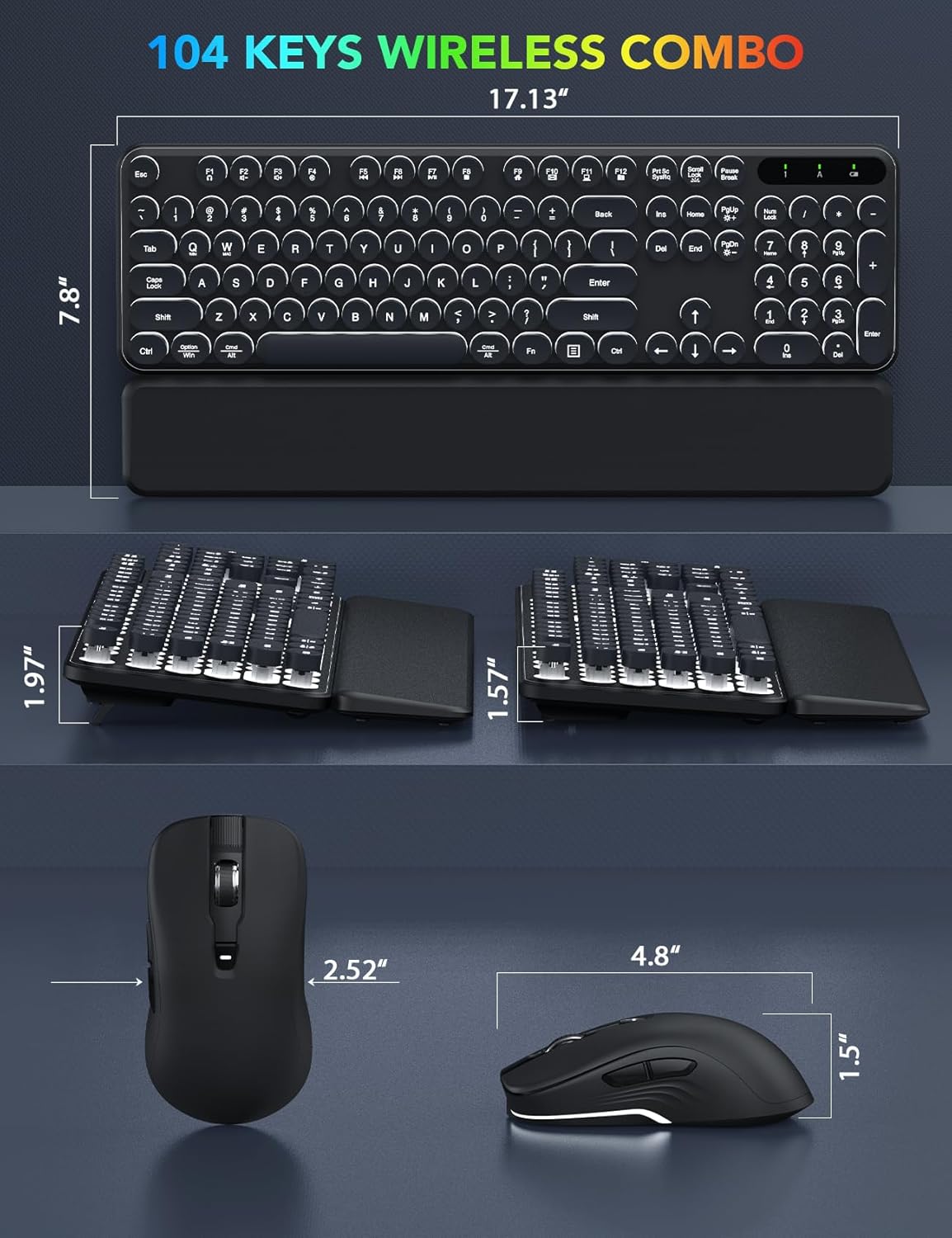
Image: Diagram showing the dimensions of the Trueque wireless keyboard and mouse.
Warranty and Support
Trueque provides a 12-month free warranty for this product, along with 360 days of brand service. For any inquiries, troubleshooting assistance, or support needs, please contact our customer service team.
- Email Support: truequeservice@outlook.com
- Phone Support (US): 1-866-608-6766 (Mon-Fri, 9am-1pm, 2pm-6pm PST)
- Online Response: 24-hour response time.

Image: An illustration depicting the Trueque customer support team, indicating available support channels and hours.