
Fuluku RM
Fuluku Android 13 Car Stereo User Manual
Model: RM (for Dodge Ram 1500 2500 3500 2013-2019)
Brand: Fuluku
1. Introduction
This user manual provides comprehensive instructions for the installation, operation, and maintenance of your Fuluku Android 13 Car Stereo. Designed specifically for Dodge Ram 1500, 2500, and 3500 models from 2013 to 2019, this advanced car stereo system integrates a 9-inch touchscreen with Android 13, offering features such as wireless CarPlay, Android Auto, GPS navigation, Wi-Fi connectivity, Bluetooth, and steering wheel control. Please read this manual thoroughly before use to ensure proper installation and optimal performance.
2. Safety Information
Always prioritize safety. Improper installation or operation can lead to vehicle damage or personal injury. Ensure the vehicle's ignition is off before beginning installation. Do not attempt to operate the unit in a way that distracts you from driving. Consult a professional for installation if you are unsure about any steps. Keep the unit away from water and extreme temperatures.
3. Package Contents
Verify that all items are present in the package before beginning installation.
- Fuluku Android Stereo Unit (for Dodge Ram 1500 2500 3500 2013-2019)
- Power Cable
- RCA Cable
- GPS Antenna
- AHD Backup Camera
- External Microphone
- Rear Camera Input Cable
- Dual USB Cable
- Installation Tool & Accessories

Figure 3.1: Main unit and included accessories.
4. Setup and Installation
4.1 Compatibility Check
Before proceeding with installation, ensure this Android car stereo is compatible with your Dodge Ram 1500, 2500, or 3500 model (2013-2019). Verify that the power cord port on the detail page matches your car's existing wiring. If you have any doubts, consult the seller or a professional installer.

Figure 4.1: Compatibility and installation examples for Dodge Ram dashboards.
4.2 Wiring Connections
Connect the provided cables to the corresponding ports on the car stereo and your vehicle's wiring harness. Ensure all connections are secure to prevent malfunctions. Refer to the detailed wiring diagram below for proper connection of the power cable, RCA cables, USB cables, GPS antenna, and camera inputs.

Figure 4.2: Port Details and Wiring Diagram.
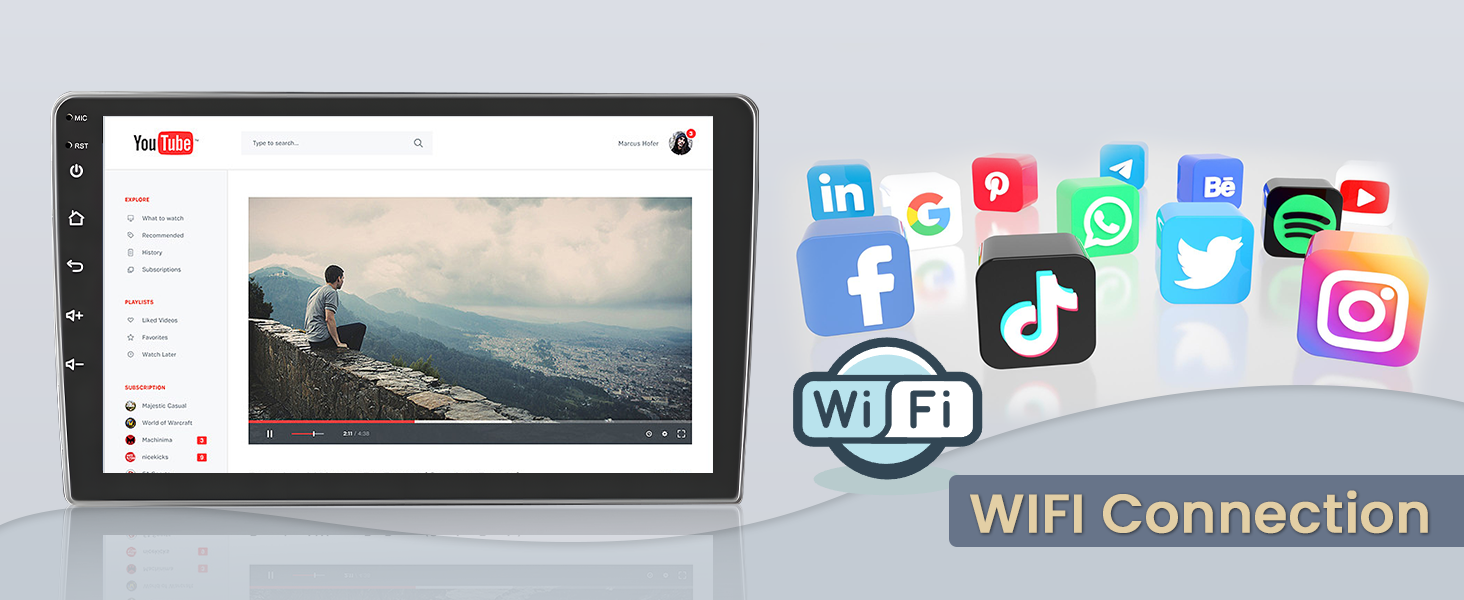
Figure 4.3: AHD Reversing Camera Wiring.
5. Operating Instructions
5.1 Power On/Off and Basic Interface
To power on the unit, ensure it is correctly installed and your vehicle's ignition is on. The system will boot up automatically. The main interface provides access to various functions and applications. You can customize the home screen with different interface options.
Video 5.1: Overview of the Android Car Stereo interface and features (Duration: 1:40).
5.2 Wireless/Wired CarPlay and Android Auto
The unit supports both wireless and wired CarPlay for iOS devices and Android Auto for Android phones. Connect your phone via USB or Bluetooth/Wi-Fi to access navigation, make calls, send messages, and listen to music directly from the car stereo's screen. The "CPLink" application is pre-installed for iOS users.

Figure 5.2: Wireless CarPlay/Android Auto/Mirror Link setup.
5.3 GPS Navigation
The car stereo has a built-in GPS navigation application and supports online maps (e.g., Google Maps) via Wi-Fi connection or offline maps (e.g., HERE We Go) by downloading them. The included GPS antenna ensures accurate positioning.

Figure 5.3: GPS Navigation and Wi-Fi Connectivity.
5.4 Wi-Fi Connectivity
Connect the unit to a Wi-Fi network via your phone's hotspot or a dedicated Wi-Fi device. This enables access to online features, app downloads from the App Store (Google Play Store), and internet browsing.

Figure 5.4: Wi-Fi Connection for online content.
5.5 Bluetooth Functionality
Pair your mobile phone with the car stereo via Bluetooth for hands-free calling and music streaming. You can receive and make calls, play music, and download your phone's contacts directly to the unit, enhancing driving convenience and safety.

Figure 5.5: Bluetooth Hands-free Call and Music.
5.6 Built-in EQ Setting
Customize your audio experience with the built-in equalizer (EQ) settings. Adjust various frequency bands to match your preferred music styles and sound effects, optimizing the sound output for your vehicle's acoustics.
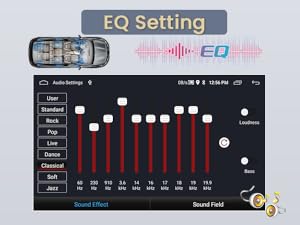
Figure 5.6: EQ Setting Interface.
5.7 Steering Wheel Control (SWC)
After proper wiring, the unit supports your vehicle's original steering wheel controls. This allows you to manage functions like volume, track changes, and mode selection directly from your steering wheel, keeping your hands on the wheel and eyes on the road.

Figure 5.7: Steering Wheel Control setup.
5.8 Mirror Link and Split Screen
Use the Mirror Link function to synchronize content from your phone to the 9-inch screen via original USB cable or Wi-Fi. The split-screen mode allows you to display two different applications simultaneously, for example, navigation on one side and music playback on the other.

Figure 5.8: Split-Screen Mode and FM/RDS Radio.
5.9 AHD Backup Camera
The included AHD backup camera provides a 170-degree ultra-wide-angle view and is waterproof. When the vehicle is in reverse, the display automatically switches to the camera feed, assisting with safe parking and maneuvering.

Figure 5.9: AHD Backup Camera View.
5.10 Voice Control
Utilize voice commands to control various functions of the car stereo, such as navigation, music playback, and making calls. This feature allows for hands-free operation, contributing to safer driving by minimizing distractions.
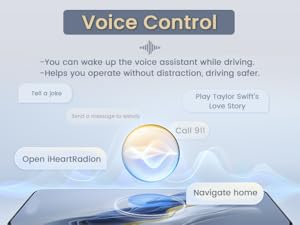
Figure 5.10: Voice Control Features.
6. Maintenance
To ensure the longevity and optimal performance of your Fuluku car stereo, follow these maintenance guidelines:
- Cleaning: Use a soft, dry cloth to clean the touchscreen and exterior. Avoid abrasive cleaners or solvents that could damage the surface.
- Software Updates: Periodically check for software updates to ensure the system runs efficiently and has the latest features and security patches.
- Temperature: Avoid exposing the unit to extreme temperatures, both hot and cold, for extended periods.
- Power: Ensure the vehicle's electrical system is stable. Avoid frequent power fluctuations.
7. Troubleshooting
If you encounter issues with your car stereo, refer to the following common problems and solutions:
| Problem | Possible Cause | Solution |
|---|---|---|
| Unit does not power on. | Incorrect wiring; Blown fuse; Vehicle ignition off. | Check power cable connections; Inspect vehicle fuses; Turn on vehicle ignition. |
| No sound from speakers. | Speaker wires disconnected; Volume too low; Mute activated. | Verify speaker connections; Increase volume; Deactivate mute function. |
| GPS signal weak or lost. | GPS antenna improperly installed or obstructed. | Ensure GPS antenna is placed in an unobstructed location (e.g., dashboard); Check antenna connection. |
| Bluetooth connection issues. | Phone not discoverable; Incorrect pairing; Interference. | Ensure phone's Bluetooth is on and discoverable; Re-pair device; Move away from other electronic devices. |
| Touchscreen unresponsive. | System freeze; Dirt on screen. | Restart the unit (if possible, by holding power button); Clean screen with a soft cloth. |
If the problem persists after attempting these solutions, please contact Fuluku customer support for assistance.
8. Specifications
| Feature | Detail |
|---|---|
| Model Name | RM |
| Operating System | Android 13 |
| RAM | 2GB |
| ROM | 64GB |
| Display Size | 9 Inches |
| Connectivity Technology | Bluetooth, Wi-Fi, USB, FM RDS |
| Special Features | Carplay/Android Auto, Mirror Link, GPS Navigation, Steering Wheel Control, Voice Command |
| Audio Output Mode | APE/FLAC/WAV/MP3/WMA |
| Mounting Type | Dashboard Mount |
| Item Weight | 3.7 pounds |
| Manufacturer | Fuluku |
9. Warranty and Support
Fuluku provides a 30-day Money-Back guarantee, 12-month Replacement, and life-time Technical Support for this product. If you encounter any problems with installation or use, please contact Fuluku Direct through the seller's page on Amazon. We aim to reply within 24 hours to assist you.
For further assistance, please visit the Fuluku Store on Amazon.
Ask a question about this manual
Ask about setup, troubleshooting, compatibility, parts, safety, or missing instructions. Manuals+ will review the question and use this page’s manual context to help answer it.