
Introduction
This manual provides detailed instructions for the installation, operation, and maintenance of your HiLook 1080p Turbo HD Security Camera System. Please read this manual thoroughly before using the product to ensure proper setup and functionality. Keep this manual for future reference.
What's in the Box
Verify that all components are present in your package:
- 4x 1080p Bullet Cameras
- 1x Digital Video Recorder (DVR)
- 1x 1TB Surveillance Hard Disk Drive (HDD)
- 2x Power Supplies
- 1x HDMI Cable
- 1x Network Cable
- 4x 60 ft BNC Cables
- 1x 1-to-5 Splitter Cable
- 4x Screws
- 1x USB Mouse
- 1x User Manual (this document)

Image: All components included in the HiLook Security Camera System package.
Product Overview
Camera Components
- Plastic Casing: IP66 Water & Dust resistant for outdoor use.
- 2.8mm Lens: Provides a wide field of view.
- IR Light: Infrared illumination for up to 100ft night vision.
- Daylight Sensor: Automatically switches between color, black and white, or auto mode.
- Power Supply Port: For connecting the camera to power.
- Network Cable Port: For data transmission.
- Switch Button: Allows signal switching between TVI, AHD, CVI, and CVBS formats.
DVR Interfaces
- Video IN: BNC connectors for camera video input.
- HDMI Interface: For connecting to a monitor or TV.
- VGA Interface: For connecting to a monitor.
- Audio IN/OUT: RCA connectors for audio input and output.
- LAN Network Interface: For connecting to your network.
- USB Interface: For connecting a mouse or USB storage.
- 12 VDC Power Input: For connecting the DVR power adapter.
- GND: Grounding terminal.
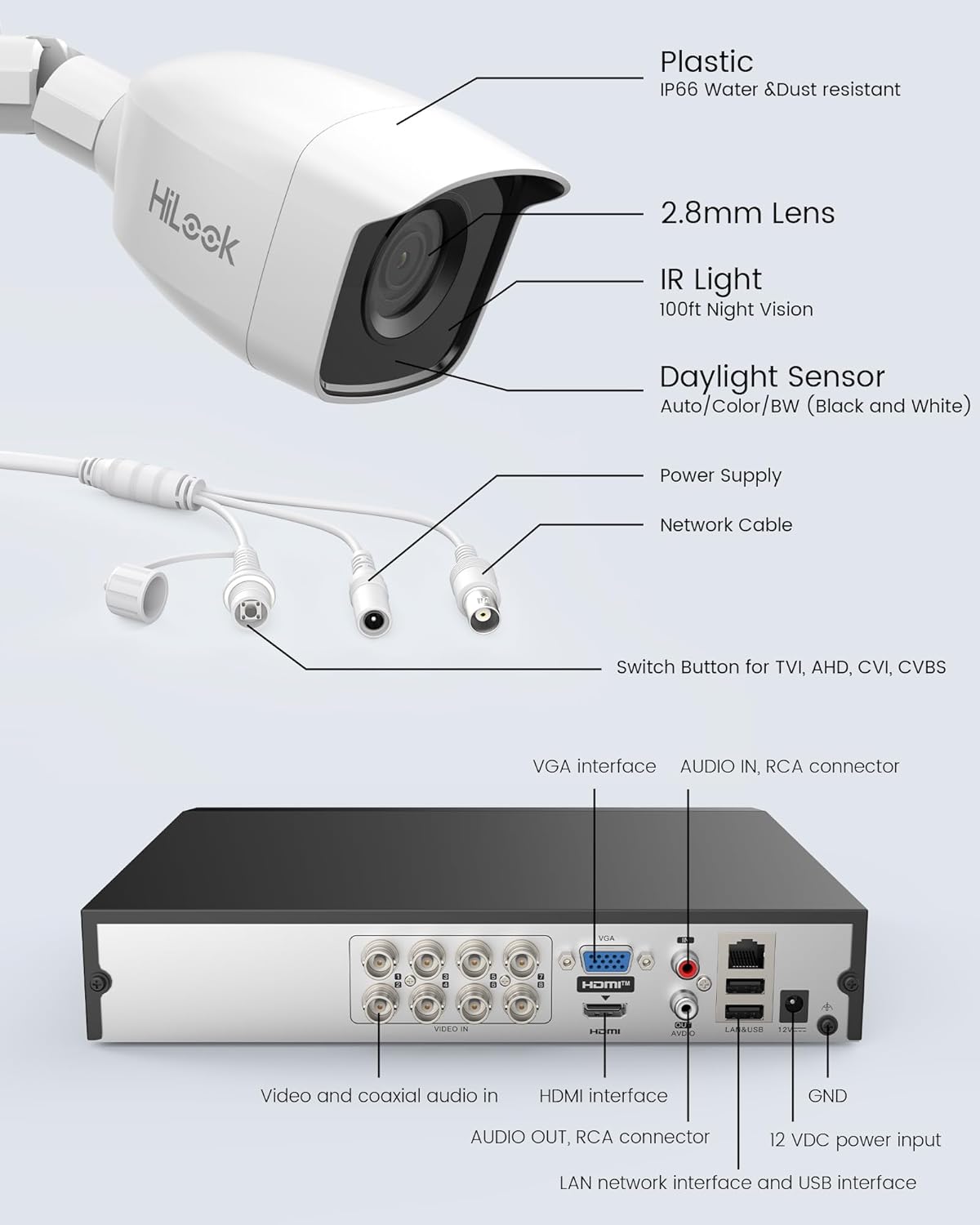
Image: Detailed view of camera components and DVR interfaces.
Setup
1. Physical Installation
- Mounting Cameras: Choose suitable locations for your cameras, ensuring optimal viewing angles and coverage. Use the provided screws to securely mount each camera.
- DVR Placement: Place the DVR in a secure, well-ventilated area, away from direct sunlight and moisture.
2. Connections
- Connect Cameras to DVR: Connect one end of the BNC cable to the camera's video output and the other end to a 'VIDEO IN' port on the DVR.
- Power Cameras: Use the provided power adapters and splitter cable to power each camera.
- Connect DVR to Monitor: Connect the DVR to a monitor or TV using the HDMI or VGA cable.
- Connect USB Mouse: Plug the USB mouse into a USB port on the DVR.
- Connect DVR to Network (Optional for Remote Viewing): Connect the network cable from the DVR's LAN port to your router or network switch.
- Power DVR: Connect the DVR's power adapter to the 12 VDC power input and then to a power outlet.

Image: Example of camera and DVR connection for easy setup.
3. Initial Configuration
- First Boot: Upon first power-up, the DVR will guide you through an initial setup wizard. Follow the on-screen prompts to set language, date/time, and create a strong password.
- HDD Initialization: The 1TB HDD is pre-installed. The system may prompt you to initialize or format the HDD. Follow instructions to ensure it is ready for recording.
- Multi-Signal Switch: If a camera is not displaying video, use the camera's switch button to cycle through TVI, AHD, CVI, and CVBS modes until a picture appears on the monitor.
4. Remote Viewing Setup (HiLookVision App)
- Download App: Download the "HiLookVision" app from your smartphone's app store.
- Create Account: Register for a new account or log in if you already have one.
- Add Device: In the app, select 'Add Device' and scan the QR code displayed on your DVR's monitor (usually found in the network settings or P2P cloud settings).
- Configure Network: Ensure your DVR is connected to the internet. The app will guide you through any necessary network configurations.
Operating Instructions
1. Live View and Recording
- Live View: After setup, the DVR will display live feeds from all connected cameras on the monitor.
- Recording: The system is configured for continuous recording by default. You can adjust recording schedules and modes (e.g., motion-triggered, scheduled) via the DVR's menu.
2. Smart IR Functionality
The cameras feature Smart IR technology, which automatically adjusts infrared light intensity to prevent overexposure in night vision, ensuring clear images up to 20 meters in low-light conditions.
3. Motion Detection (Human & Vehicle)
The system can differentiate between human and vehicle movement from other objects, reducing false alarms. When motion is detected, the system can:
- Trigger recording.
- Send push notifications to your HiLookVision app.
- Activate an audible alarm (if configured).

Image: Example of a HiLookVision app alert for person detection.

Image: Example of a HiLookVision app alert for human and vehicle detection.
4. Remote Playback
Access recorded footage remotely via the HiLookVision app or directly from the DVR interface. You can search by date, time, and event (e.g., motion detection) to review specific incidents.
Maintenance
- Cleaning: Regularly clean camera lenses with a soft, dry cloth to ensure clear image quality. Clean the DVR's exterior with a soft cloth. Do not use harsh chemicals.
- Firmware Updates: Periodically check the HiLook website or the HiLookVision app for firmware updates for your DVR. Keeping firmware updated ensures optimal performance and security.
- HDD Management: The 1TB HDD will automatically overwrite the oldest footage when full. You can configure retention policies and check HDD health through the DVR's menu.
Troubleshooting
| Issue | Possible Cause | Solution |
|---|---|---|
| No video display from camera | Loose cable connection, incorrect signal mode, no power to camera. | Check BNC and power connections. Use the camera's switch button to cycle through TVI/AHD/CVI/CVBS modes. Ensure camera power adapter is connected. |
| Black and white image during daytime | Daylight sensor issue, camera stuck in night mode. | Check camera settings for daylight sensor mode. Ensure sufficient ambient light. Power cycle the camera. |
| Cannot access DVR remotely | DVR not connected to network, incorrect network settings, app issues. | Verify network cable connection to DVR and router. Check DVR network settings (DHCP enabled). Ensure HiLookVision app is updated and device is added correctly. |
| No recording on HDD | HDD not initialized, recording schedule not set, HDD fault. | Check DVR menu to ensure HDD is initialized and healthy. Verify recording schedule settings. |
Specifications
| Feature | Detail |
|---|---|
| Model Number | TVI-KIT4182B 1T |
| Video Capture Resolution | 1080p (1920 x 1080) |
| Number of Channels | 8 |
| Memory Storage Capacity | 1 TB HDD |
| Connectivity Technology | Ethernet, Wired |
| Special Features | 4-in-1 (TVI/AHD/CVI/CVBS), Human and Vehicle Detection, IP66 Weatherproof, Smart IR |
| Power Source | Corded Electric |
| Operating System | HiLookVision |
| Item Dimensions (L x W x H) | 41.5 x 18 x 30 cm |
| Item Weight | 5.5 kg |
Warranty and Support
For warranty information and technical support, please refer to the official HiLook website or contact your local HiLook distributor. Keep your purchase receipt as proof of purchase for warranty claims.


