
Cooler Master E301L-KGNN-S00
Cooler Master Elite 301 Lite Micro-ATX PC Case Instruction Manual
Model: E301L-KGNN-S00
Brand: Cooler Master
1. Introduction
The Cooler Master Elite 301 Lite is a high-value, space-saving PC case designed for Micro-ATX and Mini-ITX systems. It features a large intake grill and a pre-installed 120mm PWM fan to ensure smooth and efficient thermal performance. With its fully black coating and integrated PSU cover, the Elite 301 Lite supports clean, visually appealing, and functional builds, accommodating powerful components like large GPUs and liquid cooling solutions.
2. Key Features
- Perfect Fit for Minimalist Setup: Roomy interior exclusively designed to accommodate Micro-ATX or Mini-ITX motherboards.
- GPU Clearance: Accommodates GPUs up to 365mm, including high-end models.
- Optimal Cooling Support: Supports 280mm liquid coolers and up to six fans for efficient thermal management.
- Component Clearance: Accommodates CPU coolers up to 163.5mm in height and PSUs up to 160mm in length.
- Unrestricted Air Flow: Features a large intake grill and 3x 120mm ARGB PWM fans for exceptional airflow.
- USB Type-C Connectivity: Integrated USB Type-C port on the I/O panel for modern connectivity.
- Breathable PSU Shroud: Ventilated PSU cover efficiently cools various PSU orientations.
3. Setup and Assembly
Follow these steps for proper assembly and installation of components into your Cooler Master Elite 301 Lite PC case. For a visual guide, please refer to the official build video provided below.
Official build guide for the Cooler Master Elite 301 PC case, demonstrating component installation and assembly.
3.1. Unboxing and Initial Inspection
Carefully remove the PC case from its packaging. Inspect all components for any signs of damage. Ensure all accessories, such as screws, standoffs, and cable ties, are present.

The Cooler Master Elite 301 Lite PC Case, showcasing its minimalist design and tempered glass side panel.
3.2. Motherboard Installation
The Elite 301 Lite is compatible with Micro-ATX and Mini-ITX motherboards. Install the necessary standoffs onto the motherboard tray according to your motherboard's form factor. Carefully place the motherboard onto the standoffs and secure it with screws.

Compatibility diagram illustrating the dimensions for Micro-ATX and Mini-ITX motherboards.
3.3. CPU, Memory, and Storage Installation
Install your CPU into the motherboard socket, followed by the RAM modules into the appropriate DIMM slots. For M.2 SSDs, locate the M.2 slot(s) on your motherboard, insert the SSD, and secure it, often with a small screw or latch. If your motherboard has M.2 heatsinks, install them over the SSDs.
3.4. Power Supply Unit (PSU) Installation
The case supports PSUs up to 160mm in length. Install the PSU into its designated compartment, typically at the bottom of the case, and secure it with screws from the rear. Connect the necessary modular cables to the PSU before sliding it into place if it's a modular unit.

The breathable PSU shroud ensures efficient cooling for the power supply unit.
3.5. Cooling System Installation
The Elite 301 Lite supports a 280mm liquid cooler and up to six fans. Install your chosen cooling solution. The case includes 3x 120mm ARGB PWM fans for enhanced airflow. Ensure fans are oriented correctly for optimal intake and exhaust.

Internal layout showing support for a 280mm liquid cooler and multiple fan configurations.

Visual representation of the unrestricted airflow design, ensuring efficient cooling.
3.6. Graphics Card (GPU) Installation
The case provides ample clearance for GPUs up to 365mm. Open the PCIe slot covers at the rear of the case, align your graphics card with the appropriate PCIe slot on the motherboard, and firmly press it into place until it clicks. Secure the GPU with screws.

The spacious interior allows for graphics cards up to 365mm in length.
3.7. Cable Management
Utilize the cable routing cutouts and tie-down points behind the motherboard tray to manage cables effectively. The integrated PSU cover helps conceal power supply cables, contributing to a cleaner build and improved airflow.
3.8. Front I/O Panel Connections
Connect the front I/O panel cables (USB 3.0, USB Type-C, audio, power, reset, and LED indicators) to their corresponding headers on your motherboard. Refer to your motherboard manual for exact header locations.

The top I/O panel includes a convenient USB Type-C port for modern peripherals.
3.9. Panel Reinstallation
Once all components are installed and cables are managed, carefully reattach the side panels and the front panel. Ensure they are securely fastened.
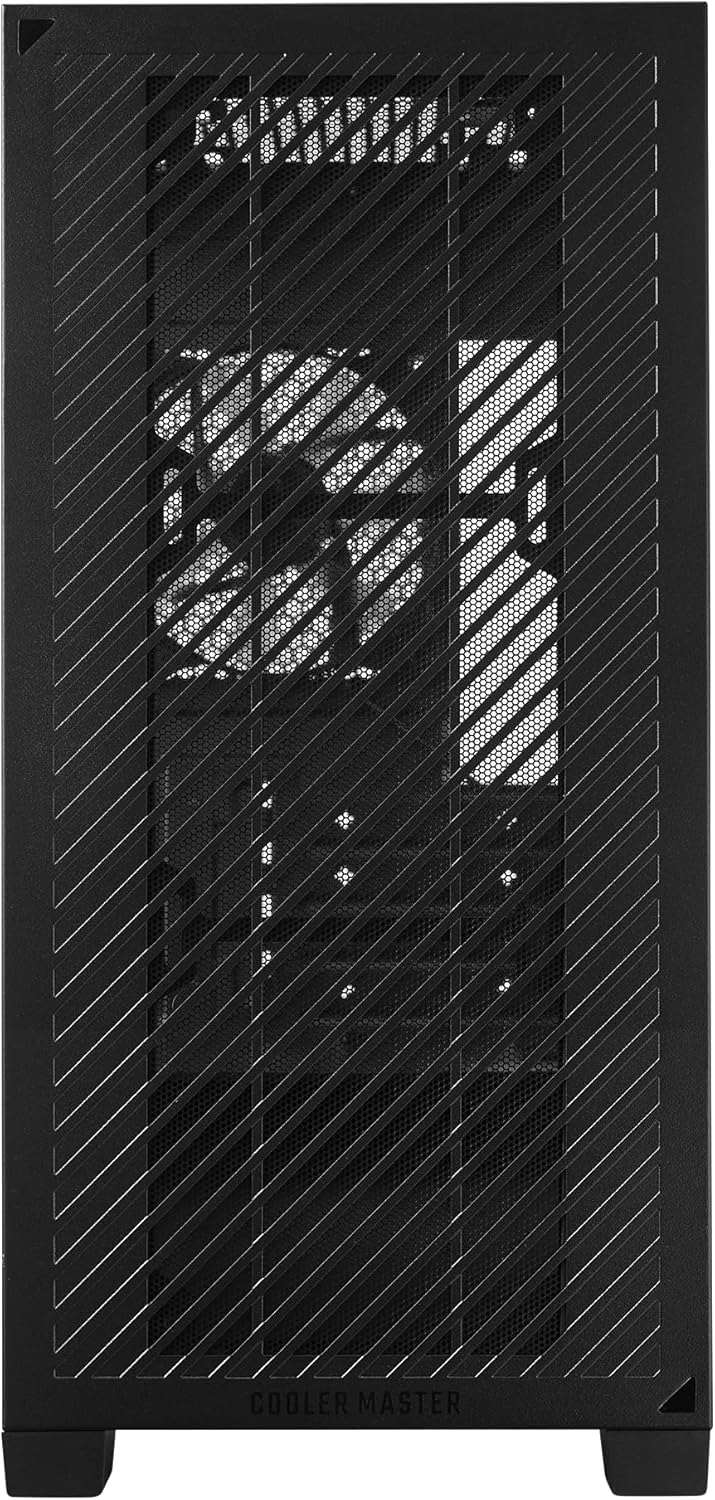
The front mesh panel provides both aesthetic appeal and excellent airflow.

An internal view of the case, highlighting the spacious layout for component installation.
4. Operating the PC Case
After assembly, connect your monitor, keyboard, mouse, and power cable. Press the power button on the front I/O panel to start your system. The case's design ensures optimal airflow for stable operation of your components.
5. Maintenance
Regular maintenance helps ensure the longevity and performance of your PC and case.
5.1. Dust Filter Cleaning
The Cooler Master Elite 301 Lite features mesh dust filters on all panels to prevent dust buildup. Periodically remove and clean these filters. They can typically be cleaned with compressed air or by rinsing with water (ensure they are completely dry before reinstallation).

The large intake grill on top, which also serves as a dust filter, is easily removable for cleaning.
5.2. General Cleaning
Use a soft, dry cloth to wipe down the exterior of the case. For internal cleaning, use compressed air to remove dust from fans and components. Always power off and unplug your PC before performing any internal cleaning.
6. Troubleshooting
If you encounter issues with your PC build, consider the following common troubleshooting steps:
- No Power: Ensure the PSU is switched on, the power cable is securely connected, and all internal power cables (24-pin ATX, 8-pin CPU, PCIe power) are properly seated.
- No Display: Verify that the monitor cable is connected to the graphics card (not the motherboard's integrated graphics, unless intended). Reseat the graphics card and RAM modules.
- Fan Issues: Check fan connections to the motherboard or fan controller. Ensure no cables are obstructing fan blades.
- Overheating: Confirm proper fan orientation for airflow. Ensure CPU cooler and GPU heatsinks are free of dust. Verify thermal paste application on the CPU.
- Loose Connections: Double-check all internal and external cable connections.
7. Specifications
| Feature | Detail |
|---|---|
| Brand | Cooler Master |
| Series | Elite 301 Lite |
| Item Model Number | E301L-KGNN-S00 |
| Item Weight | 9.8 pounds |
| Product Dimensions (LxWxH) | 15.35 x 8.01 x 16.92 inches |
| Color | Black |
| Manufacturer | Cooler Master |
| Country of Origin | China |
| Date First Available | August 13, 2024 |
| Motherboard Compatibility | Micro ATX |
| Case Type | Mini-Tower |
| Recommended Uses For Product | Gaming, Business |
| Material | Tempered Glass, Plastic, Metal |
| Power Supply Mounting Type | Bottom Mount |
| Cooling Method | Water, Air |
| Light Color | white |
| Number of USB 2.0 Ports | 2 |
| Number of USB 3.0 Ports | 2 |
8. Warranty and Support
For warranty information, technical support, or to purchase replacement parts, please visit the official Cooler Master website or contact their customer service. Keep your proof of purchase for warranty claims.