
1. Introduction
The Thermaltake View 380 TG ARGB Black ATX Case is a mid-tower chassis designed for PC enthusiasts. It features a dual-chamber layout, front and side tempered glass panels, and includes four pre-installed 120mm ARGB Lite fans. This case supports hidden-connector motherboards and offers extensive cooling and component compatibility. This manual provides essential information for assembly, operation, and maintenance.

Figure 1.1: Overall view of the Thermaltake View 380 TG ARGB Black ATX Case.
2. Key Features
- Dual-Chamber Design: Optimizes component separation and cable management.
- Tempered Glass Panels: Front and side panels provide a clear view of internal components.
- ARGB Lighting: Four pre-installed Hydraulic Bearing 120mm ARGB Lite Fans offer customizable illumination, compatible with major motherboard RGB software (ASUS, GIGABYTE, MSI, ASRock).
- Hidden-Connector Motherboard Support: Designed to seamlessly integrate with motherboards featuring rear-facing connectors.
- Extensive Cooling Support: Accommodates up to ten 120mm fans and radiators up to 360mm (top) and 280mm (right side).
- Versatile I/O Ports: Includes USB 3.0 x 2, USB 3.2 Type-C x 1, and HD Audio x 1 on the top panel.
- Storage Options: Supports one 3.5" HDD and two 2.5" SSDs.

Figure 2.1: Internal layout showcasing component mounting areas.
3. Package Contents
Verify that all components are present in the package:
- Thermaltake View 380 TG ARGB Black ATX Case
- Pre-installed 120mm ARGB Lite Fans (x4)
- Accessory Box (containing screws, zip ties, and other small parts)
- Instruction Manual (this document)
4. Setup and Installation
Follow these steps for proper installation of your PC components into the View 380 case.
4.1. Preparing the Case
- Place the case on a stable, flat surface.
- Carefully remove the tempered glass side panel by unscrewing the retaining thumbscrews and gently lifting the panel. Repeat for the front panel if necessary for access.
- Identify the accessory box and familiarize yourself with the included hardware.
4.2. Motherboard Installation
- Install the I/O shield (if not pre-attached to your motherboard) into the rear opening of the case.
- Align your Mini ITX, Micro ATX, or ATX motherboard with the standoffs inside the case. Ensure compatibility with hidden-connector motherboards by utilizing the designated cutouts for rear cable access.
- Secure the motherboard using the appropriate screws from the accessory box.
4.3. Component Installation
- CPU Cooler: Install your CPU cooler, ensuring it does not exceed the maximum height of 160mm.
- Graphics Card (VGA): Insert your graphics card into the appropriate PCI-E slot. The case supports VGA cards up to 415mm in length. Secure with screws.
- Storage Drives: Install 3.5" HDDs and 2.5" SSDs into their designated mounting locations. The case supports one 3.5" drive and two 2.5" drives.
- Power Supply Unit (PSU): Mount your standard PS2 PSU in the bottom compartment. The maximum PSU length supported is 200mm.
4.4. Fan and Radiator Installation
The View 380 case offers flexible cooling options:
- Top: Supports up to three 120mm fans or one 360mm radiator.
- Right (M/B Side): Supports up to three 120mm fans or one 280mm/240mm radiator.
- Rear: One 120mm fan (pre-installed).
- Bottom: Supports up to three 120mm fans or one 360mm radiator.

Figure 4.1: Front panel fan configuration.

Figure 4.2: Side view illustrating internal fan and radiator mounting points.
4.5. Cable Management
Utilize the dual-chamber design and cable routing cutouts to organize cables behind the motherboard tray. Use the included zip ties to secure cables for improved airflow and aesthetics.
5. Operating Instructions
5.1. Power On/Off
Press the power button located on the top I/O panel to turn your system on or off. A reset button is also available.
5.2. I/O Ports
The top panel provides convenient access to:
- USB 3.0 ports (x2)
- USB 3.2 Gen 2 Type-C port (x1)
- HD Audio jacks (headphone and microphone)
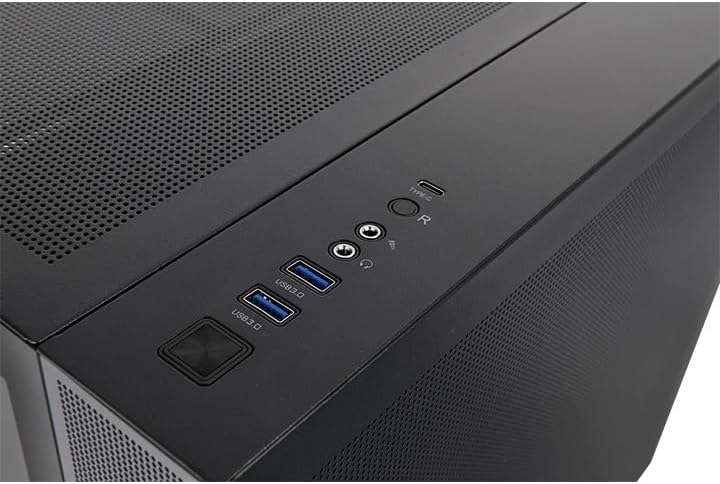
Figure 5.1: Top I/O Panel.
5.3. ARGB Fan Control
The pre-installed ARGB fans can be controlled via compatible motherboard software (ASUS Aura Sync, GIGABYTE RGB Fusion, MSI Mystic Light Sync, ASRock Polychrome Sync). Connect the fan RGB cables to the appropriate headers on your motherboard and use the software to customize lighting effects.
6. Maintenance
6.1. Cleaning Dust Filters
The case is equipped with removable dust filters to prevent dust buildup. Regularly clean these filters to maintain optimal airflow and cooling performance.
- Locate and remove the dust filters (e.g., top, bottom, front).
- Gently clean the filters using a soft brush or by rinsing with water. Ensure they are completely dry before reinstallation.
6.2. General Cleaning
For the tempered glass panels and exterior surfaces, use a soft, lint-free cloth and a mild glass cleaner. Avoid abrasive materials or harsh chemicals that could scratch or damage the finish.
7. Troubleshooting
If you encounter issues during or after installation, consider the following:
- System Not Powering On: Verify all power connections, including the 24-pin ATX, 8-pin CPU, and GPU power cables. Ensure the PSU switch is in the 'On' position. Check front panel header connections to the motherboard.
- Fans Not Spinning/RGB Not Working: Confirm that all fan power cables and ARGB cables are correctly connected to the motherboard or a dedicated controller. Ensure motherboard RGB software is installed and configured.
- No Display Output: Ensure the graphics card is fully seated in its PCI-E slot and connected to power. Verify the monitor cable is connected to the graphics card, not the motherboard's integrated graphics port.
- Overheating: Check fan orientation for proper airflow (intake/exhaust). Ensure CPU cooler and GPU fans are functioning. Clean dust filters regularly.
8. Technical Specifications

Figure 8.1: Rear panel layout.
| Specification | Detail |
|---|---|
| Model | View 380 TG ARGB |
| Part Number | CA-1Z2-00M1WN-00 |
| Case Type | Mid Tower |
| Dimensions (H x W x D) | 442 x 285 x 410 mm (17.4 x 11.22 x 16.14 inch) |
| Weight | 6.93 kg / 15.28 lbs |
| Material | SPCC (Steel Plate Cold Rolled), Tempered Glass |
| Motherboard Compatibility | Mini ITX, Micro ATX, ATX (6.7" x 6.7", 9.6" x 9.6", 12" x 9.6") |
| Drive Bays | 1 x 3.5", 2 x 2.5" |
| Expansion Slots | 7 |
| I/O Ports | USB 3.0 x 2, USB 3.2 Gen 2 Type-C x 1, HD Audio x 1 |
| Pre-installed Fans | Right (Intake): 120 x 120 x 25 mm ARGB Lite fan (1000rpm, 22.3 dBA) x 3; Rear (Exhaust): 120 x 120 x 25 mm ARGB Lite fan (1000rpm, 22.3 dBA) x 1 |
| Fan Support | Top: 3 x 120mm; Right: 3 x 120mm, 2 x 140mm; Rear: 1 x 120mm; Bottom: 3 x 120mm |
| Radiator Support | Top: 1 x 360mm; Right: 1 x 280mm or 1 x 240mm; Rear: 1 x 120mm; Bottom: 1 x 360mm |
| CPU Cooler Max Height | 160mm |
| VGA Max Length | 415mm |
| PSU Max Length | 200mm |
9. Warranty and Support
The Thermaltake View 380 TG ARGB Black ATX Case comes with a 3-year warranty, covering manufacturing defects and material flaws under normal use. For detailed warranty terms, technical assistance, or customer support, please visit the official Thermaltake website or contact their customer service department.
Official Thermaltake Website: www.thermaltake.com


