1. Introduction
This manual provides detailed instructions for the installation, operation, and maintenance of your PUSOKEI WiFi Bird Camera. This surveillance camera is designed for monitoring, featuring wide-angle infrared night vision, motion detection, and remote viewing capabilities. Please read this manual thoroughly before using the product to ensure proper functionality and safety.
2. Package Contents
Upon opening the package, verify that all items are present and in good condition:
- 1 x PUSOKEI WiFi Bird Camera
- 1 x User Manual
3. Product Components
Familiarize yourself with the various parts of your PUSOKEI WiFi Bird Camera:

Image: Labeled diagram showing the camera's components. Key parts include the lens, 940nm LEDs for infrared illumination, microphone (MIC), memory card slot, mounting stents, WiFi antenna, RJ45 Ethernet port, DC12V power input, and a reset button.
- Lens: 3.6mm lens for clear image capture.
- 940nm LEDs: 10 high-power infrared LEDs for wide-angle night vision.
- MIC: Integrated microphone for audio capture.
- Card Slot: Supports Micro SD cards up to 128GB for local storage (card not included).
- Stents: Mounting brackets for installation.
- WIFI Antenna: For 2.4 GHz wireless network connection.
- RJ45 Port: Ethernet port for wired network connection.
- DC12V Input: Power input port.
- Reset Button: Used to reset the camera to factory settings.
4. Specifications
| Feature | Detail |
|---|---|
| Item Type | Security Camera |
| Lens | 3.6 mm |
| Video Format | H.264 |
| Wireless Connection | 2.4 GHz WiFi |
| Mobile App Features | Motion detection push alarm |
| Memory Card Support | Maximum 128GB (not included) |
| Network Protocols | TP/IP, UDP/IP, HTTP, ICMP, FTP, EMAIL, TELNET, etc. |
| Motion Detection Sensitivity | Adjustable from 0 to 100, detects 4 ranges |
| Applicable Systems | iOS, Android, LAN, Internet |
| Image Sensor Size | IMX307 CMOS-Sensor 2MP |
| Installation Type | Wall Mount |
| Material | Plastic |
| Dimensions | 12 x 8 x 7 cm |
| Weight | 188 g |
5. Setup and Installation
5.1 Physical Installation
The PUSOKEI Bird Camera is designed for easy installation, suitable for mounting on most bird feeders or walls. Use the integrated stents for secure placement. Ensure the camera is positioned to capture the desired viewing area effectively.
5.2 Power Connection
Connect the provided DC12V power adapter to the camera's DC12V input port. Plug the adapter into a standard power outlet. Ensure the power source is stable.

Image: The camera unit connected to its power, Ethernet (RJ45), and WiFi antenna cables, illustrating the various connection points.
5.3 Network Connection
The camera supports both wireless (2.4 GHz WiFi) and wired (RJ45 Ethernet) connections.
5.3.1 Wireless Connection (WiFi)
To connect wirelessly, ensure your WiFi router is operating on a 2.4 GHz frequency. Follow the instructions in the mobile application to pair the camera with your home network. This allows for remote viewing from your mobile device.

Image: Illustration of the wireless network connection process, showing the camera communicating with a WiFi router, which then allows a smartphone to remotely view the camera feed.
5.3.2 Wired Connection (RJ45)
For a stable wired connection, connect an Ethernet cable from your router to the camera's RJ45 port.
5.4 Memory Card Installation
Insert a Micro SD card (up to 128GB, not included) into the camera's card slot for local video recording. Ensure the card is inserted correctly according to the diagram or markings on the camera.
6. Operation
6.1 Mobile Application Usage
Download the dedicated mobile application (compatible with iOS and Android systems) to manage and view your camera feed. The app allows for real-time monitoring, playback of recorded footage, and configuration of camera settings.
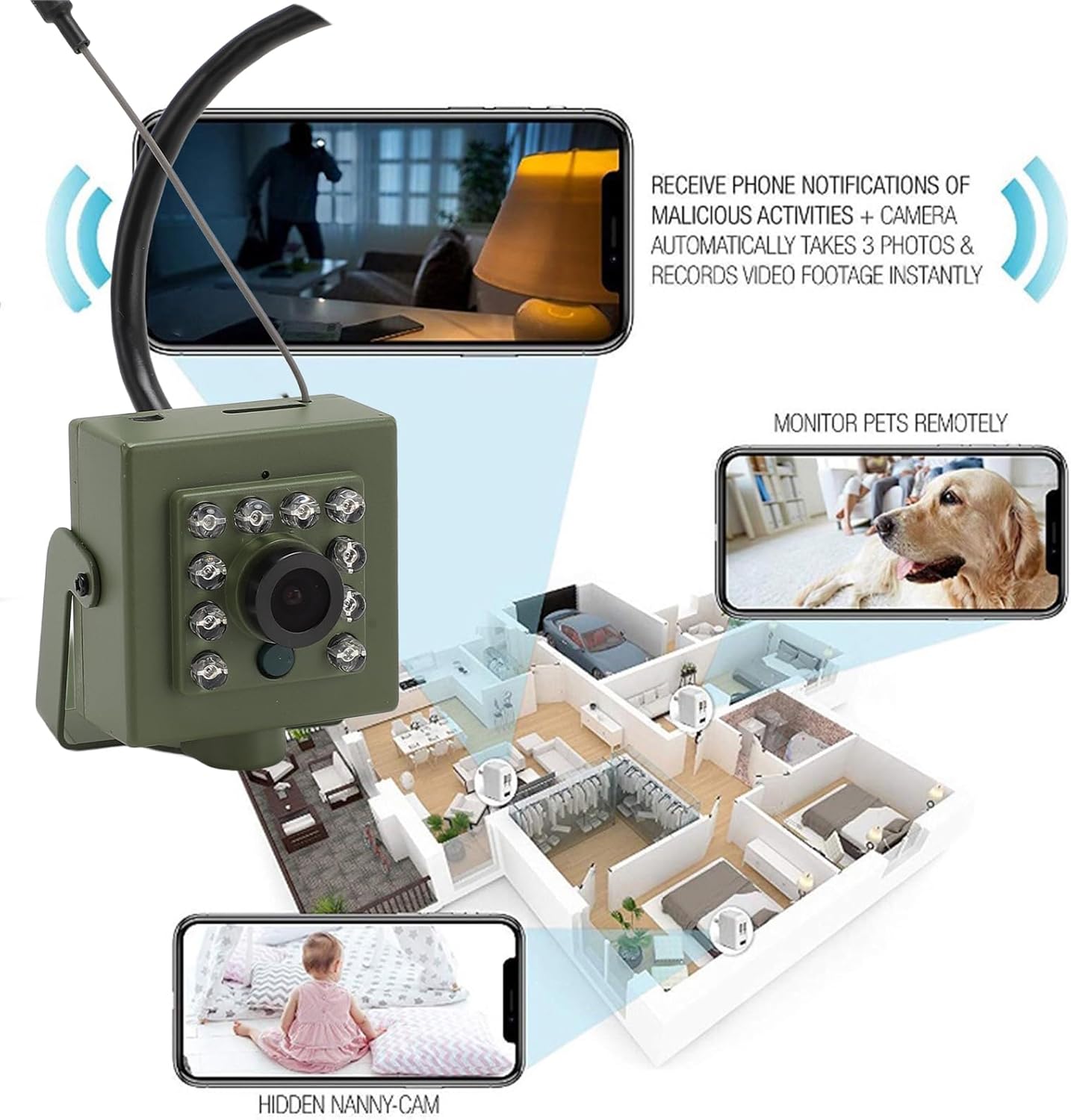
Image: An overview of the camera's remote monitoring capabilities, showing how it can be used to monitor pets or as a nanny cam, with notifications sent to a phone for detected activities.
6.2 Motion Detection
The camera features motion detection with adjustable sensitivity (0-100) and the ability to detect motion in up to four distinct ranges. When motion is detected, the mobile app will send push notifications to your device. This feature helps in monitoring activity in the camera's field of view.
6.3 Night Vision
Equipped with 10 high-power 940nm infrared LEDs and a built-in light sensor, the camera provides clear night vision in dark conditions. The infrared illumination is wide-angle and operates silently, ensuring discreet monitoring without hotspots.

Image: The camera's night vision capability is demonstrated by a clear image of a sleeping baby in a dark room, highlighting its silent operation.

Image: The camera's night vision function is shown with a bird in the foreground, emphasizing its suitability for monitoring wildlife or outdoor areas in low light.

Image: A detailed view of the camera's front, showcasing the 10 high-power LEDs that provide wide-angle infrared illumination for enhanced night vision.
6.4 Remote Monitoring
Once connected to your network, the camera can be monitored remotely via the mobile application from anywhere with an internet connection. This allows you to view live feeds and receive alerts even when you are away.
7. Maintenance
- Cleaning: Gently wipe the camera lens and body with a soft, dry cloth. Avoid using harsh chemicals or abrasive materials.
- Firmware Updates: Periodically check the mobile application for available firmware updates to ensure optimal performance and security.
- Environmental Protection: While designed for outdoor use, protect the camera from extreme weather conditions if possible to prolong its lifespan.
8. Troubleshooting
- Camera Not Connecting to WiFi:
- Ensure your router is broadcasting a 2.4 GHz WiFi signal.
- Check that the WiFi password is entered correctly in the app.
- Move the camera closer to the router to improve signal strength.
- Try resetting the camera using the reset button.
- No Image/Poor Image Quality:
- Verify the power connection.
- Clean the camera lens.
- Check network stability for clear streaming.
- Motion Detection Not Working:
- Ensure motion detection is enabled in the mobile app settings.
- Adjust the sensitivity level.
- Check the detection ranges configured in the app.
- Memory Card Not Recording:
- Ensure the memory card is inserted correctly.
- Check if the card is formatted correctly (usually FAT32).
- Verify that recording settings are enabled in the app.
- The card may be full; consider replacing it or enabling loop recording.
9. Warranty and Support
For warranty information and technical support, please refer to the documentation provided at the point of purchase or visit the official PUSOKEI website. Keep your purchase receipt as proof of purchase for any warranty claims.


