
Introduction
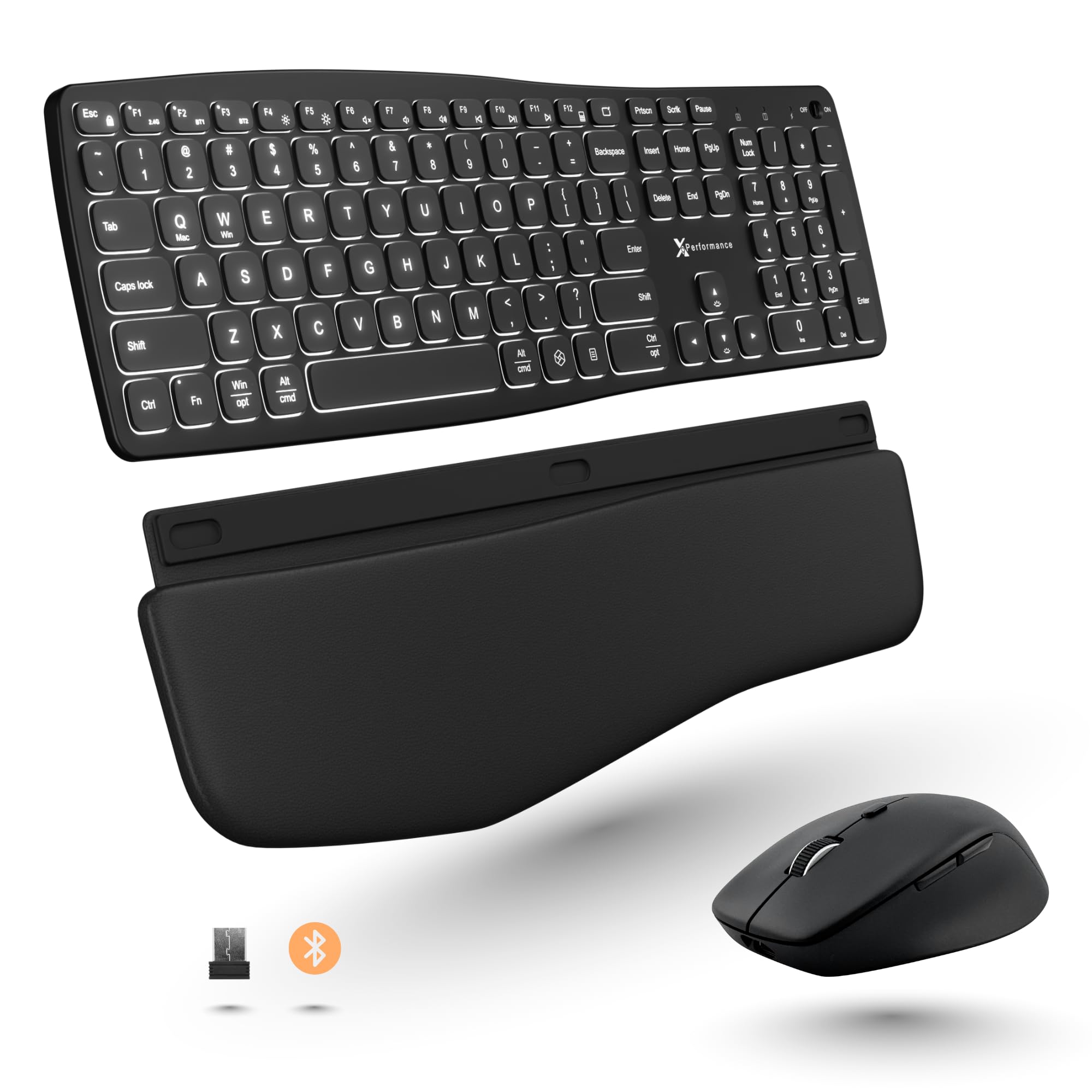
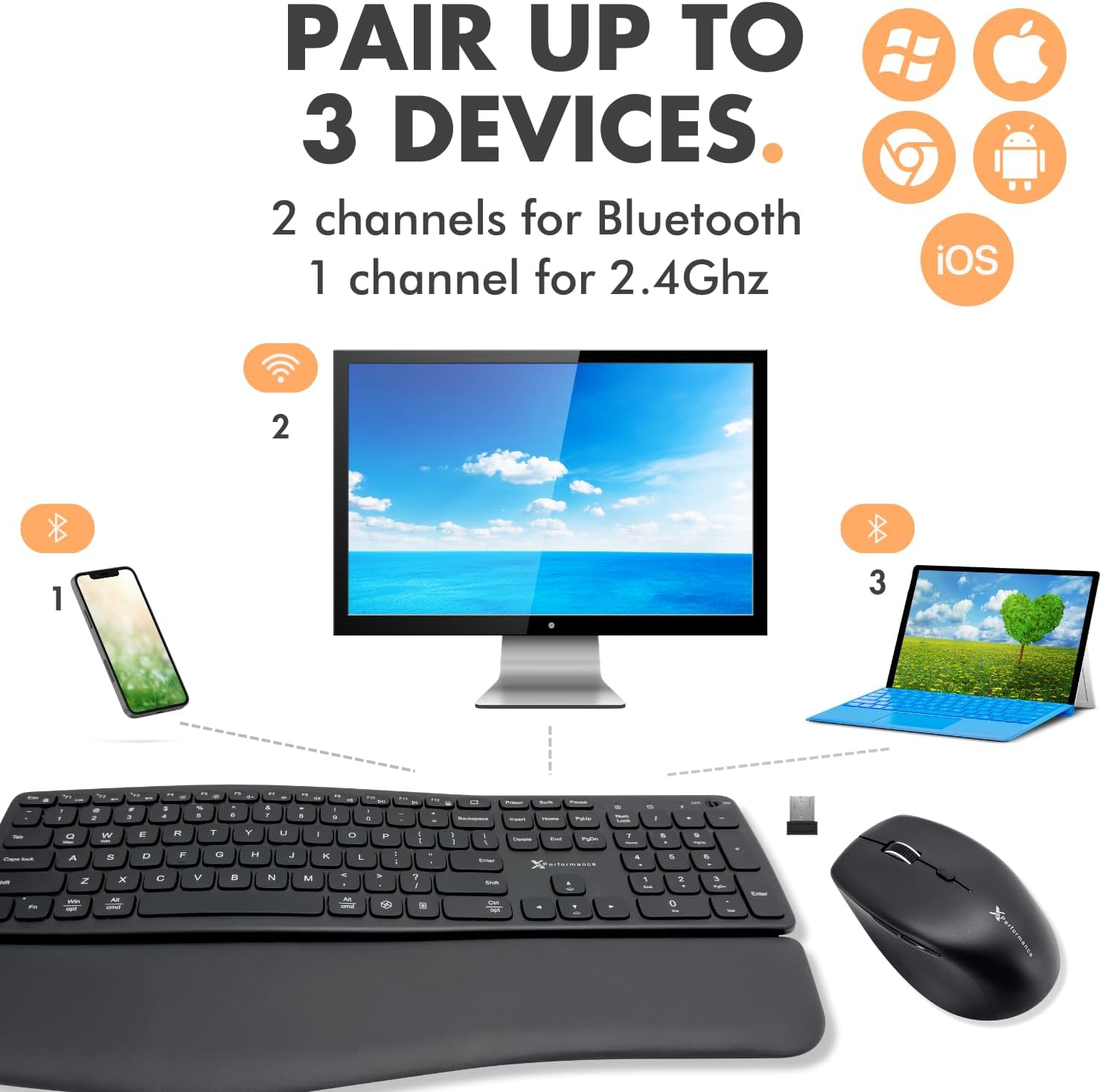
This manual provides detailed instructions for setting up, operating, and maintaining your X9 Performance X9 Wireless Keyboard and Mouse Combo. This combo features a wave ergonomic design, backlit keys with three brightness levels, and seamless multi-device connectivity supporting two Bluetooth channels and one 2.4G USB receiver channel. Both the keyboard and mouse are rechargeable, offering an eco-friendly and convenient user experience.
Setup
Package Contents
- X9 Wireless Keyboard
- X9 Wireless Mouse
- Detachable Wrist Rest
- USB-C Charging Cable
- 2.4G USB Receiver (stored in the mouse)
- User Manual
Connecting Your Devices
The X9 combo offers flexible connectivity options: 2.4G wireless via USB receiver or Bluetooth. Ensure both the keyboard and mouse are fully charged before initial use.
- For 2.4G Wireless Connection:
- Locate the 2.4G USB receiver inside the mouse's dongle compartment.
- Plug the USB receiver into an available USB-A port on your computer.
- Turn on the keyboard and mouse using their respective ON/OFF switches. The devices should automatically connect.
- For Bluetooth Connection (Keyboard):
- Turn on the keyboard.
- Press the F2 button once, then press and hold it for 3 seconds to enter pairing mode (BT1). The indicator light will flash.
- On your device (PC, Mac, tablet, phone), go to Bluetooth settings and select "Add Device".
- Choose "X9RBBLERG keyboard" from the list of available devices to connect.
- To pair a second Bluetooth device, repeat the process using the F3 button (BT2).
- For Bluetooth Connection (Mouse):
- Turn on the mouse.
- Press the Pair mode/mode switch button on the bottom of the mouse until the white light flashes on B1 (Bluetooth 1).
- On your device, go to Bluetooth settings and select "Add Device".
- Choose the mouse from the list and click "Connect".
- To pair a second Bluetooth device, repeat the process for B2.
Operating Instructions
Backlit Keys
The keyboard features white backlit keys with 3 brightness levels for optimal visibility in various lighting conditions. Use the dedicated backlight control keys (often indicated by a sun icon or similar) to adjust the brightness or turn the backlight on/off.

Ergonomic Comfort
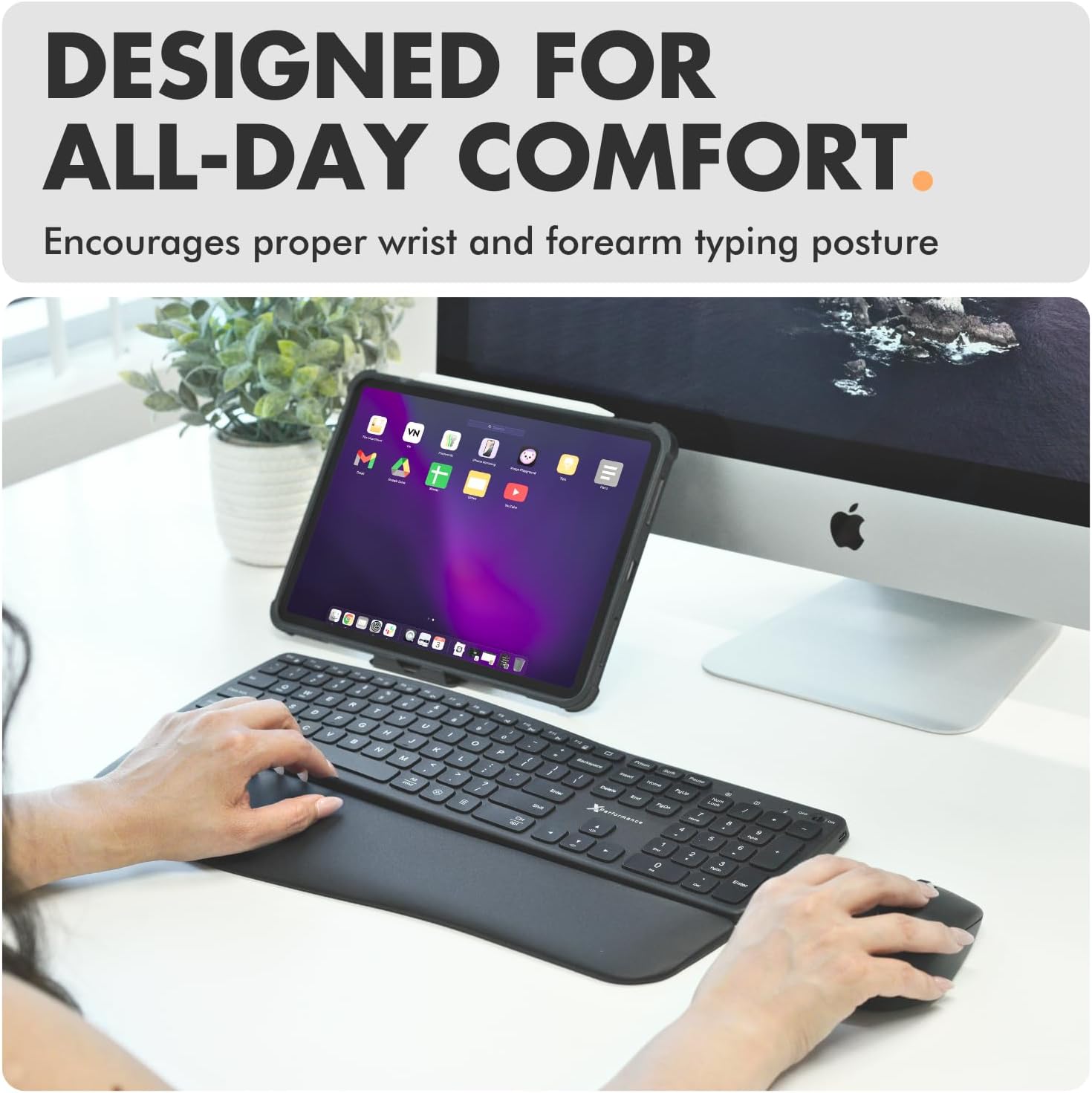
The keyboard's curved, wave-shaped design and detachable palm rest promote a natural typing posture, reducing strain during extended use. The contoured mouse also fits comfortably in hand.

Mouse DPI Settings
The mouse offers 4 adjustable DPI settings (800/1200/1600/2400) for precise cursor control. Use the DPI button on the mouse to cycle through the settings to find your preferred sensitivity.

Maintenance
Charging
Both the keyboard and mouse are equipped with built-in rechargeable batteries. Use the included USB-C charging cable to charge them. A charging LED indicator will show the charging status (Red for charging, Green for fully charged).

Cleaning
To maintain optimal performance, regularly clean your keyboard and mouse. Use a soft, dry cloth to wipe surfaces. For deeper cleaning, a slightly damp cloth can be used, ensuring no moisture enters the device. Avoid harsh chemicals or abrasive materials.
Troubleshooting
Connectivity Issues
- Device Not Connecting: Ensure the keyboard and mouse are turned on and fully charged. For 2.4G, verify the USB receiver is securely plugged in. For Bluetooth, ensure the devices are in pairing mode and visible in your device's Bluetooth settings.
- Intermittent Connection: Try moving the devices closer to your computer. Avoid obstructions between the devices and the receiver/Bluetooth antenna.
Numeric Keypad Not Working (Troubleshooting from included note)
- Mac Users: If you cannot type numbers in the numeric keypad, go to Mac System Preferences, then click to open Accessibility. Click to enter Pointer Control, then Alternate Control Methods tab, uncheck the option "Enable Mouse Keys". Then click to enter Keyboard, under Hardware tab, uncheck the option "Enable Sticky Keys". Then try to type numbers.
- Windows PC Users: If you cannot type numbers in the numeric keypad, press the Clear/Num Lock key to activate number typing. Your Windows PC screen should also display a '123' icon. Repeat pressing Clear/Num Lock if needed. If the product does not have a Clear or Num Lock key, please try to find an instruction label on the bottom of the product, which provides an alternative way of enabling Num Lock. If no alternative is available, please contact X9 Performance tech support for assistance.
Specifications
| Feature | Detail |
|---|---|
| Brand | X9 Performance |
| Model | X9 |
| Color | Black |
| Connectivity Technology | Bluetooth, Radio Frequency (2.4G) |
| Special Features | Backlit, Ergonomic, Rechargeable, Wrist Rest |
| Compatible Devices | Laptop, Mac, Personal Computer, Smartphone, Tablet |
| Keyboard Backlighting Color | Single Color (White) |
| Power Source | Battery Powered (Rechargeable, included) |
| Keyboard Layout | QWERTY |
| Operating System | Mac OS, Windows |
| Mouse DPI Settings | 800/1200/1600/2400 |
Warranty and Support
Standard Warranty
The X9 Wireless Keyboard and Mouse Combo comes with a standard 1-year warranty from the date of purchase.
Exclusive VIP Warranty (Secret Gift)
Thank you for choosing X9 Performance! As a member of the X9 Performance community, you are eligible for an exclusive VIP warranty program. Register your product within 14 days of purchase to receive one extra year of free warranty, totaling 2 years of coverage. This program offers no hassles or worries, automatically applies to all future X9 Performance purchases, provides privy to special discounts and offers, and prioritizes faster tech and customer service support.
To register, visit: vip.x9performance.com
Contact Support
For any questions, comments, or assistance, please contact us at:
- Email: support@x9performance.com
- Phone: 1 (909) 230-6788
- Hours: M-F from 8:30 a.m. to 5:30 p.m. PST (Pacific Standard Time)


