
Mars Gaming MCP124
MARSGAMING MCP124 3-in-1 Gaming Combo Instruction Manual
Model: MCP124
Introduction
This manual provides instructions for the setup, operation, and maintenance of your MARSGAMING MCP124 3-in-1 Gaming Combo. This combo includes an ergonomic H-Mech LED RGB keyboard, an RGB mouse with 3200 DPI HUANO switches, and a nanotextile mouse pad. Please read this manual thoroughly before using the product to ensure proper functionality and longevity.
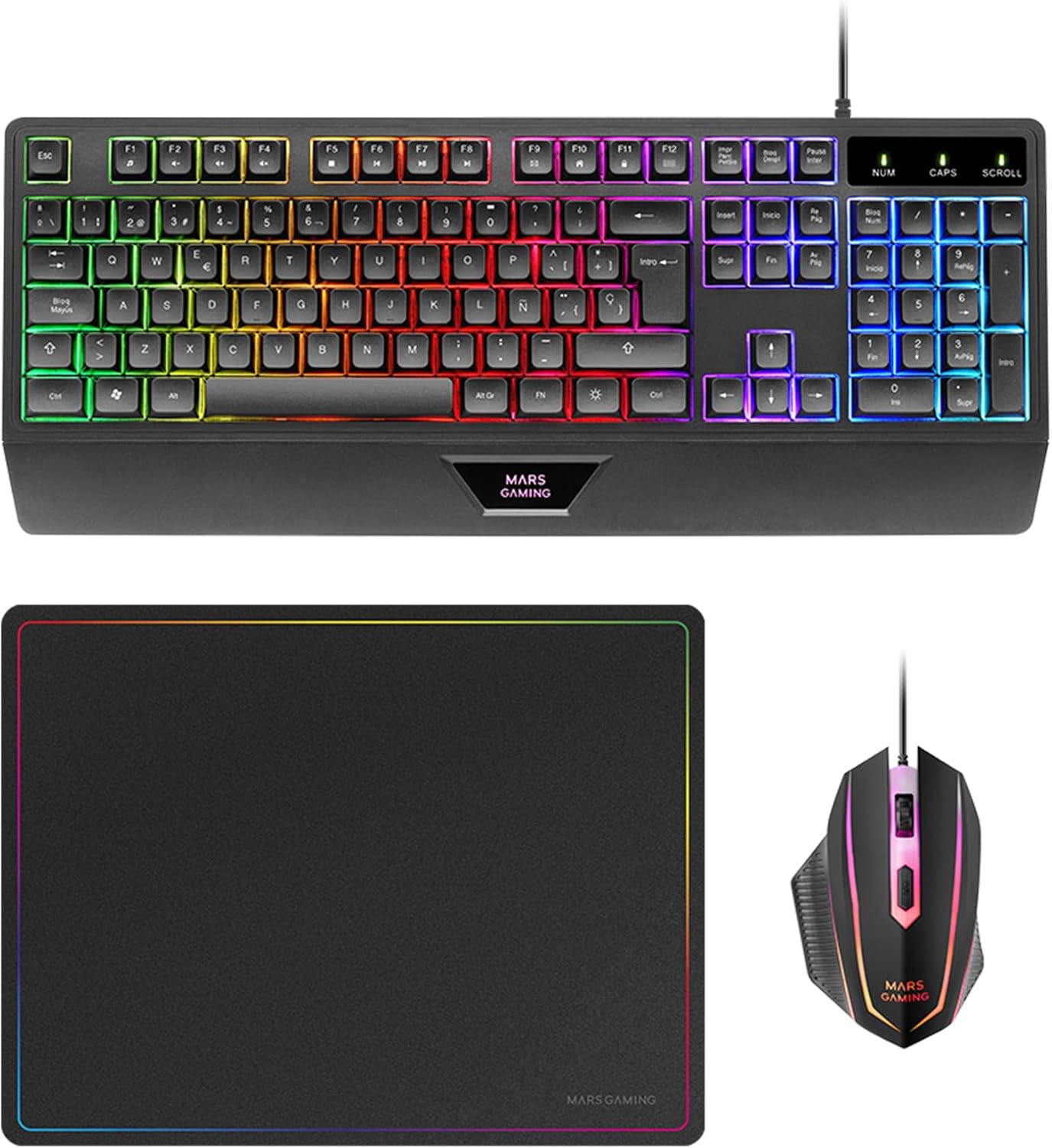
Image: The MARSGAMING MCP124 3-in-1 Gaming Combo, showcasing the keyboard, mouse, and mouse pad together.
Package Contents
- 1 x MARSGAMING MCP124 H-Mech LED RGB Keyboard (French Layout)
- 1 x MARSGAMING MCP124 RGB Mouse
- 1 x MARSGAMING MCP124 Nanotextile Mouse Pad (360 x 260 mm)
- 1 x Instruction Manual (this document)
Setup
1. Connecting the Keyboard
- Locate an available USB port on your computer or gaming console.
- Plug the USB connector of the MARSGAMING MCP124 keyboard into the USB port.
- The operating system should automatically detect and install the necessary drivers.

Image: The ergonomic H-Mech LED RGB keyboard, featuring an integrated wrist rest for comfortable use.
2. Connecting the Mouse
- Locate another available USB port on your computer or gaming console.
- Plug the USB connector of the MARSGAMING MCP124 mouse into the USB port.
- The operating system should automatically detect and install the necessary drivers.
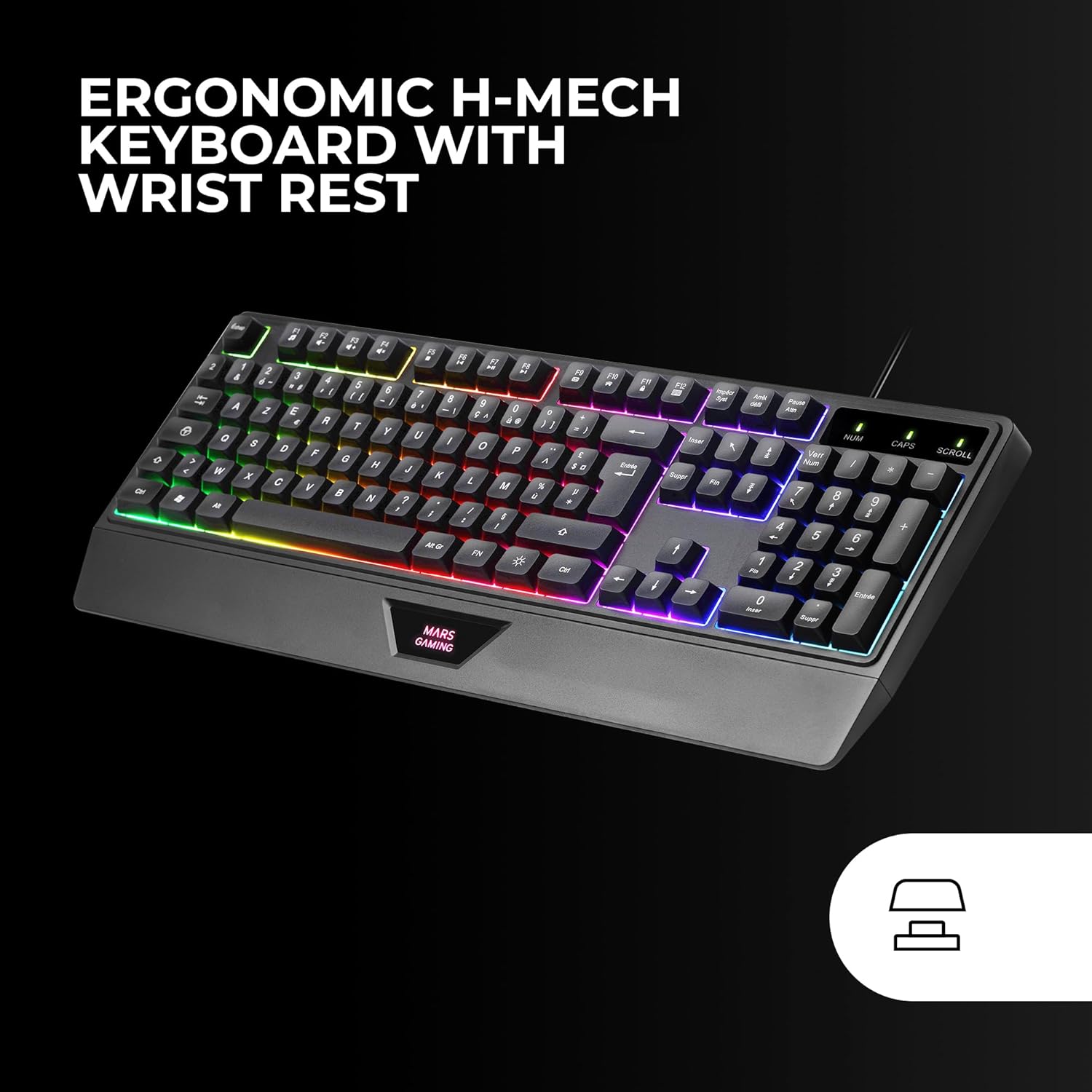
Image: The RGB gaming mouse, highlighting its ergonomic design and lighting.
3. Positioning the Mouse Pad
- Place the MARSGAMING MCP124 nanotextile mouse pad on a flat, stable surface.
- Ensure the mouse pad is positioned comfortably for mouse movement.

Image: Close-up of the nanotextile mouse pad, showing its surface texture and rainbow edge design.
Operating Instructions
Keyboard Functions
- H-Mech Technology: Provides a hybrid mechanical feel for responsive keystrokes.
- RGB LED Lighting: The keyboard features fixed RGB color lighting. Specific lighting modes or adjustments are typically controlled via dedicated function keys or software (if available). Refer to the product's official website for any potential software.
- Ergonomic Palm Rest: Designed for comfort during extended use.
- French Layout: The keyboard uses a standard French (AZERTY) key layout.
Mouse Functions
- DPI Adjustment: The mouse features an optical sensor with adjustable DPI settings. Typically, a dedicated button on the mouse allows cycling through 800, 1200, 1600, and 3200 DPI levels.
- HUANO Switches: Equipped with durable HUANO switches for reliable clicks.
- RGB Rainbow Lighting: The mouse features dynamic RGB lighting.
Mouse Pad Usage
- The nanotextile surface provides smooth and precise mouse tracking.
- The non-slip rubber base ensures stability during intense gaming sessions.
Maintenance
- Cleaning the Keyboard: Use a soft, dry cloth to wipe the surface. For deeper cleaning, use compressed air to remove dust and debris from between keys. Avoid using liquid cleaners directly on the keyboard.
- Cleaning the Mouse: Wipe the mouse with a slightly damp cloth. Ensure no liquid enters the internal components. Clean the optical sensor area gently with a cotton swab if tracking issues occur.
- Cleaning the Mouse Pad: The nanotextile surface can be gently wiped with a damp cloth and mild soap if necessary. Allow it to air dry completely before use.
- Storage: Store the combo in a cool, dry place away from direct sunlight and extreme temperatures when not in use for extended periods.
Troubleshooting
Keyboard/Mouse Not Responding
- Ensure the USB cables are securely plugged into the computer or console.
- Try plugging the devices into a different USB port.
- Restart your computer or console.
- Check your operating system's device manager to see if the devices are recognized.
Lighting Not Working
- Verify that the devices are properly connected and powered.
- For the keyboard, check if any function keys (e.g., Fn + Scroll Lock, Fn + specific F-keys) control the lighting.
- Ensure no software settings are overriding the default lighting.
Mouse Tracking Issues
- Clean the optical sensor on the underside of the mouse.
- Ensure the mouse pad surface is clean and free of obstructions.
- Adjust the DPI settings using the dedicated DPI button on the mouse.
Specifications
| Component | Specification |
|---|---|
| Keyboard Type | H-Mech (Hybrid Mechanical) |
| Keyboard Layout | French |
| Keyboard Lighting | Fixed RGB LED |
| Mouse Sensor | Optical |
| Mouse DPI | 800 / 1200 / 1600 / 3200 DPI (Adjustable) |
| Mouse Switches | HUANO |
| Mouse Lighting | RGB Rainbow |
| Mouse Pad Material | Nanotextile surface, Natural rubber non-slip base |
| Mouse Pad Dimensions | 360 x 260 mm |
| Connectivity | USB (Wired) |
| Compatibility | Windows, Linux, Mac, PS4, PS5, Xbox One, Xbox Series X-S, Switch (Note: Some features may be limited by OS) |
| Product Dimensions | 45 x 18.1 x 3.6 cm (Keyboard) |
| Item Weight | 0.9 Kilograms (Total Combo) |
Warranty and Support
For warranty information and technical support, please refer to the official Mars Gaming website or contact your retailer. Keep your proof of purchase for warranty claims.
Official Mars Gaming Website: www.marsgaming.eu
Related documentsMCP124


Ask a question about this manual
Ask about setup, troubleshooting, compatibility, parts, safety, or missing instructions. Manuals+ will review the question and use this page’s manual context to help answer it.