
1. Introduction
The VEGER Snap CAM is a multi-functional accessory designed to enhance smartphone photography. It combines a comfortable handheld grip with a Bluetooth shutter button, a MagSafe-compatible magnetic attachment system, and an integrated 2200mAh wireless power bank. This device also functions as a smartphone stand, supporting both vertical and horizontal orientations.
2. Safety Information
- Do not expose the device to extreme temperatures, direct sunlight, or high humidity.
- Avoid dropping or subjecting the device to strong impacts.
- Keep out of reach of children.
- Do not attempt to disassemble, repair, or modify the device.
- Use only the provided charging cable or a certified USB Type-C cable for charging.
- Ensure proper ventilation when charging or using the wireless charging function.
- Dispose of the device and its battery according to local regulations.
3. Package Contents
Verify that all items are present in the package:
- VEGER Snap CAM (UQ-W0569-SC)
- Charging cable (USB Type-C to Type-A)
- Magnetic ring sticker
- Strap
- Instruction Manual
4. Product Diagram
Familiarize yourself with the components of your VEGER Snap CAM.
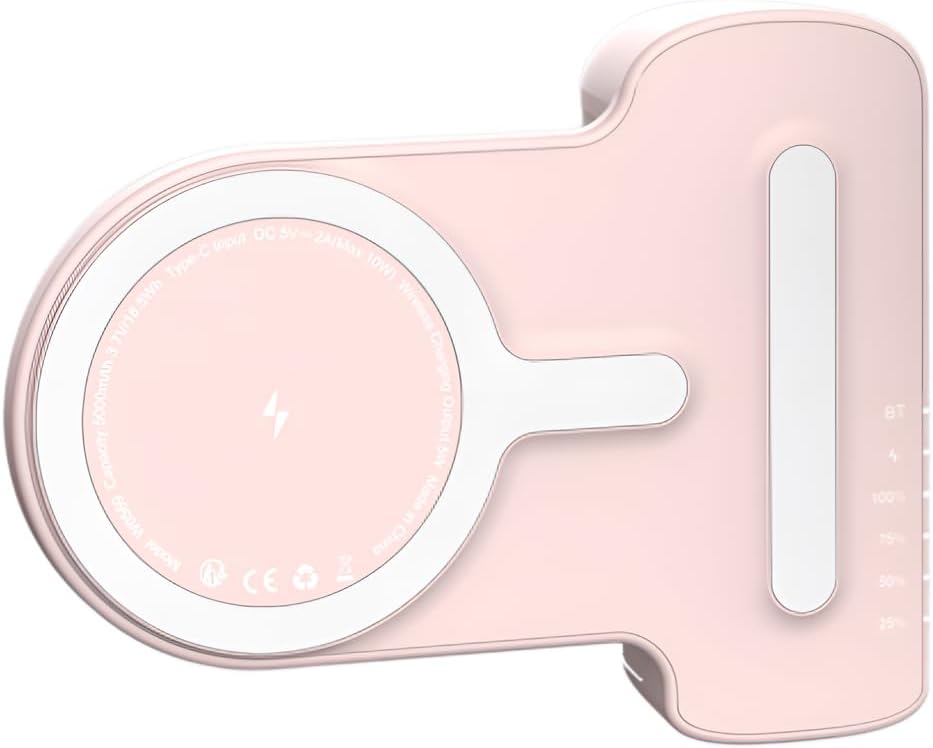
Figure 4.1: Top-down view of the VEGER Snap CAM, highlighting the wireless charging coil, Type-C input port, and LED indicators for battery and Bluetooth status.

Figure 4.2: Close-up views of the VEGER Snap CAM, detailing the reset button, power button, Type-C charging port, and the multi-color LED indicator system.
- Shutter Button: Located on the grip for capturing photos.
- Magnetic Surface: MagSafe-compatible area for attaching to smartphones.
- Type-C Input Port: For charging the Snap CAM.
- Power Button: Activates wireless charging and checks battery status.
- LED Indicators: Displays Bluetooth connection status, charging mode, and battery level.
- Strap Hole: For attaching the included strap.
5. Setup
5.1 Charging the Snap CAM
Before first use, fully charge your VEGER Snap CAM.
- Connect the provided USB Type-C to Type-A charging cable to the Type-C input port on the Snap CAM.
- Connect the other end of the cable to a USB power adapter (not included) or a computer's USB port.
- The LED indicators will show the charging status. A full charge is indicated when all battery LEDs are solid.
5.2 Attaching to Your Smartphone
The Snap CAM is designed for MagSafe-compatible smartphones (e.g., iPhone 12 series and newer) or smartphones using a MagSafe-compatible case.

Figure 5.1: The Snap CAM magnetically attaching to the back of a smartphone, demonstrating the MagSafe compatibility.
- Align the magnetic surface of the Snap CAM with the MagSafe area on the back of your smartphone or MagSafe-compatible case.
- The strong magnets will securely attach the Snap CAM to your phone.
- You can attach it vertically or horizontally and rotate it as needed.
Using the Magnetic Ring Sticker (for non-MagSafe phones)
If your smartphone is not MagSafe-compatible and you do not use a MagSafe-compatible case, you can use the included magnetic ring sticker.
- Clean the back surface of your smartphone or phone case thoroughly.
- Peel off the adhesive backing from the magnetic ring sticker.
- Carefully center and apply the sticker to the back of your phone or case. Ensure it is flat and secure.
- Once the sticker is applied, the Snap CAM can be magnetically attached to this ring.
5.3 Bluetooth Pairing
To use the shutter button, the Snap CAM must be paired with your smartphone via Bluetooth.
- Ensure the Snap CAM is charged.
- Turn on the Snap CAM by pressing the power button. The Bluetooth LED indicator will start blinking, indicating it's in pairing mode.
- On your smartphone, go to Bluetooth settings.
- Search for available devices and select "VEGER Snap CAM" (or similar name) from the list.
- Once paired, the Bluetooth LED indicator on the Snap CAM will become solid.
- The Snap CAM will automatically reconnect to the last paired device when turned on and within range.
6. Operating Instructions
6.1 Using as a Shutter Grip
After successful Bluetooth pairing, you can use the Snap CAM's shutter button to control your smartphone's camera.

Figure 6.1: A smartphone attached to the Snap CAM, displaying the camera interface, with a hand comfortably holding the grip, ready to press the shutter button.

Figure 6.2: A hand demonstrating the ergonomic grip of the VEGER Snap CAM, with a finger positioned on the integrated shutter button for easy photo capture.
- Attach your smartphone to the Snap CAM.
- Ensure the Snap CAM is powered on and Bluetooth is connected.
- Open your smartphone's camera application.
- Press the shutter button on the Snap CAM grip to take a photo or start/stop video recording (functionality may vary slightly depending on your phone's camera app).
6.2 Using as a Wireless Power Bank
The Snap CAM has a built-in 2200mAh battery for wireless charging Qi-compatible smartphones.
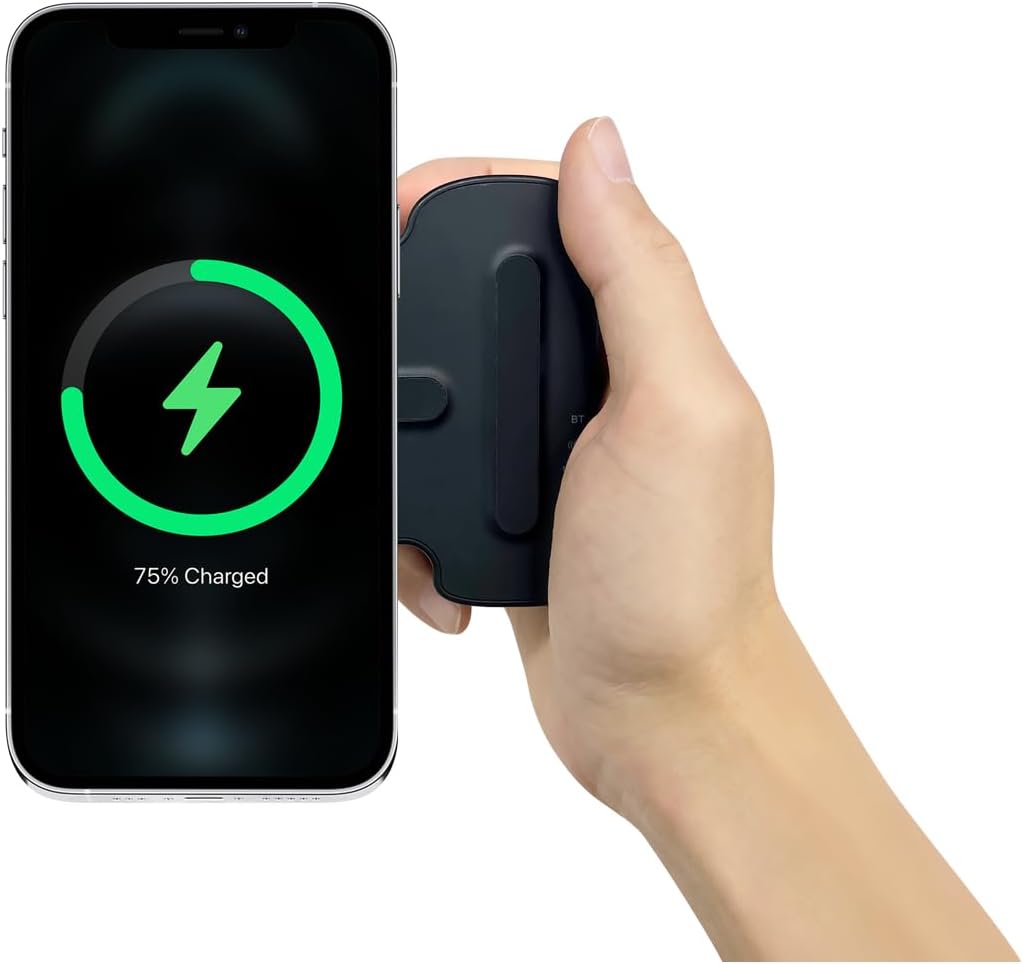
Figure 6.3: A smartphone attached to the VEGER Snap CAM, displaying a charging icon on its screen, indicating active wireless charging.
- Attach your Qi-compatible smartphone to the Snap CAM's magnetic surface.
- Press the power button on the Snap CAM to activate wireless charging.
- The charging indicator on the Snap CAM will illuminate, and your smartphone should display a charging status.
- Note: Wireless charging is only compatible with Qi-standard devices.
6.3 Using as a Smartphone Stand
The ergonomic design of the Snap CAM allows it to function as a stable stand for your smartphone.

Figure 6.4: Two VEGER Snap CAM units, one supporting a smartphone in horizontal orientation and another in vertical orientation, demonstrating its versatility as a stand.
- Attach your smartphone to the Snap CAM.
- Place the Snap CAM on a flat surface. The grip part acts as a stable base.
- Adjust your phone's orientation (vertical or horizontal) as desired for viewing content.
6.4 LED Indicator Guide
The Snap CAM features multi-color LED indicators to provide status information:
- Bluetooth LED:
- Blinking: Pairing mode.
- Solid: Bluetooth connected.
- Battery Level LEDs: Indicate the remaining battery capacity (e.g., 25%, 50%, 75%, 100%).
- Charging LED: Illuminates when the Snap CAM is being charged or is wirelessly charging a device.
7. Maintenance
- Cleaning: Wipe the device with a soft, dry cloth. Do not use harsh chemicals or abrasive cleaners.
- Storage: Store the Snap CAM in a cool, dry place away from direct sunlight and extreme temperatures.
- Battery Care: For optimal battery life, avoid fully discharging the device frequently. Charge it regularly, even if not in use for extended periods.
8. Troubleshooting
- Device not turning on: Ensure the device is charged. Connect it to a power source using the Type-C cable.
- Bluetooth not connecting:
- Ensure the Snap CAM is in pairing mode (Bluetooth LED blinking).
- Check your smartphone's Bluetooth settings and ensure Bluetooth is enabled.
- Forget the device in your phone's Bluetooth settings and attempt to re-pair.
- Ensure the Snap CAM is within range of your smartphone.
- Shutter button not working:
- Verify Bluetooth is connected (solid Bluetooth LED).
- Ensure your smartphone's camera app is open and active.
- Some camera apps may require specific settings for external shutter control.
- Wireless charging not working:
- Ensure your smartphone is Qi-compatible.
- Press the power button on the Snap CAM to activate wireless charging.
- Ensure the phone is correctly aligned on the magnetic charging surface.
- Remove any thick phone cases that might interfere with wireless charging.
- Magnetic attachment is weak:
- Ensure your phone or case is MagSafe-compatible.
- If using the magnetic ring sticker, ensure it is properly applied and centered.
9. Specifications
| Product Name | VEGER SNAPCAM |
| Model No. | UQ-W0569-SC |
| Battery Capacity | 2,200 mAh (3.7 V/18.5 Wh) |
| Wireless Charge Output | 5W |
| Type-C Input | 5V/2A |
| Material | Plastic |
| Dimensions | 110.6 x 86.8 x 39.3 mm (4.3 x 3.4 x 1.5 inches) |
| Weight | 152 g (5.3 oz) |
| Compatible Devices | MagSafe-compatible iPhones (12 series and newer), Android phones with magnetic ring sticker or MagSafe-compatible case. |
| Manufacturer | VEGER |
| Radio Law Certification | Certified (210-231596) |
10. Warranty and Support
The VEGER Snap CAM comes with a 1-year warranty from the date of purchase. This warranty covers manufacturing defects under normal use.
For warranty claims or technical support, please contact the seller, Unique Co., Ltd, or your point of purchase with your proof of purchase.
Please retain your purchase receipt for warranty purposes.