Introduction
Thank you for choosing the WUAWE 16-inch Portable Monitor. This ultra-thin, high-resolution display is designed to enhance your productivity and entertainment on the go. With its 1920x1200P resolution, 60Hz refresh rate, USB-C and HDMI connectivity, and built-in speakers, it offers a versatile solution for extending your laptop screen, gaming, or mobile device display. This manual provides detailed instructions to help you set up, operate, and maintain your new portable monitor.

Image: WUAWE 16-inch Portable Monitor connected to a laptop, highlighting its 1200P resolution, 16:10 aspect ratio, and IPS screen.
Safety Information
- Do not expose the monitor to rain or moisture to prevent fire or electric shock hazards.
- Keep the monitor away from direct sunlight, heat sources, or extreme temperatures.
- Avoid placing heavy objects on the monitor or its cables.
- Use only the power adapter and cables provided or recommended by the manufacturer.
- Do not attempt to disassemble or repair the monitor yourself. Refer all servicing to qualified personnel.
- Clean the monitor with a soft, dry cloth. Avoid using liquid cleaners or aerosol sprays.
Package Contents
Please check the contents of your package to ensure all items are present:
- 1 x 16" 1200P Portable Monitor with Built-in Stand
- 1 x 1.5M USB-C to USB-C Cable (Full-Featured)
- 1 x 1.5M Mini-HDMI to HDMI Cable (Display Only)
- 1 x 1.5M USB-C to USB-A Cable
- 1 x User Manual

Image: Contents of the WUAWE Portable Monitor package, including the monitor, various cables, and the user manual.
Product Overview
Familiarize yourself with the ports and controls of your WUAWE portable monitor:

Image: Detailed view of the WUAWE Portable Monitor's ports and controls, including USB-C, Mini HDMI, audio output, and control buttons.
Ports and Buttons:
- Type-C Full Function Ports (x2): For power supply and video signal transmission (requires Thunderbolt 3.0 or USB 3.1 Type C DP ALT-MODE).
- Mini HDMI Port: For video signal input.
- 3.5mm Audio Output: For connecting headphones or external speakers.
- Power / Back Button: To power on/off the monitor and navigate back in menus.
- Menu (Scroll Wheel): To access and navigate the On-Screen Display (OSD) menu and adjust settings.
- Built-in Speakers: For audio output.
Integrated Kickstand:
The monitor features a pull-out kickstand on the back, allowing for stable positioning in both landscape and portrait modes. This provides flexibility for various viewing angles and applications.

Image: Comparison highlighting the stability and flexibility of the WUAWE monitor's integrated kickstand versus a typical cover stand.
Setup
Powering On:
Connect the monitor to a power source using the provided USB-C to USB-C cable and a compatible power adapter (not always included, check package contents). The monitor will power on automatically or can be turned on using the Power button.
Connecting to Devices:
The WUAWE portable monitor offers versatile connectivity options:
- USB-C to USB-C Connection (Single Cable Solution):
For devices with a full-featured USB-C port (supporting DisplayPort Alternate Mode and power delivery), use the included USB-C to USB-C cable. This single cable can transmit both video signal and power to the monitor.
Note: Ensure your device's USB-C port supports Thunderbolt 3.0 or USB 3.1 Type C DP ALT-MODE for full functionality. USB 2.0/1.0 ports do not support video output.
- Mini HDMI to HDMI Connection (Video Only) + USB-C for Power:
For devices that lack a full-featured USB-C port (e.g., older laptops, PCs, gaming consoles), use the included Mini-HDMI to HDMI cable for video transmission. Additionally, connect the monitor to a power source using the USB-C to USB-A cable and a power adapter (or a USB-A port on your device).

Image: Illustration of the two primary connection methods for the WUAWE Portable Monitor: single USB-C cable and Mini HDMI with USB-C power.

Image: Guide to checking device compatibility for Type-C 3.0 (with video output) and HDMI 2.0 connections.
Operating the Monitor
Display Modes:
The monitor supports multiple display modes to suit your needs:
- Extended Mode: Extends your desktop across both screens, providing more workspace.
- Duplicate Mode: Mirrors your primary screen's content onto the portable monitor.
- Second Screen Mode: Uses only the portable monitor as the display.
- Portrait Mode: Allows the monitor to be used vertically, ideal for coding, document viewing, or social media.

Image: Visual representation of the different display modes: Extended, Duplicated, and Second Screen.

Image: The monitor's flexibility to switch between portrait and optional landscape modes using its built-in kickstand.
On-Screen Display (OSD) Menu:
Use the Menu (scroll wheel) button to access the OSD menu and adjust various settings:
- Brightness/Contrast: Adjust the display's luminance and contrast levels.
- Volume: Control the audio output from the built-in speakers or 3.5mm jack.
- Color Settings: Modify color temperature, hue, and saturation.
- Input Source: Manually select between USB-C and Mini HDMI inputs.
- HDR Mode: Enable or disable High Dynamic Range for enhanced visual experience (Note: SDR generally provides better results for this monitor).
- FreeSync: Enable FreeSync for smoother gaming by reducing screen tearing and stuttering.
- Low Blue Light: Activate to reduce eye strain during prolonged use.

Image: Demonstrating HDR mode for gaming, emphasizing richer visual layers and 100% sRGB color gamut.

Image: FreeSync technology in action, reducing screen tearing and stuttering for a smoother gaming experience.
Usage Scenarios:
- Business & Productivity: Ideal for meetings, presentations, and extending laptop screens for multitasking.
- Gaming: Connect to PS5/PS4, Nintendo Switch, Xbox, or other consoles for an immersive gaming experience.
- Creative Work: Use for graphic design, video editing, or other applications requiring additional screen real estate.
- Travel: Its slim and lightweight design makes it perfect for work or entertainment on business trips or vacations.

Image: The portable monitor facilitating screen sharing and collaboration in a business environment.
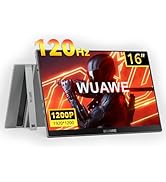
Image: The portable monitor set up for gaming with a PS5 and Nintendo Switch, demonstrating its compatibility with various consoles.
Maintenance
- Cleaning the Screen: Gently wipe the screen with a soft, lint-free cloth. For stubborn marks, slightly dampen the cloth with water or a screen-specific cleaning solution. Do not spray liquid directly onto the screen.
- Cleaning the Body: Use a soft, dry cloth to clean the monitor's exterior.
- Storage: When not in use, store the monitor in a cool, dry place, away from direct sunlight and extreme temperatures.
- Handling: Always handle the monitor by its edges. Avoid applying pressure to the screen.
Troubleshooting
| Problem | Possible Cause | Solution |
|---|---|---|
| No display/"No Signal" message | Incorrect input source selected; Cable not properly connected; Device not outputting video; Insufficient power. | Check cable connections (USB-C, HDMI). Ensure your device's USB-C port supports DP Alt Mode. Select the correct input source via the OSD menu. Ensure the monitor is receiving sufficient power. Restart your connected device. |
| Screen flickering/Unstable display | Loose cable connection; Power fluctuations; HDR mode issues. | Ensure cables are securely connected. Try a different power outlet or adapter. If using HDR, try disabling it in the OSD menu or on your device, as SDR often provides a more stable image. |
| No sound from speakers/headphone jack | Volume too low; Muted; Incorrect audio output selected on device. | Increase volume via the OSD menu or your connected device. Check if the monitor or device is muted. Ensure the monitor is selected as the audio output device on your computer/console. |
| Monitor not turning on | No power; Faulty power cable/adapter. | Verify power connection. Try a different power outlet. Ensure the power button is pressed. |
| Image is washed out or colors are incorrect | Incorrect color settings; HDR mode enabled. | Adjust color settings in the OSD menu. If HDR is enabled, try disabling it, as some users report better color accuracy in SDR mode. |
If you encounter issues such as screen flickering, pixel holes, or other quality concerns, please contact customer service through the Amazon platform for effective solutions.
Specifications
| Feature | Detail |
|---|---|
| Screen Size | 16 Inches |
| Resolution | 1920 x 1200P (WUXGA) |
| Aspect Ratio | 16:10 |
| Refresh Rate | 60Hz |
| Brightness | 300 cd/m² |
| Contrast Ratio | 1200:1 |
| Viewing Angle | 178° (IPS Panel) |
| Connectivity | 2 x USB Type-C (Full Function), 1 x Mini-HDMI, 1 x 3.5mm Audio Out |
| Item Weight | 1.58 pounds |
| Product Dimensions | 0.36 x 9.4 x 13.9 inches |
| Manufacturer | WUAWE |
| Model Number | WAB160-60-7S |

Image: Key display specifications of the WUAWE Portable Monitor, including resolution, brightness, contrast, and viewing angles.
Warranty and Support
Your WUAWE portable monitor comes with a 2-year warranty. For any product-related inquiries, technical support, or warranty claims, please contact WUAWE customer service. You can typically reach support through the Amazon platform where the product was purchased.
WUAWE offers 24/7 customer service to assist you with any questions or issues you may have.
For more information and support, you may visit the official WUAWE Store on Amazon: WUAWE Amazon Store


