
Introduction
Thank you for choosing the OORAII Rotating Pomodoro Timer. This device is designed to enhance productivity and time management through its intuitive gravity-sensing operation and versatile timing modes. Ideal for work, study, cooking, and various daily tasks, this timer helps maintain focus and manage breaks effectively.
Product Overview
The OORAII Rotating Pomodoro Timer is a compact, cube-shaped device featuring a digital display and multiple preset countdown options. Its gravity-sensing mechanism allows for quick and easy activation of timers by simply flipping the device to the desired time setting.
Key Features:
- Real Pomodoro Task Timer: Pre-set 5 and 25-minute intervals for focused work and short breaks, aligning with the Pomodoro Technique.
- Gravity Sensor Operation: Simply flip the timer to the side with the desired preset number facing upwards to start the countdown automatically.
- Custom Modes: Adjustable timing from 00-99 minutes and 59 seconds for personalized countdowns or stopwatch functionality.
- Three Volume Levels: Choose between Silent (vibration only), Low Volume (70-80dB), and High Volume (90-100dB) to suit your environment.
- Versatile Use: Excellent for office work, school study, kitchen tasks, workouts, and for individuals managing ADHD.
Setup
- Unboxing: Carefully remove the OORAII Rotating Pomodoro Timer from its packaging.
- Initial Charge: Before first use, fully charge the device using the provided USB-C charging cable. The charging port is located on the back of the timer. A full charge provides approximately 20 hours of continuous use.
- Power On/Off: Press and hold the power button (usually located on the back) for a few seconds to turn the device on or off.
Operating Instructions
1. Gravity Sensing Mode (Preset Times)
The timer comes with pre-set intervals for quick use. These include 5, 10, 25, and 50 minutes.
- To Start: Simply flip the timer so that the desired minute value (e.g., "25 MIN") is facing upwards. The countdown will begin automatically.
- To Pause: Flip the timer so the display screen is facing upwards. The timer will pause.
- To Resume: Flip the timer back to the desired minute value facing upwards. The countdown will resume from where it left off.
- To Reset: Flip the timer so the display screen is facing downwards. The timer will reset to zero.

Image: Demonstrates the gravity-sensing operation for preset countdowns, including starting, pausing, and resetting the timer.
Video: Official seller video demonstrating the OORAII Rotating Pomodoro Timer Cube Timer Productivity Timer in action, showcasing its various preset functions.
2. Custom Countdown Mode
For times not covered by the presets, you can set a custom countdown.
- Activate Custom Mode: Locate the mode switch on the back of the timer and slide it to position "2" (Custom Mode).
- Set Minutes: Press the 'M' button to adjust the minutes (00-99).
- Set Seconds: Press the 'S' button to adjust the seconds (00-59).
- Start/Stop: Press the 'ST/SP' button to start or stop the custom countdown.

Image: Illustrates the steps to set a custom countdown time using the buttons on the back of the timer.
3. Stopwatch Mode
The timer can also function as a stopwatch.
- Activate Stopwatch Mode: Ensure the mode switch on the back is in position "2" (Custom Mode).
- Start from Zero: If the display shows a time, reset it to "00 00" by flipping the timer screen downwards.
- Start/Stop: Press the 'ST/SP' button to start the stopwatch. Press it again to pause.

Image: Demonstrates how to use the stopwatch mode, including setting it to zero and starting/stopping the count-up.
4. Volume Settings
Adjust the alarm volume to suit your environment.
- Silent Mode: The timer will vibrate without sound. Ideal for quiet environments like libraries or offices.
- Low Volume: Produces a sound between 70-80dB.
- High Volume: Produces a sound between 90-100dB.
- To Change: Use the dedicated volume control buttons/switch on the back of the device to cycle through the modes.

Image: Illustrates the three available volume settings and their appropriate use cases.
Maintenance
Charging the Battery
The OORAII Rotating Pomodoro Timer is equipped with a rechargeable battery.
- Charging Port: The USB-C charging port is located on the back of the device.
- Battery Life: A full charge provides approximately 20 hours of continuous use and up to 30 days of standby time.
- Indicator: The display may show a battery icon to indicate charge level.
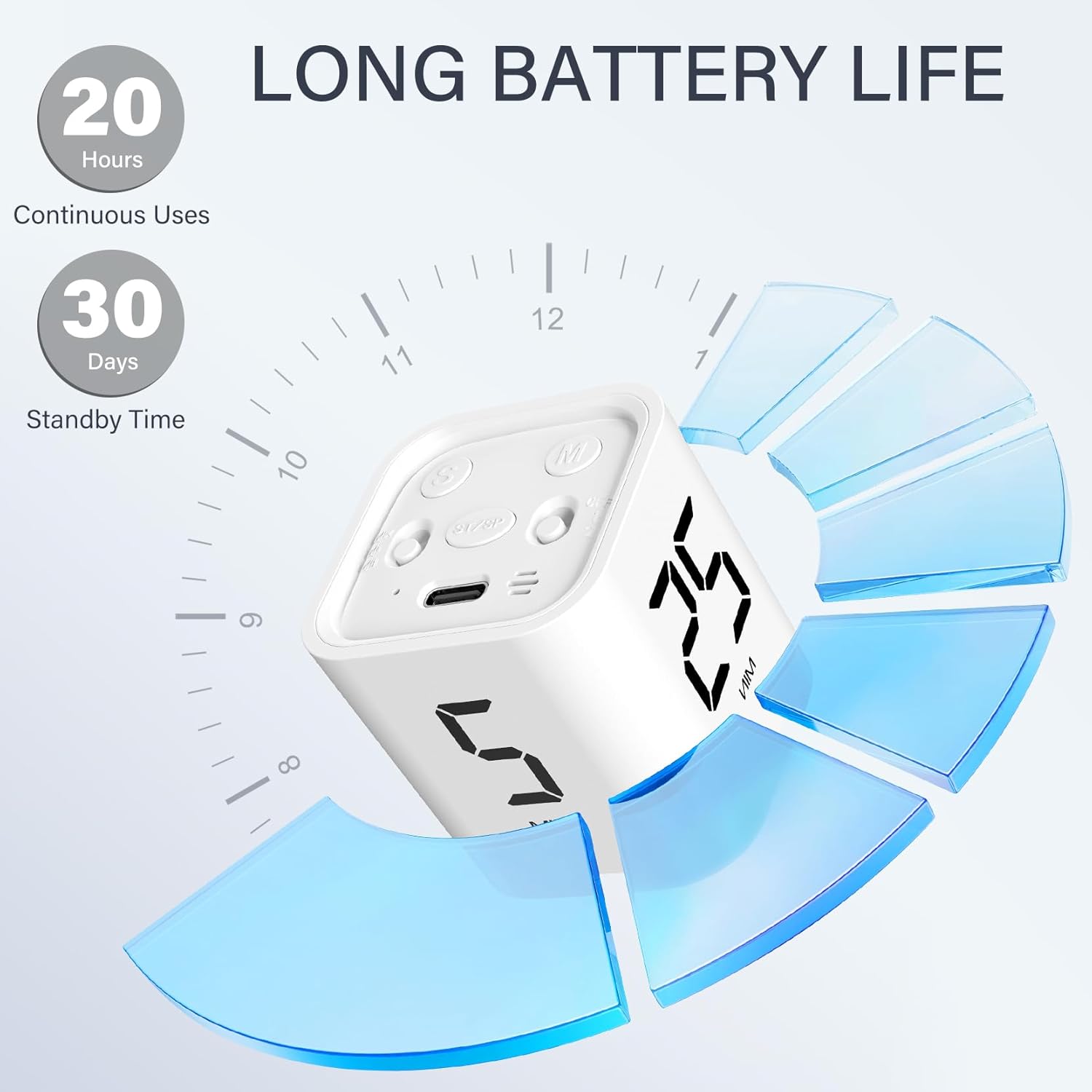
Image: Details the battery life and charging method for the timer.
Troubleshooting
Incorrect Preset Times
If your timer's preset times do not match the advertised 5, 10, 25, and 50 minutes (e.g., showing 5, 10, 30, 60 minutes), this may indicate a variant model. Please refer to the specific product packaging or contact customer support for clarification on your model's default presets.
Timer Not Responding
- Ensure the battery is charged.
- Verify the mode switch is correctly set for either gravity sensing or custom mode.
- Try turning the device off and on again.
Specifications
| Attribute | Detail |
|---|---|
| Brand | OORAII |
| Model Number | F4 |
| Color | White |
| Material | Plastic |
| Product Dimensions | 1.8"D x 1.7"W x 1.7"H |
| Item Weight | 2.89 ounces |
| Battery Type | 1 Nonstandard Battery (included) |
| Screen Size | 2.5 Inches |
| UPC | 765133887118 |
Warranty & Support
This product is subject to a 30-day refund/replacement return policy. For any concerns or questions regarding your OORAII Rotating Pomodoro Timer, please contact the seller, Sanjour Direct, through your order page on Amazon. Our customer support team aims to respond within 24 hours.