Introduction
Welcome to the user manual for your Brondi Raptor Dual SIM mobile phone. This guide provides essential information on how to set up, operate, maintain, and troubleshoot your device. Please read this manual carefully to ensure proper use and to maximize the performance of your phone.
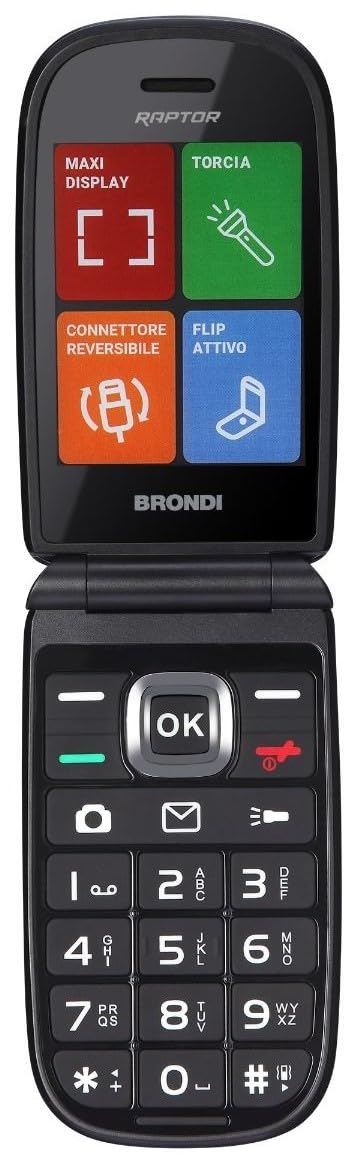
Image: Front view of the Brondi Raptor Dual SIM mobile phone.
1. Setup
1.1 Inserting SIM Cards and Battery
- Remove the Back Cover: Gently pry open the back cover of the phone using the designated notch, usually located at the bottom or side.
- Insert SIM Cards: Locate the SIM card slots. This phone supports Dual SIM. Carefully insert your SIM cards into the respective slots, ensuring the gold contacts face downwards and the cut corner aligns with the slot's orientation.
- Insert Battery: Place the battery into its compartment, aligning the metal contacts on the battery with those in the phone.
- Replace Back Cover: Align the back cover with the phone's body and press firmly around the edges until it clicks securely into place.
1.2 Charging the Battery
- Connect Charger: Plug the small end of the charging cable into the phone's charging port.
- Connect to Power: Plug the other end of the charger into a wall outlet.
- Initial Charge: For the first use, it is recommended to charge the battery fully for at least 4 hours to optimize battery performance. The battery indicator on the screen will show charging status.
2. Operating Instructions
2.1 Power On/Off
- To Power On: Press and hold the Power/End Call key until the phone vibrates and the screen lights up.
- To Power Off: Press and hold the Power/End Call key until the power-off options appear on the screen. Select "Power off" and confirm.
2.2 Basic Navigation
- Navigation Keys: Use the directional keys (Up, Down, Left, Right) to navigate through menus and options.
- OK/Select Key: Press the center key to confirm a selection or open an item.
- Call Key: Press to make a call or answer an incoming call.
- End Call/Power Key: Press to end a call, reject an incoming call, or return to the idle screen. Long press to power on/off.
2.3 Making and Receiving Calls
- To Make a Call: From the idle screen, dial the number using the keypad and press the Call key.
- To Answer a Call: When the phone rings, press the Call key.
- To End a Call: Press the End Call key.
2.4 Sending and Receiving Messages (SMS)
- Compose Message: Go to Menu > Messages > Write Message. Enter your text.
- Add Recipient: Select "Options" or "Send to" and enter the recipient's number or select from contacts.
- Send Message: Select "Send".
2.5 Contacts
- Add New Contact: Go to Menu > Contacts > Add New. Enter the name and number, then save.
- Search Contact: Go to Menu > Contacts > Search. Enter the name or part of the name.
2.6 Camera
- Access Camera: Go to Menu > Camera.
- Take Photo: Frame your shot and press the OK/Select key to capture the image.
2.7 Dual SIM Management
- Select SIM for Calls/Messages: In the settings menu, navigate to "Dual SIM settings" or "Network settings" to choose which SIM card to use for outgoing calls, messages, or data.
2.8 Bluetooth and Wi-Fi Connectivity
- Enable Bluetooth: Go to Menu > Settings > Connectivity > Bluetooth. Turn Bluetooth on and search for devices to pair.
- Enable Wi-Fi: Go to Menu > Settings > Connectivity > Wi-Fi. Turn Wi-Fi on, scan for available networks, select your network, and enter the password if required.
3. Maintenance
3.1 Cleaning the Device
- Use a soft, dry, lint-free cloth to clean the phone's screen and body.
- Avoid using liquid cleaners, aerosols, or harsh chemicals, as these can damage the device.
3.2 Battery Care
- Do not expose the battery to extreme temperatures.
- Avoid fully discharging the battery frequently. Charge it before it drops too low.
- Use only the original or approved charger for your device.
3.3 Storage
- Store the phone in a cool, dry place away from direct sunlight and moisture.
- If storing for an extended period, ensure the battery is partially charged (around 50%) to prevent deep discharge.
4. Troubleshooting
4.1 Common Issues and Solutions
| Problem | Solution |
|---|---|
| Phone does not turn on. | Ensure the battery is correctly inserted and charged. Connect the charger and try again. |
| No network signal. | Check if SIM cards are properly inserted. Move to an area with better network coverage. Restart the phone. |
| Cannot make/receive calls. | Verify that the SIM card is active and has sufficient credit/plan. Check network settings. |
| Battery not charging. | Ensure the charger and cable are not damaged and are properly connected. Try a different power outlet. |
| Phone freezes or is unresponsive. | Remove the battery, wait a few seconds, and reinsert it. Then power on the phone. |
4.2 Factory Reset
If your phone experiences persistent issues, a factory reset may resolve them. Warning: A factory reset will erase all personal data, settings, and installed applications from your phone. Back up any important data before proceeding.
- Go to Menu > Settings > Restore Factory Settings (or similar).
- You may be prompted to enter a password (default is often 1122, 1234, or 0000).
- Confirm the reset. The phone will restart after the process is complete.
5. Specifications
| Feature | Detail |
|---|---|
| Brand | Brondi |
| Model Name | Raptor |
| CPU Model | Snapdragon |
| Screen Size | 2.8 Inches |
| Resolution | 320 x 240 |
| Wireless Service Provider | Unlocked |
| Cellular Technology | 4G |
| Connectivity Technology | Bluetooth |
| Wireless Network Technology | Wi-Fi |
6. Warranty and Support
Your Brondi Raptor mobile phone comes with a standard manufacturer's warranty. Please refer to the warranty card included in your product packaging for specific terms and conditions. For technical support, service, or further inquiries, please visit the official Brondi website or contact their customer service department. Contact information can typically be found on the Brondi website or in the product packaging.
Online Resources: For the latest information, FAQs, and support, please visit the Brondi Store on Amazon.


