
Phomemo M832
Phomemo M832 Portable Thermal Printer User Manual
Model: M832
1. Introduction
This manual provides essential instructions for the safe and efficient operation of your Phomemo M832 Portable Thermal Printer. Please read this manual thoroughly before using the device and retain it for future reference.
2. Package Contents
Verify that all items are present in the package:
- 1x Phomemo M832 Portable Printer (Purple)
- 1x Carrying Case (Black)
- 1x US Letter Size Thermal Roll Paper (pre-installed in printer paper bin)
- 1x 4.33'' Width Thermal Roll Paper
- 1x 3.15'' Width Thermal Roll Paper
- 1x 2.08'' Width Thermal Roll Paper
- 1x USB-C Charging Cable
- 1x Type C Adapter
- 1x User Manual (this document)
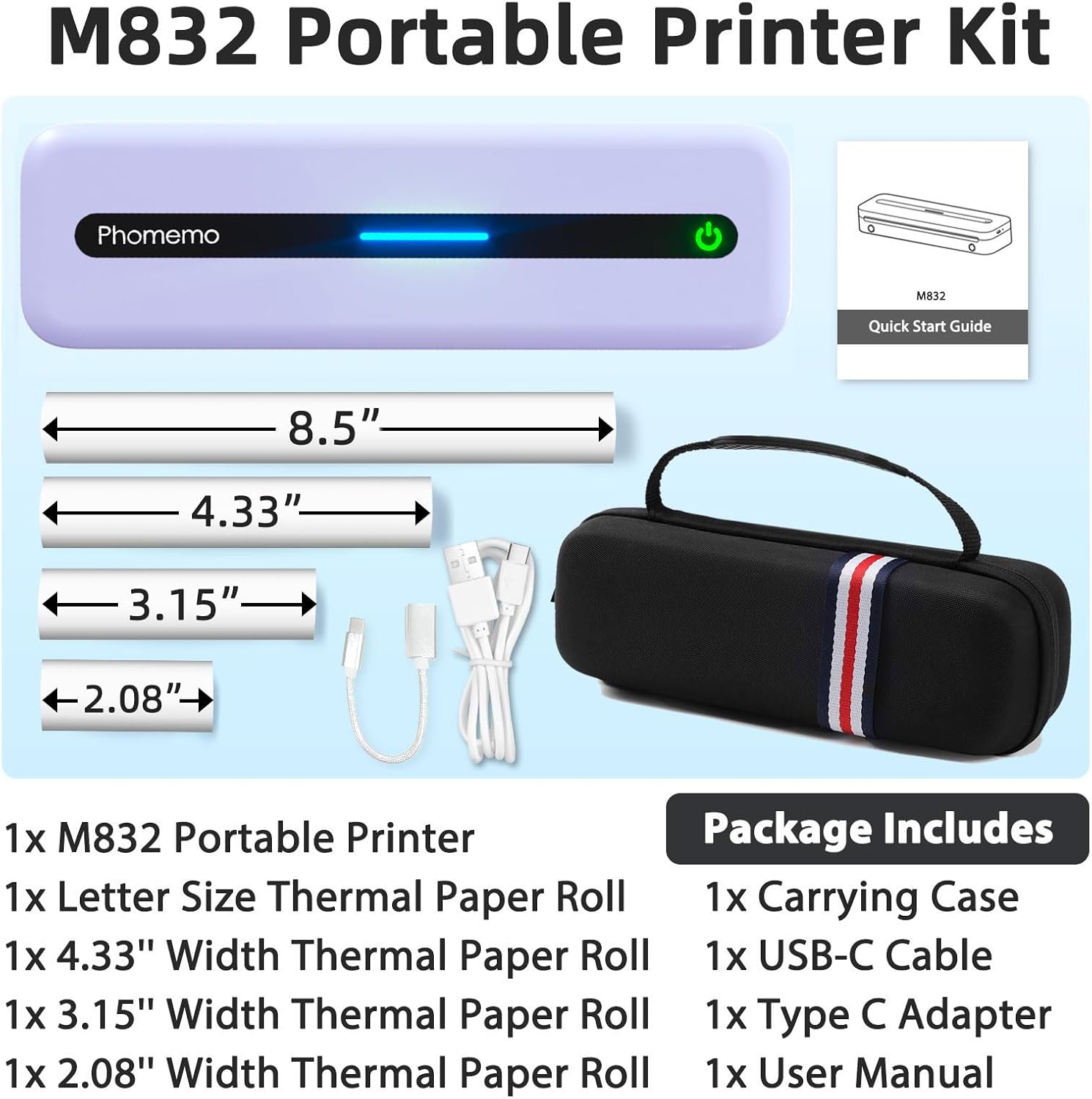
Image: Contents of the Phomemo M832 Portable Printer Kit, including the printer, carrying case, various thermal paper rolls, and cables.
3. Setup
3.1. Charging the Printer
The Phomemo M832 printer features a built-in 2600mAh rechargeable battery. For optimal performance, fully charge the device before first use.
- Connect the provided USB-C charging cable to the printer's charging port.
- Connect the other end of the cable to a 5V 2A power adapter (do not use chargers with output above 5V).
- The indicator light will show charging status.
A full charge allows for printing up to 150 sheets.
3.2. Loading Thermal Paper
The M832 supports various thermal paper types and sizes, including roll paper, folded paper, and single sheets.
- Press the cover open buttons on the sides of the printer to open the top cover.
- If using a paper roll, adjust the paper roll stoppers to match the width of your thermal paper roll.
- Insert the thermal paper roll into the paper bin, ensuring the printing side faces upwards. Pull out approximately 2 cm of paper.
- Close the top cover securely.
- If using single sheets, feed the paper from the back feed slot, ensuring it is aligned straight.
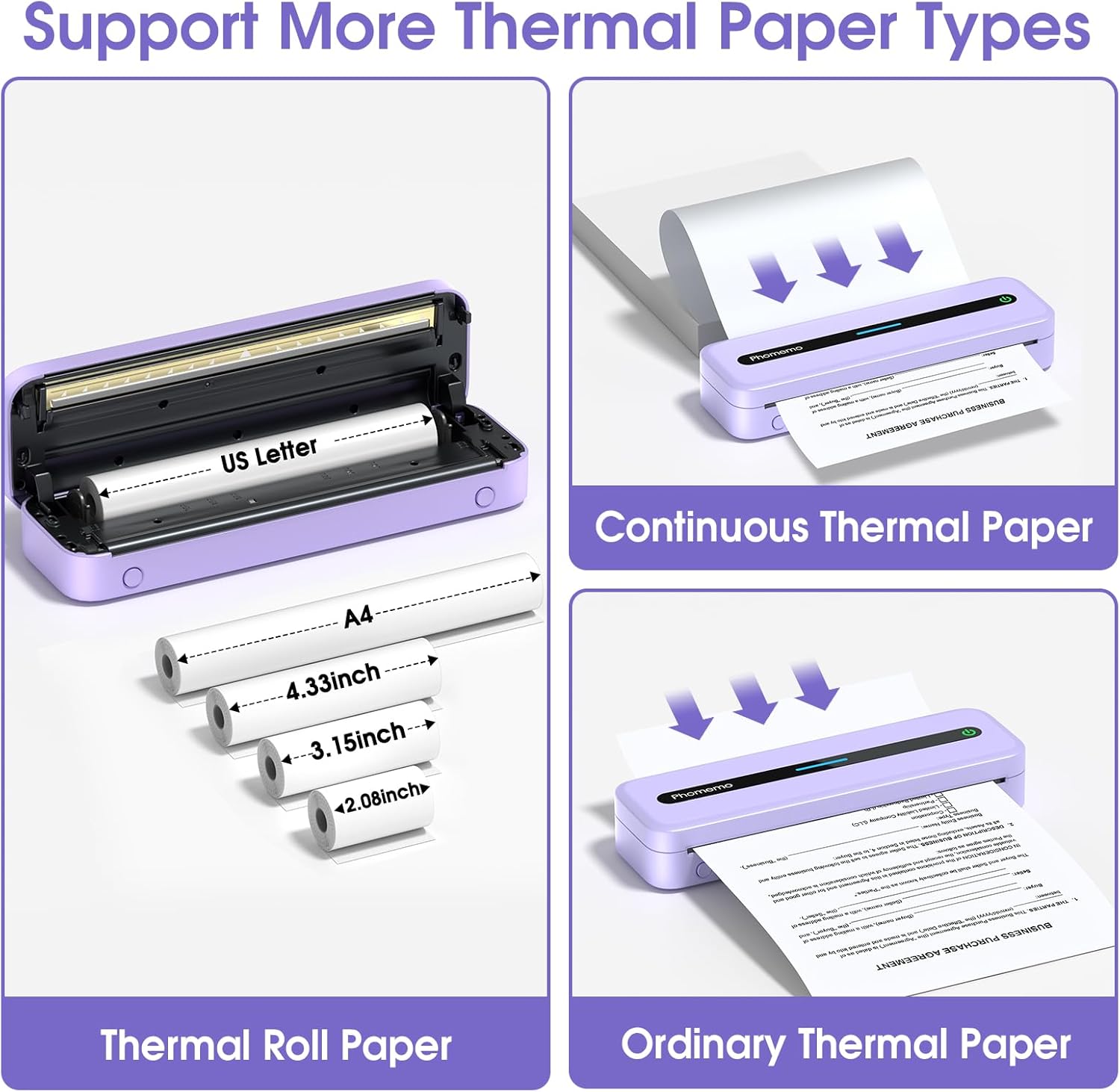
Image: Illustration of the Phomemo M832 printer showing support for continuous thermal paper, thermal roll paper, and ordinary thermal paper.
Video: Demonstrates how to correctly place the paper roll stopper in the Phomemo M832 printer.
4. Operating Instructions
4.1. Powering On/Off
Press and hold the power button for approximately 3 seconds to turn the printer on or off.
4.2. Connecting to a Phone or Tablet (Bluetooth)
- Download the "Phomemo" App from your device's app store (compatible with iPhone, Android Phone, iPad).
- Turn on the M832 printer and enable Bluetooth on your phone or tablet.
- Open the "Phomemo" App. Click the "Printer" icon within the App to search for and connect to the M832 printer via Bluetooth.
- Once connected, select the desired paper size and file type within the App to initiate printing.

Image: Step-by-step guide for connecting the Phomemo M832 printer to a phone or tablet via Bluetooth using the Phomemo app.
4.3. Connecting to a Laptop or Computer (USB-C)
- Download and install the appropriate driver for your computer's operating system from the official Phomemo website (M832.phomemo.com).
- Connect the M832 printer to your laptop or computer using the provided USB-C cable.
- Open the document you wish to print and select the M832 printer from the printer list in your operating system's print dialogue.

Image: Step-by-step guide for connecting the Phomemo M832 printer to a laptop or computer via USB-C cable.
Video: Instructions on how to set up the M832 Portable Printer on a Linux System.
Video: Instructions on how to set up the M832 Portable Printer on a Mac System.
5. Maintenance
5.1. Cleaning the Print Head
To ensure clear printing and prolong the life of your printer, regularly clean the print head:
- Turn off the printer and disconnect it from any power source.
- Open the top cover of the printer.
- Use an alcohol wipe to gently clean the cutting section of the printer, especially any areas with black lines. This removes adhesive residue or foreign objects.
- Caution: Do not scratch the print head with any hard objects.
- Allow the print head to dry completely before closing the cover and resuming use.
6. Troubleshooting
| Problem | Possible Cause | Solution |
|---|---|---|
| Printer not turning on. | Low battery or no power. | Charge the printer using the provided USB-C cable and a 5V 2A adapter. |
| Poor print quality (faint, streaky). | Dirty print head or incorrect paper type. | Clean the print head as described in Section 5.1. Ensure you are using thermal paper. |
| Printer not connecting via Bluetooth. | Bluetooth is off, incorrect pairing, or app issue. | Ensure Bluetooth is enabled on your device. Re-pair the printer through the Phomemo App. Restart both devices. |
| Printer not recognized by computer. | Missing or incorrect driver. | Download and install the correct driver from M832.phomemo.com. Ensure the USB-C cable is securely connected. |
| Paper jam. | Improper paper loading or foreign object. | Turn off the printer, open the cover, and carefully remove any jammed paper or obstructions. Reload paper correctly. |
7. Specifications
- Model: M832
- Printing Technology: Thermal
- Printer Output: Monochrome (Black and White)
- Maximum Print Resolution: 300 DPI
- Maximum Print Speed: 15 ppm (Monochrome)
- Connectivity: Bluetooth, USB Type C
- Compatible Devices: Laptops, PC, Smartphones, Tablets (iOS 13+, Android 7+, Mac OS 10.14+, Windows 7/8/10/11, Chrome OS, Linux)
- Supported Media Sizes: 8.5" x 11" (US Letter), A4, 4.33" (110mm), 3.15" (80mm), 2.08" (53mm)
- Supported Media Types: Thermal Roll Paper, Folded Thermal Paper, Single Sheet Thermal Paper
- Battery: 2600mAh Lithium Polymer (rechargeable)
- Battery Life: Up to 150 sheets per full charge
- Product Dimensions: 10.39"D x 3.07"W x 1.77"H
- Item Weight: 1.5 pounds
8. Warranty and Support
For warranty information, technical support, or customer service inquiries, please visit the official Phomemo website or contact their customer support directly. Refer to the product packaging or the official website for the most up-to-date contact details and warranty terms.
Official Phomemo Store: Phomemo Store on Amazon
Related documentsM832


Ask a question about this manual
Ask about setup, troubleshooting, compatibility, parts, safety, or missing instructions. Manuals+ will review the question and use this page’s manual context to help answer it.