1. Introduction
The Eureka Forbes Smart Air Purifier 355 is designed to provide clean and healthy indoor air. This device features a 4-stage advanced purification system, including a True H13 HEPA filter, and offers smart control via Wi-Fi connectivity. It is capable of purifying air in spaces up to 480 sq. ft. by removing 99.97% of impurities as small as 0.1 µm.
This manual provides detailed instructions for the proper setup, operation, and maintenance of your air purifier to ensure optimal performance and longevity.
2. Important Safety Information
Please read all instructions carefully before using the appliance. Keep this manual for future reference.
- Ensure the power supply voltage matches the rating label on the appliance.
- Do not operate the appliance with a damaged cord or plug.
- Keep the air inlet and outlet clear of obstructions.
- Do not immerse the appliance in water or other liquids.
- Unplug the appliance before cleaning or performing any maintenance.
- This appliance is for indoor use only.
3. Product Overview
The Eureka Forbes Smart Air Purifier 355 features a sleek design with 360° air intake for comprehensive purification. The top panel includes a digital display and touch controls for easy operation.
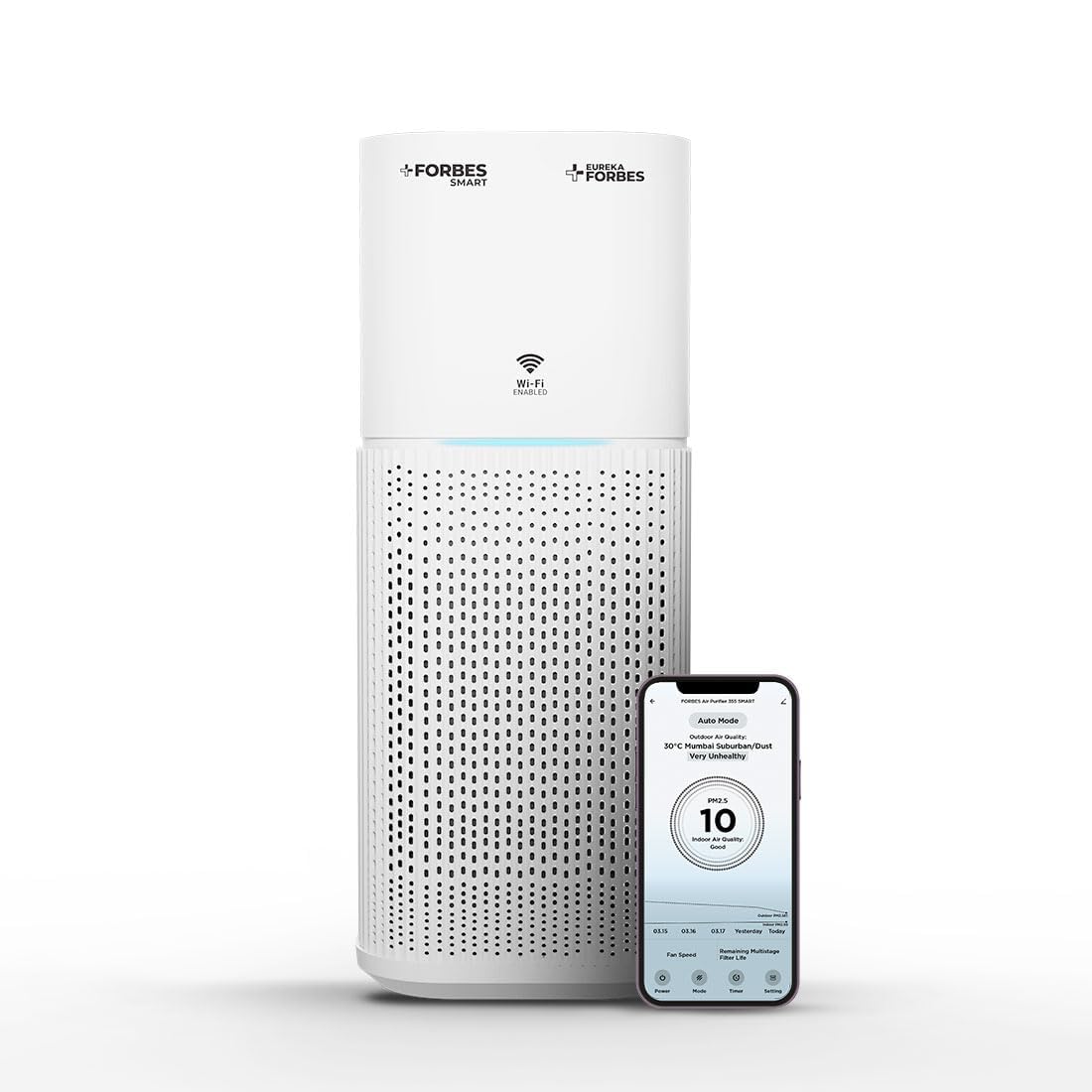
Figure 3.1: Main unit of the Eureka Forbes Smart Air Purifier 355.
Control Panel Features:

Figure 3.2: Top control panel with digital display and touch buttons.
- Power Button: Turns the unit on/off.
- Mode Button: Cycles through Auto, Sleep, and Manual modes.
- Speed Button: Adjusts fan speed (12 levels).
- Timer Button: Sets operation timer (1-12 hours).
- Plasma Button: Activates/deactivates plasma ion function.
- Dimmer Button: Adjusts display brightness.
- Wi-Fi Indicator: Shows Wi-Fi connection status.
- PM 2.5 Display: Real-time air quality indicator.
Filter System:
The purifier utilizes a 4-stage advanced filtration system to capture various airborne particles and odors.

Figure 3.3: Exploded view of the 4-stage filtration system.
- Pre-filter: Captures large particles like dust, lint, and pet hair.
- Activated Carbon Filter: Absorbs odors, volatile organic compounds (VOCs), and harmful gases.
- True H13 HEPA Filter: Traps 99.97% of airborne particles as small as 0.3 microns, including pollen, dust mites, mold spores, and pet dander.
- Plasma Filtration: Generates positive and negative ions to eliminate microbial contaminants and enhance air freshness.
4. Setup
4.1 Unboxing and Filter Installation
Before first use, ensure all packaging materials are removed and the filter is correctly installed.
- Carefully remove the air purifier from its packaging.
- Turn the unit upside down and twist the base counter-clockwise to unlock and remove it.
- Remove the integrated filter from its protective plastic bag.
- Insert the filter back into the unit, ensuring it is seated properly.
- Replace the base and twist clockwise to lock it securely.
Video 4.1: Demonstrates the unboxing and filter installation process for the air purifier.
4.2 Power Connection
Place the air purifier on a flat, stable surface. Connect the power adapter to the unit and then plug it into a suitable electrical outlet.
5. Operating Instructions
5.1 Basic Operation
- Press the Power button to turn the air purifier on. The PM 2.5 display will show the current air quality.
- Press the Mode button to cycle through operating modes:
- Auto Mode: The fan speed adjusts automatically based on the detected air quality (PM 2.5 levels) and ambient light.
- Sleep Mode: Operates at the lowest fan speed with dimmed lights for quiet operation during rest.
- Manual Mode: Allows manual selection of fan speed.
- In Manual Mode, press the Speed button to select from 12 fan speed levels.
- Press the Timer button to set the desired operating duration from 1 to 12 hours. The unit will automatically turn off after the set time.
- Press the Plasma button to activate or deactivate the plasma ion function for enhanced air purification.
- Press the Dimmer button to adjust the brightness of the display lights.
Video 5.1: Quick overview of key features and controls of the air purifier.
5.2 Wi-Fi Enabled Smart Control
The air purifier can be controlled remotely using a dedicated smartphone application.

Figure 5.1: Smart app interface showing air quality and control options.
- Download the Eureka Forbes Smart app from your smartphone's app store.
- Follow the in-app instructions to connect your air purifier to your home Wi-Fi network.
- Once connected, you can manage all settings, monitor real-time PM 2.5 levels, and adjust modes/speeds from anywhere.
6. Maintenance
6.1 Filter Replacement
The air purifier is equipped with a filter replacement indicator. When the indicator lights up, it is time to replace the integrated filter to maintain optimal performance.
- Unplug the air purifier from the power outlet.
- Turn the unit upside down and twist the base counter-clockwise to unlock.
- Remove the old filter and dispose of it properly.
- Insert a new Eureka Forbes replacement filter into the unit.
- Replace the base and twist clockwise to lock it.
- Plug in the unit. Reset the filter replacement indicator by pressing and holding the appropriate button (refer to the control panel diagram for specific button, usually the Timer or Mode button for a few seconds).
6.2 Cleaning the Unit
- Always unplug the unit before cleaning.
- Wipe the exterior surfaces with a soft, damp cloth. Do not use abrasive cleaners or solvents.
- Clean the air intake and outlet vents with a soft brush or vacuum cleaner attachment to remove dust buildup.
- Do not wash the filter.
7. Troubleshooting
| Problem | Possible Cause | Solution |
|---|---|---|
| Unit does not turn on. | No power supply; power cord not connected; unit damaged. | Check power outlet; ensure power cord is securely plugged in; contact customer support if damaged. |
| Poor air purification performance. | Filter is dirty or needs replacement; air inlets/outlets blocked. | Check filter replacement indicator and replace filter if necessary; clear any obstructions from vents. |
| Unusual noise during operation. | Foreign object inside; unit not on a stable surface. | Unplug and check for foreign objects; place unit on a flat, stable surface. |
| Wi-Fi connection issues. | Incorrect Wi-Fi password; router too far; app not configured correctly. | Verify Wi-Fi password; move unit closer to router; reconfigure Wi-Fi settings in the app. |
8. Specifications
| Feature | Detail |
|---|---|
| Brand | Eureka Forbes |
| Model Number | GAPDF400Z1SM00 |
| Colour | White |
| Product Dimensions | 24.3D x 24.3W x 53.5H Centimeters |
| Floor Area Coverage | 480 Square Feet |
| CADR | 355 m³/Hr |
| Filtration Type | 4-Stage (Pre-filter, Activated Carbon, True H13 HEPA, Plasma) |
| Particle Retention Size | 0.1 Micron |
| Noise Level | 63 Decibels (Max) |
| Controller Type | Mobile Application, Touch Control |
| Wattage | 35 Watts |
| Power Source | Corded Electric |
| Item Weight | 4.3 Kilograms |
| Included Components | Air Purifier, Integrated Filter, Adapter |
9. Warranty and Support
Your Eureka Forbes Smart Air Purifier 355 comes with a 1 Year Comprehensive Warranty. For any assistance or service requests, please contact Eureka Forbes customer support.
- Customer Support: Available for 12 hours daily.
- Service Network: Presence in over 700 cities and 17,000+ pincodes.
- Extended Warranty: A 2-Year Extended Warranty Plan by Onsitego is available for purchase.

Figure 9.1: Information on Eureka Forbes' extensive service network and support.
For further details or to register your product, please visit the official Eureka Forbes website or refer to the product detail page on Amazon.


