
1. Introduction
This manual provides essential information for setting up, operating, and maintaining your DOOGEE T30E Android Tablet. Please read this guide thoroughly before using your device to ensure proper function and longevity.
The DOOGEE T30E is an 11-inch Android 14 tablet designed for productivity, creativity, entertainment, and general use. It features an octa-core processor, 9GB RAM (4GB physical + 5GB virtual), 128GB internal storage expandable up to 1TB via TF card, and an 8000mAh battery.
2. What's in the Box
Carefully unpack your DOOGEE T30E tablet and verify that all items listed below are included:
- DOOGEE T30E Tablet
- Protective Cover
- Type-C Cable
- AC Adapter
- Stylus Pen
- SIM-Pin
- User Manual (this document)
- Bluetooth Keyboard
- Bluetooth Mouse

Image: All accessories included with the DOOGEE T30E tablet.
3. Device Overview
The DOOGEE T30E features a sleek design with an 11-inch display and essential ports and buttons for user interaction.
Physical Design
The tablet has an ultra-thin profile of 8.8mm and weighs approximately 537g, making it portable and comfortable to hold.

Image: The DOOGEE T30E tablet highlighting its thinness and light weight.
Ports and Buttons
Familiarize yourself with the location of the volume rocker, power button, front camera, rear camera, dual card slot, Type-C port, and speakers.

Image: Overview of the DOOGEE T30E tablet's features and components.
4. Setup
Initial Power On
- Press and hold the Power Button located on the side of the tablet until the DOOGEE logo appears.
- Follow the on-screen prompts to complete the initial setup, including language selection, Wi-Fi connection, and Google account login.
Inserting SIM/TF Card
The tablet supports dual SIM cards (nano SIM) or one nano SIM and one TF card for expandable storage up to 1TB.
- Locate the SIM/TF card tray on the side of the tablet.
- Use the provided SIM-Pin to gently eject the tray.
- Place your nano SIM card(s) and/or TF card into the designated slots on the tray. Ensure correct orientation.
- Carefully reinsert the tray into the tablet.
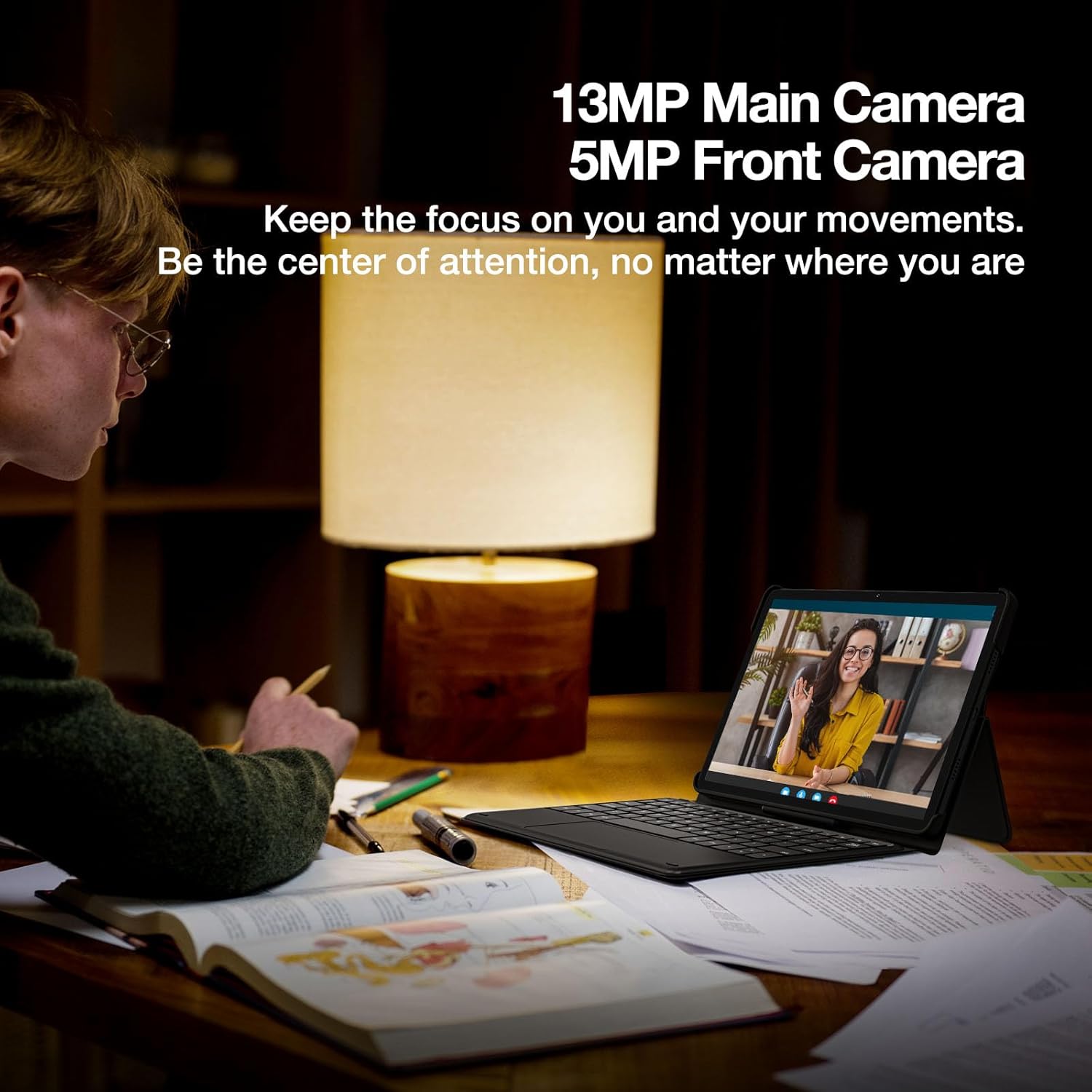
Image: Detail of the dual SIM and TF card slot on the DOOGEE T30E tablet.
Charging the Tablet
Connect the provided Type-C cable to the tablet's Type-C port and the AC adapter. Plug the adapter into a power outlet. The tablet supports 5V/2A 10W fast charging.
5. Operating Your Tablet
Android 14 Operating System
The DOOGEE T30E runs on Android 14, offering enhanced features for smarter AI, stronger security, and richer multitasking capabilities. Key features include Parallel View, Taskbar, and improved Privacy & Security settings.

Image: The Android 14 operating system interface on the DOOGEE T30E.
Display and Visual Experience
The 11-inch LCD display with a resolution of 1280x800 pixels provides a clear visual experience. It features TÜV SÜD Low Blue Light Eye Protection for reduced eye strain and Widevine L1 support for seamless, crystal-clear HD content streaming.

Image: The DOOGEE T30E tablet with TÜV SÜD Low Blue Light Eye Protection for comfortable viewing.
Audio
The tablet is equipped with two stereo speakers, providing an immersive sound experience. It also includes one microphone for communication.

Image: The DOOGEE T30E tablet's dual speakers for enhanced audio.
Cameras
The DOOGEE T30E features a 13MP main rear camera and a 5MP front camera, suitable for capturing moments and video calls.

Image: The DOOGEE T30E tablet's 13MP rear and 5MP front cameras.
Multitasking and Screen Casting
Utilize the split-screen feature for enhanced productivity, allowing you to run two applications side-by-side. You can also cast your screen to a larger display for presentations or entertainment.

Image: Split-screen and cast screen functionality on the DOOGEE T30E tablet.
6. Accessories
Bluetooth Keyboard and Mouse
The included Bluetooth keyboard and mouse can be paired with your tablet to enhance productivity, transforming your tablet into a portable workstation.
- Ensure Bluetooth is enabled on your tablet (Settings > Connected devices > Bluetooth).
- Turn on the keyboard/mouse and put them into pairing mode (refer to their individual manuals if needed).
- Select the device name from the list of available Bluetooth devices on your tablet to pair.

Image: Using the DOOGEE T30E tablet with its Bluetooth keyboard and mouse.
Stylus Pen
The stylus pen allows for precise input, drawing, and note-taking on the tablet's screen.

Image: The stylus pen being used with the DOOGEE T30E tablet.
7. Connectivity
Wi-Fi and Cellular Network
The tablet supports 5G Wi-Fi and 4G LTE cellular networks, providing fast and reliable internet access. Insert a nano SIM card to utilize cellular data.

Image: The DOOGEE T30E tablet supporting 4G network and dual SIM cards.
Bluetooth
Bluetooth 5.0 allows for seamless connection with wireless headphones, speakers, and other Bluetooth-enabled devices.
Navigation
The tablet integrates a 4-in-1 navigation system including GPS, BeiDou, GLONASS, and Galileo, along with AGPS support, for accurate positioning and navigation.

Image: Accurate positioning and navigation features of the DOOGEE T30E tablet.
8. Maintenance and Care
- Cleaning: Use a soft, lint-free cloth to clean the screen and body of the tablet. Avoid using harsh chemicals or abrasive materials.
- Battery Care: To prolong battery life, avoid extreme temperatures. Charge the tablet regularly and avoid letting the battery completely drain frequently. The 8000mAh battery provides extended usage times.
- Storage: Store the tablet in a cool, dry place away from direct sunlight and moisture.
- Software Updates: Regularly check for and install system updates to ensure optimal performance and security.

Image: The 8000mAh battery of the DOOGEE T30E tablet, indicating long-lasting performance.
9. Troubleshooting
If you encounter issues with your DOOGEE T30E tablet, refer to the following common solutions:
- Tablet not turning on: Ensure the battery is charged. Connect the tablet to the charger and wait a few minutes before attempting to power it on again.
- Screen unresponsive: Try restarting the tablet by holding down the power button for about 10-15 seconds. If the issue persists, a factory reset might be necessary (back up your data first).
- Wi-Fi/Cellular connectivity issues: Check if Wi-Fi or cellular data is enabled in settings. Restart your router or check your SIM card insertion.
- Accessories not connecting: Ensure Bluetooth is enabled on the tablet and the accessory is in pairing mode. Check battery levels of the accessories.
- Slow performance: Close unnecessary background applications. Clear cache and temporary files. Consider uninstalling unused apps.
10. Specifications
| Feature | Specification |
|---|---|
| Model | T30E |
| Operating System | Android 14 |
| Display Size | 11.0 inches |
| Display Resolution | 1280 x 800 pixels |
| Display Type | LCD with TÜV SÜD Low Blue Light Eye Protection, Widevine L1 Support |
| Processor | Octa-core (1.6GHz Frequency, 12nm Energy Saving, Arm Mail G57 GPU) |
| RAM | 9GB (4GB physical + 5GB virtual) |
| Internal Storage | 128GB |
| Expandable Storage | Up to 1TB via TF card |
| Battery Capacity | 8000mAh Lithium-Ion |
| Charging | 5V/2A 10W Fast Charging |
| Rear Camera | 13MP |
| Front Camera | 5MP |
| Connectivity | Wi-Fi 5G (802.11g), 4G LTE (Dual SIM), Bluetooth 5.0 |
| Navigation | GPS+BeiDou+GLONASS+Galileo+AGPS |
| Audio | 2 Stereo Speakers, 1 Microphone, 3.5mm Headphone Jack |
| Dimensions (Thickness) | 8.8 mm |
| Weight | 537 g |

Image: Internal specifications of the DOOGEE T30E tablet's processor.

Image: Storage and RAM details for the DOOGEE T30E tablet.
11. Warranty and Support
DOOGEE provides comprehensive support for your T30E tablet.
- Warranty: The DOOGEE T30E comes with a 2-Year Limited Warranty. Please retain your proof of purchase for warranty claims.
- Money Back Guarantee: Enjoy a 30-Day Money Back Guarantee and Free Return policy.
- Customer Support: 24/7 Online Support is available for 1-on-1 assistance. Refer to the official DOOGEE website or contact information provided in the packaging for support details.

Image: DOOGEE after-sales support details.
12. Product Video
Watch this official product video for a visual overview of the DOOGEE T30E tablet's features and design.
Video: DOOGEE T30E 11 inch Tablet 2024, Android 14 Tablet, 9GB+128GB. This video provides a dynamic look at the tablet's design, performance, and user experience.