
Introduction
This manual provides essential information for setting up, operating, and maintaining your Samsung Galaxy A15 or A25 smartphone. It covers key features, security settings, and troubleshooting tips to ensure a smooth user experience. Please read this guide thoroughly to maximize your device's potential.
Setup
1. Device Overview
Familiarize yourself with the physical components of your Samsung Galaxy A15 or A25.
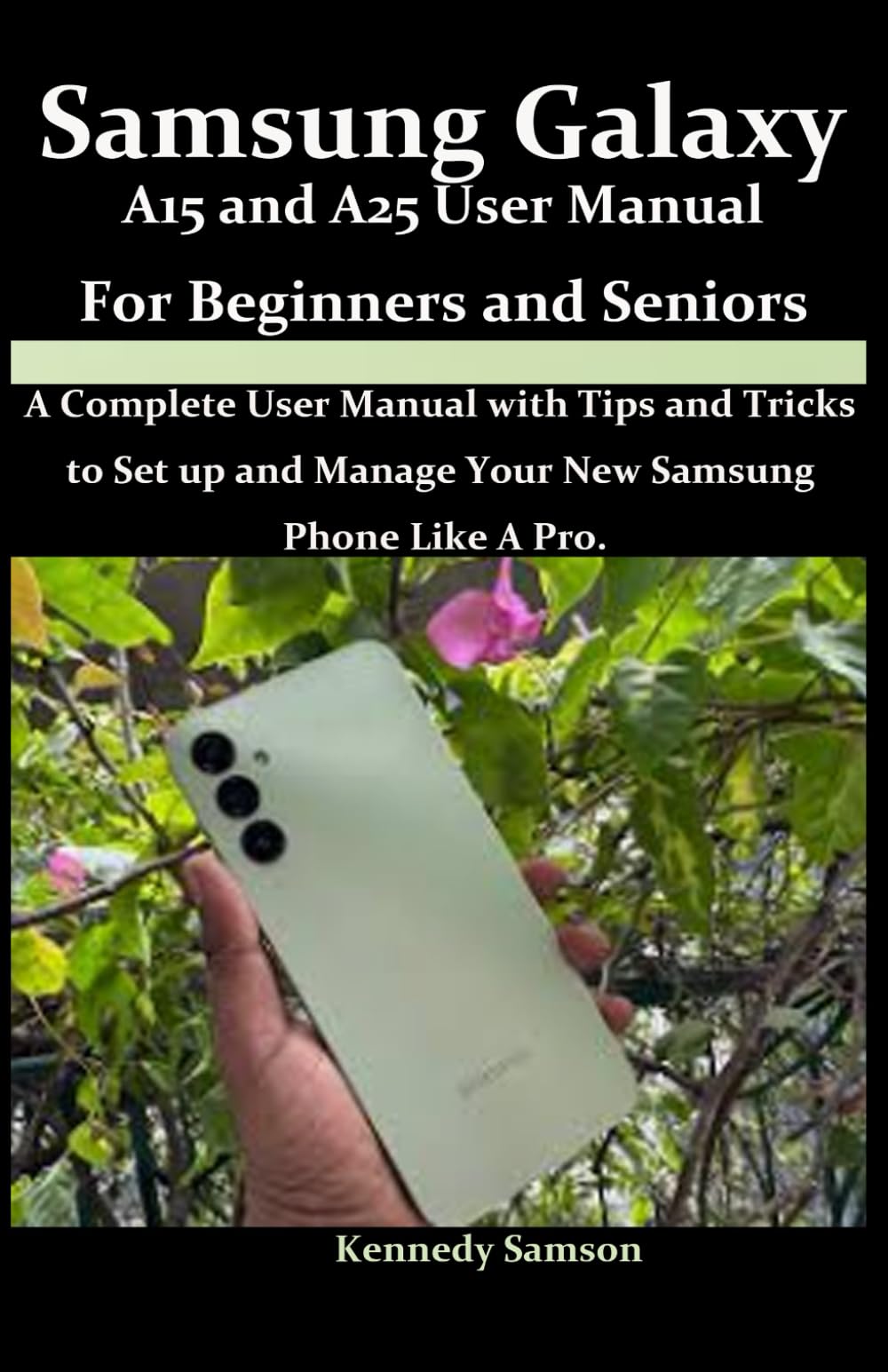
Image Description: This image displays the front cover of the user manual book for the Samsung Galaxy A15 and A25. It features the title of the book and design elements related to the manual itself, not the phone.
2. Powering On/Off
To power on your device, press and hold the Power/Side key until the Samsung logo appears. To power off, press and hold the Power/Side key, then select 'Power off' from the options.
3. SIM Card Installation
Locate the SIM card tray on the side of your device. Use the provided ejection tool to open the tray. Insert your Nano-SIM card(s) and/or microSD card into the designated slots, ensuring correct orientation. Close the tray securely.
4. Initial Configuration
Upon first power-on, follow the on-screen prompts to select your language, connect to a Wi-Fi network, accept terms and conditions, and sign in with your Google account. This process sets up your basic device functions.
Operating Your Device
1. Navigation
Your Galaxy A15/A25 supports both gesture navigation and traditional three-button navigation. You can customize your preferred method in the 'Settings' menu under 'Display' > 'Navigation bar'.
2. Making Calls and Sending Messages
Open the 'Phone' app to make calls. Enter the number or select a contact. For messages, open the 'Messages' app, tap 'Start chat', and select a contact or enter a number to compose your message.
3. Camera Usage
Launch the 'Camera' app from your home screen or lock screen. Tap the shutter button to take a photo. Swipe left or right to switch between different camera modes like Photo, Video, Portrait, and more. Tap the camera icon to switch between front and rear cameras.
4. App Management
To install new apps, open the 'Google Play Store' app. To uninstall an app, long-press its icon on the home screen or app drawer, then select 'Uninstall'.
Security Features
Protect your personal information and device with the robust security features available on your Galaxy A15/A25.
1. Screen Lock (PIN, Pattern, Password)
Navigate to 'Settings' > 'Security and privacy' > 'Screen lock'. Choose your preferred screen lock method (PIN, Pattern, or Password) and follow the instructions to set it up. This prevents unauthorized access to your device.
2. Fingerprint Sensor Setup
Your device features a fingerprint sensor for quick and secure unlocking. Go to 'Settings' > 'Security and privacy' > 'Biometrics' > 'Fingerprints'. Follow the on-screen guide to register your fingerprints. You can register multiple fingerprints for convenience.
3. Facial Recognition Setup
For an additional layer of biometric security, set up facial recognition. In 'Settings' > 'Security and privacy' > 'Biometrics' > 'Face recognition', register your face by following the prompts. Ensure good lighting for accurate recognition.
4. Privacy Settings
Manage app permissions, location services, and other privacy-related settings in 'Settings' > 'Security and privacy'. Regularly review these settings to control what information apps can access.
Maintenance
1. Battery Care
To prolong battery life, avoid extreme temperatures, use the original charger, and enable power-saving modes when needed. You can monitor battery usage in 'Settings' > 'Battery and device care'.
2. Software Updates
Keep your device's software up to date to ensure optimal performance and security. Go to 'Settings' > 'Software update' to check for and install available updates.
3. Cleaning Your Device
Use a soft, lint-free cloth to clean your screen and device body. Avoid harsh chemicals or abrasive materials. For ports, use a soft brush to gently remove dust.
Troubleshooting
1. Device Not Responding
If your device becomes unresponsive, press and hold the Power/Side key and Volume Down key simultaneously for about 7-10 seconds to force restart it.
2. Connectivity Issues
For Wi-Fi or Bluetooth problems, try toggling the respective settings off and on. If issues persist, restart your device or reset network settings in 'Settings' > 'General management' > 'Reset' > 'Reset network settings'.
3. App Crashes
If an app frequently crashes, try clearing its cache and data in 'Settings' > 'Apps' > [Select App] > 'Storage' > 'Clear cache'/'Clear data'. If the problem continues, uninstall and reinstall the app.
Specifications
The Samsung Galaxy A15 and A25 models offer a range of features designed for everyday use. While specific technical details may vary by region and model variant, common specifications include:
- Display: Super AMOLED display for vibrant visuals.
- Camera: Multi-lens rear camera system and a front-facing camera for photos and video calls.
- Processor: Efficient processor for smooth multitasking.
- Storage: Internal storage options, expandable via microSD card.
- Battery: Long-lasting battery capacity.
- Operating System: Android with Samsung's One UI interface.
- Security: Fingerprint sensor and facial recognition.

Image Description: This image shows the back cover of the user manual book for the Samsung Galaxy A15 and A25. It includes the ISBN barcode (979-8328840019) and other publishing details related to the manual itself.
Warranty Information
Your Samsung Galaxy A15 or A25 device comes with a limited manufacturer's warranty. For detailed information regarding warranty terms, conditions, and duration, please refer to the warranty card included in your product packaging or visit the official Samsung website for your region. Keep your proof of purchase for warranty claims.
Support
If you encounter issues not covered in this manual or require further assistance, please utilize the following resources:
- Samsung Support Website: Visit samsung.com/support for FAQs, troubleshooting guides, and software downloads.
- Customer Service: Contact Samsung customer service via phone or live chat, details available on the support website.
- Service Center: Locate an authorized Samsung service center near you for in-person assistance.


