1. Introduction
This manual provides essential information for the safe and effective operation of your CWOWDEFU CF35S Smart Android TV Projector. Please read it thoroughly before using the device and retain it for future reference.
2. What's in the Box
Verify that all items are present upon unboxing:
- HDMI Cable
- AV Cable
- Remote Control
- Power Adapter
- User Manual (this document)

Image: The projector and its accessories, including the remote, HDMI cable, power cable, and user manual.
3. Product Features
- High-Resolution Display: Supports 4K decoding with native 1080P resolution and a 15000:1 dynamic contrast ratio, providing vivid and clear images. Features 16,000 lumens and optimized optical design for 30% higher optical transmittance.
- Automatic Keystone Correction and Focus: Equipped with auto-focus and auto-keystone adjustment to maintain a rectangular image. Includes intelligent obstacle avoidance for flexible placement.
- Advanced Connectivity: Features WiFi 6 (backward compatible with 5G+2.4G WiFi) for faster and more stable wireless connections. Built-in two-way Bluetooth supports standalone use and screen mirroring.
- Integrated Android System: Runs on an Android system with access to over 8,000 apps, including streaming services like Netflix, Prime Video, and Peacock.
- Versatile Device Compatibility: Includes HDMI, USBx2, AV, and 3.5mm headphone jacks for connecting to Android/iOS devices, DVD players, TV sticks, PCs, laptops, tablets, external speakers, and USB drives.
- Portable Design: Features a streamlined design with a built-in handle for easy transport. Supports desktop, ceiling, and tripod mounting.
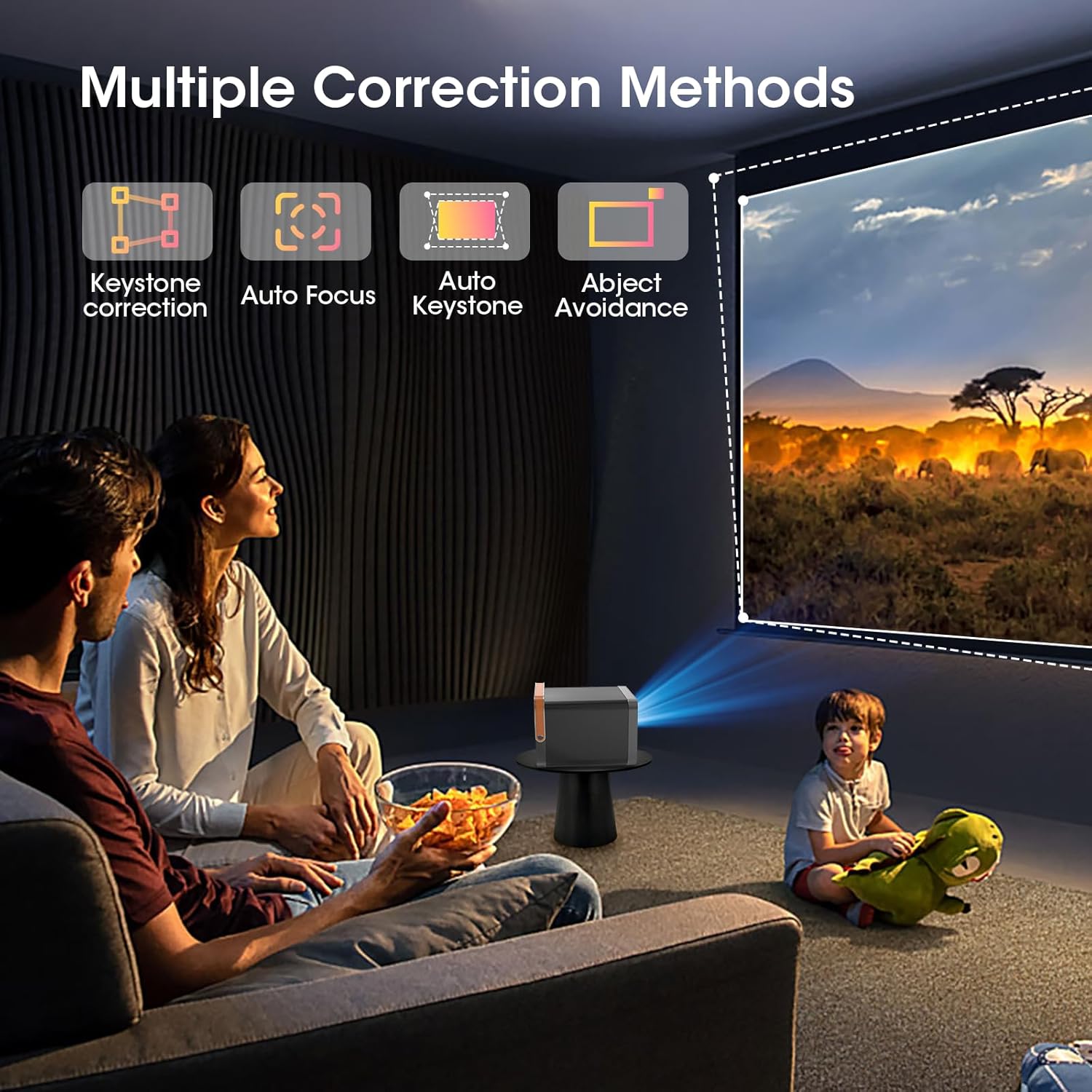
Image: Front and side view of the CWOWDEFU CF35S projector, highlighting its compact design and various ports.

Image: Visual representation of the projector's display capabilities, emphasizing 4K decoding and high brightness for clear images.

Image: Depiction of the projector's stereo sound feature, showing sound waves emanating from the device in sync with the projected image.
4. Setup
4.1 Initial Placement
Place the projector on a stable, flat surface or mount it on a tripod or ceiling. Ensure there are no obstructions in front of the lens. The 1.4:1 projection ratio allows for flexible installation and placement to adapt to various room sizes.

Image: A visual guide to projection distances and screen sizes, demonstrating the projector's adaptability to different room layouts.
4.2 Power Connection
- Connect the power adapter to the projector's power input.
- Plug the power adapter into a suitable electrical outlet.
4.3 Auto Focus and Keystone Correction
The projector features automatic focus and keystone correction. Upon powering on or moving the projector, it will automatically adjust the image for clarity and a rectangular shape. Manual adjustments can also be made via the remote control if needed.

Image: A projector displaying an image on a wall, with icons indicating auto-focus, auto-keystone, and object avoidance features.
Video: Demonstration of the CP35S projector's auto-focus and auto-keystone correction features, showing the image adjusting automatically for clarity and shape.
5. Operating Instructions
5.1 Power On/Off
Press the power button on the projector or the remote control to turn the device on or off.
5.2 Navigation
Use the directional buttons and 'OK' button on the remote control to navigate the Android TV interface. The home screen provides access to installed applications and settings.
Image: The projector's Android TV interface, displaying a grid of application icons for easy navigation.
5.3 Source Selection
To switch input sources (HDMI, USB, AV), navigate to the 'Input' or 'Source' option in the main menu and select your desired input.
6. Connectivity
6.1 Wi-Fi Connection
The projector supports Wi-Fi 6 (2.4G/5G compatible) for high-speed internet access and streaming. To connect:
- Go to 'Settings' on the home screen.
- Select 'Network & Internet'.
- Choose your Wi-Fi network and enter the password.

Image: A visual demonstrating the projector's Wi-Fi 6 connectivity, showing a smartphone wirelessly connected and mirroring content.
6.2 Bluetooth Connection
The projector supports Bluetooth 5.0, allowing connection to external Bluetooth speakers or use as a standalone Bluetooth speaker.
- Go to 'Settings' and select 'Bluetooth'.
- Enable Bluetooth and pair with your desired device.

Image: A smartphone wirelessly connected to the projector via Bluetooth, illustrating its capability to function as a Bluetooth speaker.
6.3 Screen Mirroring (Wi-Fi Screen Sharing)
To mirror your smartphone or tablet screen, ensure both your device and the projector are connected to the same Wi-Fi network.
- For iOS devices: Use the 'Screen Mirroring' function on your Apple phone.
- For Android devices: Select 'My app' on the home screen, then 'TV Casting'. Scan the QR code or follow on-screen instructions to download the necessary screen projection software.

Image: Step-by-step guide for connecting iOS and Android devices for screen mirroring via Wi-Fi.
6.4 Wired Connections
The projector is equipped with multiple ports for wired connections:
- HDMI: Connect to Blu-ray players, game consoles, laptops, or TV sticks.
- USB (x2): Connect USB flash drives for media playback or other USB devices.
- AV: Connect to older devices using the provided AV cable.
- 3.5mm Headphone Jack: Connect external headphones or speakers.

Image: Close-up of the projector's rear panel, detailing the HDMI, USB, and AV ports and their compatible devices.
7. Maintenance
7.1 Cleaning the Lens
Use a soft, lint-free cloth specifically designed for optical lenses to gently wipe the projector lens. Avoid using abrasive materials or harsh chemicals.
7.2 General Cleaning
Wipe the exterior of the projector with a soft, dry cloth. Do not use liquid cleaners directly on the device.
7.3 Software Updates
Regularly check for and install software updates to ensure optimal performance and compatibility. Updates can typically be found in the 'Settings' menu under 'About' or 'System Update'.
8. Troubleshooting
- No Image: Ensure the power cable is securely connected and the projector is turned on. Check the input source selection.
- Blurred Image: The projector has auto-focus. If the image remains blurry, try moving the projector slightly or manually adjusting focus via the remote control. Ensure the lens is clean.
- No Sound: Check the volume settings on both the projector and the connected source device. If using external speakers, ensure they are properly connected and powered.
- Wi-Fi/Bluetooth Connection Issues: Ensure the projector is within range of the router/Bluetooth device. Restart both the projector and the network device.
- Netflix/Streaming App Issues: Due to HDCP copyright, some streaming apps may require specific settings or external devices. Ensure the software is updated to the latest version. If issues persist, try using a remote control mouse mode or connecting an external streaming stick.
9. Specifications
| Feature | Specification |
|---|---|
| Brand Name | CWOWDEFU |
| Item Model Number | CF35S Projector |
| Item Weight | 5 pounds |
| Product Dimensions | 8.46 x 7.48 x 5.71 inches |
| Color Name | Projector black |
| Special Features | Built-In Handle, Built-In Speaker, Mini projector Lightweight, Portable Projector, Projector Built-In Wi-Fi |
| Recommended Uses | Gaming, Home Cinema |
| Connectivity Technology | Bluetooth, HDMI, USB, Wi-Fi |
| Display Resolution | 1920 x 1080 (Native 1080P, supports 4K decoding) |
10. Warranty and Support
For warranty information and technical support, please refer to the contact details provided on the product packaging or the official CWOWDEFU website. Keep your purchase receipt as proof of purchase for warranty claims.


