
1. Introduction
This manual provides essential information for the proper setup, operation, and maintenance of your Yottamaster USB Hub with SD Card Reader. Please read this manual thoroughly before using the product.

Image 1.1: The Yottamaster USB Hub with SD Card Reader, showcasing its compact design and the included USB-C to USB-A cable.
Product Features:
- Expanded Connectivity: Features 3 USB-A 3.2 Gen1 ports (5Gbps), 1 TF (Micro SD) slot, and 1 SD slot for versatile device connections.
- Ergonomic Design: A 34-degree ergonomic slope enhances ease of plugging and unplugging devices.
- High-Speed Data Transfer: Supports up to 5Gbps data transfer rates via USB 3.2 Gen1 protocol.
- External Power Option: Includes a reserved USB-C 5V power supply interface for stable operation of high-power USB devices (power adapter not included).
- Plug-and-Play: Driver-free operation compatible with Windows and Mac operating systems.
- Durable Construction: Made from ABS material for durability, lightweight design, and electrical insulation.
- Package Contents: One USB 3.0 hub with SD card reader, a data cable (USB-C to USB-C with USB-A adapter), and this instruction manual.
Note: This USB hub is designed for expanding USB interfaces and data transmission. It does not support device charging.
2. Setup
Connecting the Hub to Your Computer:
- Locate an available USB-C port on your PC or laptop. If only USB-A ports are available, use the provided USB-A adapter with the USB-C to USB-C data cable.
- Connect one end of the provided data cable to the USB-C input port on the Yottamaster USB Hub.
- Connect the other end of the data cable (either USB-C or with the USB-A adapter) to your computer's corresponding port.
- The hub is plug-and-play and should be recognized by your operating system automatically without requiring additional drivers.

Image 2.1: The USB hub connected to a laptop, illustrating its wide compatibility with various devices such as hard drives, keyboards, mice, USB flash drives, webcams, and printers.
Optional External Power Supply:
For stable operation when connecting high-power USB devices (e.g., external hard drives), you may connect an external 5V 2A USB-C power adapter (not included) to the dedicated USB-C 5V power supply interface on the hub.

Image 2.2: The USB hub connected to an external 5V 2A power supply, ensuring sufficient power for high-power USB devices.
3. Operating Instructions
Using USB-A Ports:
The hub features three USB-A 3.2 Gen1 ports. Connect your USB devices such as flash drives, keyboards, mice, or external hard drives to these ports. Data transfer speeds can reach up to 5Gbps.
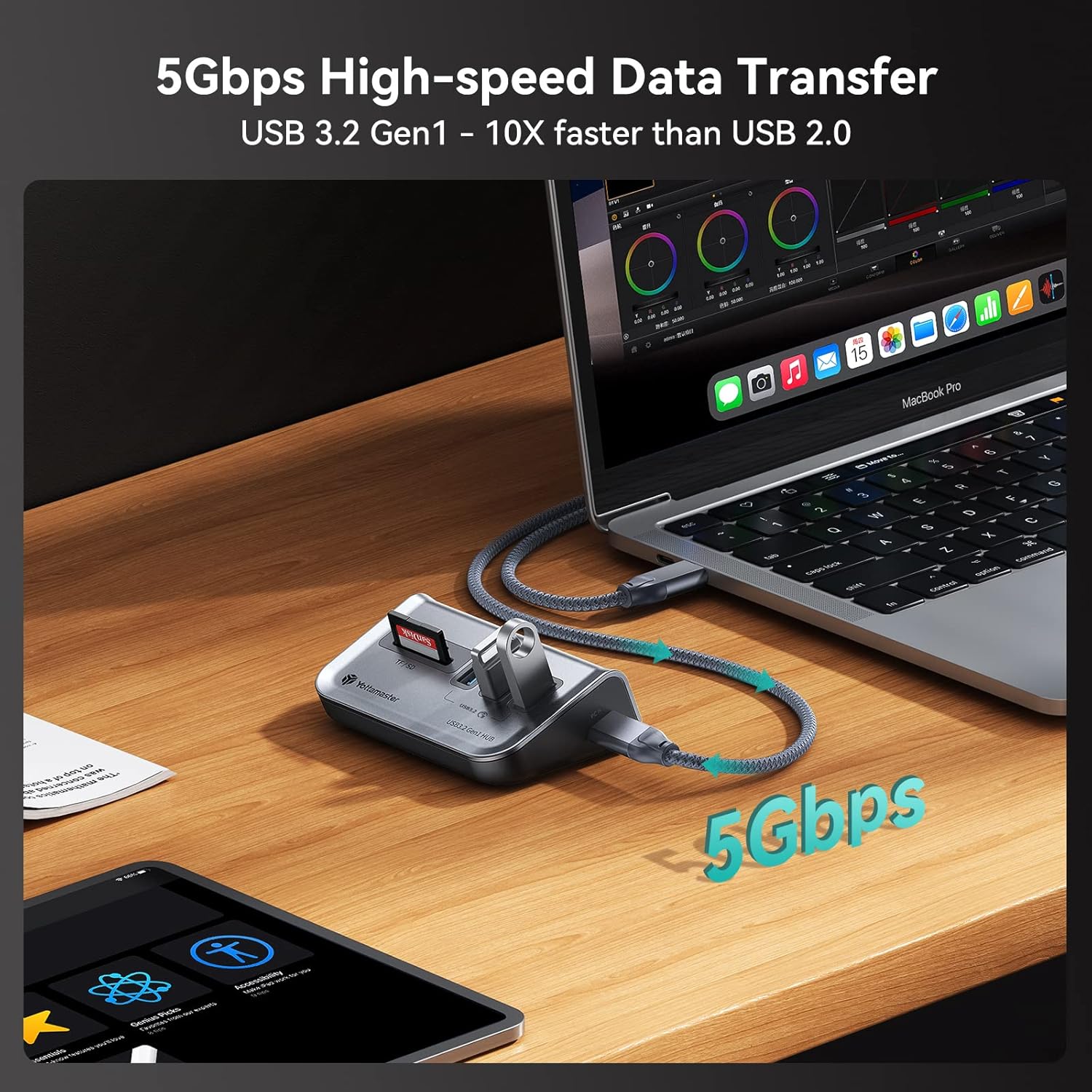
Image 3.1: The USB hub facilitating high-speed data transfer at 5Gbps between a USB device and a MacBook Pro.
Using the Card Reader Slots:
Insert your SD or TF (Micro SD) cards into the corresponding slots. The hub supports various card types including SDHC, SD, Micro SDXC, Micro SDHC, Micro SD, and MMC cards. You can read both SD and TF cards simultaneously.

Image 3.2: The USB hub demonstrating its capability to read both SD and TF cards concurrently, useful for photographers and content creators.
Plug-and-Play Convenience:
The Yottamaster USB Hub supports hot-plugging, allowing you to connect or disconnect devices without restarting your computer. It is compatible with Windows and Mac operating systems.
Video 3.1: An official Yottamaster video demonstrating the ease of use and plug-and-play functionality of the USB Hub with SD Card Reader, including connecting devices and transferring data.
4. Maintenance
The Yottamaster USB Hub is constructed from durable ABS material, designed to withstand daily use. To ensure longevity and optimal performance:
- Keep the device clean by wiping it with a soft, dry cloth.
- Avoid exposing the hub to extreme temperatures, moisture, or direct sunlight.
- Do not attempt to disassemble or modify the device, as this will void the warranty and may cause damage.
- Store the hub in a safe place when not in use, especially during travel, to prevent physical damage. Its lightweight and portable design makes it easy to carry.
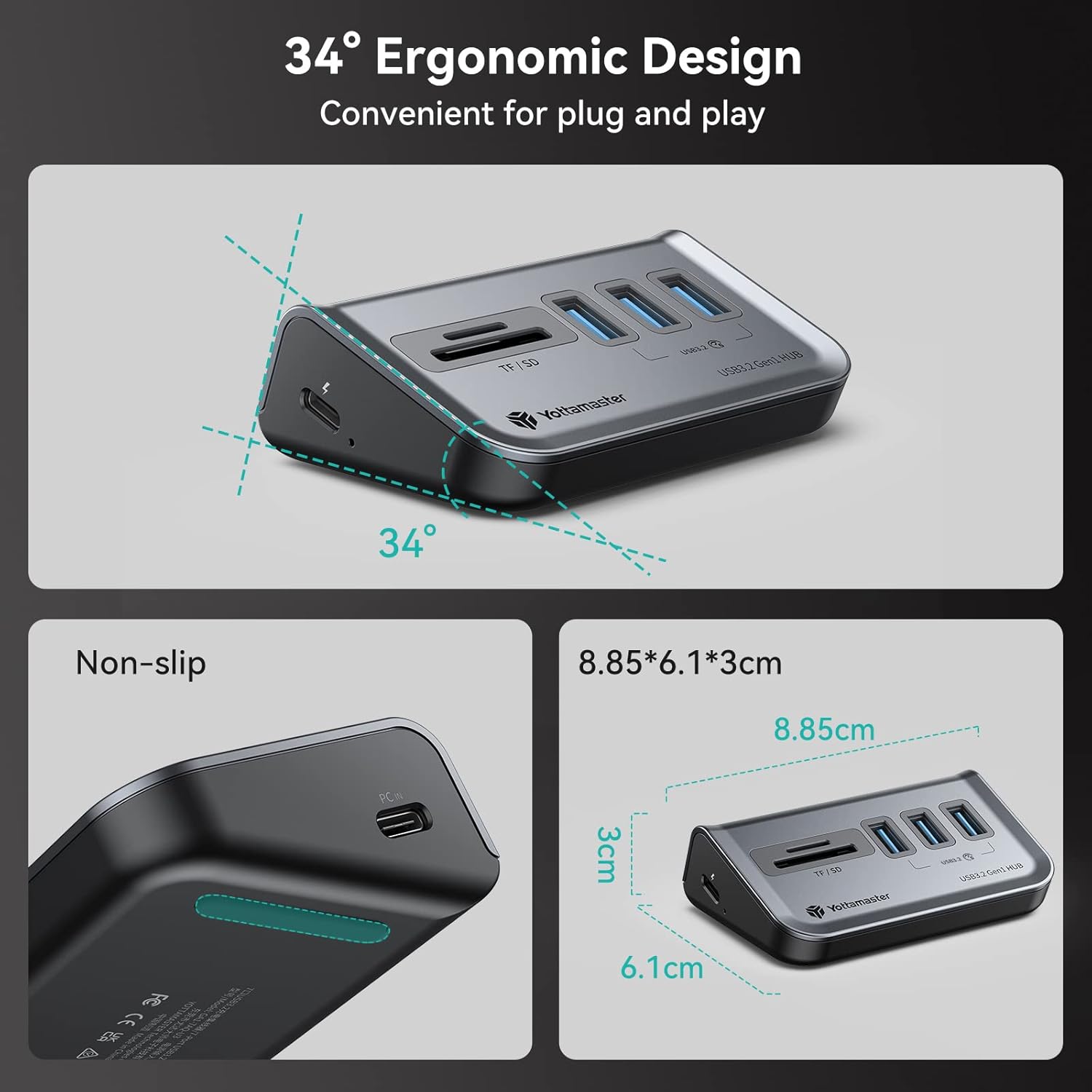
Image 4.1: A visual representation of the hub's ergonomic design and non-slip features, contributing to its durability and user convenience.
5. Troubleshooting
If you encounter any issues with your Yottamaster USB Hub, please refer to the following common troubleshooting steps:
- Device Not Recognized:
- Ensure the USB data cable is securely connected to both the hub and your computer.
- Try connecting the hub to a different USB port on your computer.
- Test with a different USB data cable if available.
- Restart your computer and try again.
- Slow Data Transfer or Unstable Connection with High-Power Devices:
- Connect an external 5V 2A USB-C power adapter (not included) to the hub's dedicated power input. This provides additional power for devices like external hard drives.
- Avoid connecting multiple high-power devices simultaneously if an external power source is not used or is insufficient.
- Specific USB Port Malfunction:
- If a particular USB-A port or card reader slot is not working, try using other available ports or slots.
- Ensure the device you are connecting is functioning correctly by testing it directly with your computer or another hub.
- Card Reader Not Detecting Cards:
- Ensure the SD or TF card is inserted correctly and fully into its respective slot.
- Test the card with another card reader or device to confirm the card itself is not faulty.
If the issue persists after following these steps, please contact Yottamaster customer support for further assistance.
6. Specifications
| Model Number | 3AT |
| Brand | Yottamaster |
| Product Dimensions | 3.48 x 2.4 x 1.18 inches |
| Item Weight | 3.52 ounces |
| Color | Grey |
| Hardware Interface | USB Type C (Input), USB 3.2 Gen1 Type-A (Output), TF/SD Card Slots |
| Special Features | Fast Data Transfer, Plug and Play, External Power Support (5V 2A) |
| Compatible Devices | Card Readers, Desktops, Keyboards, Laptops, Mouse, USB Flash Drives, Webcams, Printers |
| Operating Systems | Windows, Mac OS, Linux |
7. Warranty and Support
Yottamaster products are designed for reliability and performance. For specific warranty details, please refer to the warranty card included with your product packaging or visit the official Yottamaster website.
If you require technical assistance or have questions not covered in this manual, please contact Yottamaster customer support through their official channels. When contacting support, please have your product model number (3AT) and purchase information ready.
