
Introduction
This manual provides comprehensive instructions for the setup, operation, and maintenance of your Havit KB874L Mechanical Gaming Keyboard. Please read this manual carefully to ensure proper use and to maximize the lifespan of your product. Keep this manual for future reference.
Package Contents
- Havit KB874L Mechanical Gaming Keyboard
- USB-C to USB-A Cable
- User Manual (this document)
Product Overview
The Havit KB874L is a compact 67-key mechanical gaming keyboard designed for performance and durability. It features a QWERTY layout, customizable RGB backlighting, and a robust build quality.
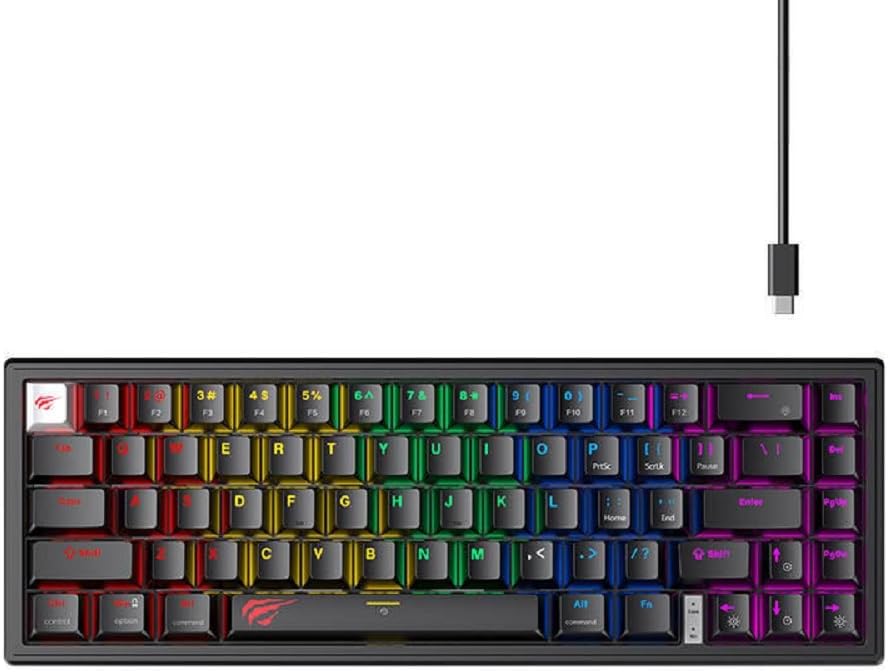
Figure 1: Top-down view of the Havit KB874L Mechanical Gaming Keyboard, showcasing its compact layout and the detachable USB-C cable. The keys are illuminated with RGB backlighting.
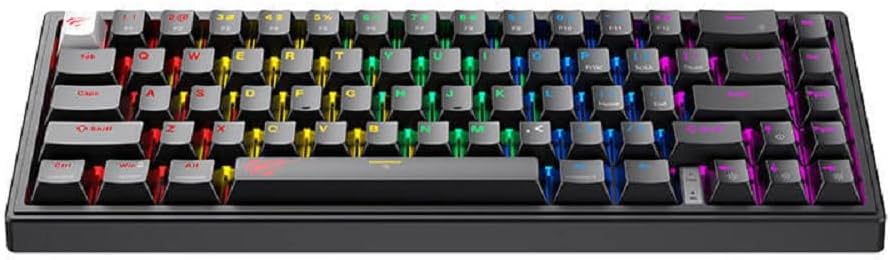
Figure 2: Another top-down perspective of the Havit KB874L keyboard, highlighting the full 67-key QWERTY layout and the vibrant RGB lighting effects across the keycaps.
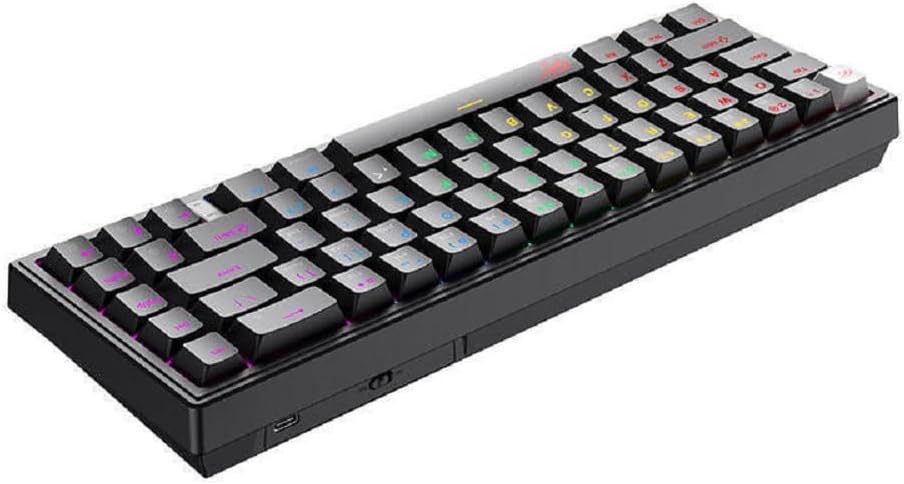
Figure 3: Angled view of the Havit KB874L keyboard, showing the ergonomic keycap profile and the side chassis design. The RGB lighting is visible beneath the keycaps.

Figure 4: Close-up side view of the Havit KB874L, illustrating the height and angle of the keycaps, and the location of the USB-C port for connection.
Setup
- Connect the Keyboard: Insert the USB-C end of the provided cable into the port on the back of the Havit KB874L keyboard.
- Connect to Computer: Plug the USB-A end of the cable into an available USB port on your computer.
- Driver Installation: The keyboard is plug-and-play. Your operating system (Windows, macOS, Linux) should automatically detect and install the necessary drivers. No additional software installation is typically required for basic functionality.
- Initial Test: Open a text editor or browser and type to confirm the keyboard is functioning correctly.
Operating Instructions
Basic Key Functions
The Havit KB874L features a compact 67-key QWERTY layout. Many standard functions are accessed via the Fn (Function) key in combination with other keys.
RGB Lighting Control
The keyboard offers multiple RGB lighting modes and customization options. Use the following key combinations to adjust the lighting:
- Fn + \ |: Cycle through different RGB lighting effects.
- Fn + [ { or ] }: Adjust brightness levels.
- Fn + ; : or ' ": Adjust lighting speed.
- Fn + , < or . >: Change lighting direction or color within certain modes.
Multimedia and Shortcut Keys
Access multimedia controls and other shortcuts by holding down the Fn key and pressing the corresponding key:
- Fn + F1-F12: These keys often have secondary functions printed on them, such as media playback, volume control, or application shortcuts. Refer to the keycaps for specific icons.
- Fn + Win: Lock/Unlock Windows key.
- Fn + Alt: (Specific models may have additional functions here, check keycaps).
Maintenance
Cleaning
- Dust Removal: Use compressed air to remove dust and debris from between the keycaps.
- Surface Cleaning: Wipe the keycaps and keyboard surface with a soft, slightly damp, lint-free cloth. Avoid using harsh chemicals or abrasive materials.
- Deep Cleaning (Optional): For thorough cleaning, keycaps can be carefully removed using a keycap puller (not included) and cleaned separately. Ensure the keyboard is disconnected before attempting this.
Storage
When not in use for extended periods, store the keyboard in a dry, cool place away from direct sunlight and extreme temperatures. Disconnect the USB cable to prevent accidental activation or damage.
Troubleshooting
- Keyboard Not Responding:
- Ensure the USB cable is securely connected to both the keyboard and the computer.
- Try plugging the keyboard into a different USB port on your computer.
- Test the keyboard on another computer to rule out a computer-specific issue.
- RGB Lighting Not Working or Incorrect:
- Verify that the keyboard is powered on and connected.
- Cycle through lighting modes using Fn + \ |.
- Adjust brightness using Fn + [ { or ] } to ensure it's not set to minimum.
- Specific Keys Not Working:
- Check for any physical obstructions or debris under the keycap.
- If comfortable, carefully remove the keycap (using a keycap puller) and inspect the switch for damage.
Specifications
| Feature | Detail |
|---|---|
| Brand | havit |
| Model Number | KB874L |
| Product Dimensions | 11.3 x 32.1 x 4 cm |
| Product Weight | 540 g |
| Number of Keys | 67 |
| Material | Plastic or Aluminum |
| Keyboard Layout | QWERTY |
| Connectivity | USB (Wired) |
| Language | English |
| Style | Compact and for gaming |
Warranty and Support
For warranty information or technical support, please refer to the warranty card included with your product or visit the official havit website. If you encounter issues not covered in this manual, please contact havit customer service for assistance.
Please retain your proof of purchase for warranty claims.


