
CHUBORY A77-230606
CHUBORY A77 Drone User Manual
Model: A77-230606
1. Introduction
This manual provides essential information for the safe operation and maintenance of your CHUBORY A77 Brushless Motor Drone. Please read this guide thoroughly before operating the drone to ensure proper usage and to maximize your flight experience. The CHUBORY A77 is designed for beginners and features a 2K HD camera, extended flight time, and various intelligent flight modes.
2. Product Components
The CHUBORY A77 drone package includes the following items:
- CHUBORY A77 Drone
- Remote Control
- 3 x Lithium Ion Batteries
- Carrying Case
- Spare Propellers
- Screwdriver
- USB Charging Cable
- User Manual (this document)

Image: All components included in the CHUBORY A77 drone package, laid out clearly. This includes the drone, remote control, three batteries, spare propellers, a screwdriver, a USB charging cable, and a carrying case.
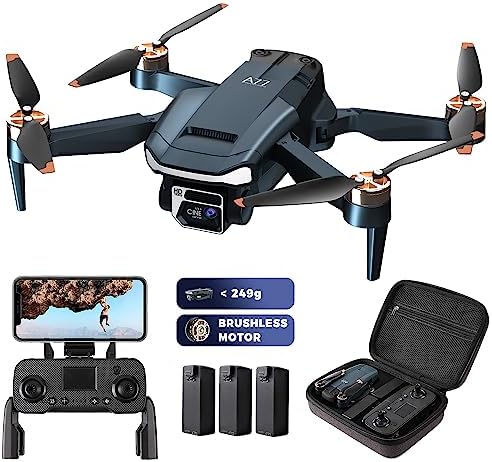
Image: The CHUBORY A77 drone, its remote control with a smartphone attached, three batteries, and the compact carrying case, showcasing the complete product setup.
3. Setup Guide
3.1 Battery Charging and Installation
- Charge Batteries: Use the provided USB charging cable to fully charge all three Lithium Ion batteries before first use. The charging indicator will change when charging is complete.
- Install Drone Battery: Insert a fully charged battery into the designated compartment on the drone until it clicks securely into place.
- Install Remote Control Batteries: Open the battery compartment on the remote control and insert the required batteries (not specified in product data, typically AA or AAA, refer to remote control markings).
3.2 Propeller Installation
The drone may come with propellers pre-installed. If not, or if replacement is needed:
- Match the propellers with the corresponding motor arms (A and B markings).
- Securely attach each propeller using the provided screws and screwdriver. Ensure they are firmly in place but do not overtighten.
3.3 App Installation and Connection
For FPV (First Person View) and advanced features, download the official CHUBORY drone app on your smartphone.
- Scan the QR code in the quick start guide or search for the app name (e.g., 'CHUBORY FPV') in your device's app store.
- Install the app.
- Power on the drone and your remote control.
- Connect your smartphone to the drone's Wi-Fi network (usually named 'CHUBORY-A77-XXXXXX').
- Open the app to establish a connection and view the live camera feed.
4. Operating Instructions
4.1 Basic Flight Controls
- Power On/Off: Press and hold the power button on the drone and remote control to turn them on or off.
- Pairing: After powering on, push the left joystick up then down to pair the remote with the drone.
- One Key Start/Landing: Press the dedicated button on the remote for automatic take-off or landing.
- Altitude Hold: The drone maintains a stable altitude automatically, allowing for easier control.
- Headless Mode: In this mode, the drone's orientation is relative to the pilot, simplifying control regardless of the drone's front direction.
- Speed Adjustment: Use the speed switch on the remote to select between 30%, 60%, and 100% speed settings for different flight conditions and skill levels.

Image: An illustration showing the drone flying at different speeds (30%, 60%, Full speed) with a cyclist, demonstrating the speed adjustment feature.

Image: Visual representation of Optical Flow Positioning and Altitude Hold, showing how the drone maintains its position and height.
4.2 Advanced Flight Features
- Follow Me: The drone can automatically follow the remote control or a designated subject, capturing dynamic footage.
- 3D Flips: Execute impressive aerial acrobatics with a single button press.
- Gesture Selfie: Perform specific hand gestures to trigger photo or video recording.
- Trajectory Flight: Draw a flight path on your smartphone screen, and the drone will follow it automatically.
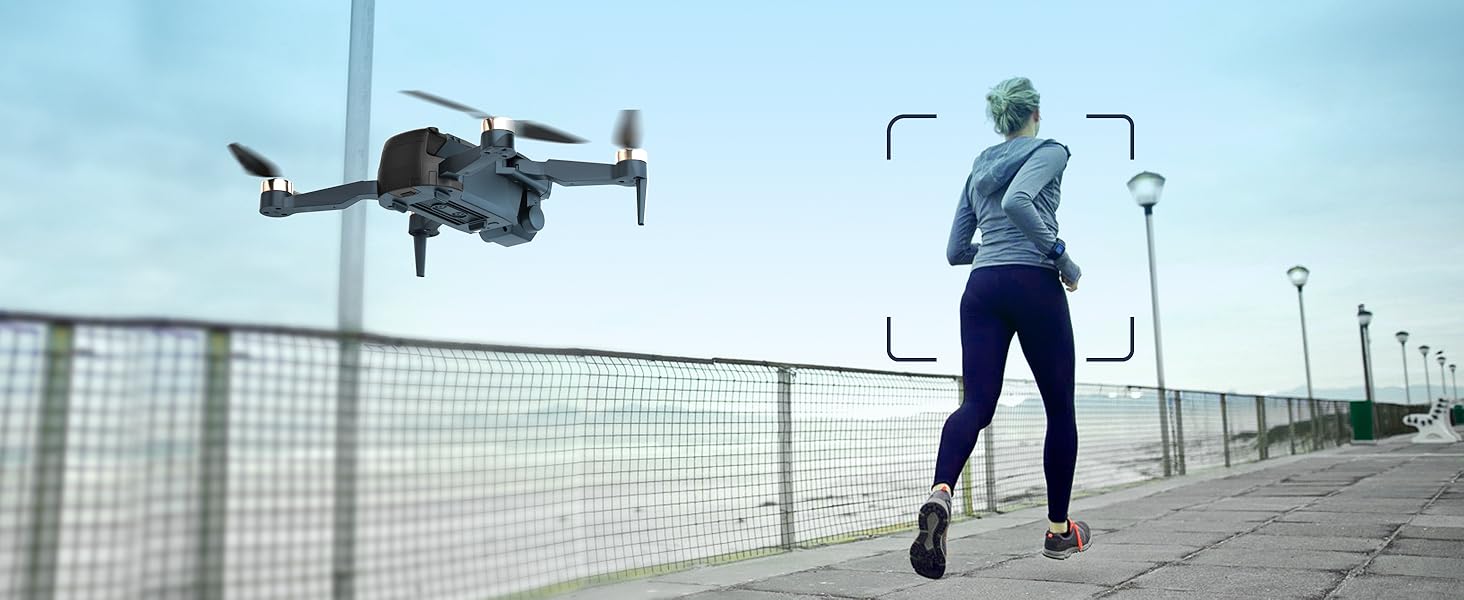
Image: A drone following a person running along a path, illustrating the 'Follow Me' intelligent flight mode.
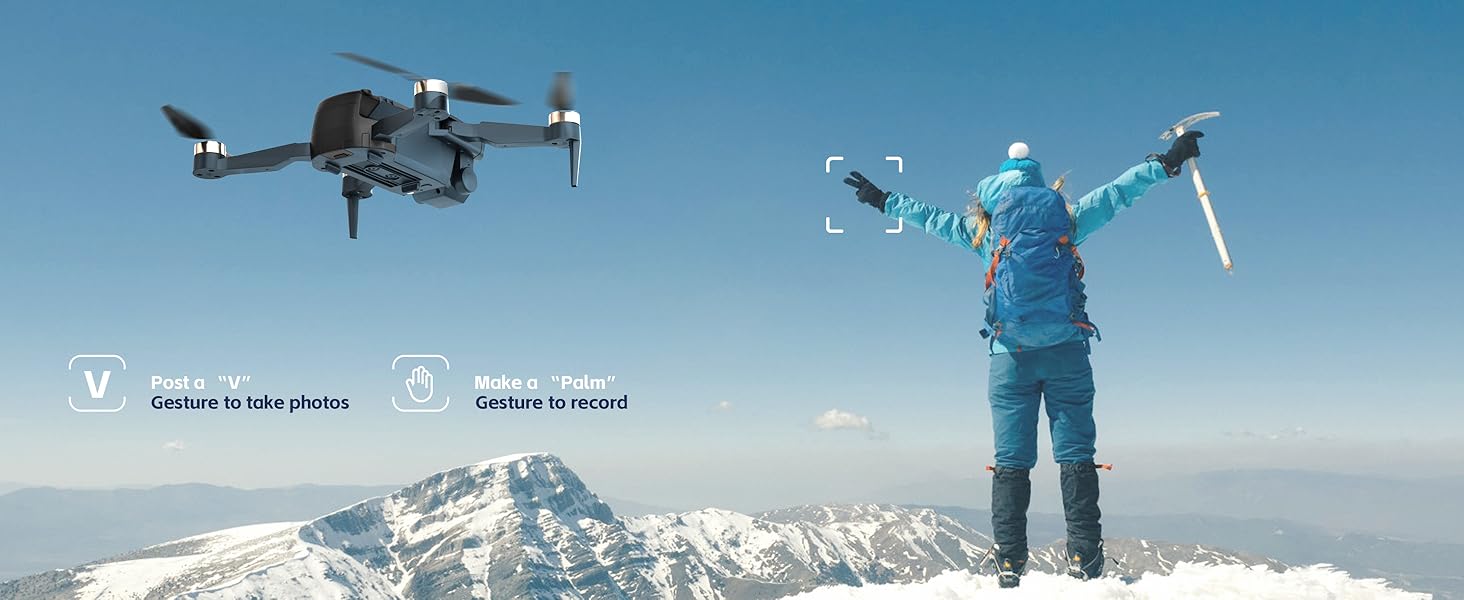
Image: A person on a mountain making hand gestures ('V' for photo, 'Palm' for video) to control the drone's camera.
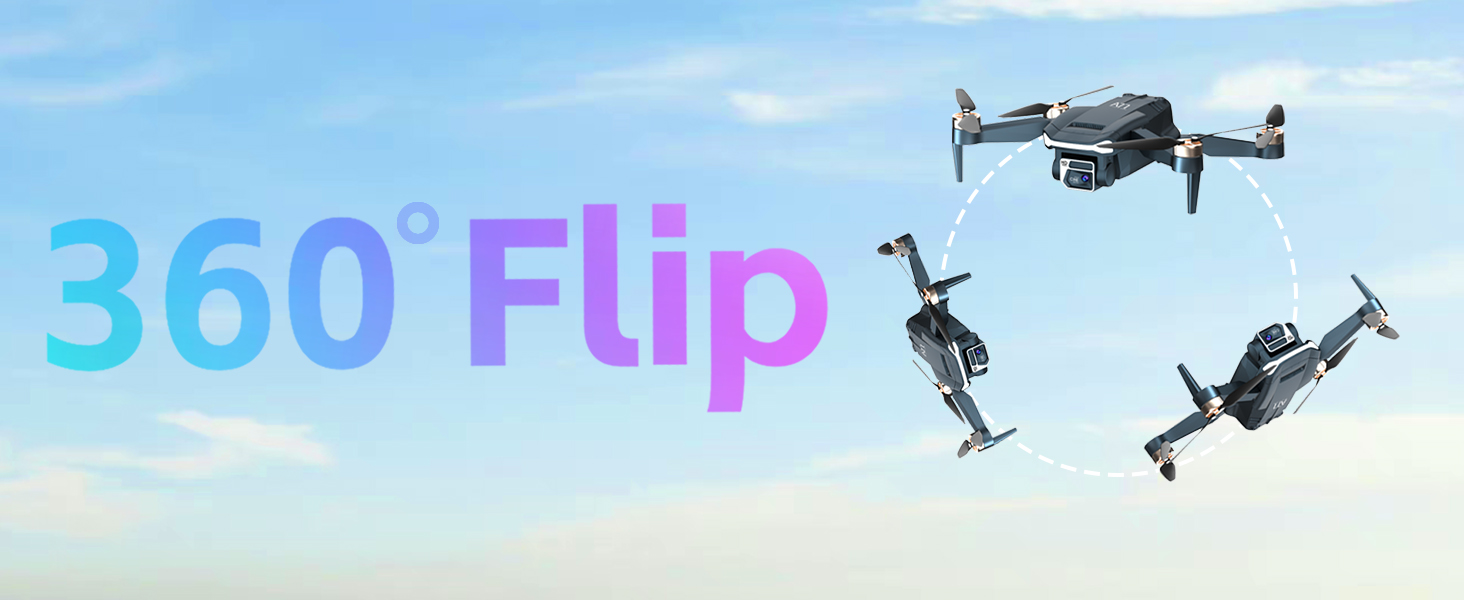
Image: A drone shown in a sequence of positions performing a 360-degree flip in the air.
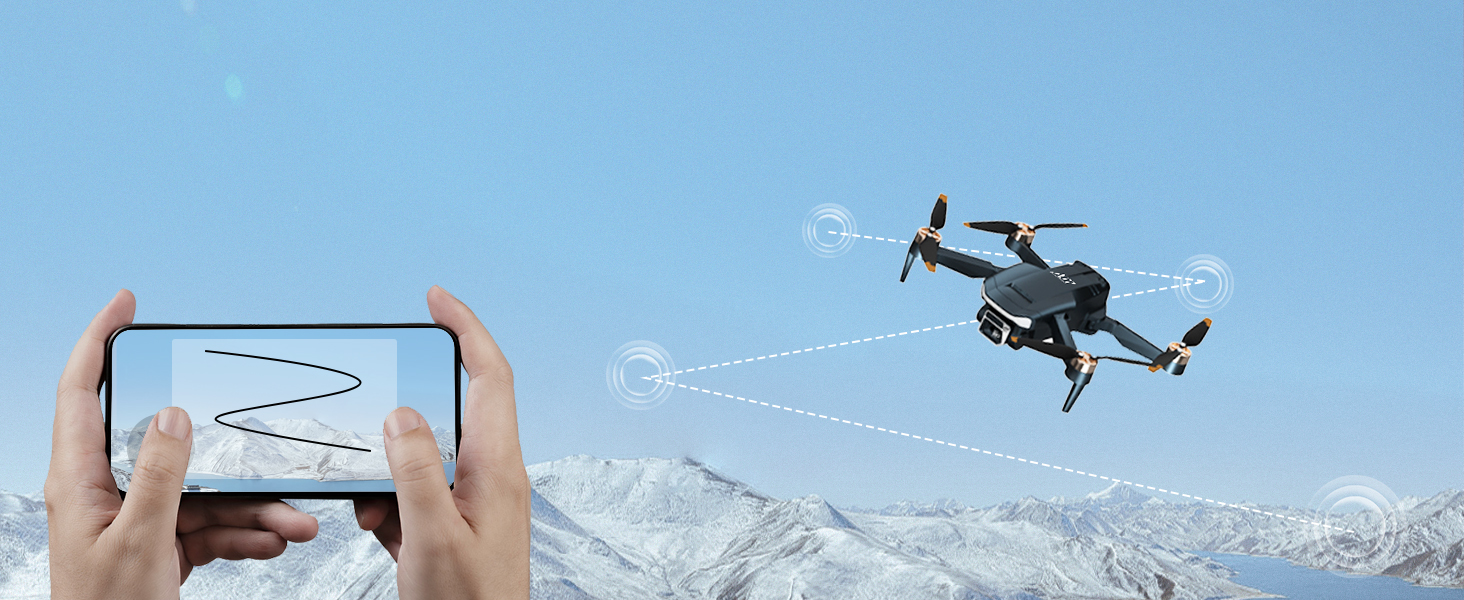
Image: A smartphone screen displaying a drawn flight path, with the drone following a similar trajectory over a snowy landscape.
4.3 Camera Operation
- The drone is equipped with a 2K HD camera with a 130-degree wide-angle lens.
- The camera angle can be adjusted within 90 degrees using the remote control or the companion app.
- Photos and videos are saved directly to your connected smartphone or an inserted SD card (if applicable).

Image: Close-up of the drone's 2K UHD camera, highlighting its Sony lens, 130-degree FOV, and 90-degree remote-adjustable capability.

Image: A drone flying over a scenic landscape, demonstrating its ability to capture wide-angle shots with its 130-degree lens and remote-adjustable camera.
4.4 Flight Time
The CHUBORY A77 drone is equipped with 3 upgraded batteries, providing a combined flight time of up to 84 minutes (approximately 28 minutes per battery).
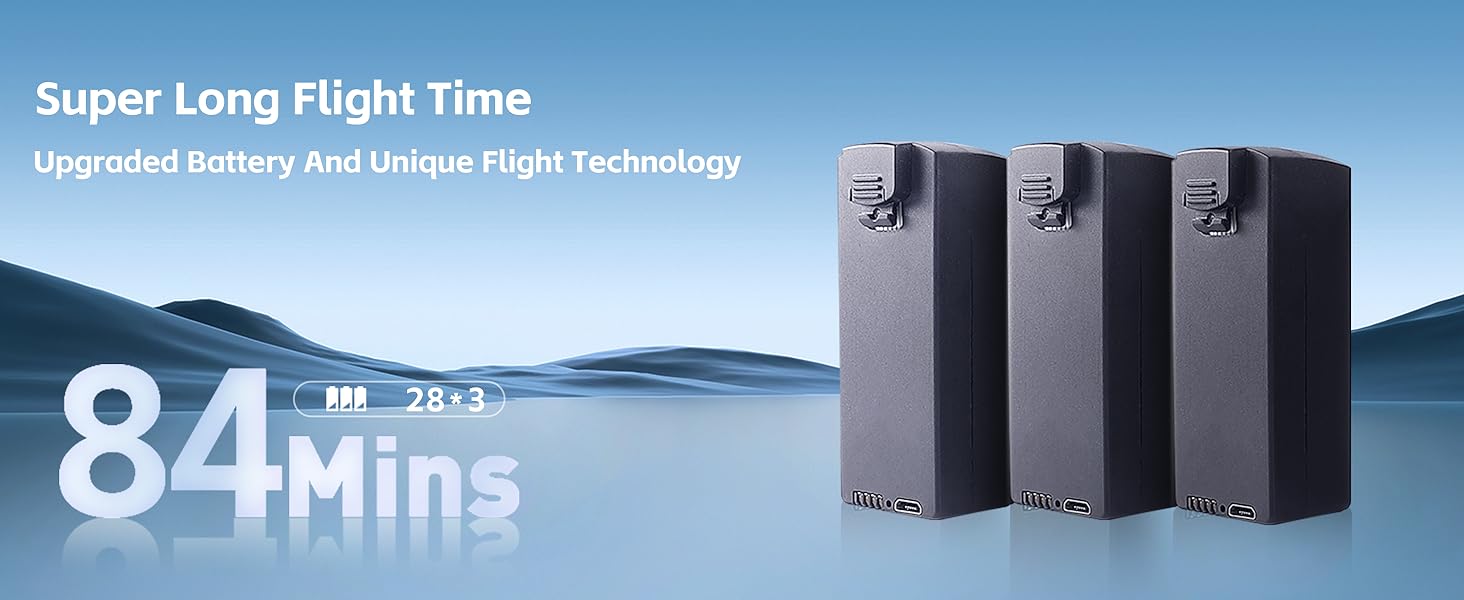
Image: An illustration highlighting the drone's 84-minute flight time, achieved with three batteries, each providing approximately 28 minutes of flight.
5. Maintenance
5.1 Cleaning
- Regularly wipe the drone body with a soft, dry cloth.
- Ensure no dust or debris accumulates in the motor areas or camera lens.
- Avoid using liquid cleaners directly on electronic components.
5.2 Propeller Replacement
Inspect propellers for damage (cracks, bends) before each flight. Replace damaged propellers immediately using the spare parts and screwdriver provided.
5.3 Battery Care
- Store batteries in a cool, dry place away from direct sunlight.
- Do not overcharge or over-discharge batteries.
- If not used for an extended period, charge batteries to approximately 50% capacity for storage.
6. Troubleshooting
| Problem | Possible Cause | Solution |
|---|---|---|
| Drone does not power on | Battery not charged or improperly installed | Ensure battery is fully charged and correctly inserted. |
| Remote control not connecting | Not paired or low remote battery | Perform pairing sequence (joystick up-down). Replace remote control batteries. |
| Unstable flight/Drifting | Improper calibration or damaged propellers | Recalibrate the drone. Check and replace any damaged propellers. |
| No camera feed in app | Not connected to drone's Wi-Fi or app issue | Verify Wi-Fi connection to the drone. Restart the app and drone. |
| Short flight time | Battery not fully charged or aged battery | Ensure batteries are fully charged. Consider replacing old batteries if performance degrades significantly. |
7. Specifications
| Feature | Detail |
|---|---|
| Brand | CHUBORY |
| Model Name | A77 |
| Model Number | A77-230606 |
| Item Weight | 180 Grams (6.3 ounces) |
| Product Dimensions | 4.72"L x 2.95"W x 1.96"H |
| Motor Type | Brushless Motor |
| Camera | 2K HD, 130-degree wide-angle, 90-degree remote-adjustable |
| Video Capture Resolution | 1440p |
| Connectivity Technology | Wi-Fi |
| Batteries | 3 x Lithium Ion (included) |
| Max Flight Time | Up to 84 minutes (with 3 batteries) |
| Special Features | Follow Me, Optical Flow Positioning, Altitude Hold, 3D Flips, Headless Mode, Speed Adjustment, Gesture Selfie, Trajectory Flight |
| Skill Level | Beginner |
| Material | Composite Material |
| UPC | 721691792073 |
8. Warranty and Support
8.1 Warranty Information
The CHUBORY A77 drone comes with a one-year warranty. This warranty covers manufacturing defects and ensures product reliability under normal use conditions. Please retain your proof of purchase for warranty claims.
8.2 Customer Support
CHUBORY is committed to providing permanent support for its products. For technical assistance, troubleshooting, or any inquiries regarding your drone, please refer to the contact information provided in the product packaging or visit the official CHUBORY website. Our team is dedicated to assisting you with your aviation adventures.
Related documentsA77-230606


Ask a question about this manual
Ask about setup, troubleshooting, compatibility, parts, safety, or missing instructions. Manuals+ will review the question and use this page’s manual context to help answer it.