
1. Product Overview
The OLAX MF955V is a 4G LTE Advanced mobile WiFi hotspot designed to provide high-speed internet access on the go. It features a 300 Mbps WiFi connection, a USB Type-C charging port, and a 3000 mAh battery for extended operation.
Key Features:
- 4G LTE Advanced connectivity
- WiFi 300 Mbps
- USB Type-C Charging Port
- 3000 mAh battery, offering up to 14 hours of operation
- Supports up to 10 WiFi connections simultaneously

Figure 1: OLAX MF955V Mobile WiFi Hotspot (Front View)
2. Package Contents
Please check the package for the following items:
- OLAX 4G LTE Advanced mobile WiFi MF955V Device
- Rechargeable Battery (3000 mAh)
- USB Type-C Charging Cable
- Instruction Manual (this document)

Figure 2: OLAX MF955V Retail Packaging (Front)
3. Setup Guide
3.1. Installing the SIM Card and Battery
- Remove the Back Cover: Gently slide or pry open the back cover of the MF955V device.
- Insert SIM Card: Locate the SIM card slot. Insert your activated 4G LTE SIM card into the designated slot with the gold contacts facing down and the notched corner aligned correctly. Ensure it clicks into place.
- Insert Battery: Place the 3000 mAh rechargeable battery into the battery compartment, ensuring the contacts align with the device's terminals.
- Replace Back Cover: Securely reattach the back cover.

Figure 3: Device with Back Cover Removed (Illustrative)
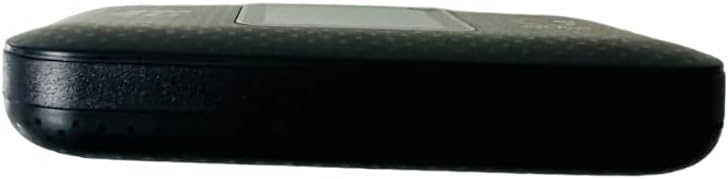
Figure 4: OLAX MF955V Mobile WiFi Hotspot (Back View)
3.2. Powering On/Off
- Power On: Press and hold the Power button (usually located on the side or front) for a few seconds until the screen illuminates.
- Power Off: Press and hold the Power button again until the device powers down.
3.3. Charging the Device
Connect the provided USB Type-C charging cable to the device's USB-C port and the other end to a compatible USB power adapter or computer. The battery indicator on the screen will show charging status.

Figure 5: OLAX MF955V Mobile WiFi Hotspot (Side View with USB-C Port)
4. Operating Instructions
4.1. Connecting to the WiFi Hotspot
- Power On the Hotspot: Ensure your OLAX MF955V is powered on and has established a 4G LTE connection (indicated by the signal strength icon on the screen).
- Find WiFi Key: The device's screen will display the WiFi Network Name (SSID) and the WiFi Key (password). Note these down.
- Connect Your Device: On your computer, smartphone, or tablet, go to the WiFi settings. Select the SSID displayed on your MF955V's screen from the list of available networks.
- Enter Password: When prompted, enter the WiFi Key (password) exactly as shown on the MF955V's screen.
- Establish Connection: Your device should now be connected to the OLAX MF955V hotspot and have internet access.
Figure 6: Hotspot Screen Displaying SSID and Key
4.2. Understanding the Display Icons
The device's screen provides important status information:
- Signal Strength: Indicates the strength of the 4G LTE cellular signal. More bars mean a stronger signal.
- Battery Level: Shows the remaining battery charge.
- WiFi Status: Indicates if WiFi is active and if devices are connected.
- Message Icon: May indicate new SMS messages received on the SIM card.
- SSID & Key: Displays the current WiFi network name and password.
4.3. Web Management Interface
For advanced settings, such as changing the SSID, password, or checking data usage, you can access the web management interface. Typically, you can do this by connecting your device to the hotspot's WiFi and then opening a web browser and navigating to a default IP address (e.g., 192.168.0.1 or 192.168.1.1). Refer to the device's packaging or a sticker inside the battery compartment for the exact IP address and default login credentials.
The OLAX MF955V supports WPA2-PSK Enterprise-grade security encryption for privacy.
5. Maintenance
- Battery Care:
- Do not use the battery after soaking in water.
- Do not place the battery in a high-temperature environment.
- If the battery shows serious swelling, do not continue to use it.
- Do not disassemble, bump, squeeze, or throw the battery into fire.
- Keep small batteries that may be swallowed by children out of reach.
- Do not swallow the battery; swallowing may cause burning. If swallowed, seek medical attention immediately.
- Charging at temperatures under 0°C is prohibited.
- Cleaning: Use a soft, dry cloth to clean the device. Avoid using liquid cleaners or solvents.
- Storage: Store the device in a cool, dry place away from direct sunlight and extreme temperatures when not in use for extended periods.

Figure 7: OLAX 3000mAh Battery (Caution Side)

Figure 8: OLAX 3000mAh Battery (Information Side)
6. Troubleshooting
- No Internet Connection:
- Ensure the SIM card is properly inserted and activated with a data plan.
- Check the signal strength icon on the device's screen. If there's no signal, move to an area with better network coverage.
- Restart the device.
- Verify that your connected device's WiFi is enabled and connected to the correct SSID.
- Cannot Connect to WiFi:
- Double-check the WiFi password (Key) entered on your connecting device. It is case-sensitive.
- Ensure the hotspot's WiFi is enabled (check the WiFi icon on the screen).
- Restart both the hotspot and the connecting device.
- Slow Connection Speed:
- Check the 4G LTE signal strength. A weak signal will result in slower speeds.
- Reduce the number of connected devices. The MF955V supports up to 10 connections.
- Ensure your data plan has not been exhausted or throttled by your service provider.
- Device Not Turning On:
- Ensure the battery is fully charged. Connect the device to a power source and try again.
- Verify the battery is correctly inserted.
- Factory Reset: If issues persist, you may perform a factory reset. This will revert all settings to their default values, including the WiFi SSID and password. Locate the reset button (often a small pinhole) on the device, and use a paperclip to press and hold it for approximately 5-10 seconds while the device is powered on.
7. Specifications
| Feature | Detail |
|---|---|
| Model Name | MF955V |
| Connectivity Technology | USB, Wi-Fi (4G LTE Advanced) |
| Wireless Communication Standard | 802.11a, 802.11ac (WiFi 300 Mbps) |
| Frequency Band Class | Single-Band |
| Battery Capacity | 3000 mAh (Up to 14 hours operation) |
| Charging Port | USB Type-C |
| Product Dimensions | 10.16 x 3.81 x 6.35 cm |
| Weight | 204.12 g |
| Special Features | Access Point Mode |
| Compatible Devices | Personal Computer, Smart Television, Smartphone, Tablet |
| Manufacturer | OLAX |
8. Warranty and Support
OLAX products are designed for reliability and performance. For warranty information, technical support, or customer service inquiries, please refer to the warranty card included with your product or contact your retailer. Keep your purchase receipt as proof of purchase.