
1. Product Overview
The Lenovo ThinkCentre M75q Gen 5 12RQ000MUS is a compact and powerful desktop computer designed for business and general computing tasks. Its tiny form factor allows for versatile placement while delivering robust performance with an AMD Ryzen 7 PRO processor and Windows 11 Pro operating system.

Figure 1: Front view of the ThinkCentre M75q Gen 5, highlighting the power button, USB ports, and audio jack.
2. What's in the Box
Carefully unpack your ThinkCentre M75q Gen 5 and ensure all components are present:
- ThinkCentre M75q Gen 5 12RQ000MUS Desktop Computer
- 90W Adapter (Power Supply)
- USB Traditional Keyboard
- USB Calliope Mouse
- Vertical Stand
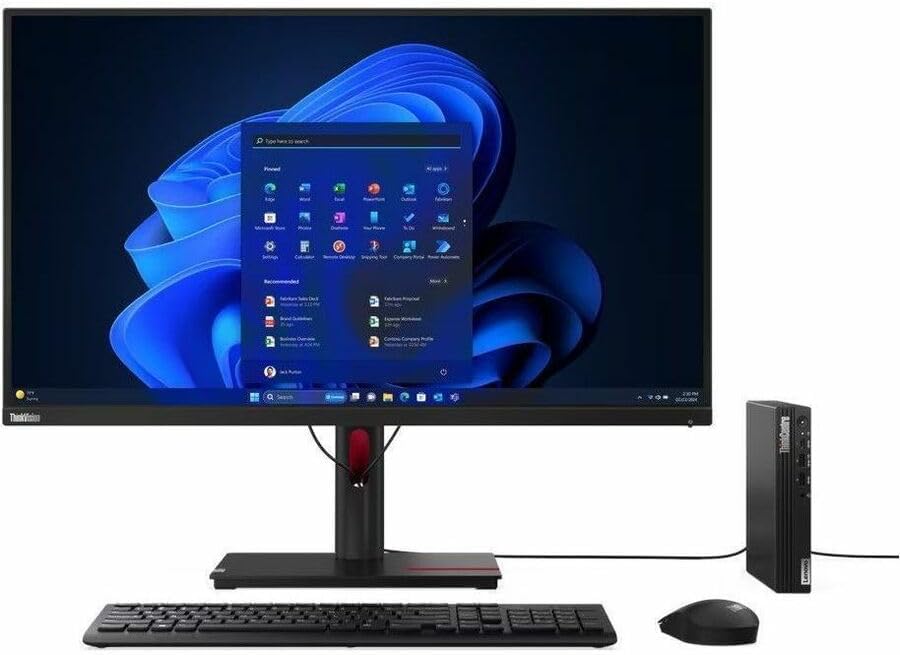
Figure 2: The ThinkCentre M75q Gen 5 with included peripherals and a monitor (monitor sold separately).
3. Setup Guide
3.1 Initial Hardware Setup
- Place the Computer: Position the ThinkCentre M75q Gen 5 on a stable, flat surface. You may use the included vertical stand for upright placement. Ensure adequate ventilation around the unit.
- Connect Peripherals:
- Connect the USB Keyboard and USB Mouse to any available USB ports on the computer.
- Connect your monitor to the appropriate video output port (e.g., HDMI, DisplayPort) on the computer.
- If using wired internet, connect an Ethernet cable to the LAN port.
- Connect Power: Connect the 90W power adapter to the power input port on the computer, then plug the power cord into a wall outlet.
3.2 Operating System Setup (Windows 11 Pro)
Upon first power-on, the system will guide you through the Windows 11 Pro initial setup process. Follow the on-screen prompts to:
- Select your region and keyboard layout.
- Connect to a Wi-Fi network (if not using wired Ethernet).
- Accept the license terms.
- Create or sign in with a Microsoft account.
- Set up a PIN for quick login.
- Adjust privacy settings.
4. Operating the ThinkCentre M75q Gen 5
4.1 Power On/Off
- To Power On: Press the power button located on the front of the unit. The power indicator light will illuminate.
- To Power Off: Click the Start button in Windows, then select Power > Shut down. Do not unplug the computer directly from the power outlet without properly shutting down, as this may lead to data loss or system corruption.
4.2 Connectivity
- USB Ports: Utilize the multiple USB 2.0 and USB 3.2 Gen 2 ports for connecting external devices such as external hard drives, printers, and other peripherals.
- Audio Jack: The front audio jack supports headphones or headsets.
- Wireless Connectivity: The system supports 802.11ax Wi-Fi for high-speed wireless internet access and Bluetooth for connecting wireless accessories like headphones or mice.
4.3 Performance Notes
The ThinkCentre M75q Gen 5 is equipped with an AMD Ryzen 7 PRO 8700GE processor, 16 GB of DDR5 RAM, and a 512 GB SSD, providing excellent performance for multitasking, business applications, and general computing. The integrated AMD Radeon 780M graphics ensure smooth visual experiences for everyday tasks.
5. Maintenance
Regular maintenance helps ensure the longevity and optimal performance of your ThinkCentre M75q Gen 5.
- Cleaning: Use a soft, dry cloth to clean the exterior of the computer. For vents, use compressed air to remove dust buildup, ensuring proper airflow and preventing overheating. Do not use liquid cleaners directly on the computer.
- Software Updates: Regularly check for and install updates for Windows 11 Pro and device drivers. This helps improve system stability, security, and performance. You can typically find driver updates on the official Lenovo support website.
- Data Backup: Periodically back up your important data to an external drive or cloud storage. This protects your information in case of unexpected hardware failure or data corruption.
6. Troubleshooting
This section provides solutions for common issues you might encounter.
6.1 No Power
- Ensure the power adapter is securely connected to both the computer and a working electrical outlet.
- Verify the power outlet is functional by plugging in another device.
- Check the power adapter for any visible damage.
6.2 No Display on Monitor
- Confirm the monitor is powered on and its input source is correctly selected (e.g., HDMI, DisplayPort).
- Ensure the video cable is securely connected to both the computer and the monitor.
- Try connecting the monitor to a different video output port on the computer, if available.
6.3 Network Connectivity Issues
- Wi-Fi: Check if Wi-Fi is enabled in Windows settings. Restart your wireless router. Ensure you are connecting to the correct network with the correct password.
- Wired (Ethernet): Verify the Ethernet cable is securely connected to both the computer and the router/modem. Check the network status lights on the Ethernet port.
- Restart the computer and your network equipment (router/modem).
7. Specifications
| Feature | Specification |
|---|---|
| Model Name | ThinkCentre M75q Gen 5 |
| Item Model Number | 12RQ000MUS |
| Processor | AMD Ryzen 7 PRO 8700GE (3.6 GHz) |
| RAM | 16 GB DDR5 (5200 MHz) |
| Hard Drive | 512 GB SSD (Solid State) |
| Graphics Coprocessor | AMD Radeon 780M (Integrated) |
| Operating System | Windows 11 Pro |
| Wireless Type | 802.11ax, Bluetooth |
| USB 2.0 Ports | 3 |
| Item Weight | 2.76 pounds |
| Product Dimensions (LxWxH) | 7.2 x 7 x 1.4 inches |
| Color | Black |
8. Warranty and Support
Your Lenovo ThinkCentre M75q Gen 5 comes with a standard manufacturer's warranty. For specific warranty terms, conditions, and duration, please refer to the documentation included with your purchase or visit the official Lenovo support website.
For technical assistance, driver downloads, and further support resources, please visit the Lenovo support portal:
When contacting support, please have your product's model number (12RQ000MUS) and serial number ready.