
1. Introduction
This manual provides essential information for the safe and efficient use of your Lenovo ThinkPad P16s Gen 3 21KS0027US mobile workstation. Please read this manual thoroughly before operating the device and retain it for future reference. This document covers product overview, setup, operation, maintenance, and troubleshooting.
2. Safety Information
Observe the following safety precautions to prevent damage to your device or injury to yourself:
- Use only the power adapter supplied with your workstation.
- Do not expose the device to extreme temperatures, direct sunlight, or moisture.
- Avoid placing heavy objects on the workstation.
- Do not attempt to disassemble or repair the device yourself. Refer to qualified service personnel.
- Ensure proper ventilation to prevent overheating.
3. Package Contents
Verify that all items are present in your product package:
- Lenovo ThinkPad P16s Gen 3 (Intel) 21KS0027US Mobile Workstation
- Power Adapter
4. Product Overview
The Lenovo ThinkPad P16s Gen 3 21KS0027US is a high-performance mobile workstation designed for demanding tasks. It features a 16-inch WUXGA display, an Intel Core Ultra 7 155H processor, 32 GB of DDR5 SDRAM, a 1 TB SSD, and an NVIDIA RTX 500 Ada 4 GB discrete graphics card.
4.1. Front View
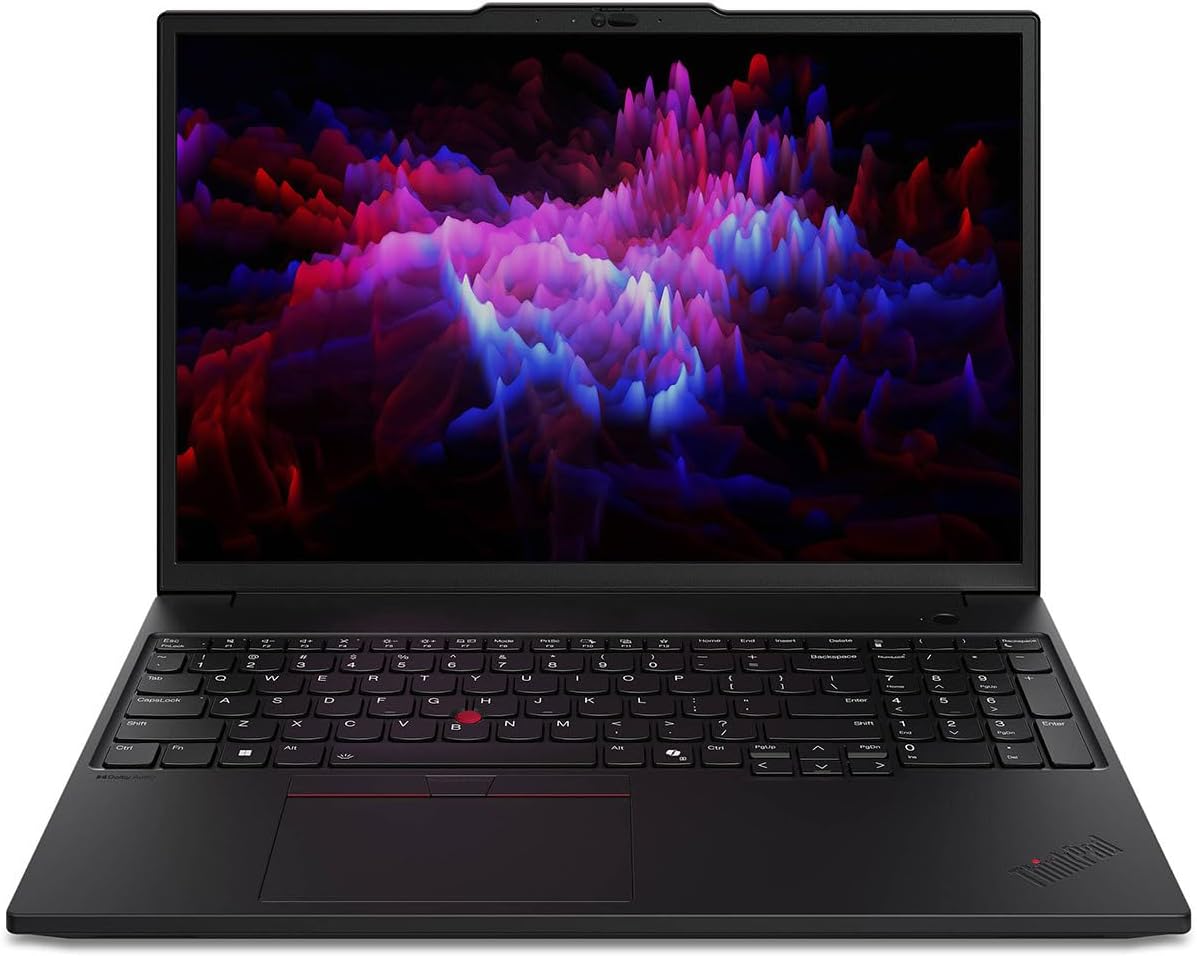
Figure 4.1: Front view of the ThinkPad P16s Gen 3 with display open.
4.2. Keyboard and Touchpad

Figure 4.2: Detailed view of the keyboard and touchpad area.
The workstation features a full-sized English keyboard with a numeric keypad and a precision touchpad. The iconic TrackPoint pointing device is also integrated for precise cursor control.
4.3. Ports and Connectors

Figure 4.3: Left side ports and connectors.
The ThinkPad P16s Gen 3 includes various ports for connectivity:
- USB-C ports (Thunderbolt compatible)
- USB-A ports
- HDMI output
- Ethernet port
- Audio combo jack
5. Setup
5.1. Initial Power On
- Unpack the workstation and power adapter from the box.
- Connect the power adapter to the workstation's power input port and then to a power outlet.
- Open the display lid.
- Press the power button, typically located on the top right of the keyboard deck.
5.2. Operating System Setup

Figure 5.1: Windows 11 Pro initial setup screen.
Upon first boot, the workstation will guide you through the Windows 11 Pro setup process. Follow the on-screen instructions to:
- Select your region and keyboard layout.
- Connect to a Wi-Fi network.
- Accept the license agreement.
- Create or sign in with a Microsoft account.
- Set up security features like Windows Hello (if applicable).
6. Operating
6.1. Basic Usage
Your ThinkPad P16s Gen 3 runs on Windows 11 Pro. Familiarize yourself with the operating system's interface for optimal use. Use the touchpad or an external mouse for navigation, and the keyboard for text input.
6.2. Power Management
To conserve battery life and manage performance:
- Adjust screen brightness using the function keys (Fn + F5/F6).
- Utilize Windows power plans (Balanced, Power Saver, High Performance).
- Close unused applications to free up system resources.
- Put the workstation to sleep or shut it down when not in use for extended periods.
7. Maintenance
7.1. Cleaning the Workstation
- Screen: Use a soft, lint-free cloth lightly dampened with water or a screen cleaner. Do not spray liquid directly onto the screen.
- Keyboard and Chassis: Use a soft, dry cloth. For stubborn dirt, a slightly damp cloth with mild soap solution can be used, ensuring no liquid enters openings.
- Ports: Use compressed air to gently clear dust from ports.
7.2. Software Updates
Regularly update your operating system and drivers to ensure optimal performance and security. Windows Update can be accessed via Settings > Windows Update. Lenovo Vantage software may also provide specific driver updates for your ThinkPad.
8. Troubleshooting
This section addresses common issues you might encounter.
8.1. Power Issues
- Workstation does not turn on: Ensure the power adapter is securely connected to both the workstation and a working power outlet. Check if the power outlet is functional.
- Battery not charging: Verify the power adapter connection. Try a different power outlet. If the issue persists, contact support.
8.2. Display Issues
- No display: Ensure the workstation is powered on. Try connecting an external monitor to check if the internal display is the issue.
- Flickering screen: Update your graphics drivers. Adjust the display refresh rate in Windows settings.
8.3. Performance Issues
- Slow performance: Close unnecessary applications. Check for background processes consuming high resources (Task Manager). Ensure sufficient free space on the SSD.
- Overheating: Ensure ventilation vents are clear. Use the workstation on a hard, flat surface.
9. Specifications
| Feature | Specification |
|---|---|
| Brand | Lenovo |
| Model Name | ThinkPad P16s Gen 3 |
| Item Model Number | 21KS0027US |
| Screen Size | 16 Inches |
| Screen Resolution | 1920 x 1200 (WUXGA) |
| Processor | Intel Core Ultra 7 155H (4.8 GHz) |
| RAM | 32 GB DDR5 SDRAM |
| Hard Drive | 1 TB SSD |
| Graphics Coprocessor | NVIDIA RTX 500 Ada |
| Graphics Card RAM Size | 4 GB |
| Operating System | Windows 11 Pro |
| Wireless Type | 802.11n |
| Color | Black |
| Item Weight | 4.01 pounds |
| Product Dimensions | 9.8 x 14.2 x 0.83 inches |
| Special Features | Anti Glare Coating, Tamper Detection |
10. Warranty and Support
For warranty information and technical support, please refer to the documentation included with your product or visit the official Lenovo support website. The website provides access to drivers, software updates, and contact information for customer service.
Lenovo Support Website: https://support.lenovo.com


