Introduction
Welcome to the user manual for your HP Wired USB Slim 320K Japanese Layout Keyboard. This document provides essential information for setting up, operating, maintaining, and troubleshooting your product. Please read this manual thoroughly to ensure proper use and to maximize your keyboard's performance.
Product Overview
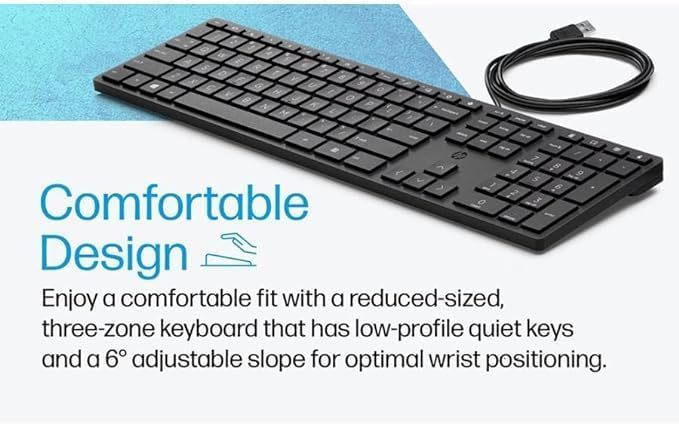
The HP Wired USB Slim 320K Japanese Layout Keyboard is a full-sized, wired keyboard designed for reliable performance. It features a Japanese (JIS) QWERTY layout, membrane switch type for quiet operation, and a slim profile. This keyboard is compatible with various computer systems via a standard USB-A connection. The 320K series includes models such as L96909-291, HSA-C001K, and HSA-P010K.



Setup Instructions

Connecting the Keyboard
- Unpack the Keyboard: Carefully remove the keyboard from its packaging.
- Locate a USB Port: Identify an available USB-A port on your computer.
- Connect the USB Cable: Insert the USB-A connector of the keyboard cable into the USB-A port on your computer.
- System Recognition: Your operating system should automatically detect and install the necessary drivers for the keyboard. This process typically takes a few moments.
- Test Functionality: Open a text editor or any application that accepts text input and type to confirm the keyboard is working correctly.
Operating Instructions
The HP Wired USB Slim 320K Japanese Layout Keyboard operates as a standard QWERTY keyboard with a Japanese (JIS) layout. Below are some general operating guidelines:
Key Functions
- Standard Alphanumeric Keys: Used for typing letters, numbers, and symbols.
- Function Keys (F1-F12): Perform various tasks depending on the application or operating system.
- Numeric Keypad: Located on the right side, used for efficient number entry. Ensure 'Num Lock' is active (indicated by an LED) for numeric input.
- Modifier Keys: Includes Shift, Ctrl, Alt, and the Windows/Command key for various shortcuts and commands.
- Japanese Input Keys: Specific keys for switching input methods (e.g., Kana, Romaji), converting characters, and accessing Japanese-specific symbols.
Adjustable Tilt
The keyboard features adjustable feet on the underside. Flip these feet out to increase the keyboard's tilt for a more ergonomic typing angle, or fold them in for a flatter profile.
Maintenance and Care
Proper maintenance ensures the longevity and optimal performance of your keyboard.
- Cleaning: Regularly clean the keyboard surface with a soft, dry, lint-free cloth. For deeper cleaning, slightly dampen the cloth with water or a mild, non-abrasive cleaning solution. Ensure the keyboard is disconnected from the computer before cleaning.
- Dust Removal: Use compressed air to remove dust and debris from between the keys.
- Avoid Liquids: Do not spill liquids on the keyboard. If a spill occurs, immediately disconnect the keyboard and allow it to dry completely before reconnecting.
- Storage: Store the keyboard in a cool, dry place away from direct sunlight and extreme temperatures when not in use for extended periods.
Troubleshooting
If you encounter issues with your keyboard, refer to the following common problems and solutions:
| Problem | Possible Cause | Solution |
|---|---|---|
| Keyboard is not responding. | Loose USB connection, faulty USB port, driver issue. | Ensure the USB cable is securely connected. Try a different USB port. Restart your computer. Check Device Manager for driver status. |
| Keys are not typing correctly or are sticky. | Debris under keys, liquid spill, keycap damage. | Clean the keyboard using compressed air. If a spill occurred, ensure it is dry. Avoid eating or drinking near the keyboard. |
| Numeric keypad is not working. | Num Lock is off. | Press the 'Num Lock' key to activate the numeric keypad. The Num Lock LED indicator should light up. |
| Incorrect character input (e.g., English instead of Japanese). | Incorrect input method selected in the operating system. | Switch your input method to Japanese (e.g., IME) in your operating system settings. Use the dedicated Japanese input keys if available. |
| Keyboard LEDs (e.g., Caps Lock, Num Lock) are not lighting up. | Keyboard not powered or recognized, or LED malfunction. | Verify USB connection. Restart computer. If problem persists, contact support. |
| Keyboard is physically damaged. | Accidental impact or misuse. | Physical damage is typically not covered under warranty. Consider replacement. |
Product Specifications
| Feature | Detail |
|---|---|
| Brand | HP |
| Model Name | 320K Series (L96909-291, HSA-C001K, HSA-P010K) |
| Connectivity Technology | USB-A (Wired) |
| Keyboard Layout | Japanese (JIS) QWERTY |
| Switch Type | Membrane |
| Compatible Devices | PC (Computer) |
| Color | Black |
| Product Dimensions (L x W x H) | 43 cm x 13 cm x 3 cm (16.9 x 5.1 x 1.2 inches) |
| Product Weight | 580 g (1.28 lbs) |
| Material | Plastic |
| Hand Orientation | Ambidextrous |
| Recommended Use | Business |
Warranty and Support
This HP product comes with a standard manufacturer's warranty. For specific warranty terms and conditions, please refer to the documentation included with your purchase or visit the official HP support website. Keep your proof of purchase for warranty claims.
For technical assistance, troubleshooting beyond this manual, or to inquire about warranty service, please contact HP Customer Support through their official channels.