
PORLEI TM552
PORLEI Wired Trackball Mouse
User Manual
Introduction
Thank you for choosing the PORLEI Wired Trackball Mouse. This manual provides detailed instructions to help you set up, operate, and maintain your new trackball mouse, ensuring a comfortable and efficient computing experience. Designed for ergonomic comfort and precise control, this mouse aims to reduce muscle strain and enhance productivity.

Figure 1: The PORLEI Wired Trackball Mouse, featuring its prominent blue trackball and ergonomic design.
What's in the Box
- PORLEI Wired Trackball Mouse
- User Manual
Setup
- Unpack the Mouse: Carefully remove the trackball mouse and its USB cable from the packaging.
- Connect to Computer: Locate an available USB-A port on your computer (PC, Laptop, Windows, Mac). Insert the USB-A connector of the trackball mouse cable into the USB port.
- Plug & Play: The PORLEI Trackball Mouse is designed for plug-and-play functionality. No additional drivers are typically required. Your operating system should automatically detect and configure the device.
- Verify Functionality: Once connected, the trackball should illuminate, and you should be able to move the cursor on your screen by manipulating the trackball with your index finger.

Figure 2: The trackball mouse connected to a laptop, ready for use. The long USB cable provides ample reach.
Operating Instructions
Ergonomic Design and Comfort
The PORLEI Trackball Mouse is engineered to fit comfortably in your hand, reducing muscle stress and wrist pain. The 44mm index finger trackball allows for precise cursor control without requiring arm movement, making it ideal for extended use.

Figure 3: Ergonomic design for all-day comfort, fitting naturally in the hand.

Figure 4: The 48-degree angle promotes an optimal wrist posture, reducing strain.

Figure 5: The mouse's design allows for comfortable and natural hand placement.
Precision Tracking and DPI Adjustment
The mouse features a high-performance optical sensor and 3-point positioning technology for pinpoint cursor movement. You can adjust the cursor speed to your preference with 5 distinct DPI settings.
- DPI Button: The DPI button is located on the bottom of the mouse. Press this button to cycle through the available DPI settings (200, 400, 800, 1200, 1600 DPI).
- Adjusting Cursor Speed: Select the DPI setting that best suits your task, whether it's fine-tuning artwork or navigating quickly across large screens.
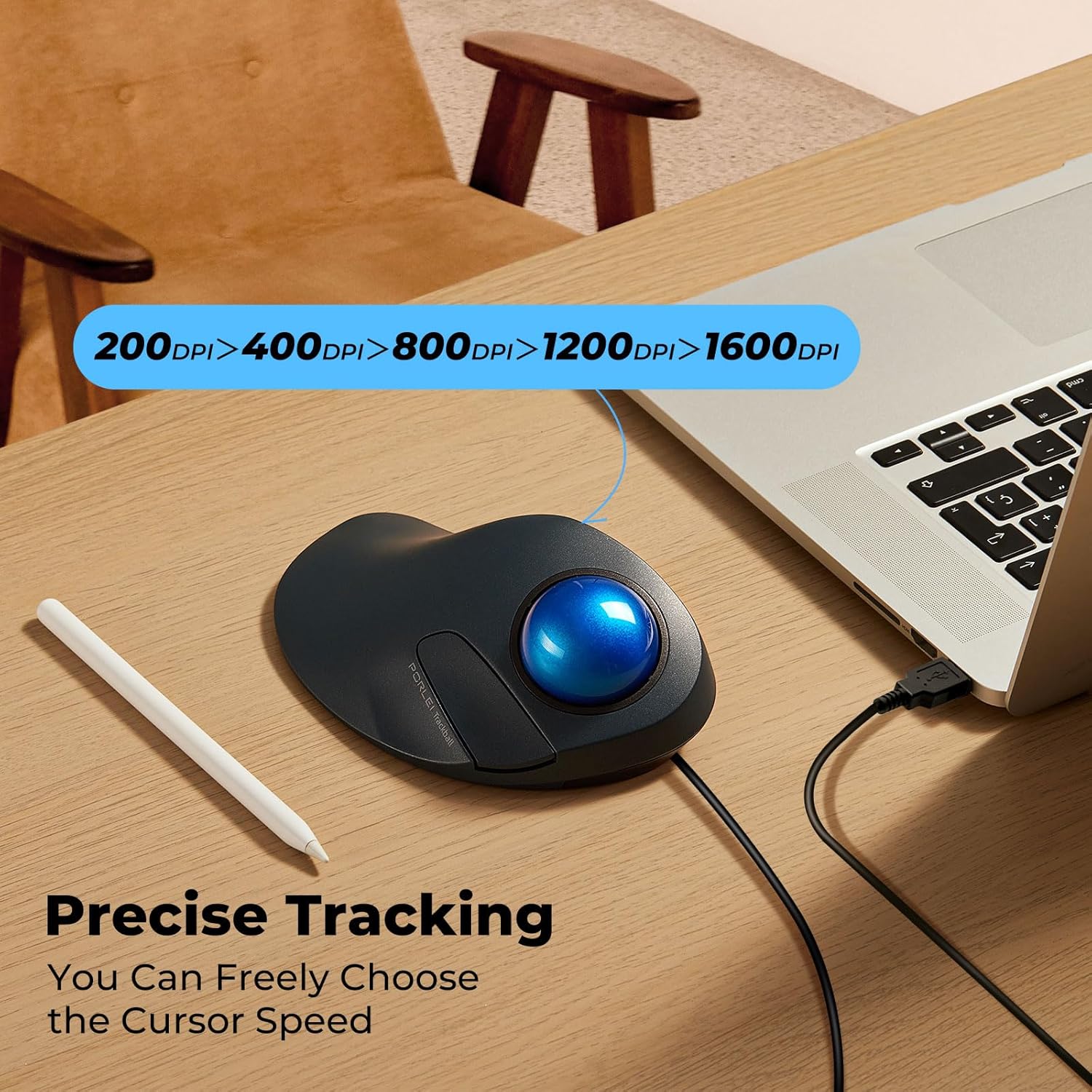
Figure 6: The mouse offers 5 adjustable DPI settings for customized cursor speed.
Button Functions
The PORLEI Trackball Mouse is equipped with multiple buttons for enhanced functionality:
- Left Mouse Button: Typically controlled by the thumb, used for primary clicks and selections.
- Right Mouse Button: Located to the right of the trackball, used for secondary clicks and context menus.
- Precision Scroll Wheel: Positioned for thumb control, used for scrolling through documents and web pages. It also functions as a clickable button.
- Forward/Backward Buttons: Located above the scroll wheel, these buttons allow for quick navigation (e.g., browsing web pages). Note: Forward/Backward buttons are not compatible with Mac OS.

Figure 7: Labeled diagram of the trackball mouse buttons and features.
Ideal for Tight Workspaces
Since the trackball mouse does not require physical movement across a surface, it is perfectly suited for compact or cluttered workspaces. Its stable design, aided by padding on the bottom, ensures it stays firmly in place.

Figure 8: The trackball mouse is effective even in limited desk space.
Maintenance
Cleaning the Trackball
To ensure smooth and precise tracking, it is recommended to periodically clean the trackball and its internal mechanism. The trackball is easily removable for this purpose.
- Remove the Trackball: Gently push the trackball from the bottom opening of the mouse or carefully pry it out from the top.
- Clean the Ball: Use a soft, lint-free cloth to wipe the trackball clean. Avoid using harsh chemicals or abrasive materials.
- Clean the Internal Rollers: Inside the trackball cavity, you will see small rollers or sensors. Use a cotton swab or a soft, dry brush to carefully remove any dust, lint, or debris that may have accumulated on these components.
- Reinsert the Trackball: Place the clean trackball back into its cavity, ensuring it sits securely and moves freely.
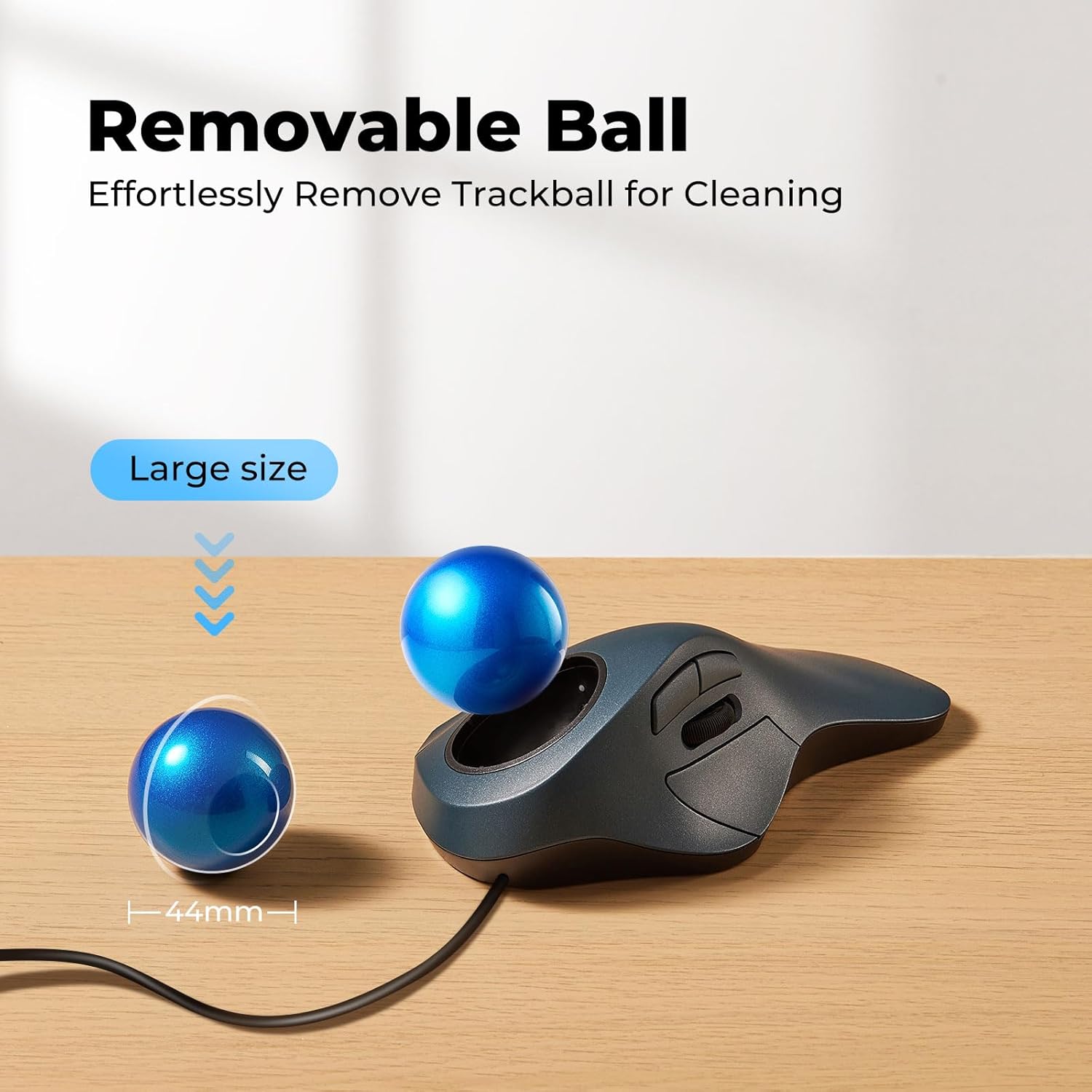
Figure 9: The trackball can be easily removed for cleaning to maintain optimal performance.
Troubleshooting
| Problem | Possible Cause | Solution |
|---|---|---|
| Cursor does not move or moves erratically. |
|
|
| Buttons are unresponsive. |
|
|
| Mouse is not recognized by the computer. |
|
|
Specifications
| Feature | Detail |
|---|---|
| Brand | PORLEI |
| Model | TM552 |
| Color | D-Blue |
| Connectivity Technology | USB Wired |
| Movement Detection Technology | Trackball |
| DPI Settings | 200, 400, 800, 1200, 1600 |
| Cable Length | 1.8 meters (approx. 5.9 feet) |
| Item Weight | 10.2 ounces |
| Package Dimensions | 7.01 x 4.41 x 2.52 inches |
| Compatibility | Windows, Mac OS, Laptops, Desktops |
Warranty and Support
PORLEI products are manufactured to high-quality standards. For warranty information, technical support, or any inquiries regarding your trackball mouse, please refer to the contact information provided with your product packaging or visit the official PORLEI website. Please retain your proof of purchase for warranty claims.
For additional resources and product information, you may visit the PORLEI Store on Amazon.
Ask a question about this manual
Ask about setup, troubleshooting, compatibility, parts, safety, or missing instructions. Manuals+ will review the question and use this page’s manual context to help answer it.