
1. Introduction
This manual provides essential instructions for the safe and efficient operation of your ZDK 1080P Mini Projector. Please read this manual thoroughly before using the projector and retain it for future reference.
The ZDK 1080P Mini Projector is designed for home entertainment, offering a native 1920x1080 resolution, 16000 lumens brightness, and a high dynamic contrast ratio for clear and vibrant images. It features 2.4G+5G Wi-Fi for wireless screen mirroring and Bluetooth 5.1/5.2 for audio connectivity, along with multiple wired input options.

Image 1.1: The ZDK 1080P Mini Projector delivers enhanced clarity and brightness compared to standard projectors, featuring 1080p support, 18000LM, 10000:1 contrast, compact design, thermal system, and Bluetooth 5.2.
2. Important Safety Instructions
- Do not look directly into the projector lens when the lamp is on.
- Ensure proper ventilation around the projector to prevent overheating.
- Do not expose the projector to rain or moisture to avoid electric shock or fire.
- Use only the power adapter supplied with the projector.
- Do not attempt to repair the projector yourself. Refer all servicing to qualified personnel.
- Keep the projector away from heat sources and direct sunlight.
- Place the projector on a stable, level surface.
3. Package Contents
Please check that all items are present and in good condition upon unpacking.
- ZDK 1080P Mini Projector
- Power Cable
- Remote Control
- HDMI Cable
- AV Cable
- User Manual
4. Product Overview
4.1 Projector Front and Rear View
Familiarize yourself with the projector's ports and controls.

Image 4.1: The projector features multiple connectivity options including HDMI, USB, AUX, and AV ports, compatible with a wide range of devices such as smartphones, USB drives, gaming consoles (PS4), tablets, laptops, DVD players, memory cards, and headphones.
4.2 Remote Control
The remote control allows you to operate the projector from a distance. Insert two AAA batteries (not included) into the remote control.
- Power Button: Turns the projector on or off.
- Source Button: Selects input source.
- Navigation Buttons: Up, Down, Left, Right for menu navigation.
- OK Button: Confirms selection.
- Menu Button: Accesses settings menu.
- Volume Buttons: Adjusts volume.
- Mute Button: Mutes/unmutes audio.
- Return Button: Goes back to the previous menu.
5. Setup
5.1 Placement
Place the projector on a stable surface or mount it using a compatible tripod. Ensure the projector lens is perpendicular to the projection surface for optimal image quality. The projector can be used for front, rear, or ceiling projection.

Image 5.1: The ZDK 1080P Mini Projector is suitable for various applications, including home cinema, gaming, and fitness, adaptable for both indoor and outdoor environments.
5.2 Power Connection
- Connect the power cable to the projector's power input port.
- Plug the other end of the power cable into an electrical outlet.
- The power indicator light on the projector will illuminate.
5.3 Focus and Keystone Correction
Adjust the focus ring on the projector lens until the image is clear. Use the keystone correction feature (if available, either manual or digital) to correct trapezoidal distortion if the projector is not perfectly aligned with the screen.
6. Operating Instructions
6.1 Basic Operation
- Power On: Press the power button on the projector or remote control.
- Power Off: Press the power button again. Confirm shutdown if prompted.
6.2 Input Source Selection
Press the "Source" button on the remote control or projector to cycle through available input sources (HDMI, USB, AV, etc.).
6.3 Connectivity
6.3.1 Wi-Fi Connection (2.4G + 5G)
The projector supports both 2.4GHz and 5GHz Wi-Fi networks for stable and fast wireless screen mirroring.
- Navigate to the projector's Wi-Fi settings menu.
- Select your desired Wi-Fi network (SSID).
- Enter the Wi-Fi password using the on-screen keyboard.
- Confirm to connect.

Image 6.1: The projector supports 5G and 2.4G Wi-Fi for ultra-fast wireless screen mirroring, ensuring a smooth viewing experience with minimal lag.
6.3.2 Bluetooth Connection (5.1/5.2)
Connect external Bluetooth speakers or headphones for an enhanced audio experience.
- Ensure your Bluetooth audio device is in pairing mode.
- On the projector, navigate to the Bluetooth settings menu.
- Select "Scan for Devices" or similar option.
- Choose your Bluetooth device from the list to pair.

Image 6.2: Bluetooth 5.2 offers improved communication distance, speed, and stability compared to Bluetooth 5.0, allowing for high-quality wireless audio connections with headphones or external speakers.
6.3.3 Wired Connections
Connect various devices using the available ports:
- HDMI: Connect laptops, gaming consoles, TV sticks, or DVD players.
- USB: Play media files directly from a USB flash drive.
- AV: Connect older devices using the included AV cable.
- AUX (3.5mm Audio Out): Connect external wired speakers or headphones.
- MicroSD: Insert a MicroSD card to play media files.
6.4 Wireless Screen Mirroring
The projector supports wireless screen casting from compatible smartphones and tablets (Android/iOS).
- Ensure your mobile device and the projector are connected to the same Wi-Fi network.
- Select the "Screen Mirroring" or "Wireless Display" option on the projector's input menu.
- On your mobile device, activate its screen mirroring feature (e.g., "Smart View" for Android, "Screen Mirroring" for iOS).
- Select the projector from the list of available devices.
- Note: For iOS devices, an additional HDMI adapter may be required for certain content or if direct mirroring is not supported.
6.5 Adjusting Projection Size
The projector can display images from 36 inches to a maximum of 300 inches. Adjust the distance between the projector and the screen to achieve your desired image size.
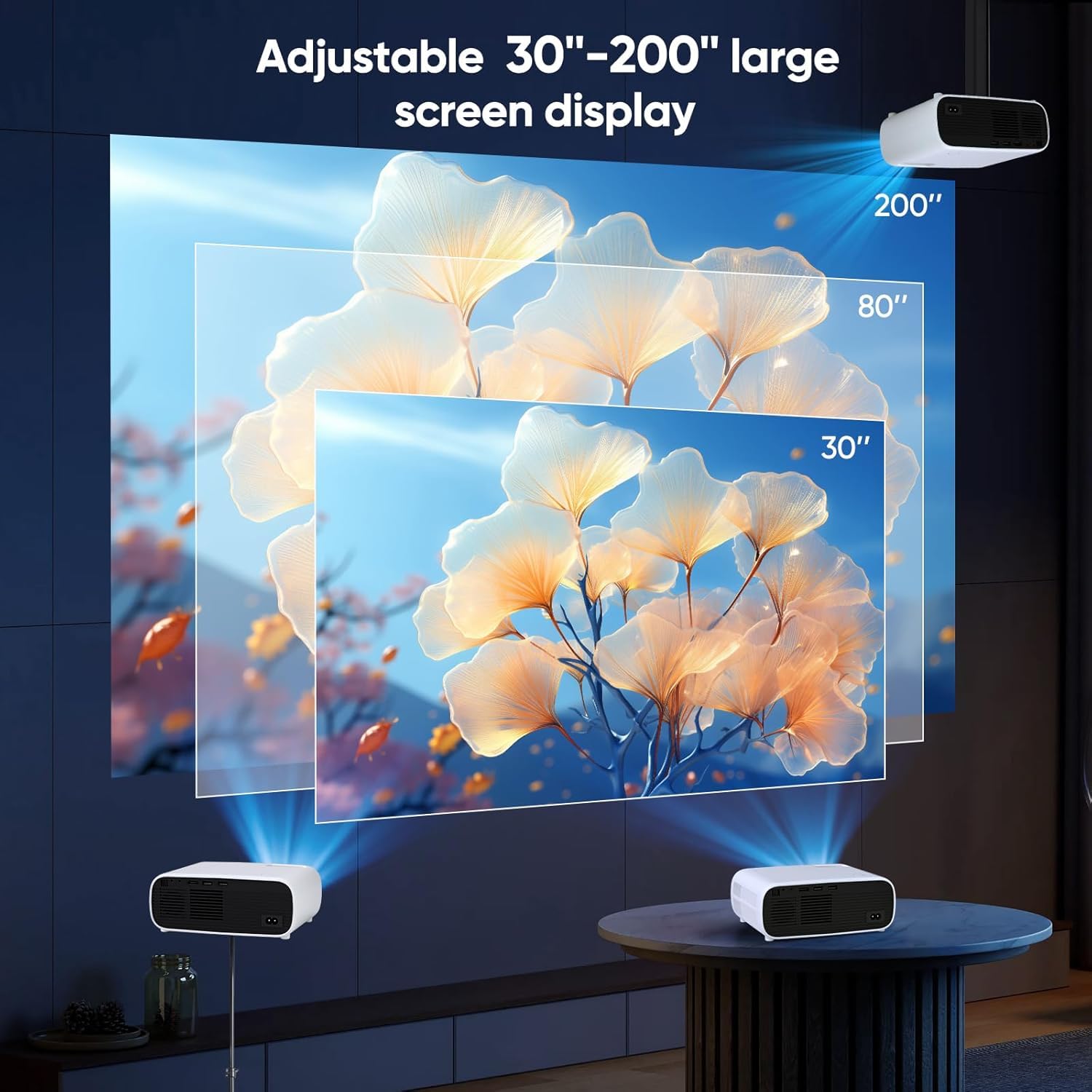
Image 6.3: The projector allows for an adjustable screen display size, ranging from 30 inches to 200 inches (or up to 300 inches as per specifications), by varying the projection distance.
7. Maintenance
7.1 Cleaning the Lens
Use a soft, lint-free cloth or lens cleaning paper to gently wipe the projector lens. Do not use abrasive cleaners or solvents.
7.2 General Care
- Keep the projector in a clean, dust-free environment.
- Avoid blocking the ventilation vents.
- When not in use, cover the lens with the protective cap and store the projector in a cool, dry place.
8. Troubleshooting
| Problem | Possible Cause | Solution |
|---|---|---|
| No image displayed | Power cable disconnected; Incorrect input source; Lens cap on. | Check power connection; Select correct input source; Remove lens cap. |
| Image is blurry | Out of focus; Incorrect projection distance. | Adjust focus ring; Adjust projector distance. |
| No sound | Volume too low; Muted; Incorrect audio output selected. | Increase volume; Unmute; Check audio settings. |
| Cannot connect to Wi-Fi | Incorrect password; Out of range; Network issue. | Verify password; Move closer to router; Restart router and projector. |
| Screen mirroring issues | Not on same Wi-Fi; Device incompatibility; DRM protected content. | Ensure both devices are on the same Wi-Fi; Check device compatibility; Some content cannot be mirrored due to copyright. |
9. Specifications
| Brand | ZDK |
| Model | ZDK 1080P Mini Projector (ASIN: B0D73JF2MH) |
| Native Resolution | 1920 x 1080 (Full HD) |
| Brightness | 16000 Lumens |
| Contrast Ratio | 10000:1 (Dynamic) |
| Connectivity | Wi-Fi (2.4G + 5G), Bluetooth (5.1/5.2), HDMI, USB, AV, AUX, MicroSD |
| Projection Size | 36 - 300 Inches |
| Throw Distance | 3.3 - 12.5 feet |
| Aspect Ratio | 16:9 / 4:3 |
| Built-in Speaker | Yes |
| Mounting Type | Tripod Mount |
| Power Supply | 120 Volts |
| Dimensions (L x W x H) | 12.7L x 5.1W x 7.6H Centimeters |
10. Warranty and Support
10.1 Warranty Information
Your ZDK 1080P Mini Projector comes with a standard manufacturer's warranty. Please refer to the warranty card included in your package for specific terms and conditions, including the warranty period and coverage details. Keep your purchase receipt as proof of purchase for warranty claims.
10.2 Customer Support
For technical assistance, troubleshooting, or warranty inquiries, please contact ZDK customer support. Contact information can typically be found on the product packaging, the official ZDK website, or the warranty card.
When contacting support, please have your product model (ZDK 1080P Mini Projector) and ASIN (B0D73JF2MH) readily available.


