
1. Introduction
This manual provides essential information for setting up, operating, maintaining, and troubleshooting your Lenovo ThinkStation P8 workstation. Please read this manual thoroughly before using your new system to ensure optimal performance and longevity.
2. Product Overview
The Lenovo ThinkStation P8 is a high-performance workstation designed for demanding professional tasks. It features an AMD Threadripper PRO 7975WX processor, 128GB of RAM, a 4TB PCIe Gen4 SSD, and an NVIDIA RTX 5000 Ada 32GB graphics card, running on Windows 11 Pro 64-bit.
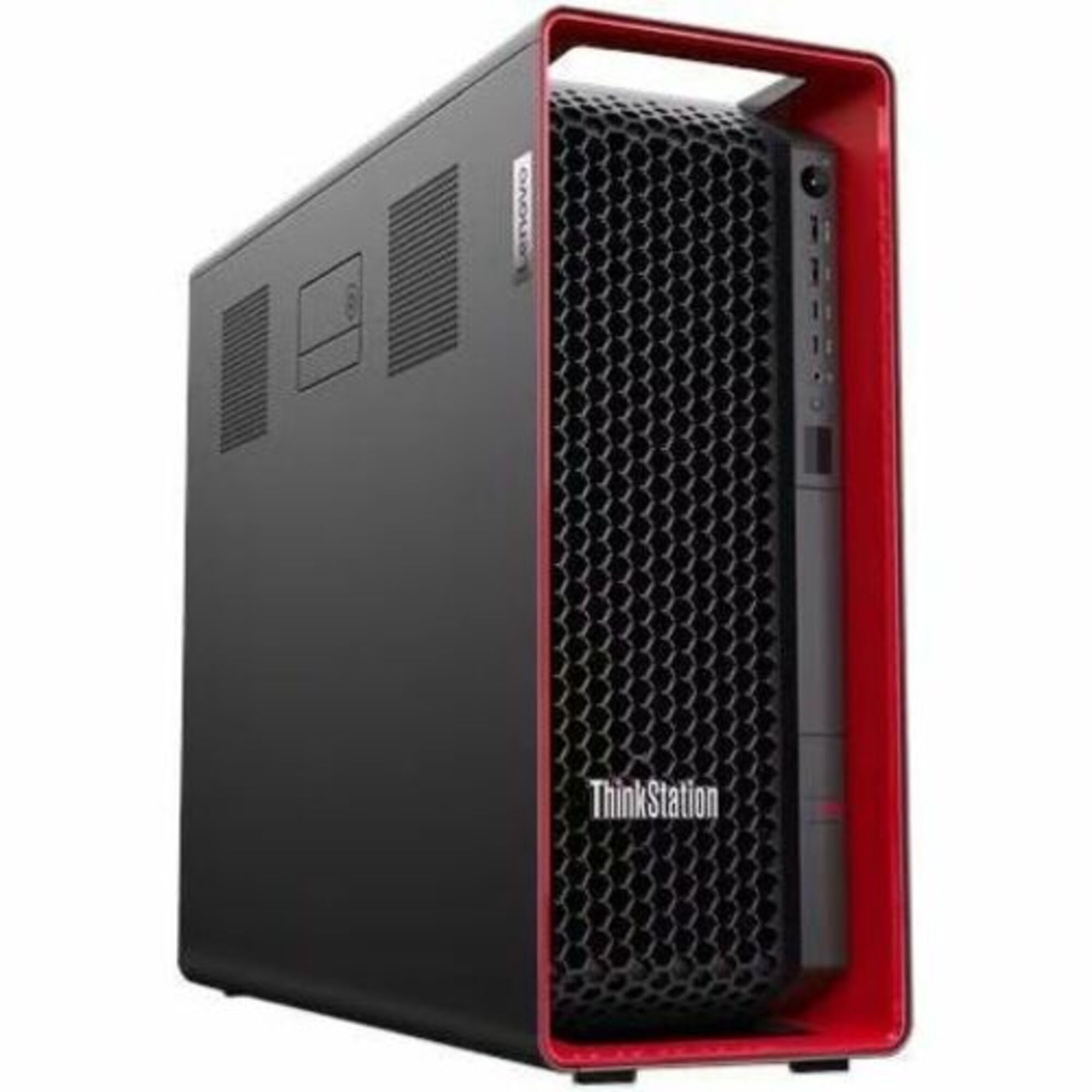
Figure 2.1: Front view of the Lenovo ThinkStation P8 workstation, showcasing its robust chassis and ventilation design.
3. Setup
3.1 Unpacking and Component Identification
- Carefully remove the workstation and all accessories from the packaging.
- Verify that all components listed in the packing slip are present. This typically includes the workstation unit, power cable, keyboard, mouse, and documentation.
3.2 Connecting Peripherals
- Connect the Monitor: Use a display cable (e.g., DisplayPort, HDMI) to connect your monitor(s) to the graphics card ports on the rear of the workstation.
- Connect Keyboard and Mouse: Plug the USB keyboard and mouse into any available USB ports.
- Connect to Network (Optional): For wired network access, connect an Ethernet cable to the RJ-45 port. For wireless, ensure the Wi-Fi antennas are connected (if applicable) or configure Wi-Fi after initial setup.
- Connect Power: Plug the power cable into the workstation's power supply unit (PSU) and then into a grounded electrical outlet.
3.3 Initial Power-On
- Press the power button on the front of the workstation.
- Follow the on-screen instructions to complete the Windows 11 Pro setup process, including language selection, user account creation, and network configuration.
4. Operating Instructions
4.1 Power On/Off and Restart
- Power On: Press the power button.
- Shut Down: In Windows, click Start > Power > Shut down.
- Restart: In Windows, click Start > Power > Restart.
- Force Shut Down: If the system is unresponsive, press and hold the power button for approximately 10 seconds until the system powers off. Use this only as a last resort.
4.2 Accessing BIOS/UEFI
To access the BIOS/UEFI setup utility, power on the workstation and repeatedly press the designated key (usually F1 or Delete) during the initial boot sequence. Refer to the on-screen prompts for the exact key.
4.3 Operating System Usage (Windows 11 Pro)
Your ThinkStation P8 comes pre-installed with Windows 11 Pro. For detailed instructions on using Windows 11, refer to the official Microsoft documentation or help resources available within the operating system.
4.4 Expansion Capabilities
The ThinkStation P8 supports various expansion options, including additional PCIe Gen4 devices and M.2 SSDs. Consult the detailed hardware maintenance manual for specific instructions on installing or upgrading components.
5. Maintenance
5.1 Cleaning
- Exterior: Use a soft, lint-free cloth slightly dampened with water or a mild cleaning solution to clean the exterior surfaces. Avoid harsh chemicals.
- Ventilation: Regularly check and clean the ventilation grilles to prevent dust buildup, which can impede airflow and lead to overheating. Use compressed air to gently clear dust.
5.2 Software Updates
Keep your operating system and drivers updated. Windows Update will handle OS updates, and Lenovo Vantage software (pre-installed) can assist with driver and firmware updates.
5.3 Data Backup
Regularly back up your important data to an external drive or cloud storage to prevent data loss in case of system failure.
6. Troubleshooting
6.1 Common Issues and Solutions
- No Power: Ensure the power cable is securely connected to both the workstation and the electrical outlet. Test the outlet with another device.
- No Display: Verify that the monitor is powered on and correctly connected to the graphics card. Try a different display cable or monitor if available.
- System Freezes/Unresponsive: Perform a force shut down (Section 4.1). If the issue persists, check for recent software installations or hardware changes.
- Slow Performance: Check for background applications, ensure sufficient free storage space, and verify that drivers are up to date.
6.2 When to Contact Support
If you encounter persistent issues that cannot be resolved using the troubleshooting steps provided, or if you suspect a hardware malfunction, contact Lenovo technical support.
7. Specifications
| Feature | Specification |
|---|---|
| Brand | Lenovo |
| Model Name | ThinkStation P8 |
| Model Number | 30HH004BUS |
| Operating System | Windows 11 Pro 64-bit |
| CPU Model | AMD Threadripper PRO 7975WX |
| CPU Speed | 4.00GHz |
| Graphics Coprocessor | NVIDIA RTX 5000 Ada 32GB |
| RAM Memory Installed Size | 128 GB DDR5 |
| Memory Storage Capacity | 4TB SSD M.2 2280 PCIe Gen4 Performance TLC Opal |
| Item Dimensions (L x W x H) | 20 x 7 x 17 inches |
| UPC | 197531578266 |
8. Warranty and Support
Your Lenovo ThinkStation P8 comes with a 3-year Premier NBD (Next Business Day) warranty. For technical assistance, warranty claims, or to find authorized service providers, please visit the official Lenovo support website or contact their customer service. Have your product's serial number ready when contacting support.
Lenovo Support Website: support.lenovo.com
9. Official Product Videos
No official product videos from the seller were found to be relevant and useful for this instruction manual.