1. Introduction
Thank you for choosing the Fafeicy Smart Digital Thermostat. This device is designed to provide intelligent temperature control for your home or office, offering convenience through wireless app control and compatibility with a central hub. Please read this manual carefully before installation and operation to ensure proper use and optimal performance.
2. Safety Information
- Always disconnect power before installing or servicing the thermostat to prevent electric shock.
- Installation should be performed by a qualified electrician or trained personnel.
- Ensure all wiring connections comply with local electrical codes and regulations.
- Do not expose the thermostat to water or excessive humidity.
- Do not attempt to disassemble or repair the unit yourself. Contact customer support if issues arise.
3. Product Overview
The Fafeicy Smart Digital Thermostat features a clear display and intuitive touch controls for easy temperature management. It integrates with a wireless hub for remote control via a smartphone application.

Figure 3.1: Front view of the thermostat, displaying temperature and time.
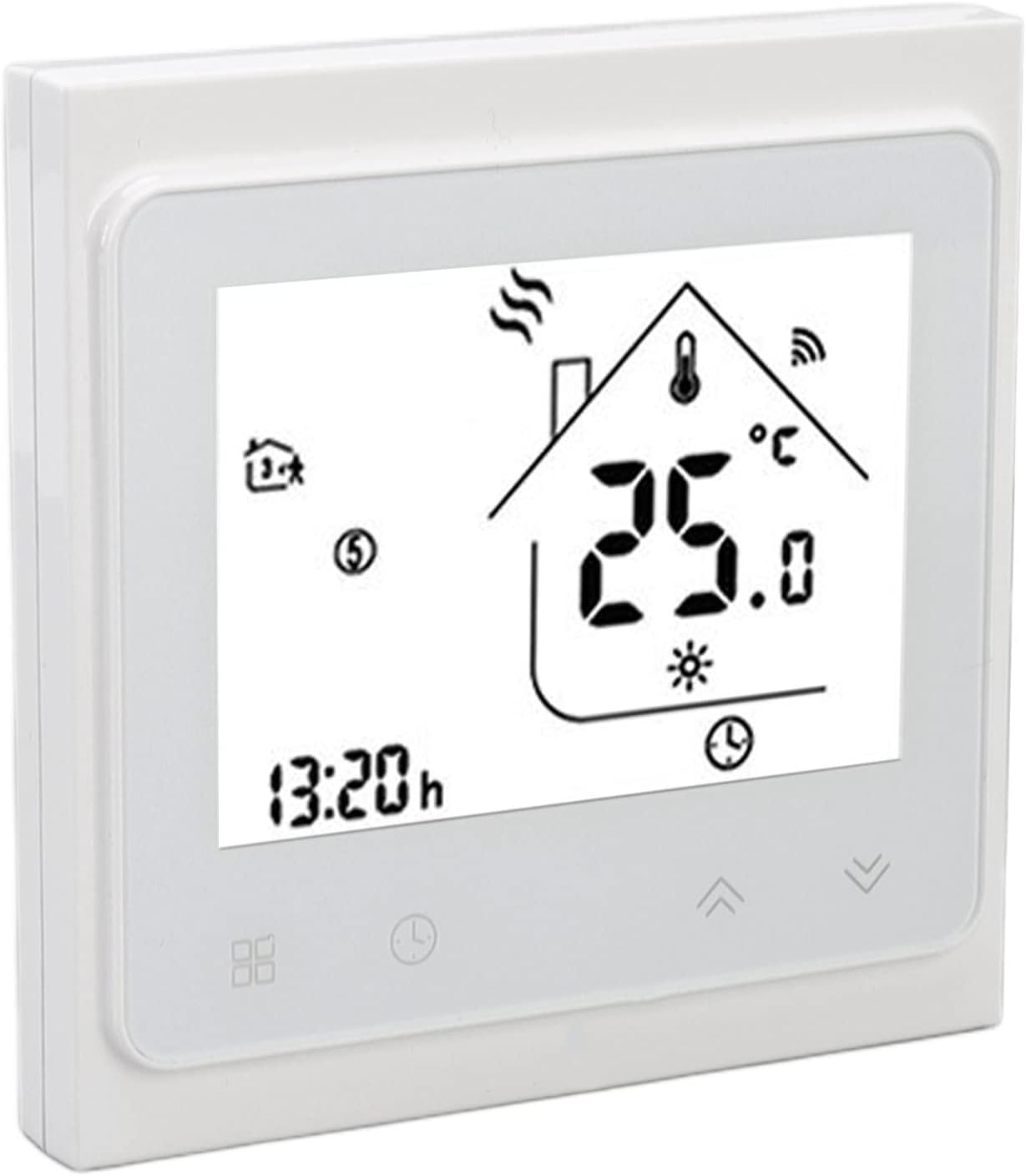
Figure 3.2: Angled view of the thermostat, highlighting its compact design.
Key Features:
- Intelligent Temperature Control: Connects to a wireless hub for smart room temperature management.
- Multiple Control Options: Control via the Smart Life application, offering various settings and family sharing.
- Wireless Connectivity: Supports control of up to 50 valves with a single hub.
- Versatile Application: Suitable for offices, bedrooms, living rooms, supermarkets, hotels, and restaurants.
- Easy Installation: Compact size designed for seamless wall integration.
4. Specifications
| Power Supply | 95~240 VAC, 50~60Hz |
| Sensor | NTC |
| Humidity | 5~95% (non-condensing) |
| Storage Temperature | -5~45°C |
| Accuracy | ±0.5°C |
| Set Temperature Range | 5~35°C |
| Display Temperature Range | 5~99℃ |
| Ambient Temperature | 0~45℃ |
| Power Consumption | <1.5W |
| Protection Class | IP 20 |
| Button Type | Capacitive Touch Button |
| Material | PP, ABS |
| Weight | Approx. 268g |
| Dimensions | 11 x 9 x 6 cm |
5. Setup and Installation
5.1 Wiring Instructions
Before proceeding, ensure the main power supply to your heating/cooling system is turned OFF. Connect the power cable according to the wiring instructions provided on the back of the thermostat controller. Refer to the diagram below for guidance.

Figure 5.1: Wiring diagram on the back of the thermostat.
5.2 App Download and Connection
To enable smart control features, download the companion application. A QR code for the app download can typically be found in the included physical user manual. Follow the on-screen instructions within the app to connect your thermostat to your wireless network and hub.
- Scan the QR code (if available in the physical manual) or search for the "Smart Life" app in your device's app store.
- Install and open the application.
- Register or log in to your account.
- Add a new device and select the thermostat category.
- Follow the in-app instructions to pair your thermostat with your wireless hub and Wi-Fi network.

Figure 5.2: Connecting the thermostat to a wireless hub and smartphone app.
6. Operating Instructions
6.1 Manual Control
The thermostat features capacitive touch buttons for direct control. Use the up and down arrows on the display to adjust the desired temperature. Other buttons may allow access to settings or mode changes.

Figure 6.1: Close-up of the thermostat's touch control buttons.
6.2 App Control
Once connected to the Smart Life app, you can control your thermostat remotely from your smartphone. The app provides a comprehensive interface for:
- Adjusting temperature settings.
- Setting schedules and timers.
- Changing operating modes (e.g., heating, cooling, auto).
- Monitoring current room temperature.
- Sharing control with family members.

Figure 6.2: Remote control via the smartphone application in an office environment.
6.3 Voice Control (Requires Compatible Devices)
If integrated with compatible smart home voice assistants (e.g., Google Home, Amazon Alexa) through your wireless hub, you can control the thermostat using voice commands. For example, "Set the temperature to 26 degrees."

Figure 6.3: Example of voice control functionality with smart speakers.
7. Maintenance
- Cleaning: Wipe the thermostat's surface with a soft, dry cloth. Do not use abrasive cleaners, solvents, or chemical sprays.
- Avoid Liquids: Ensure no liquids enter the thermostat casing.
- Regular Checks: Periodically check wiring connections for tightness and signs of wear.
8. Troubleshooting
Common Issues and Solutions:
- Thermostat not powering on: Check the main power supply and ensure all wiring connections are secure. Verify the circuit breaker.
- Cannot connect to app/hub: Ensure your wireless hub is powered on and connected to your home network. Restart the thermostat and the hub. Check app settings for correct device pairing.
- Incorrect temperature reading: Ensure the thermostat is not exposed to direct sunlight, drafts, or heat sources that could affect its sensor.
- Heating/Cooling system not responding: Verify that the thermostat is in the correct operating mode (heating/cooling) and that the set temperature is appropriate. Check your HVAC system for any error codes or power issues.
If you encounter persistent issues not covered here, please contact Fafeicy customer support.
9. Package Contents
Upon unpacking, please ensure all items listed below are present:
- 1 x Fafeicy Smart Digital Thermostat Controller
- 2 x Mounting Screws
- 1 x User Manual (this document)
10. Warranty and Support
For warranty information, technical support, or service inquiries, please refer to the warranty card included with your product or contact your retailer/seller directly. You may also visit the official Fafeicy website for further assistance.