
surmen 104 Monster
surmen Full Size Creamy Keyboard User Manual
Model: 104 Monster
Brand: surmen
1. Introduction
Thank you for choosing the surmen Full Size Creamy Keyboard. This mechanical gaming keyboard is designed for an optimal typing and gaming experience, featuring 104 keys, RGB backlighting, PBT keycaps, and linear red switches. This manual provides detailed instructions for setup, operation, maintenance, and troubleshooting to ensure you get the most out of your new keyboard.

Figure 1.1: surmen Full Size Creamy Keyboard (104 Monster)
2. Safety Information
- Keep the keyboard away from liquids and excessive moisture to prevent damage.
- Avoid extreme temperatures. Operate the keyboard within a normal room temperature range.
- Do not attempt to disassemble or modify the keyboard. This may void the warranty and cause damage.
- Use a soft, dry cloth for cleaning. Avoid harsh chemicals or abrasive materials.
3. Package Contents
Verify that all items are present in the package:
- surmen Full Size Creamy Keyboard
- Keycap Puller
- User Manual (this document)
4. Setup
4.1 Connecting the Keyboard
- Locate an available USB-A port on your computer (Laptop, PC, or Tablet).
- Plug the USB-A connector of the keyboard cable into the USB-A port on your device.
- The keyboard is plug-and-play and should be automatically recognized by your operating system. No additional drivers are typically required.
4.2 Adjusting Typing Angle
The keyboard features two foldable rear kickstands to adjust the typing angle for enhanced ergonomic comfort.
- To raise the keyboard, gently pull out the kickstands located on the underside of the keyboard.
- To lower the keyboard, fold the kickstands back into their recessed positions.

Figure 4.1: Adjustable Rear Feet for Comfortable Typing Height
5. Operating Instructions
5.1 Key Features
- Linear Red Switches: These switches offer smooth and linear keystrokes with a low actuation force (approx. 45g), reducing finger fatigue. They are relatively quiet, suitable for various environments.
- PBT Keycaps: Durable PBT keycaps ensure legends do not fade over time.
- Full-Key Anti-Ghosting (N-Key Rollover): The keyboard supports simultaneous key presses without missed or shadowed keystrokes, providing accurate input for gaming and fast typing.

Figure 5.1: Linear Red Switches

Figure 5.2: Full Key Conflict-Free Operation
5.2 RGB Backlighting Control
The keyboard features dazzling RGB backlighting with 18 different modes.
- Turn On/Off Backlight: Press FN + Pause to toggle the backlight on or off.
- Switch Backlight Modes: Press FN + INSERT / DELETE / HOME / END to cycle through the 18 available RGB backlight modes.

Figure 5.3: FN + Pause to Turn On/Off Backlight

Figure 5.4: FN + INSERT/DELETE/HOME/END for Backlight Modes
5.3 Multimedia and Shortcut Keys
Access various functions using the FN key in combination with the F-keys:
| FN Key Combination | Function |
|---|---|
| FN + F1 | Media Player |
| FN + F2 | Volume Down |
| FN + F3 | Volume Up |
| FN + F4 | Mute |
| FN + F5 | Stop Playback |
| FN + F6 | Previous Track |
| FN + F7 | Play/Pause |
| FN + F8 | Next Track |
| FN + F9 | |
| FN + F10 | Web Home |
| FN + F11 | Computer |
| FN + F12 | Calculator |
| FN + ESC (hold 3s) then F1-F3 | Restore Settings |

Figure 5.5: Multimedia Function Overview
5.4 Indicator Lights
The keyboard features indicator lights for Num Lock, Caps Lock, and Win Lock:
- NumLK: Indicates when the Number Pad is active.
- CapsLk: Indicates when Caps Lock is active.
- WinLock: Indicates when the Windows key is disabled, preventing accidental interruptions during gaming.
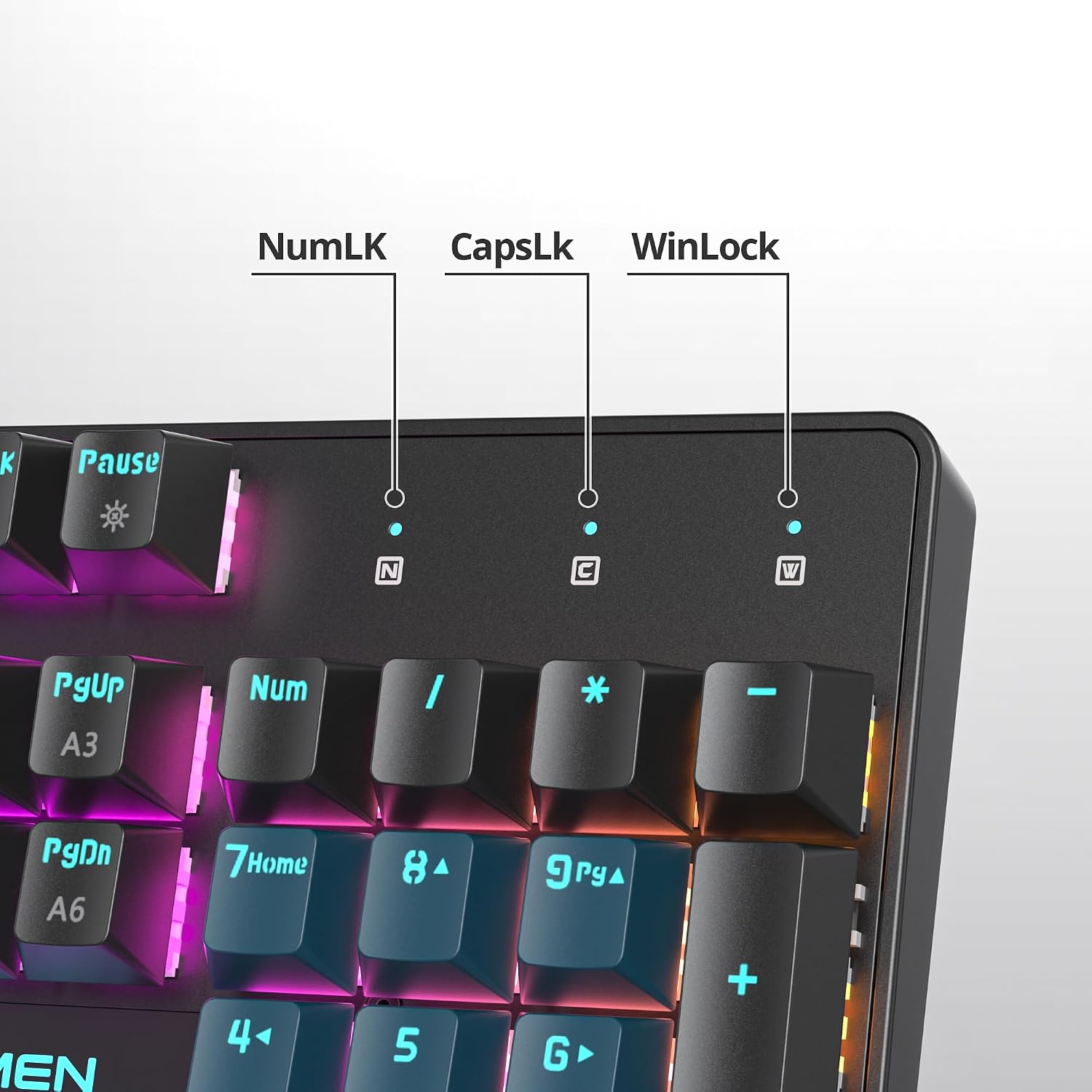
Figure 5.6: Indicator Lights for Keyboard Status
6. Maintenance
6.1 Cleaning the Keyboard
- Disconnect the keyboard from your computer before cleaning.
- Use a soft, lint-free cloth slightly dampened with water or a mild cleaning solution to wipe down the keycaps and frame.
- For dust and debris between keys, use compressed air or a small brush.
- To clean under keycaps, use the provided keycap puller to carefully remove keycaps. Reinstall them by aligning and pressing down gently until they click into place.

Figure 6.1: PBT Keycaps and Keycap Puller for Maintenance
7. Troubleshooting
7.1 Common Issues and Solutions
- Keyboard not responding:
- Ensure the USB cable is securely connected to both the keyboard and the computer.
- Try plugging the keyboard into a different USB port on your computer.
- Restart your computer.
- Backlight not working or stuck:
- Press FN + Pause to ensure the backlight is not turned off.
- Try cycling through backlight modes using FN + INSERT / DELETE / HOME / END.
- Perform a factory reset: Press and hold FN + ESC for 3 seconds, then press F1, F2, or F3 to restore settings.
- Keys not registering or double-typing:
- Ensure the keyboard is clean and free of debris.
- If a specific key is problematic, carefully remove its keycap using the keycap puller and check for any obstructions around the switch.
8. Specifications
| Feature | Detail |
|---|---|
| Model | 104 Monster |
| Brand | surmen |
| Connectivity Technology | USB-A (Wired) |
| Keyboard Type | Mechanical |
| Switch Type | Linear Red Switch |
| Keycaps | PBT |
| Number of Keys | 104 |
| Backlighting | RGB (18 modes) |
| Anti-Ghosting | Full-Key Rollover |
| Compatible Devices | Laptop, PC, Tablet |
| Material | Plastic |
| Item Weight | 2.75 pounds |
| Package Dimensions | 17.68 x 6.61 x 1.73 inches |
9. Warranty and Support
For warranty information or technical support, please refer to the product packaging or contact surmen customer service through the retailer where the product was purchased. Keep your proof of purchase for warranty claims.
Ask a question about this manual
Ask about setup, troubleshooting, compatibility, parts, safety, or missing instructions. Manuals+ will review the question and use this page’s manual context to help answer it.