
Womier SK75
Womier SK75 Mechanical Gaming Keyboard User Manual
Model: SK75
1. Introduction
The Womier SK75 is a high-quality 75% aluminum wireless mechanical gaming keyboard designed for enhanced typing and gaming experiences. It features a durable full aluminum alloy shell with a unique sparkling finish, offering both aesthetic appeal and robust construction. The keyboard incorporates a five-layer sound insulation and shock absorption design for a satisfying acoustic profile. It supports VIA programming for extensive customization of key layouts, shortcuts, and RGB lighting effects. The SK75 offers versatile connectivity options and comes with a durable coiled cable for reliable performance.

Image 1.1: Womier SK75 Keyboard Overview. This image displays a top-down view of the Womier SK75 keyboard, highlighting its 75% layout and the "Wireless Creamy Keyboard" designation. The light blue and white keycaps are visible, along with the Womier branding.
2. Package Contents
- Womier SK75 Mechanical Gaming Keyboard
- Custom Coiled Keyboard Cable (USB Type-C to USB-A)
- Mouse (as per product information)
- USB Dongle (for wireless connectivity)
- Keycap Puller
- Switch Puller

Image 2.1: Keyboard and Included Cable. This image shows the Womier SK75 keyboard alongside its custom coiled USB-C to USB-A cable, which is included in the package.
3. Setup
3.1 Wired Connection
- Connect the USB Type-C end of the coiled cable to the keyboard's USB-C port.
- Connect the USB Type-A end of the coiled cable to an available USB port on your computer.
- The keyboard should be automatically recognized by your operating system.
3.2 Wireless Connection (2.4GHz Dongle)
- Locate the USB dongle included in the package.
- Plug the USB dongle into an available USB port on your computer.
- Ensure the keyboard's mode switch (usually on the back or side) is set to the wireless (2.4GHz) mode.
- The keyboard should automatically pair with the dongle. If not, refer to the troubleshooting section for pairing instructions.
3.3 Bluetooth Connection
- Ensure the keyboard's mode switch is set to Bluetooth mode.
- On your device (computer, tablet, smartphone), enable Bluetooth and search for new devices.
- Select "Womier SK75" (or similar name) from the list of available devices to pair.
- Follow any on-screen prompts to complete the pairing process.
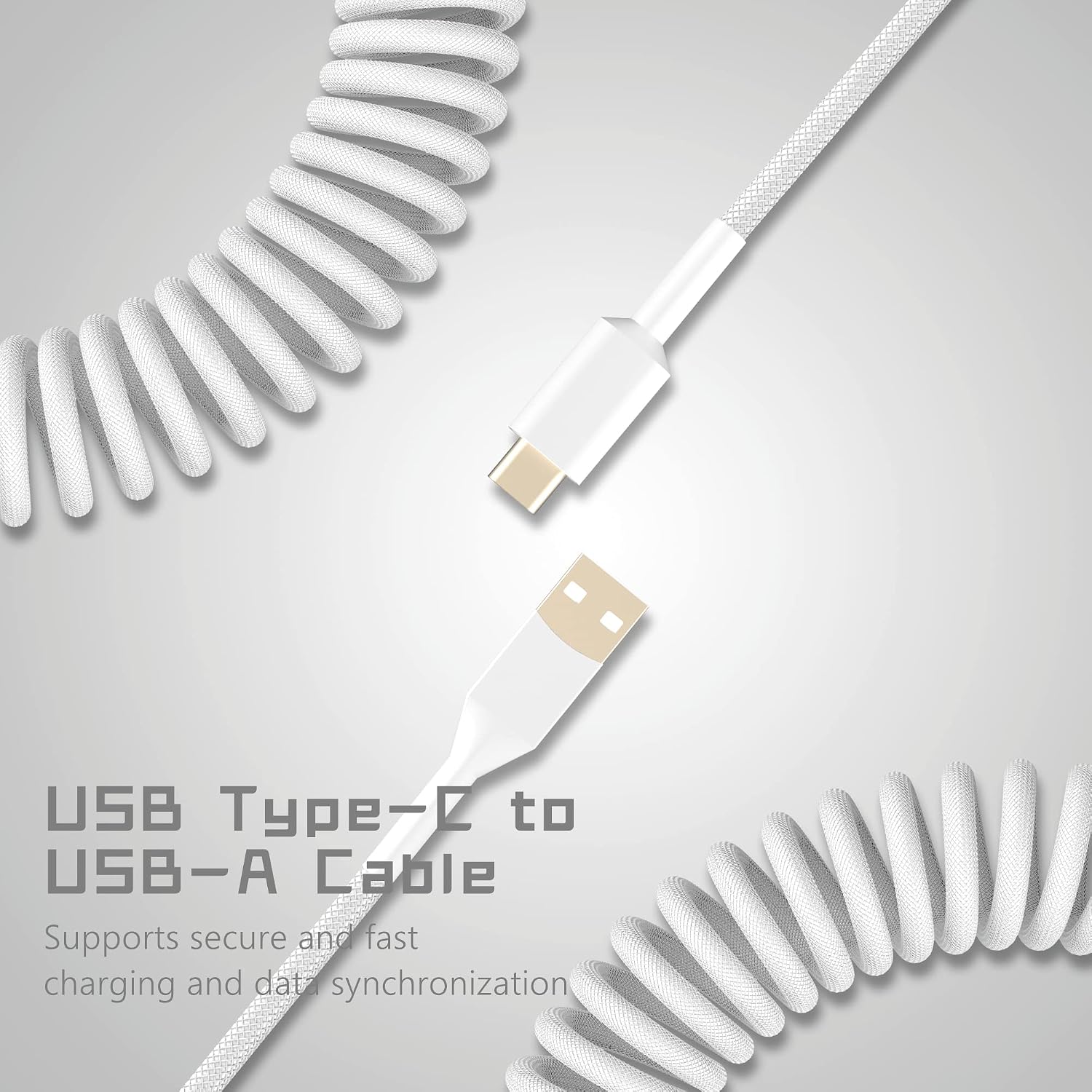
Image 3.1: USB Type-C to USB-A Cable. This image illustrates the USB Type-C and USB Type-A connectors of the included coiled cable, used for both charging and data transfer.
4. Operating Instructions
4.1 Key Customization with VIA
The Womier SK75 supports VIA programming, an open-source firmware that allows for extensive customization of key layouts, shortcut keys, and backlight effects. To use VIA, download the software from the official VIA website and connect your keyboard via USB. The software will automatically detect your keyboard, enabling you to remap keys, create macros, and adjust lighting.

Image 4.1: VIA Programmable Interface. This image shows the Womier SK75 keyboard in conjunction with the VIA software interface, demonstrating its capability for custom key programming and layout adjustments.
4.2 RGB Backlighting
The keyboard features 16.8 million RGB cool backlighting with south-facing LEDs. This design ensures brighter illumination and prevents glare from shining directly into your eyes. You can select from a variety of factory-set lighting modes directly from the keyboard or customize them further using the VIA software.
4.3 Hot-Swappable Switches
The Womier SK75 is a hot-swappable gasket mount keyboard, allowing you to easily change out mechanical switches without soldering. This feature enables users to customize their typing feel and sound by installing different compatible switches. Use the included switch puller to carefully remove switches.

Image 4.2: Hot-Swap Gasket Mount Keyboard. This image illustrates the hot-swappable nature of the keyboard's switches, with some keycaps and switches removed. A force curve graph is also displayed, detailing switch characteristics like actuation force and travel.
4.4 Acoustic Design
The keyboard incorporates a five-layer sound insulation and shock absorption internal design for an enhanced auditory experience. These layers include PORON plate foam, IXPE switch pad, PET acoustic pad, EPOM case foam, and PET insulation film, working together to produce crisp, clear keystrokes.

Image 4.3: Acoustic Mastery with Five-Layer Padding. This image visually explains the internal acoustic design of the keyboard, showing the various layers of padding that contribute to its sound profile. It also highlights the tri-mode connection capability and Cherry profile double-shot keycaps.
5. Maintenance
5.1 Cleaning the Keyboard
- Disconnect the keyboard from your computer before cleaning.
- Use the included keycap puller to remove keycaps for thorough cleaning.
- Use a soft brush or compressed air to remove dust and debris from between the keys.
- Wipe the keycaps and keyboard surface with a slightly damp, lint-free cloth. Avoid excessive moisture.
- Ensure all components are completely dry before reattaching keycaps and reconnecting the keyboard.
5.2 Cable Care
The custom coiled cable is designed for durability. To prolong its lifespan, avoid sharp bends or excessive pulling. Store the cable neatly when not in use to prevent tangling and damage.

Image 5.1: High Quality Spiral Cable. This image highlights the design and quality of the coiled cable, emphasizing its durability and aesthetic appeal.
6. Troubleshooting
6.1 Keyboard Not Responding
- Check the cable connection: Ensure the USB-C cable is securely plugged into both the keyboard and the computer.
- For wireless connection: Verify the USB dongle is properly inserted and the keyboard is in the correct wireless mode. Ensure the keyboard battery is charged.
- Try a different USB port on your computer.
- Restart your computer.
6.2 RGB Lights Not Working
- Check keyboard settings: Ensure RGB lighting is enabled via keyboard shortcuts or VIA software.
- Update VIA software: Make sure you are using the latest version of the VIA software for full compatibility and features.
6.3 Connectivity Issues (Wireless/Bluetooth)
- Ensure the keyboard is within range of your device.
- Remove any potential interference sources (other wireless devices, large metal objects).
- Re-pair the keyboard with your device.
7. Specifications
| Brand | Womier |
| Model | SK75 |
| Layout | 75% |
| Material | Aluminum Alloy Shell |
| Connectivity | USB-C (Wired), 2.4GHz Wireless, Bluetooth |
| Backlighting | RGB (South-Facing LEDs) |
| Customization | VIA Programmable, Hot-Swappable Switches |
| Acoustic Design | Five-Layer Padding (PORON plate foam, IXPE switch pad, PET acoustic pad, EPOM case foam, PET insulation film) |
8. Warranty and Support
For warranty information and technical support, please refer to the official Womier website or contact their customer service directly. Keep your purchase receipt as proof of purchase for any warranty claims.
Womier Store Link: Visit the Womier Store on Amazon
Ask a question about this manual
Ask about setup, troubleshooting, compatibility, parts, safety, or missing instructions. Manuals+ will review the question and use this page’s manual context to help answer it.