1. Introduction
This manual provides detailed instructions for the setup, operation, and maintenance of your Nillkin iPad Pro 13-inch Keyboard Case. This product is designed to enhance your iPad experience by transforming it into a versatile workstation with a detachable backlit keyboard, precision trackpad, and robust protective features.
2. Product Overview
The Nillkin iPad Pro 13-inch Keyboard Case combines a protective case with a detachable backlit keyboard and trackpad, offering multiple functionalities including a magnetic stand and compatibility with a magnetic wall mount.
Package Contents:
- Nillkin iPad Pro 13-inch Keyboard Case
- Magnetic Wall Mount (Nillkin Snaphold Ultra)
- USB-C Charging Cable
Key Features:
- Detachable Backlit Keyboard: For comfortable and responsive typing in various lighting conditions.
- Integrated Trackpad: Supports multi-touch gestures for enhanced navigation.
- Magnetic Stand: Provides adjustable viewing angles from 0 to 180 degrees.
- Magnetic Wall Mount: Allows secure attachment to metal surfaces like refrigerators or walls.
- Robust Protection: Sturdy rugged case with bumper and four-corner airbags for drop resistance.
- Camera Protection: Features a lens slider to prevent scratches and ensure privacy.
- Apple Pencil Holder: Securely holds and charges your Apple Pencil.

3. Compatibility
This Nillkin Keyboard Case is specifically designed for the following iPad models:
- iPad Pro 13-inch (M4) 2024
- iPad Pro 13-inch (M5) 2025
Please verify your iPad model before use to ensure proper fit and functionality.

4. Setup Instructions
4.1 Attaching the iPad to the Case
- Carefully align your iPad Pro 13-inch with the protective case.
- Gently press the iPad into the case, ensuring all edges and corners are securely fitted. The case is designed to provide a snug fit for optimal protection.
4.2 Bluetooth Connection
To connect the keyboard to your iPad:
- Ensure the keyboard is charged.
- Turn on the keyboard using the power switch, usually located on the side or back of the keyboard.
- On your iPad, go to Settings > Bluetooth.
- Enable Bluetooth. Your iPad will search for nearby devices.
- Select the Nillkin keyboard from the list of available devices.
- Follow any on-screen prompts to complete the pairing process.
4.3 Charging the Keyboard
Connect the provided USB-C cable to the keyboard's charging port and to a suitable USB power adapter. The charging indicator light will illuminate during charging.

Video 4.1: Demonstrates keyboard functions including touchpad enable/disable, backlight adjustment, and battery check.
5. Operating Instructions
5.1 Keyboard and Trackpad Functions
- Enable/Disable Trackpad: Press Fn + Left Alt simultaneously.
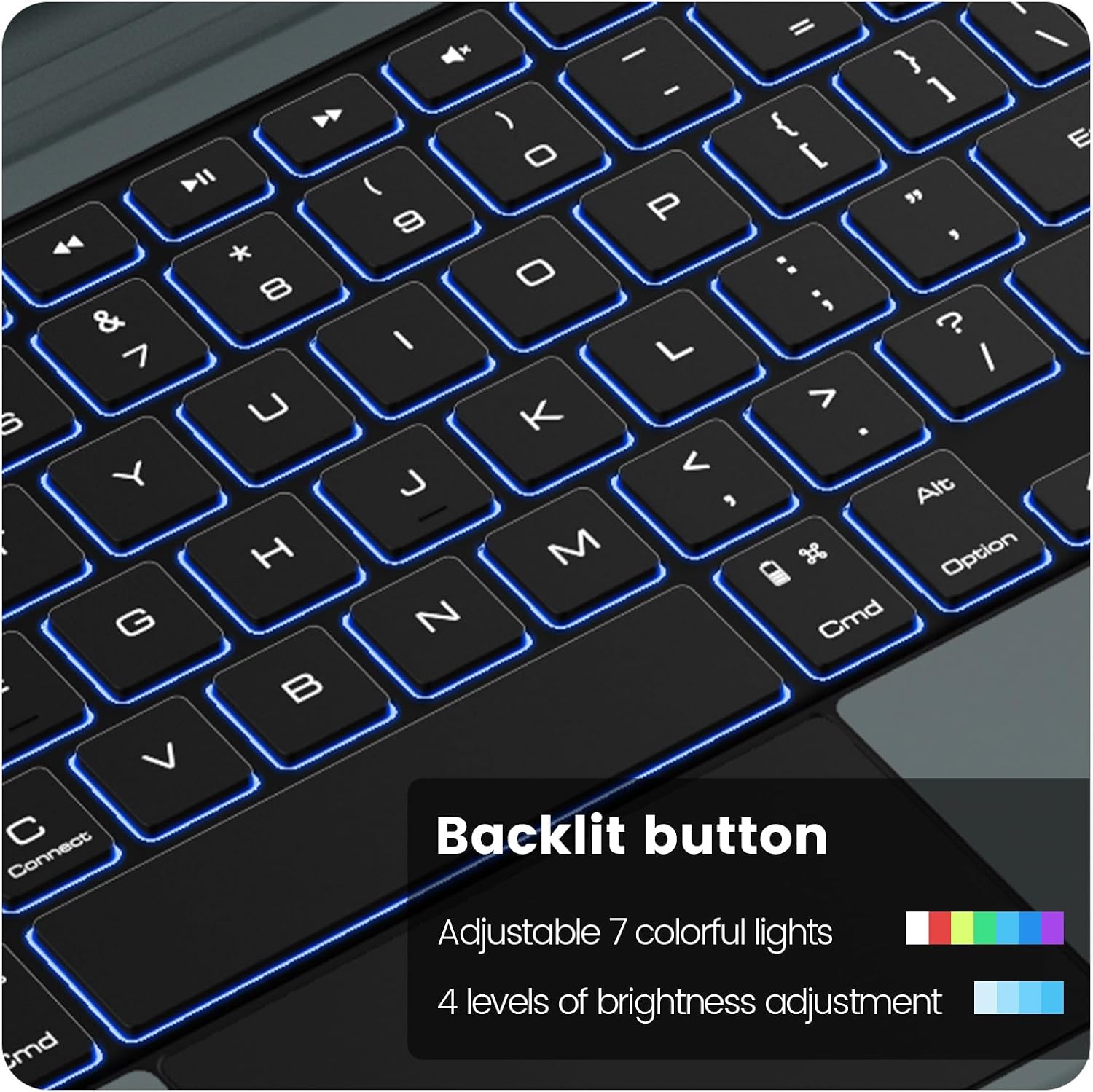
- Adjust Backlight Brightness: Press the Backlight Key (often indicated by a sun icon) to cycle through brightness levels.
- Change Backlight Color: Press Fn + Backlight Key to cycle through available backlight colors.
- Check Battery Level: Press Fn + Right Alt. The battery indicator light will flash to show the remaining charge (e.g., 4 flashes for 75-100%).
- Shortcut Keys: Utilize the dedicated function keys (F1-F12) for media control, volume adjustment, screen lock, and other quick actions.
- Trackpad Gestures: The trackpad supports standard Apple magic keyboard gestures for sliding, scrolling, returning, and switching applications.


5.2 Magnetic Stand and Viewing Angles
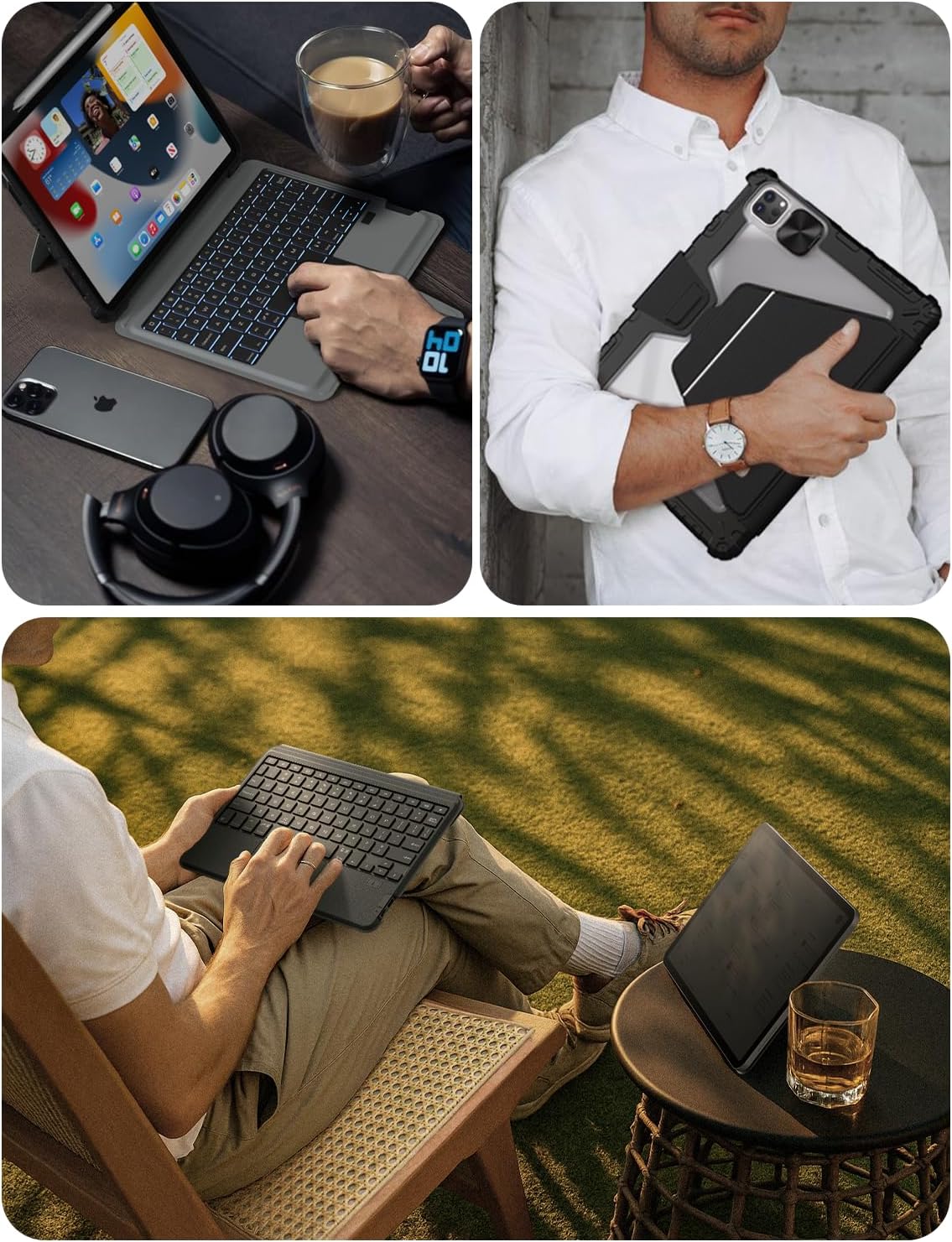
The integrated magnetic stand allows for flexible viewing and typing positions. Simply unfold the stand from the back of the case to prop up your iPad. The stand is designed to be adjustable from 0 to 180 degrees, providing optimal angles for various tasks such as typing, drawing, or watching videos.

5.3 Magnetic Wall Mount Usage
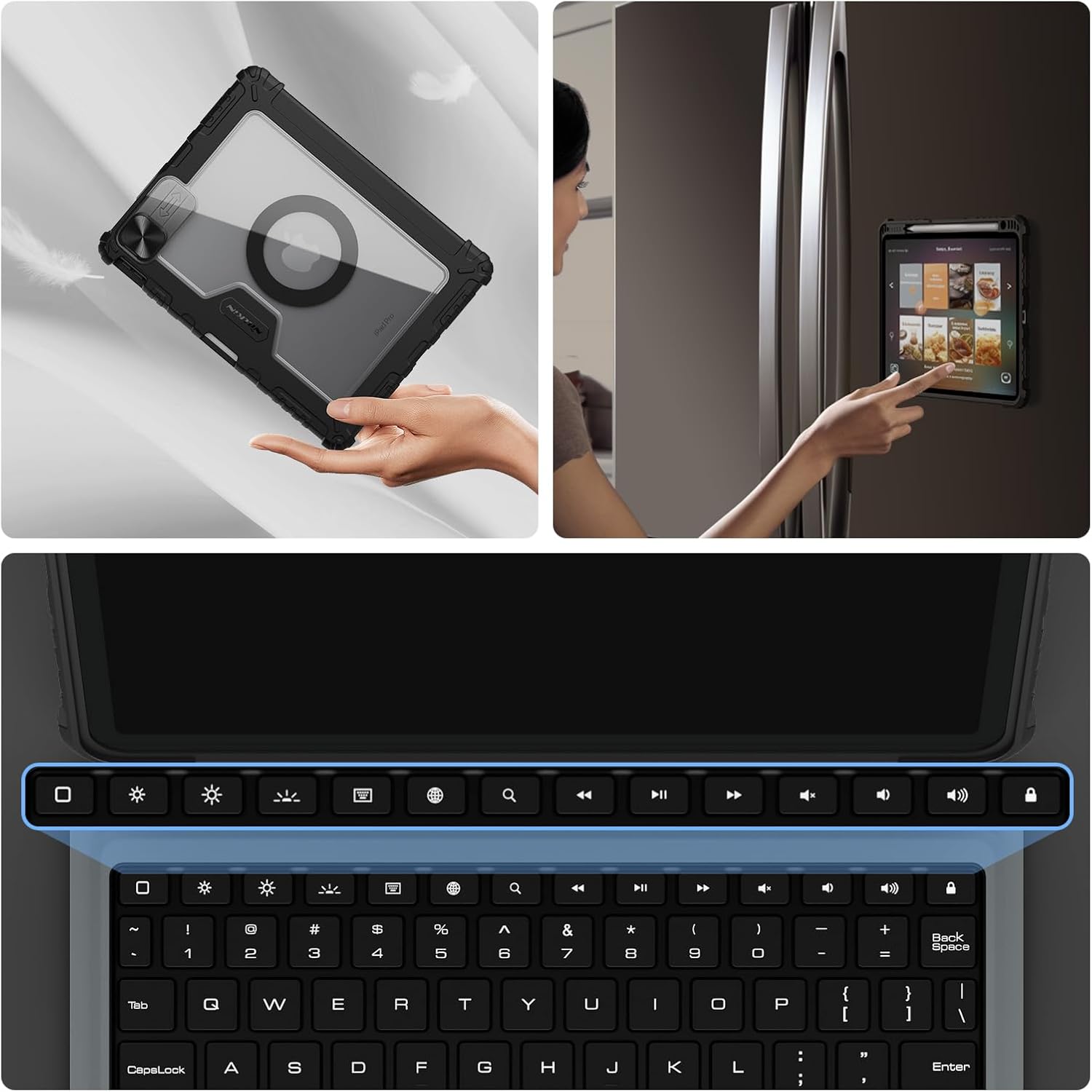
The included Nillkin Snaphold Ultra magnetic wall mount allows you to attach your iPad to various metal surfaces, such as refrigerators or magnetic wall panels. This feature is ideal for hands-free viewing in kitchens or workshops.
- Ensure the magnetic wall mount is securely attached to your desired surface.
- Align the magnetic ring on the back of your iPad case with the magnetic wall mount.
- The strong magnets will secure your iPad in place.


5.4 Camera Protection
The case features a sliding lens cover to protect your iPad's camera from scratches and dust. Slide the cover to expose the camera when needed and slide it back to cover for protection and privacy.

5.5 Apple Pencil Holder
A dedicated slot is provided for your Apple Pencil, allowing it to be securely stored and charged when not in use.
6. Maintenance
To ensure the longevity and optimal performance of your Nillkin Keyboard Case:
- Cleaning: Wipe the case and keyboard with a soft, damp cloth. Avoid harsh chemicals or abrasive materials.
- Magnetic Components: Keep magnetic surfaces clean and free of debris to maintain strong adhesion.
- Storage: When not in use for extended periods, store the keyboard case in a cool, dry place.
7. Troubleshooting
7.1 Keyboard Not Connecting via Bluetooth
- Ensure the keyboard is powered on and fully charged.
- Verify Bluetooth is enabled on your iPad.
- Forget the device in your iPad's Bluetooth settings and attempt to re-pair.
- Restart both your iPad and the keyboard.
7.2 Backlight Not Working
- Ensure the keyboard has sufficient battery charge.
- Press the Backlight Key to cycle through brightness levels.
- Press Fn + Backlight Key to cycle through colors.
7.3 Trackpad Not Responding
- Ensure the trackpad is enabled by pressing Fn + Left Alt.
- Check for any debris on the trackpad surface.
- Restart the keyboard and iPad.
8. Specifications
| Feature | Detail |
|---|---|
| Package Dimensions | 13.46 x 10.87 x 1.54 inches |
| Item Weight | 2.59 pounds |
| Batteries | 1 Lithium Ion battery required (included) |
| Compatible Devices | For iPad Pro 13-inch M5 2025 / M4 2024 |
| Connectivity Technology | Bluetooth |
| Keyboard Description | Ergonomic Backlit Keyboard |
| Special Features | Backlit, Customizable Display Keys, Magnetic Keyboard, Magnetic Kickstand Holder, Split Keyset Design, Hotkeys and Media Keys, Detachable Keyboard, Foldable, Trackpad |
| Color | Deep Black |
| Material | Plastic |
9. Warranty and Support
Your Nillkin iPad Pro 13-inch Keyboard Case comes with a comprehensive 12-month warranty. Nillkin also provides lifetime support and personalized assistance for its products.
For further assistance or to contact support, please visit the official Nillkin Store or refer to the contact information provided with your product packaging.
Official Nillkin Store: Nillkin Store on Amazon


