
1. Introduction
This manual provides detailed instructions for the setup, operation, and maintenance of your KKnoon E25872BL WiFi Desktop Clock Calendar. This device offers real-time display of time, date, day, indoor temperature, and humidity, along with smart features like Wi-Fi connectivity and app control.

Image: KKnoon WiFi Desktop Clock with icons representing its features: WiFi, temperature, humidity, alarm, accurate time, LED display, snooze, 5-level brightness, calendar, 12/24H switch.
2. Safety Information
- Do not expose the device to extreme temperatures, direct sunlight, or high humidity.
- Avoid dropping or subjecting the device to strong impacts.
- Use only the provided USB power cable or a compatible 5V/1A power adapter.
- Keep out of reach of children.
- Do not attempt to disassemble or repair the device yourself. Contact customer support for assistance.
3. Package Contents
Verify that all items are present in the package:
- KKnoon WiFi Desktop Clock Calendar
- User Manual
- USB Power Cord

Image: Contents of the KKnoon WiFi Desktop Clock package: clock, manual, USB cable.
4. Product Overview
4.1. Front Display
The large LED display shows the current time, date, day of the week, indoor temperature, and humidity. Icons indicate Wi-Fi connection status, alarm activation, and snooze mode.

Image: KKnoon WiFi Desktop Clock front view showing time, date, temperature, and humidity.
4.2. Back Panel and Ports
The back of the clock features a foldable stand for desktop use, hanging holes for wall mounting, a backup battery compartment, and a DC 5V/2A power input port.

Image: Back view of KKnoon WiFi Desktop Clock with stand, hanging holes, and power input.
5. Setup
5.1. Power Connection
Connect the provided USB power cord to the DC 5V/2A input port on the back of the clock and plug the other end into a compatible USB power adapter (not included). The clock will power on automatically.

Image: KKnoon WiFi Desktop Clock showing USB power and battery backup for power saving. The clock can operate in a power-saving mode or be continuously powered via USB.
5.2. App Installation and Wi-Fi Connection
- Scan the QR code in the manual or search for "Tuya Smart" in your app store to download the dedicated application.
- Open the app and register an account or log in as a guest.
- On the clock, long-press the Wi-Fi button (usually on the side) for 3 seconds until the Wi-Fi icon flashes, indicating pairing mode.
- In the app, tap the "+" icon to add a device.
- Ensure Bluetooth is on and select the 2.4GHz Wi-Fi network to add the device.
- Enter your 2.4GHz Wi-Fi password (manual input may not be necessary if already connected).
- Follow the on-screen prompts to complete the connection.
- Once connected, you can view the temperature and humidity of the device location at any time through the app.

Image: Step-by-step guide for connecting the clock to the mobile app via QR code and Wi-Fi. Download the app from https://smartapp.tuya.com/smartlife.
6. Operating Instructions
6.1. Basic Display Functions
Upon successful Wi-Fi connection, the clock will automatically synchronize time, date, and day. It continuously displays indoor temperature and humidity.
6.2. Setting Alarms
The clock supports two alarms with a 5-minute snooze function. Refer to the specific buttons on your device or the mobile app for detailed alarm setting procedures. The alarm sound duration is 5 minutes.

Image: KKnoon WiFi Desktop Clock showing dual alarm and 5-minute snooze feature.
6.3. Brightness Adjustment
The display brightness can be adjusted manually through 4 levels. The clock also features a light sensor that automatically dims the display at night for comfortable viewing.

Image: KKnoon WiFi Desktop Clock demonstrating 5-level dimming options (L1-L5).
6.4. Temperature Unit Switching
To switch between Celsius (°C) and Fahrenheit (°F), press and hold the "UP LEVEL" button for 2 seconds. The temperature unit on the display will change accordingly.
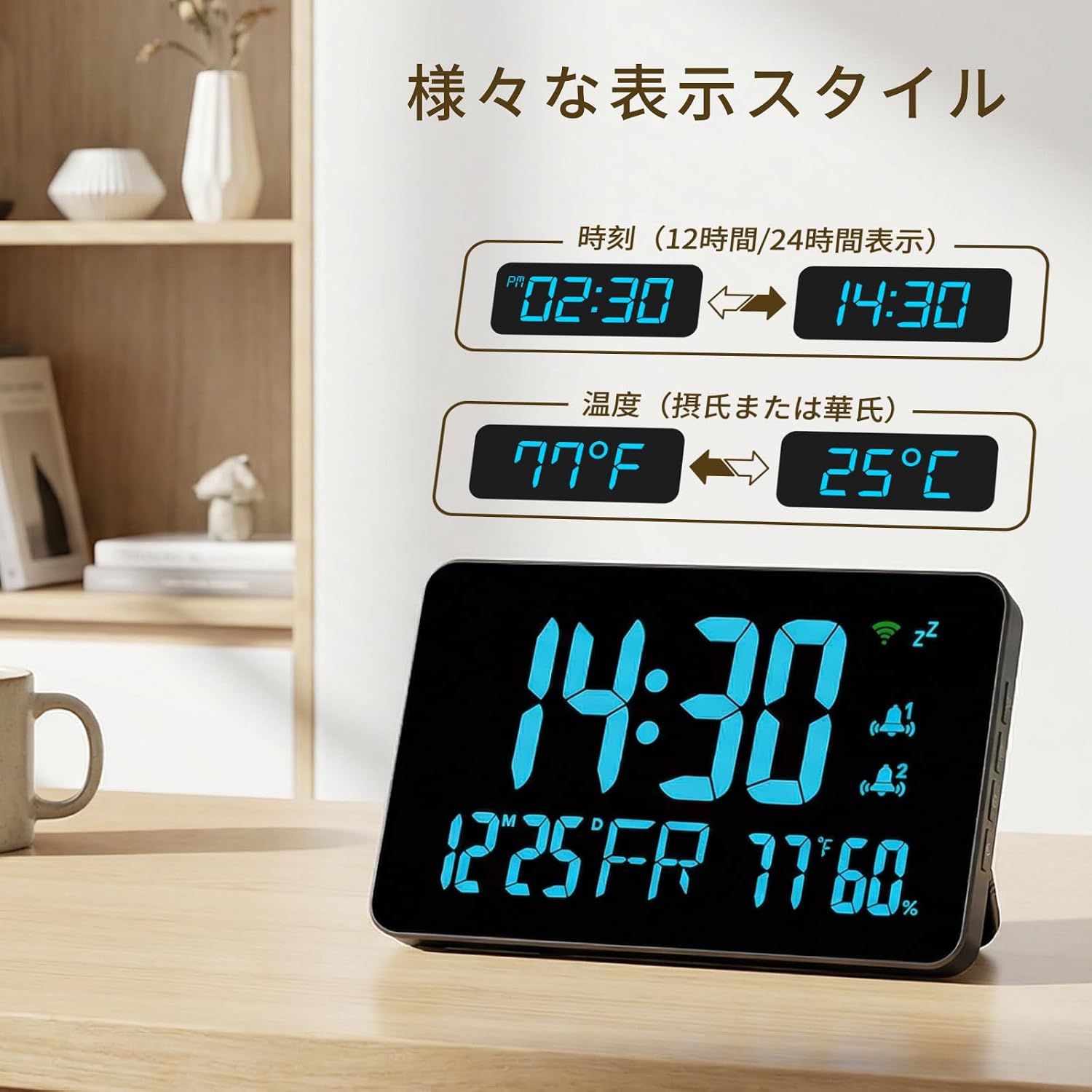
Image: KKnoon WiFi Desktop Clock displaying time format and temperature unit options.
6.5. Time Format Switching
The clock supports both 12-hour and 24-hour time formats. This setting can typically be adjusted via the mobile app or specific buttons on the device.

Image: KKnoon WiFi Desktop Clock illustrating 12-hour and 24-hour time format switching.
6.6. Remote Monitoring via App
The Tuya Smart app allows you to remotely monitor the temperature and humidity, view historical data graphs, and set high-temperature alerts to ensure the safety of your environment.

Image: User remotely controlling the KKnoon WiFi Desktop Clock via a mobile app.
7. Maintenance
- Clean the device with a soft, dry cloth. Do not use abrasive cleaners or solvents.
- Ensure the device is unplugged before cleaning.
- Avoid blocking the ventilation holes on the back of the device.
8. Troubleshooting
| Problem | Possible Cause | Solution |
|---|---|---|
| Display is blank | No power or power saving mode active. | Check USB power connection. If using battery, ensure it's charged or replace. Press any button to wake from power saving mode. |
| Wi-Fi connection fails | Incorrect Wi-Fi password, 5GHz network, or device too far from router. | Ensure correct 2.4GHz Wi-Fi password. Move device closer to router. Restart the clock and try pairing again. |
| Time is incorrect | Wi-Fi not connected or synchronization issue. | Verify Wi-Fi connection. If connected, try restarting the device to force synchronization. |
| Temperature/Humidity readings seem inaccurate | Sensor obstruction or placement near heat/cold sources. | Ensure sensors are not blocked. Relocate the device away from direct sunlight, vents, or other temperature-influencing objects. |
9. Specifications
| Feature | Detail |
|---|---|
| Brand | KKnoon |
| Model Number | E25872BL |
| Power Source | Electric (USB DC 5V/1A) |
| Display Type | Digital LED |
| Connectivity | Wi-Fi (2.4GHz) |
| Functions | Time, Date, Day, Temperature, Humidity, Dual Alarms, Snooze, 4-level Brightness Adjustment, Auto-dimming, 12/24H Format, °C/°F Switch, App Remote Monitoring |
| Dimensions | Approx. 19cm (Width) x 12cm (Height) |
| Color | Black |

Image: KKnoon WiFi Desktop Clock with dimensions of 19cm width and 12cm height.
10. Warranty and Support
For warranty information or technical support, please refer to the contact details provided with your purchase or visit the official KKnoon website. Keep your purchase receipt for warranty claims.