
VIXOLYN H03
Contents
VIXOLYN H03 Air Tracker Instruction Manual
Model: H03
1. Introduction
The VIXOLYN H03 Air Tracker is a compact item finder designed to help you locate your personal belongings. It integrates seamlessly with the Apple Find My network, allowing iOS users to track items such as keys, luggage, backpacks, and more. This manual provides detailed instructions for setup, operation, and maintenance of your VIXOLYN H03 Air Tracker.
2. Package Contents
Verify that all items are present in your package:
- VIXOLYN H03 Air Tracker (1 unit)
- Silicone Protective Case (1 unit)
- Keychain (1 unit)
- Lithium Metal Battery (pre-installed)
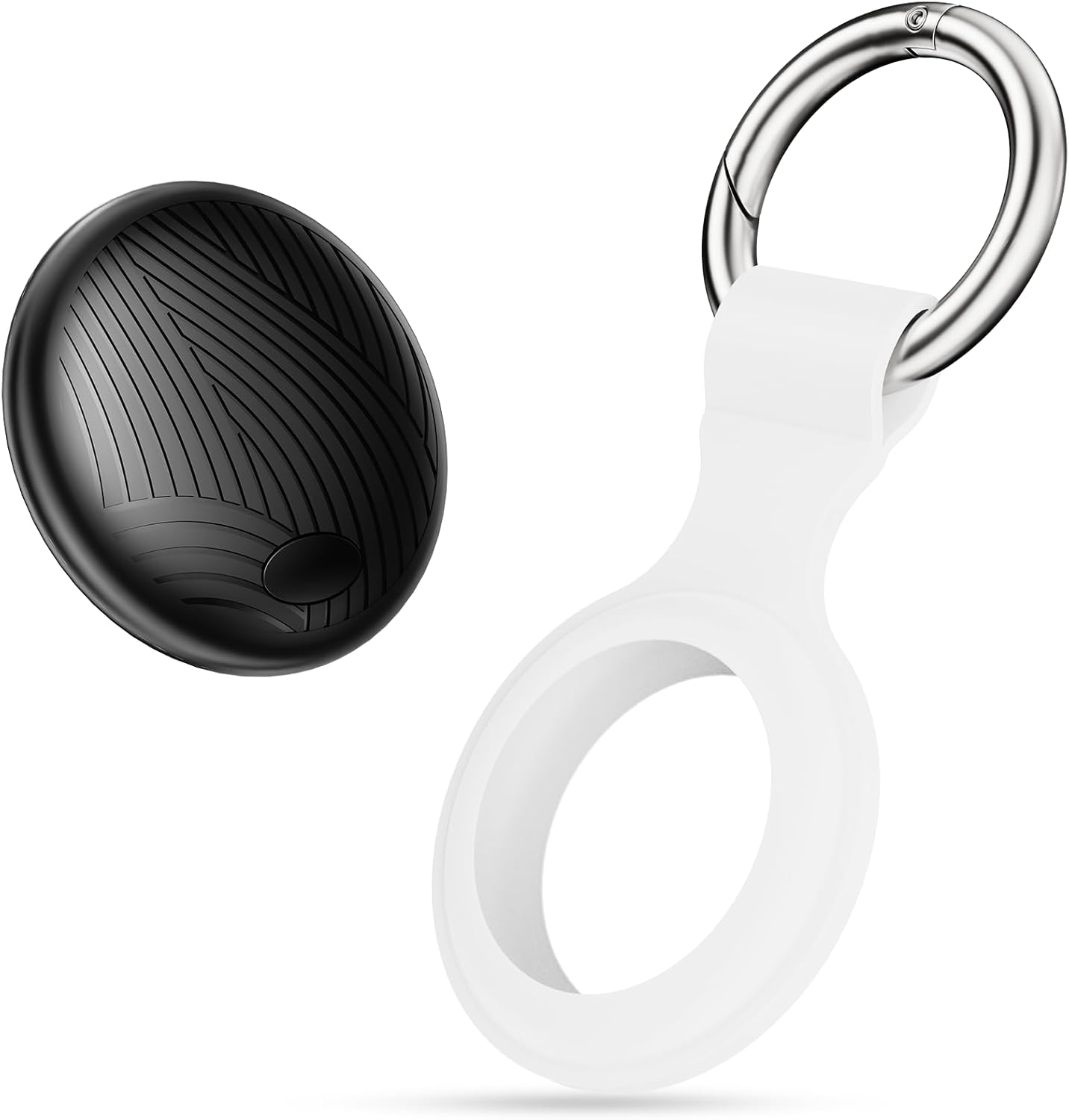
Image 1: VIXOLYN H03 Air Tracker, silicone protective case, and keychain.
3. Setup Guide
The VIXOLYN H03 Air Tracker is compatible exclusively with Apple iOS devices and the Apple Find My app.
3.1 Initial Pairing with Apple Find My
- Ensure Bluetooth is enabled on your iOS device.
- Open the Find My app on your iOS device.
- Navigate to the Items tab.
- Tap the + icon, then select Add Other Item.
- Turn on your VIXOLYN H03 Air Tracker by pressing its power button (if applicable, or ensure it's active). The device will enter pairing mode.
- Your iOS device will detect the "Finder tag." Tap Connect.
- Follow the on-screen prompts to name your item and assign an emoji.
- Confirm the connection. Your VIXOLYN H03 Air Tracker is now successfully paired and ready for use.

Image 2: Visual guide for connecting the VIXOLYN H03 Air Tracker to the Apple Find My app.
4. Operating Instructions
4.1 Finding Nearby Items
When your VIXOLYN H03 Air Tracker is within Bluetooth range (approximately 50 meters or 164 feet), you can make it play a sound to help you locate it.
- Open the Find My app on your iOS device.
- Select the VIXOLYN H03 Air Tracker from your list of items.
- Tap Play Sound. The tracker will emit a loud sound (up to 100 decibels) to assist in locating it, even if it's hidden in another room.

Image 3: Using the 'Play Sound' feature to locate a nearby VIXOLYN H03 Air Tracker.
4.2 Finding Far Away Items
If your VIXOLYN H03 Air Tracker is outside of Bluetooth range, you can still locate it using the Apple Find My network.
- Open the Find My app on your iOS device.
- Select the VIXOLYN H03 Air Tracker from your list of items.
- The app will display the item's last known location on a map, utilizing the global Apple Find My network.
- You can get directions to the item's location directly from the app.

Image 4: Tracking a VIXOLYN H03 Air Tracker using the Apple Find My network map.
4.3 Left-Behind Reminders
Receive notifications on your iOS device if you accidentally leave your tracked item behind.
- In the Find My app, select your VIXOLYN H03 Air Tracker.
- Enable the "Notify When Left Behind" feature in the item's settings.
- You will receive an alert on your phone within approximately 10 minutes if the tracker moves out of Bluetooth range, indicating you've left the item behind.

Image 5: Example of a 'Left-Behind' notification on an iOS device.
4.4 Privacy and Security
The VIXOLYN H03 Air Tracker is MFi certified, ensuring that your location data and history are not stored publicly. All location information is anonymous and encrypted to protect your privacy.
4.5 Waterproof Design
The VIXOLYN H03 Air Tracker features an IP67 rating, making it resistant to rain and splashes. This allows for reliable tracking in various environments.

Image 6: VIXOLYN H03 Air Tracker demonstrating its waterproof capability.
4.6 Versatile Attachment
The included silicone protective case and keychain allow for easy attachment to various items:
- Keys
- Luggage
- Backpacks
- Pet collars

Image 7: Examples of VIXOLYN H03 Air Tracker usage on keys, pets, backpacks, and luggage.
5. Maintenance
5.1 Battery Replacement
The VIXOLYN H03 Air Tracker uses a replaceable Lithium Metal battery (CR2032, typically). When the battery level is low, you may receive a notification on your iOS device. To replace the battery:
- Carefully open the tracker's casing. Refer to the product's physical design for the battery compartment access.
- Remove the old CR2032 battery.
- Insert a new CR2032 battery with the positive (+) side facing up.
- Close the casing securely to maintain its waterproof seal.
Note: Dispose of used batteries responsibly according to local regulations.
5.2 Cleaning
To clean your VIXOLYN H03 Air Tracker, wipe it with a soft, damp cloth. Avoid using harsh chemicals or abrasive materials, as these can damage the device or its waterproof seal.
6. Troubleshooting
- Tracker not found during setup:
- Ensure Bluetooth is enabled on your iOS device.
- Make sure the tracker's battery is not depleted.
- Try restarting your iOS device and the tracker.
- Ensure you are selecting "Add Other Item" in the Find My app. - Sound not playing or too quiet:
- Check the tracker's battery level in the Find My app.
- Ensure the tracker is within Bluetooth range of your iOS device.
- Environmental noise can affect audibility; try moving to a quieter area. - "Notify When Left Behind" not working:
- Verify that the feature is enabled in the Find My app settings for your tracker.
- Ensure your iOS device has location services and notifications enabled for the Find My app. - Inaccurate location:
- Location accuracy depends on the density of the Apple Find My network. In areas with fewer Apple devices, location updates may be less frequent or precise.
- Ensure your iOS device has a stable internet connection.
7. Specifications
| Feature | Specification |
|---|---|
| Model Number | H03 |
| Dimensions | 1.26 x 0.35 x 3.46 inches |
| Item Weight | 0.37 ounces |
| Connectivity | Bluetooth |
| Battery Type | 1 Lithium Metal battery (CR2032, included) |
| Water Resistance | IP67 Rated |
| Compatible Devices | iOS devices with Apple Find My app |
| Material | Silicone Protective Case |
8. Warranty and Support
For warranty information and technical support, please refer to the documentation included with your purchase or contact VIXOLYN customer service through the retailer where the product was purchased. Keep your proof of purchase for warranty claims.
Documents and downloads
Ask a question about this manual
Ask about setup, troubleshooting, compatibility, parts, safety, or missing instructions. Manuals+ will review the question and use this page’s manual context to help answer it.