
Introduction
This manual provides essential information for the safe and efficient operation of your XBENDON M1 MP3 Player. Please read it thoroughly before using the device and retain it for future reference.
The XBENDON M1 is a versatile portable media player featuring Android OS, Bluetooth, and Wi-Fi connectivity. It is designed for music playback, video viewing, e-books, educational applications, and games.
Package Contents
Upon unboxing, ensure all items listed below are present:
- 1 x XBENDON M1 MP3 Player
- 1 x USB-C Charging Cable
- 1 x User Manual (this document)

Image: The XBENDON M1 MP3 Player shown with its included USB-C charging cable and user manual.
Device Overview
Familiarize yourself with the physical components of your M1 MP3 Player.

Image: Front and back view of the XBENDON M1 MP3 Player, highlighting its compact design and volume controls.
- Display: 4-inch touch screen for navigation and content display.
- Volume Buttons: Located on the side for adjusting audio levels.
- Power Button: Used to turn the device on/off or put it to sleep.
- USB-C Port: For charging and data transfer.
- 3.5mm Audio Jack: For connecting wired headphones.
- MicroSD Card Slot: For expanding storage capacity up to 512GB.
Setup
1. Initial Charge
Before first use, fully charge the device. Connect the provided USB-C cable to the player and a compatible USB power adapter (not included) or a computer's USB port. The charging indicator will show progress.
2. Power On/Off
Press and hold the power button on the side of the device until the screen illuminates to power on. To power off, press and hold the power button, then select "Power off" from the options. A short press will put the device to sleep or wake it up.
3. Wi-Fi Connection
- From the home screen, navigate to Settings.
- Select Network & Internet, then Wi-Fi.
- Toggle Wi-Fi On.
- Select your desired network from the list and enter the password if prompted.
4. Bluetooth Pairing
- From the home screen, navigate to Settings.
- Select Connected devices, then Bluetooth.
- Toggle Bluetooth On.
- Ensure your Bluetooth headphones or speaker are in pairing mode.
- Select your device from the list of available devices to pair.
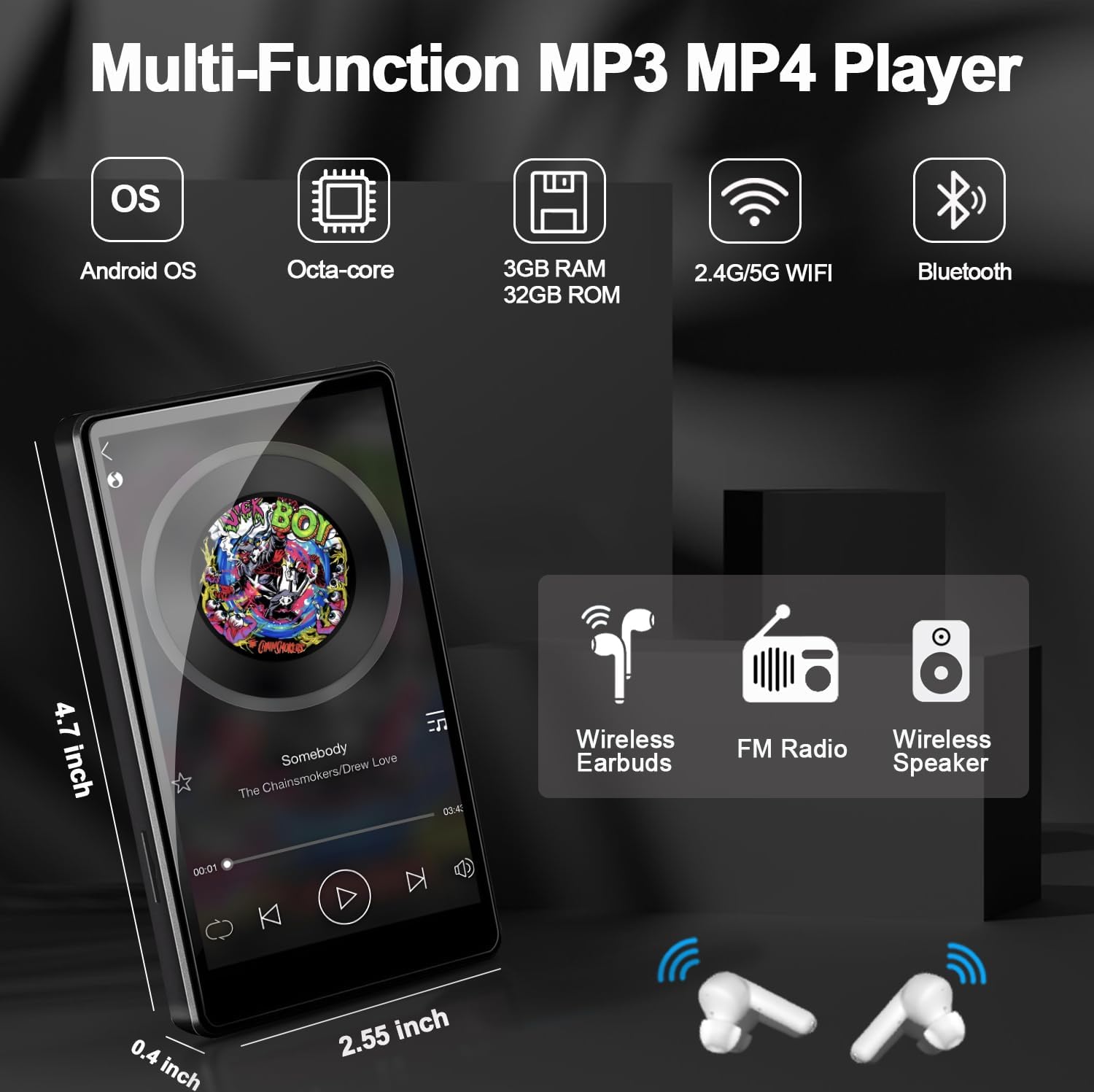
Image: The XBENDON M1 MP3 Player displaying a music interface, with wireless headphones and a speaker icon, illustrating Bluetooth connectivity.
5. Expanding Storage (MicroSD Card)
The device supports MicroSD cards up to 512GB. Gently insert a compatible MicroSD card into the designated slot until it clicks into place. The device will recognize the new storage, allowing you to store more music, videos, and apps.
Operating Instructions
1. Navigation
The 4-inch touch screen allows for intuitive navigation. Swipe left/right to browse home screens, tap icons to open applications, and use the navigation bar at the bottom for Back, Home, and Recent Apps functions.
2. Music Playback
Use the pre-installed music player app or download your preferred streaming service (e.g., Spotify, Amazon Music) from the Google Play Store. The device supports various audio formats including MP3, OGG, FLAC, AAC, WAV, WMA, APE, MP4, MOV.

Image: The XBENDON M1 MP3 Player showing a music playback screen with options for sequential play, loop, shuffle, and equalizer adjustment, set against a colorful equalizer graphic.
3. Video Playback
The device supports video playback. Transfer video files to the device's internal storage or MicroSD card, or stream from supported apps. Video formats supported include MP4, MKV, MPG, MOV, 3GP, FLV, etc.

Image: The XBENDON M1 MP3 Player displaying various app icons and a video playback screen, illustrating its multimedia capabilities.
4. Parental Control Mode (iWawa App)
The iWawa app is pre-installed for parental control. This mode allows you to:
- Hand-pick content for your children.
- Control screen time.
- Ensure safe browsing.
- Set educational goals.
- Adjust settings as your child grows.

Image: The XBENDON M1 MP3 Player displaying the iWawa parental control interface, showing options for managing content, applications, websites, and screen time.
5. Downloading Applications (GMS Certified)
As a GMS certified device, you can download and install a wide range of applications from the Google Play Store, including social media, educational tools, and entertainment apps.
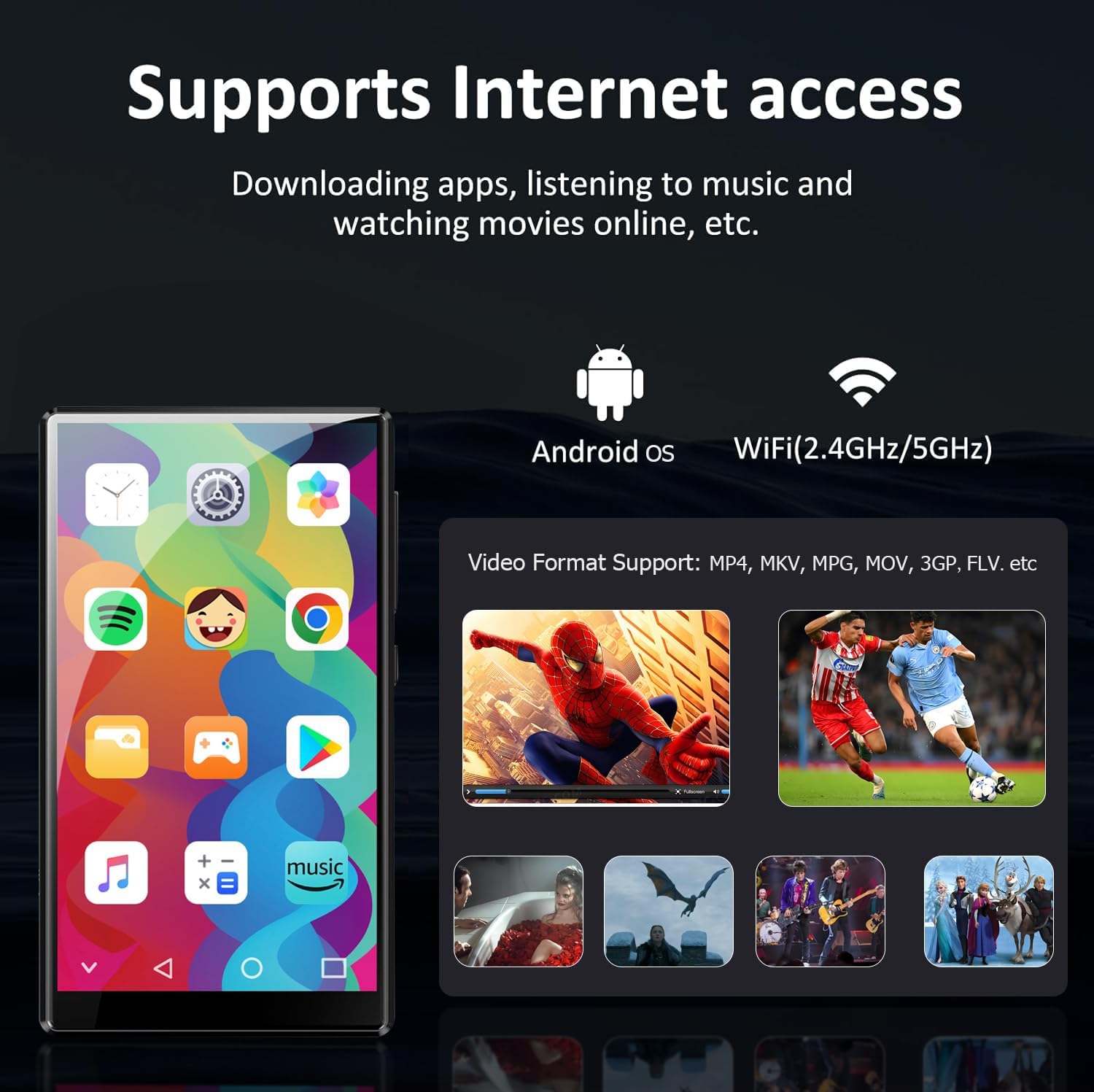
Image: The XBENDON M1 MP3 Player displaying a home screen filled with various application icons, including Spotify, YouTube, and the Google Play Store, indicating its GMS certification.
Maintenance
1. Cleaning
Wipe the screen and body with a soft, dry, lint-free cloth. Avoid using harsh chemicals or abrasive materials that could damage the device.
2. Battery Care
To prolong battery life, avoid extreme temperatures and do not allow the battery to fully discharge frequently. Charge the device regularly.
3. Software Updates
Periodically check for software updates in the device settings to ensure optimal performance and access to the latest features.
Troubleshooting
| Issue | Possible Solution |
|---|---|
| Device does not power on. | Ensure the device is fully charged. Press and hold the power button for 10-15 seconds to perform a forced restart. |
| Cannot connect to Wi-Fi. | Check if Wi-Fi is enabled in settings. Verify the Wi-Fi password. Restart your router and the MP3 player. |
| Bluetooth device not pairing. | Ensure Bluetooth is enabled on both devices and they are in pairing mode. Move devices closer together. Restart both devices. |
| Apps are slow or freezing. | Close unused apps. Clear app cache in settings. Restart the device. Ensure sufficient storage space. |
| MicroSD card not recognized. | Ensure the card is inserted correctly. Try reinserting the card. Test with another compatible MicroSD card. |
Specifications
| Feature | Detail |
|---|---|
| Model | M1 |
| Operating System | Android OS |
| RAM | 3GB |
| Internal Storage (ROM) | 32GB |
| Expandable Storage | Up to 512GB (Micro SD, Micro SDHC, Micro SDXC) |
| Screen Size | 4 Inches |
| Connectivity | 5G/2.4G Wi-Fi, Bluetooth (two-way), USB-C, Aux |
| Special Features | Built-In Speaker, Equalizer, FM Radio, Touch Screen, Video Playback, GMS Certified, Parental Control (iWawa) |
| Product Dimensions | 0.6 x 2.5 x 4.2 inches |
| Item Weight | 8.4 ounces |
| Battery | 1 Lithium Polymer battery (included) |
Warranty and Support
For warranty information and technical support, please refer to the official XBENDON website or contact customer service through your purchase platform. Keep your proof of purchase for warranty claims.
Additional protection plans may be available for purchase separately. Please check with your retailer for details.