
1. Introduction
This manual provides detailed instructions for the installation, operation, and maintenance of your Volam 5.5-inch Wireless CarPlay/Android Auto Motorcycle Display with 2K+1080P Dual Dashcam. Please read this manual thoroughly before using the product to ensure proper function and safety.

Figure 1: Volam 5.5-inch Motorcycle Display with CarPlay Interface
2. Product Components
The package includes the following items:
- 5.5-inch Motorcycle CarPlay Display
- 2K Front Camera
- 1080P Rear Camera
- Type-C Data Cable
- Mounting Screws (x4)
- 64GB Memory Card
- Power Cord
- Wired Remote Control
- Hex Key
- Mounting Bracket
- Phillips Screwdriver
- Instruction Manual

Figure 2: Package Contents
3. Safety Information
Always prioritize safety when installing and operating this device. Ensure all connections are secure and wiring is properly routed to avoid interference with motorcycle controls. The device is IP67 waterproof, meaning it is protected against dust and temporary immersion in water. However, avoid prolonged submersion or high-pressure water jets.
4. Setup & Installation
4.1 Mounting the Display Unit
The display unit is designed for handlebar mounting. Use the provided mounting bracket and hex key to securely attach the unit to your motorcycle's handlebar. Ensure the mount is tightened firmly to prevent movement during riding.
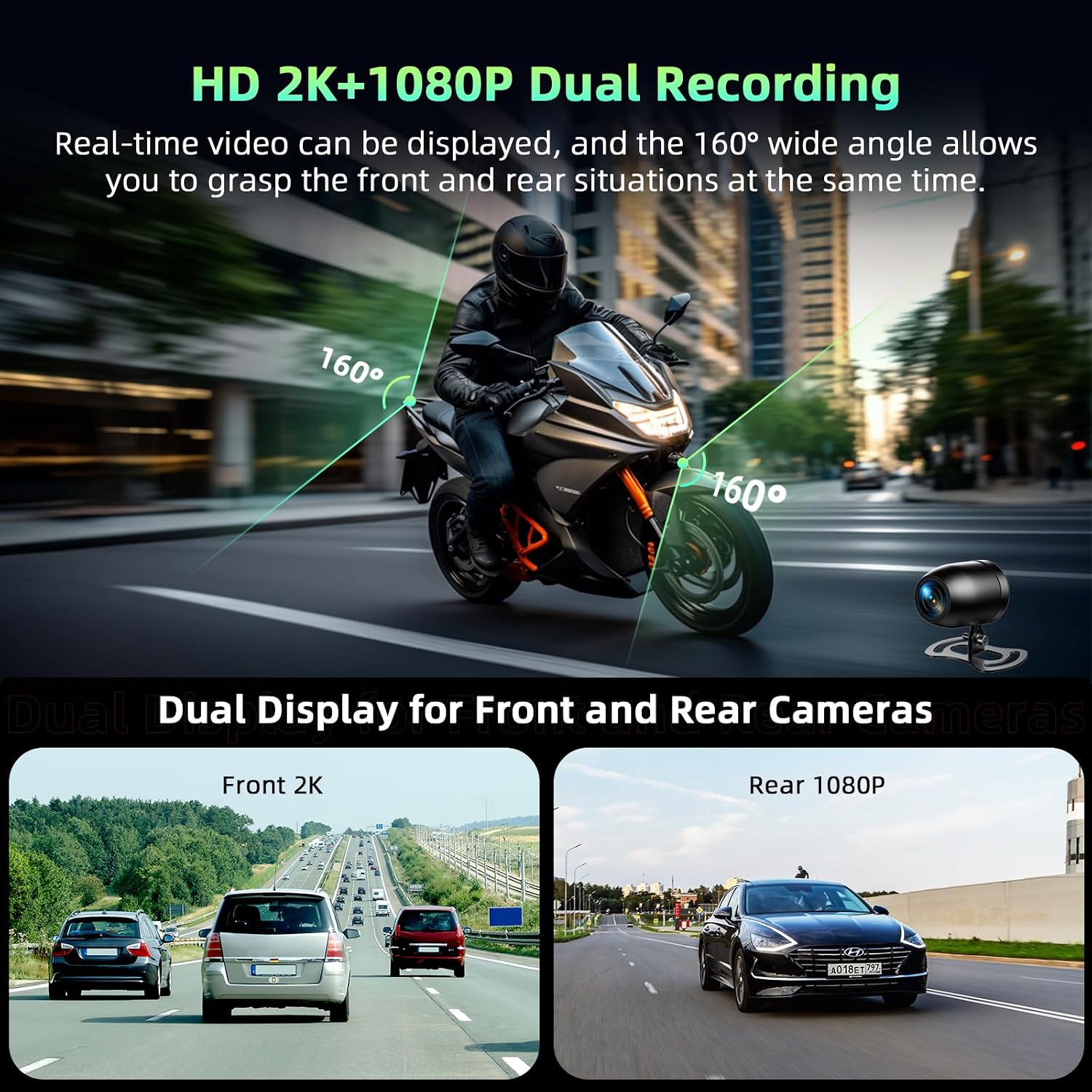
Figure 3: Handlebar Mounting of the Display Unit
4.2 Installing the Cameras
The system includes a 2K front camera and a 1080P rear camera. Identify suitable, unobstructed locations on your motorcycle for each camera. Use the adhesive pads and mounting screws to secure the cameras. Ensure the front camera is positioned to capture the road ahead clearly, and the rear camera provides a wide view of the area behind your motorcycle.

Figure 4: Front and Rear Camera Placement
4.3 Wiring Connections
Connect the power cord, front camera, rear camera, and wired remote control to the main display unit. The power cord has three wires: yellow (ACC) to the ignition, red (BAT) to the positive terminal of the battery, and black (GND) to the negative terminal of the battery. Ensure all connections are tight and waterproof. Route cables carefully to avoid pinching or interference with moving parts.

Figure 5: Wiring Diagram
4.4 Remote Control Installation
Attach the wired remote control to a convenient location on your handlebar using the provided clamps and screws. This allows for easy access to key functions without taking your hands off the grips.

Figure 6: Wired Remote Control Installation
5. Operating Instructions
5.1 Powering On/Off
Once correctly wired, the device will power on automatically with your motorcycle's ignition. To power off, simply turn off your motorcycle's ignition.
5.2 Screen Interface Overview
The 5.5-inch IPS touch screen provides access to various functions. The main interface typically displays options for CarPlay, Android Auto, WiFi Video, and Audio Output, along with settings and camera views.
5.3 Wireless CarPlay & Android Auto Connection
To connect your smartphone wirelessly:
- Access the CarPlay or Android Auto screen on the display.
- Activate Wi-Fi and Bluetooth on your smartphone.
- Search for the device's Bluetooth name (e.g., "BTRX-XXXX") and connect.
- Confirm the connection on your smartphone.
- Wait a few seconds for the connection to stabilize. The CarPlay or Android Auto interface will then appear on the display.

Figure 7: CarPlay Connection Steps

Figure 8: Android Auto Connection Steps
5.4 Navigation
Once connected via CarPlay or Android Auto, you can use your smartphone's navigation applications directly on the display. The system provides advanced navigation without frequent map updates or additional fees.

Figure 9: Navigation Display
5.5 Music Playback
Enjoy your favorite music through compatible apps like LINE Music, Spotify, or Amazon Music via Bluetooth 5.0. The display allows for easy control of playback.

Figure 10: Music Playback Interface
5.6 Voice Assistant (Siri/Google)
Integrate with Siri or Google Assistant for hands-free control. Access navigation, make calls, listen to messages, and play music using voice commands, allowing you to focus on the road.

Figure 11: Voice Assistant Integration
5.7 Dual Dashcam Operation
The system features a 2K front camera and a 1080P rear camera for simultaneous dual-channel recording. This provides clear video footage for both front and rear views. The cameras utilize Dual Sony sensors for enhanced night vision, capturing details even in low-light conditions.
Figure 12: Dual Dashcam Recording
5.8 App Connection (Viidure)
Connect the display to your smartphone via Wi-Fi and the "Viidure" app to view, download, and share recorded videos. This allows for real-time viewing and convenient management of your footage.

Figure 13: Viidure App Connection
5.9 Wired Remote Control Functions
The wired remote control provides quick access to essential functions:
- Cycle Button: Short press to switch to the rear camera view. Long press (10 seconds) to stop recording.
- Home Button: Short press to switch between the home page, phone screen, and other display screens. Long press (3 seconds) to activate/deactivate rain mode.
- Phone Button: Short press to take a photo. Long press (3 seconds) to lock the current video file.
5.10 Screen Brightness Adjustment
The display is equipped with a high-sensitivity light sensor that automatically adjusts screen brightness according to the ambient environment, ensuring optimal visibility in various lighting conditions.

Figure 14: Automatic Brightness Adjustment
5.11 Rain Mode
In rain mode, the screen becomes untouchable to prevent accidental touches caused by raindrops, ensuring uninterrupted operation during wet weather. Activate/deactivate by long-pressing the Home button on the wired remote.

Figure 15: Rain Mode Functionality
6. Maintenance
6.1 Waterproofing
The device and cameras are IP67 waterproof, designed to withstand rain and splashes. Regularly clean the screen and camera lenses with a soft, damp cloth. Avoid using harsh chemicals or abrasive materials that could damage the surfaces.
6.2 SD Card Management
The included 64GB SD card supports seamless loop recording, automatically overwriting the oldest unlocked files when the card is full. Ensure important footage is locked or downloaded via the Viidure app to prevent accidental deletion. Periodically format the SD card (e.g., monthly) to maintain optimal performance and prevent data corruption.
7. Troubleshooting
- No Power: Check all power connections to the motorcycle battery (red to positive, black to negative, yellow to ignition). Ensure the battery terminals are clean and connections are secure.
- CarPlay/Android Auto Not Connecting: Ensure Wi-Fi and Bluetooth are enabled on your smartphone and the device. Try restarting both the display and your phone. Verify that your phone supports wireless CarPlay/Android Auto. Note: Huawei phones are not compatible with this device.
- Rear Camera Image Appears Mirrored: This can sometimes occur with certain camera settings. Check the device settings for an option to flip or mirror the rear camera image. If no such option exists, the camera may be designed for a specific mounting orientation.
- Loop Recording Not Overwriting Old Files: Ensure the loop recording function is enabled in the device settings. If the issue persists, the SD card may be faulty or require formatting. Back up any important data before formatting.
- Navigation Not Working/Location Issues: Ensure location services are enabled on your smartphone and granted permission to the navigation app.
- SD Card Missing (if applicable): While the product description states a 64GB SD card is included, if you find it missing, please contact customer support.
8. Specifications
| Feature | Specification |
|---|---|
| Brand | Volam |
| Model Number | 765463548833 |
| Connectivity Technology | Bluetooth, Wi-Fi |
| Controller Type | Android |
| Special Features | Wireless Apple CarPlay & Android Auto, Detachable 2K+1080P Dual Motorcycle Camera, Super Night Vision with Dual Sony Sensors, 5.5-inch HD IPS Touch Screen, IP67 Waterproof, WiFi & Loop Recording, GPS Navigation, Voice Assistant, Easy Installation |
| Compatible Devices | Smartphones with Wireless CarPlay/Android Auto |
| Connector Type | 3.5 mm Jack |
| Audio Output Mode | AUX, Bluetooth, Local Speaker, FM Transmitter |
| Surround Sound Channel Configuration | 2.0 |
| Video Encoding | H.264 or MPEG-4 |
| Color | Black |
| Output Power | 25 Watts |
| Wattage | 50 Watts |
| Number of Channels | 2 |
| Internet Application | Browser, Netflix, YouTube |
| Control Method | Application |
| Digital Media Format | Blu-ray (Note: This may refer to supported playback formats, not physical media.) |
9. Warranty & Support
Your Volam product comes with a 2-year warranty. For returns, a 30-day refund/replacement policy is available. For technical support or warranty claims, please refer to the contact information provided with your purchase or visit the official Volam store on Amazon. Customer service is available 24/7 with responses typically within 24 hours.
Each item has a unique code verified before shipment to ensure authenticity.