
1. Introduction
Thank you for purchasing the Ewin Bluetooth 5.3 Audio Transmitter & Receiver. This versatile 2-in-1 device allows you to wirelessly transmit audio from non-Bluetooth devices (like TVs, PCs, CD players) to Bluetooth headphones or speakers, or receive audio from Bluetooth-enabled devices (like smartphones, tablets) to non-Bluetooth speakers or car audio systems. It features the latest Bluetooth 5.3 technology for stable and high-quality audio transmission.
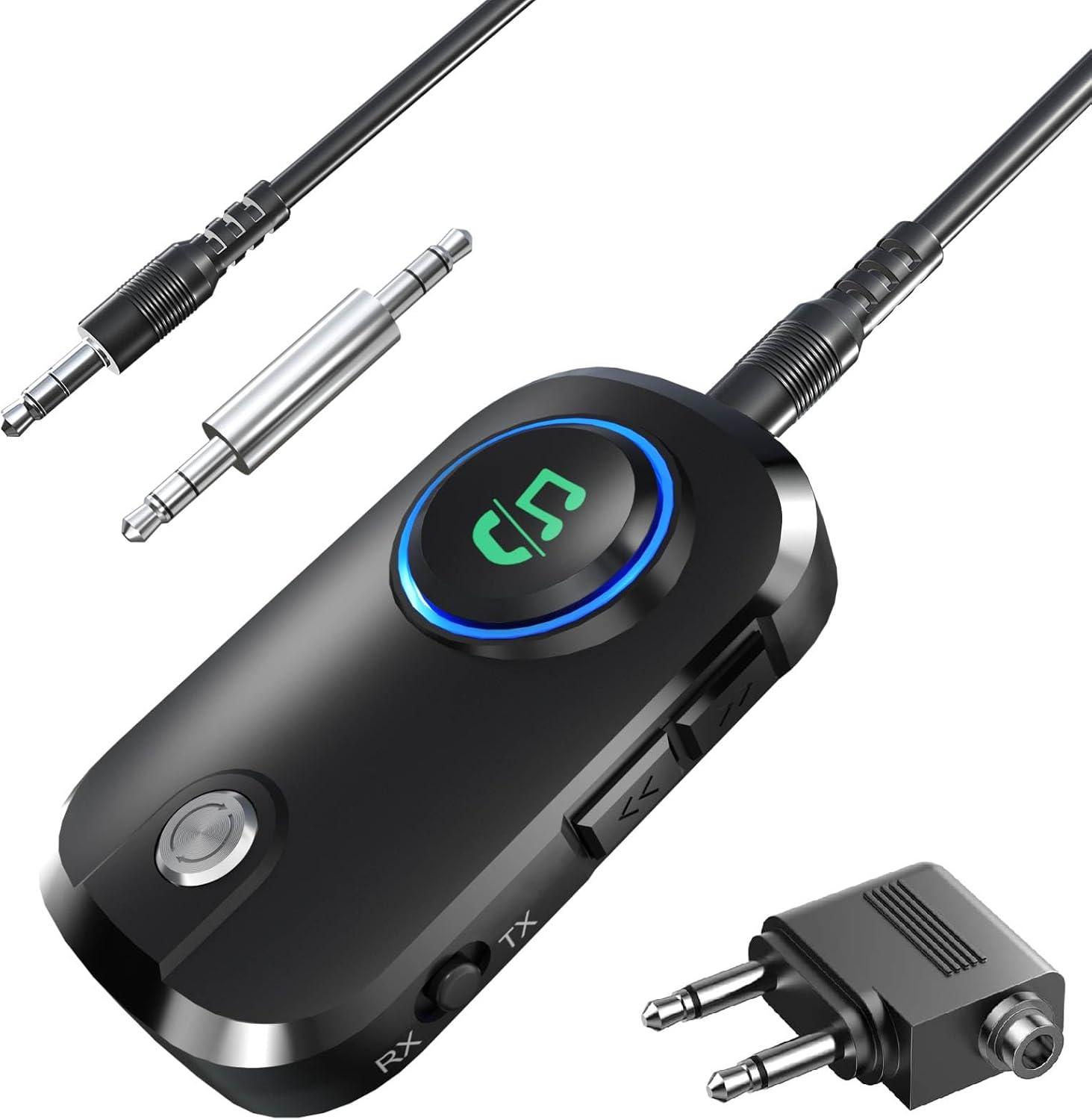
Image 1.1: The Ewin Bluetooth 5.3 Audio Transmitter & Receiver, showcasing its compact design and included 3.5mm audio cables and airplane adapter.
2. Product Overview
2.1 Key Features
- Latest Bluetooth 5.3 Technology: Ensures faster, more stable transmission and improved compatibility with a wireless range of up to 10 meters.
- 2-in-1 Functionality: Easily switch between Transmitter (TX) and Receiver (RX) modes to adapt non-Bluetooth devices for wireless audio.
- Extended Battery Life: Up to 19 hours of playback on a single charge, with the ability to use while charging.
- Dual Device Connection: Connects to two Bluetooth headphones/speakers simultaneously in TX mode, or two smartphones/tablets in RX mode.
- Ultra-Lightweight Design: Weighing only 14g, it is highly portable for travel and daily use.
- Hands-Free Calling: Built-in microphone supports hands-free calls and voice assistant functions for safe driving.
- High-Quality Audio: Supports AAC codec for clear, low-latency sound, enhancing your music, movie, and gaming experience.
2.2 Device Components

Image 2.1: Detailed diagram of the Ewin Bluetooth adapter, highlighting its various components including the power button, mode switch, 3.5mm AUX port, microphone, and control buttons.
- Answer/Play Button: Press to answer calls or play/pause music.
- Operation Status Indicator: LED light indicates device status (pairing, connected, charging).
- Microphone: For hands-free calling.
- Power Button: Press and hold to power on/off.
- Type-C Charging Port (5V): For charging the device.
- RX/TX Mode Switch: Slide to select Receiver (RX) or Transmitter (TX) mode.
- Next Track/Volume (+) Button: Short press for next track, long press for volume up.
- Previous Track/Volume (-) Button: Short press for previous track, long press for volume down.
- 3.5mm AUX Port: For connecting to audio devices via 3.5mm cable.
3. Setup and Pairing
3.1 Transmitter (TX) Mode Pairing
Use TX mode to transmit audio from non-Bluetooth devices (e.g., TV, PC, CD player) to Bluetooth headphones or speakers.

Image 3.1: Visual guide for connecting the Ewin adapter in TX mode, showing the mode switch, pairing indicator, and connection to headphones.
- Slide the mode switch on the side of the device to the TX position.
- Press and hold the power button for 3 seconds. The LED indicator will flash green rapidly, indicating the device is in pairing mode.
- Enable Bluetooth on your receiving device (headphones or speaker) and put it into pairing mode.
- Once pairing is successful, the LED on the Ewin device will turn solid green.
- Connect the Ewin device to your non-Bluetooth audio source (e.g., TV, CD player) using the provided 3.5mm audio cable.
- The device will automatically connect to the last paired device after power-on.
3.2 Receiver (RX) Mode Pairing
Use RX mode to receive audio from Bluetooth-enabled devices (e.g., smartphone, tablet) and play it through non-Bluetooth speakers or car audio systems.

Image 3.2: Visual guide for connecting the Ewin adapter in RX mode, showing the mode switch, pairing indicator, and connection to a speaker.
- Slide the mode switch on the side of the device to the RX position.
- Press and hold the power button for 3 seconds. The LED indicator will flash blue rapidly, indicating the device is in pairing mode.
- On your Bluetooth-enabled device (e.g., smartphone), search for "EWT3" in the Bluetooth settings and select it to pair.
- Once pairing is successful, the LED on the Ewin device will turn solid blue.
- Connect the Ewin device to your non-Bluetooth audio output (e.g., wired headphones, car AUX port, home stereo) using the provided 3.5mm audio cable.
- The device will automatically connect to the last paired device after power-on.
4. Operating Instructions
4.1 Switching Modes
To switch between Transmitter (TX) and Receiver (RX) modes, simply slide the RX/TX switch on the side of the device to the desired position. The LED indicator will change color (green for TX, blue for RX) to confirm the mode.
4.2 Controls
- Power On/Off: Press and hold the power button for 3 seconds.
- Play/Pause: Short press the Answer/Play button.
- Volume Up: Long press the Next Track/Volume (+) button.
- Volume Down: Long press the Previous Track/Volume (-) button.
- Next Track: Short press the Next Track/Volume (+) button.
- Previous Track: Short press the Previous Track/Volume (-) button.
- Answer/End Call: Short press the Answer/Play button.
- Reject Call: Long press the Answer/Play button.
- Activate Voice Assistant: Double-press the Answer/Play button.
4.3 Usage Scenarios
The Ewin Bluetooth adapter is designed for various applications:
Transmitter (TX) Mode Examples

Image 4.1: TX mode in action, showing users connecting to gym equipment, gaming setups, and in-flight entertainment systems with wireless headphones.
- TV/PC Audio: Connect to your TV or computer to stream audio wirelessly to Bluetooth headphones for private listening.
- Gaming: Enjoy game audio with low latency through your Bluetooth headset.
- In-flight Entertainment: Use with airplane audio jacks to connect your wireless headphones.
Receiver (RX) Mode Examples

Image 4.2: RX mode in action, demonstrating connections to car audio systems, wired headphones, active speakers, and marine audio systems.
- Car Audio: Transform your car's AUX input into a Bluetooth receiver for streaming music and hands-free calls from your smartphone.
- Home Stereo: Connect to older stereo systems to enable Bluetooth audio streaming.
- Wired Headphones: Make your favorite wired headphones wireless by connecting them to the adapter.
4.4 Hands-Free Functionality
In RX mode, when connected to your car audio or wired headphones, the built-in microphone allows for hands-free calling. This feature enhances safety during driving by allowing you to answer calls without handling your phone.

Image 4.3: The Ewin adapter integrated into a car's dashboard, illustrating its use for music playback, hands-free phone calls, and GPS audio, promoting safe driving.
5. Charging and Battery
The Ewin Bluetooth adapter is equipped with a 280mAh battery, providing extended usage time.

Image 5.1: Information on the device's 280mAh battery capacity, approximately 1.5 hours charging time, and continuous usage times of 19 hours in TX mode and 14 hours in RX mode.
- Battery Capacity: 280mAh
- Charging Time: Approximately 1.5 hours
- Continuous Use Time: Up to 19 hours (TX mode), up to 14 hours (RX mode)
- Charging: Connect the device to a 5V USB power source using the provided Type-C charging cable. The LED indicator will show charging status.
- Use While Charging: The device can be used while it is charging, ensuring uninterrupted audio experience.
6. Maintenance
- Keep the device dry. Avoid exposure to moisture or liquids.
- Clean the device with a soft, dry cloth. Do not use harsh chemicals or abrasive cleaners.
- Store the device in a cool, dry place away from direct sunlight and extreme temperatures.
- Avoid dropping or subjecting the device to strong impacts.
7. Troubleshooting
| Problem | Possible Cause | Solution |
|---|---|---|
| Device does not power on. | Low battery. | Charge the device for at least 30 minutes. |
| Cannot pair with a Bluetooth device. | Device not in pairing mode; Bluetooth device too far; interference. | Ensure the Ewin device is in the correct TX/RX mode and flashing rapidly. Move devices closer. Turn off other Bluetooth devices. |
| No sound or low volume. | Volume too low on connected devices; incorrect cable connection; device not fully paired. | Adjust volume on both the Ewin device and connected audio devices. Check 3.5mm cable connections. Re-pair the devices. |
| Noise during charging. | Electrical interference from charging source. | If possible, charge the device when not in use. Try a different charging cable or power adapter. |
| Connection drops frequently. | Distance too far; obstacles; interference. | Reduce distance between devices. Ensure no major obstacles. Avoid areas with strong Wi-Fi or other wireless signals. |
8. Specifications
| Feature | Detail |
|---|---|
| Brand Name | Ewin |
| Model Number | EWT3 |
| Connectivity Technology | AUX, Bluetooth |
| Wireless Technology | Bluetooth 5.3 |
| Compatible Devices | MP3 Player, Speaker, Smartphone, Tablet, TV |
| Special Features | Hands-free calling, Low latency, Built-in microphone |
| Battery Included | Yes |
| Battery Use | Yes |
| Material | Acrylonitrile Butadiene Styrene (ABS) |
| Product Dimensions | 6.3 x 3.8 x 1.5 cm |
| Item Weight | 14 grams |
9. Warranty and Support
Ewin products come with a standard manufacturer's warranty. For specific warranty details, technical support, or any inquiries regarding your Ewin Bluetooth 5.3 Audio Transmitter & Receiver, please refer to the contact information provided with your purchase or visit the official Ewin website.