
1. Introduction
This manual provides detailed instructions for the installation, operation, and maintenance of your OUNA WS318 6MP Dual-Lens Smart WiFi Security Camera. Please read this manual thoroughly before using the product to ensure proper functionality and safety. Keep this manual for future reference.
2. Safety Information
- Ensure the power adapter is compatible with your local power supply and meets the camera's specifications (DC12V/1A).
- Do not expose the camera to extreme temperatures, humidity, or corrosive environments.
- Avoid placing the camera near strong electromagnetic fields.
- Do not attempt to disassemble or modify the camera. This will void the warranty.
- Keep the camera and its accessories out of reach of children.
- For outdoor installation, ensure all connections are properly sealed to maintain IP66 waterproof rating.
3. Package Contents
Verify that all items are present in your package:
- 1 x OUNA WS318 Wireless Camera
- 1 x Set of Mounting Screws
- 1 x Power Adapter (DC12V/1A)
- 1 x Waterproof Cap
- 1 x User Manual (This document)
4. Product Overview
Familiarize yourself with the components of your OUNA WS318 camera.

Figure 4.1: OUNA WS318 Camera Component Diagram. This image illustrates the various parts of the camera, such as the dual antennas for enhanced signal, power and network ports for connectivity, dual lenses, infrared and white LEDs for night vision, built-in microphone and speaker for two-way audio, a photosensitive sensor, a reset button, and a memory card slot for local storage.

Figure 4.2: OUNA WS318 Camera Dimensions. This image provides a detailed view of the camera's physical dimensions, including its height, width, and depth, which are important for planning installation.
- Dual Antenna: For stable wireless connectivity.
- Power Port: Connects to the DC12V/1A power adapter.
- Network Port (RJ45): For wired internet connection (10M-100M).
- Lenses: Dual lenses for comprehensive surveillance.
- IR / White LEDs: Provide illumination for night vision modes.
- Microphone: Captures audio for two-way communication.
- Speaker: Outputs audio for two-way communication.
- Photosensitive Sensor: Detects ambient light for automatic day/night mode switching.
- Reset Button: Used to restore factory settings.
- Memory Card Slot: Supports up to 128GB TF card for local storage.
5. Specifications
| Feature | Description |
|---|---|
| Image Sensor | 1/3.0 inch CMOS Sensor |
| Video Quality | 6 Megapixel (P + P) |
| Video Codec | H.265+ |
| Lens | F2.2, f=3.6mm (Dual-Lens) |
| PTZ Rotation | Horizontal 355°, Vertical 90° |
| Infrared Light Range | 10-15 meters |
| LED Light Range | 8-12 meters |
| Audio | Built-in Microphone, Built-in Speaker (Two-Way Audio) |
| Storage | Cloud Storage & Max. 128GB TF Card (not included) |
| Operating Power | DC12V / 1A (Power Adapter included) |
| Internet Connectivity | 2.4G WiFi / RJ45 (10M-100M) |
| Waterproof Rating | IP66 |
| App Compatibility | ICsee |
| Dimensions | 18 x 16.5 x 10.5 cm |
| Weight | 550 g |
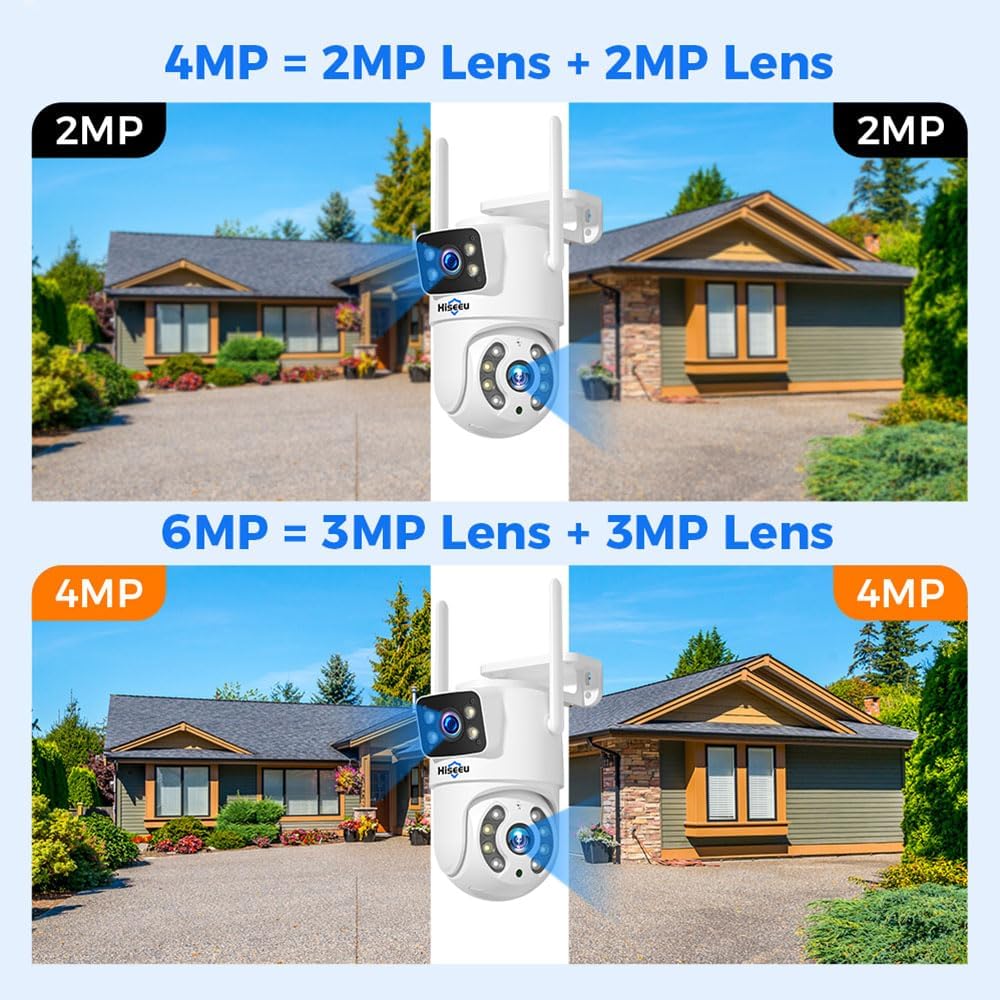
Figure 5.1: 6MP Dual-Lens Resolution. This image clarifies that the 6MP resolution is achieved by combining the output of two 3MP lenses, providing a higher quality image compared to a 4MP system using two 2MP lenses.
6. Setup
6.1. App Installation
Download and install the ICsee app on your smartphone from your device's app store (Google Play Store for Android or Apple App Store for iOS).
- Search for "ICsee" in your app store.
- Download and install the app.
- Register a new account or log in if you already have one.
6.2. Mounting the Camera
The OUNA WS318 camera is designed for wall mounting. Choose a suitable location that provides the desired viewing angle and is within range of your WiFi network or wired internet connection.
- Mark the drilling positions on the wall using the camera's mounting base as a template.
- Drill holes at the marked positions.
- Insert wall plugs (if necessary) into the drilled holes.
- Secure the camera's mounting base to the wall using the provided screws.
- Attach the camera to the mounting base.
6.3. Power Connection
Connect the provided DC12V/1A power adapter to the camera's power port and then plug it into a power outlet.
- Ensure the power source is stable.
- For outdoor use, ensure the power connection is protected from weather elements.
6.4. Network Connection and Pairing
The camera supports both 2.4G WiFi and RJ45 wired connections.
6.4.1. WiFi Connection (Recommended)
- Power on the camera. Wait for the camera to initialize (you may hear a prompt sound).
- Open the ICsee app and tap "Add Device" or the "+" icon.
- Select "WiFi Camera" or "Add by WiFi".
- Follow the on-screen instructions to connect the camera to your 2.4G WiFi network. This usually involves entering your WiFi password and scanning a QR code generated by the app with the camera.
- Once connected, the camera will appear in your device list in the app.
6.4.2. Wired Connection (Optional)
- Connect an Ethernet cable from your router to the camera's RJ45 network port.
- Power on the camera.
- Open the ICsee app and tap "Add Device" or the "+" icon.
- Select "Wired Camera" or "Add by LAN". The app should automatically detect the camera on your local network.
- Follow any remaining prompts to add the camera to your device list.
7. Operation
7.1. Dual-Lens Functionality
The OUNA WS318 features a dual-lens system, providing two distinct video feeds within the ICsee app. One lens offers a fixed panoramic view, while the other is a PTZ (Pan-Tilt-Zoom) camera for detailed tracking.

Figure 7.1: Dual-Lens, Dual-Screen View. This image illustrates how the camera's two lenses work: one provides a wide, fixed panoramic view, and the other is a PTZ camera capable of automatic tracking, both displayed simultaneously in the app.
7.2. PTZ Control (Pan-Tilt-Zoom)
Control the rotatable lens directly from the ICsee app to adjust the viewing angle.
- In the app, select the PTZ camera feed.
- Use the directional controls to pan (horizontal rotation up to 355°) and tilt (vertical rotation up to 90°) the camera.
7.3. Night Vision Modes
The camera offers multiple night vision modes for clear monitoring in low-light conditions.

Figure 7.2: Three Night Vision Modes. This image demonstrates the camera's capabilities in low light, showing clear color vision with white light, traditional black and white infrared vision, and a 'Double Light Vigilance' mode that combines both for enhanced security.
- Infrared Mode: Provides black and white video in complete darkness using IR LEDs (range 10-15m).
- Full-Color Mode: Activates white LEDs to provide full-color video in low light (range 8-12m).
- Smart Mode (Double Light Vigilance): The camera operates in infrared mode and automatically switches to full-color mode when motion is detected, illuminating the area.
You can switch between these modes in the ICsee app settings.
7.4. AI Humanoid Detection & Auto Tracking
The camera can intelligently detect human shapes and track their movement.

Figure 7.3: AI Humanoid Detection. This image illustrates the camera's ability to identify human figures, triggering an alarm and sending a notification to the ICsee app, enhancing security by focusing on relevant events.

Figure 7.4: Auto Tracking Function. This image shows the camera's smart tracking capability, where it automatically follows moving subjects, such as children playing, ensuring continuous surveillance of dynamic scenes.
- AI Humanoid Detection: When enabled, the camera will specifically identify human shapes, reducing false alarms from pets or other moving objects. Alerts will be pushed to your ICsee app.
- Auto Tracking: The PTZ lens will automatically follow detected human movement within its field of view.
Configure these features in the camera settings within the ICsee app.
7.5. Two-Way Audio
Communicate with people near the camera using the built-in microphone and speaker.

Figure 7.5: Two-Way Audio Communication. This image illustrates the seamless two-way audio feature, allowing users to speak and listen through the camera via the ICsee app, facilitating interaction with individuals at the camera's location.
- In the live view interface of the ICsee app, tap the microphone icon to speak.
- Tap the speaker icon to listen to audio from the camera's location.
7.6. Remote Viewing and Multi-Device Sharing
Access live footage and recorded videos from anywhere using the ICsee app.
- Ensure your camera is connected to the internet.
- Open the ICsee app on your smartphone to view live feeds.
- You can share access to your camera with other family members or authorized users through the app's sharing features.
7.7. Storage Options
The camera supports two methods for video recording storage:
- TF Card Storage: Insert a MicroSD (TF) card (up to 128GB, not included) into the camera's memory card slot. The camera will automatically record footage to the card. You can view playback directly from the app.
- Cloud Storage: The ICsee app offers optional cloud storage services (subscription may be required). This provides off-site backup for your recordings.
8. Maintenance
- Cleaning: Use a soft, dry cloth to clean the camera lens and body. Do not use harsh chemicals or abrasive cleaners.
- Firmware Updates: Regularly check the ICsee app for available firmware updates for your camera. Keeping the firmware updated ensures optimal performance and security.
- Network Stability: Ensure your WiFi network is stable and strong, especially if the camera is installed far from the router.
- Power Supply: Verify that the power adapter and cable are in good condition and free from damage.
9. Troubleshooting
| Problem | Possible Cause | Solution |
|---|---|---|
| Camera offline in app | No power; WiFi disconnected; Router issue. | Check power connection; Restart camera and router; Reconnect WiFi in app. |
| Cannot connect to WiFi | Incorrect WiFi password; 5G WiFi network; Camera too far from router. | Verify password; Ensure 2.4G WiFi is used; Move camera closer or use a WiFi extender. |
| No video recording | No TF card inserted; TF card full/corrupted; Cloud storage not activated. | Insert/replace TF card; Format TF card in app; Activate cloud storage. |
| Poor image quality | Dirty lens; Insufficient lighting; Network bandwidth issues. | Clean the lens; Ensure adequate lighting or enable night vision; Check network speed. |
| Two-way audio not working | Microphone/speaker muted in app; Volume too low; Network delay. | Check app audio settings; Adjust volume; Ensure stable network connection. |
If the problem persists after trying these solutions, please contact customer support.
10. Warranty and Support
OUNA products come with a standard manufacturer's warranty. Please refer to the warranty card included in your package or visit the official OUNA website for detailed warranty terms and conditions.
For technical support, troubleshooting assistance, or warranty claims, please contact OUNA customer service through the contact information provided on their official website or within the ICsee app.
When contacting support, please have your product model (WS318) and purchase information ready.